NTFS or FAT32, Which File System Should I Use for USB, Windows and Mac
NTFS or FAT32, Which File System Should I Use for USB, Windows, and Mac - Qiling?
| Workable Solutions | Step-by-step Troubleshooting |
|---|---|
| 1. What is NTFS System Format? | New Technology File System NTFS is a file system that stores, organizes, and finds the file on the hard disk....Full steps |
| 2. What is FAT 32 File System Format? | File Allocation Table, FAT32 is a file system capable of organizing all the files stored in the disk drive....Full steps |
| 3. NTFS vs FAT32, Which is Better? | FAT32 and NTFS are file systems that an operating system uses to track and manage disk files....Full steps |
| 4. NTFS or FAT32, Which File System to Use for USB, Windows, and Mac? | Every file system has features and limitations supporting a certain operating system....Full steps |
| 5. How to Set up a File System Format on USB for Windows and Mac? | When a user tends to set up a file system, he requires a hassle-free system that works perfectly....Full steps |
What is NTFS System Format?
NTFS (New Technology File System) is a file system that manages and stores files on a hard disk, allowing users to organize and locate them efficiently. It is essentially equivalent to the file allocation table (FAT) used in Windows 95 and the High-Performance File System.
NTFS is a file system used by Microsoft and other removable storage devices to organize, name, and store files. It can also format solid-state drives (SSDs), hard disk drives (HDDs), SD cards, and USB drives for use with Windows operating systems.
NTFS works by formatting a hard drive and dividing it into partitions. Each file is then stored and distributed across one or more clusters of a predefined hard disk size, ranging from 512 bytes to 64 kilobytes. The cluster size can be controlled, and effective disk space allocation is crucial for file organization, allowing for efficient storage and retrieval of data.
What is FAT 32 File System Format?
FAT32 is a file system that organizes files stored on a disk drive, using 32 bits to store addresses and distinguishing it from its predecessor FAT 16. It is created at the beginning of the drive to store information, with disk drivers called sectors.
FAT32 is a disk format that can be read by both Windows and Mac, and in some cases, it also functions as a mobile storage media device. However, FAT32 is no longer a cross-platform standard and has been succeeded by more advanced formats that offer greater disk space. Despite this, FAT32 can still be used on various storage devices, including 2.5 and 3.5 inch hard drives and modern flash storage like SSDs.
NTFS vs FAT32, Which is Better?
FAT32 and NTFS are file systems that operating systems use to manage disk files. A file system is necessary to use a hard drive, but not all operating systems support all file systems. FAT32 is readable on both Windows and MAC, making it a more universal option. In contrast, NTFS is a more advanced file system that offers better performance, but its support is not as widespread as FAT32.
NTFS and FAT32 are two file systems used in Windows operating systems. While both support long file names, NTFS offers more features such as security permissions, compression, and encryption, making it more suitable for business use. FAT32, on the other hand, is simpler and more compatible with older operating systems and devices, but lacks the advanced features of NTFS.
| Characteristics | FAT32 | NTFS |
|---|---|---|
| Year of Publishing | 1977 | July 1993 (Windows NT 3.1) |
| Compatible OS | Windows 95/98/2000/2003/XP | Windows NT/2K/XP/Vista/7/8/10, macOS X, Linux |
| Max File Size | About 4 GB. File size limits are 2,147,483,647 bytes (2 GiB – 1) without LFS, 4,294,967,295 bytes (4 GiB – 1) with LFS, and 274,877,906,943 bytes (256 GiB – 1) only with FAT32. | 16 EiB – 1 KiB, 16 TiB – 64 KiB, 256 TiB – 64 KiB. |
| Max Partition Size | 2 TiB, 8 TiB, and 16 TiB are the maximum storage capacities for a hard drive, depending on the sector and cluster configurations. | 264 clusters are used in the format, but only 256 TB of data can be stored, which is 64 KB in implementation. |
| Speed | Low | Relatively higher than other file Systems |
| Suitable Storage device | USB drives, flash memory cards and external hard drives | HDDs, USB drives, and micro SD cards are storage devices used with Windows. They are used to store and transfer data, programs, and operating systems. |
NTFS or FAT32, Which File System to Use for USB, Windows, and Mac?
The file system used on a device or operating system has its own features and limitations. For example, a USB drive can use the FAT32 file system, while a Windows computer can use NTFS, and a Mac computer can use APFS. Each file system has its own characteristics, such as the maximum file size and number of files it can support, which are tailored to the specific operating system it is designed for.
1. NTFS or FAT32, Which to Use for USB/Bootable USB?
Most USB boot sticks, including those created by the Microsoft Store Windows USB/DVD download tool, are formatted as NTFS. However, this poses an issue for Windows 8, as it cannot boot from an NTFS drive, and instead requires a FAT32 format for bootability.
2. NTFS or FAT32, Which to Use for Windows Hard Drive or SSD?
NTFS is suitable for file exchange between Windows operating systems, while FAT32 is recommended for SSDs used as portable drives to transfer data among different devices.
3. NTFS or FAT32, Which to Use for Mac?
FAT32 is a good option for Mac users because it's readable and writable on both Mac and Windows, whereas Mac can only read NTFS.
4. NTFS or FAT32, Which to Use for Gaming?
NTFS is a more secure and space-efficient file system, making it a popular choice for gaming, where it can take up less space on the hard drive while still providing a secure environment.
Bonus Tip: How to Set up a File System Format on USB for Windows and Mac?
When setting up a file system, it's ideal to have a format that works seamlessly on both Windows and Mac. FAT32 is a suitable option as it is readable on both operating systems, eliminating compatibility issues. To make a USB drive usable on both Windows and Mac, consider using the FAT32 file system, which provides a hassle-free experience across different platforms.
Option 1. Create FAT32 Partitions on USB
When an external hard drive or USB is connected to the system, it requires partitioning, which can be done using the Disk Management tool. To create FAT32 partitions on a USB drive, follow these steps:
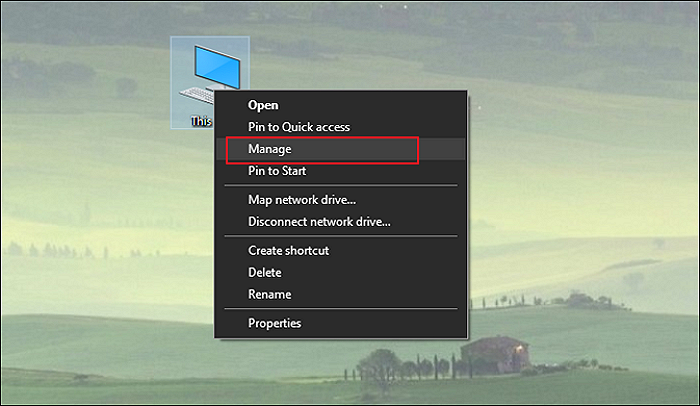
Step 1. Go to Disk Management.
Step 2. To format a USB drive, right-click on it and select Format. From the file system dropdown list, choose FAT32, then click Next.
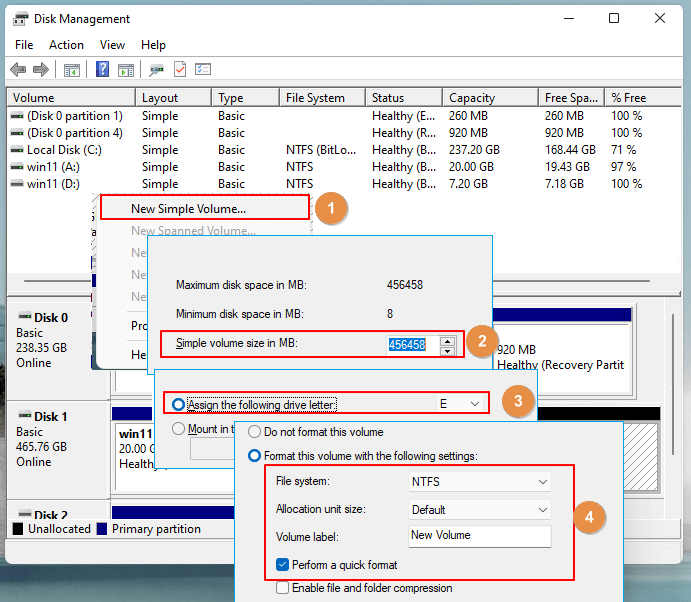
Step 3. When you create a partition on an external hard drive, you can reformat it into a drive, but this process can result in data loss on the targeted partition.
Option 2. Convert NTFS to FAT32
The NTFS file system is not readable on both Windows and Mac, creating a barrier for data transfer. To overcome this limitation and make NTFS reusable on both platforms, Qiling Partition Master is a recommended solution. This tool can convert NTFS to FAT32, making it readable on Windows and Mac, and also offers features like creating disk layouts and boosting system speed. By using Qiling Partition Master, users can avoid the inconvenience of NTFS incompatibility and enjoy seamless data transfer between Windows and Mac.
- Capable of migrating operating system
- Converts MBR to GPT without data loss
- Increase C drive allocated space
- Creates partitions in Windows 10 drives
Here are specific steps provided for you to convert NTFS to FAT32 with this software:
Step 1. To convert the target device partition to FAT, follow these steps: Click on the target device partition, then select the option "More..." and choose "Convert to FAT".
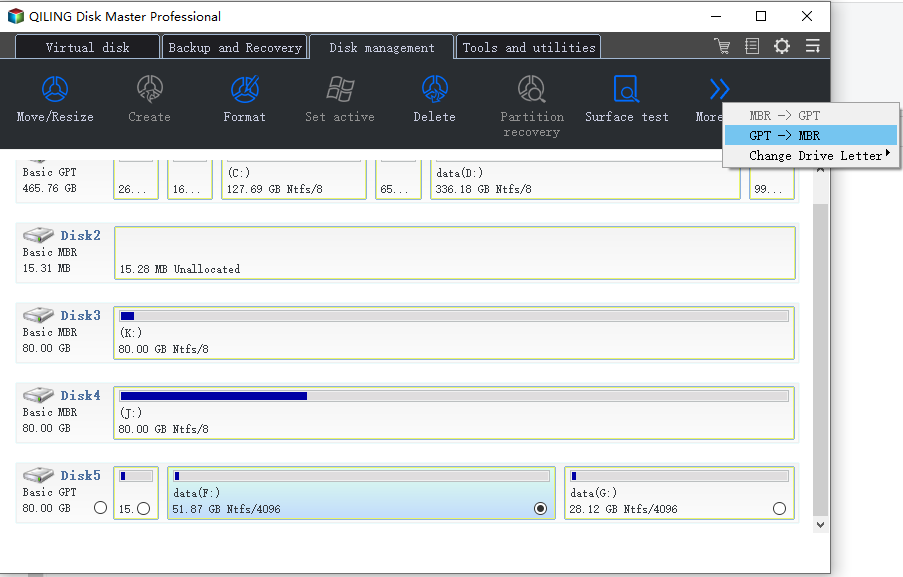
Step 2. When the check process is finished, click "Continue" to start the conversion from NTFS to FAT32.
Conclusion
NTFS and FAT32 are both reliable disk formats, but NTFS is faster and used only in Windows, while FAT32 is readable on both Windows and Mac. For a USB, use FAT32 for convenience and to avoid format conversion issues.
Related Articles
- Fix Windows 11 Update Stuck at 0%, 100% on Your Own - Qiling
- Disk Read Only Fix: How to Change Drive from Read Only to Read Write (5 Ways)
- M.2 VS SATA, What's The Differerence and How to Install [2022 Guide]
- How to Decrypt and Format Encrypted SD Card [2022 Updated]
- [Tutroial]: How to Use DiskPart Extend Partition in Windows 11, 10, 8, 7
Learn how to use DiskPart to extend a partition in Windows 11, 10, 8, and 7. Step-by-step guide with commands including list disk, select disk, list partition, select partition, and extend size. Also covers a free GUI alternative for easier partition extension. - DiskPart: Format Disk Partition in Windows 11, 10, 8, 7
DiskPart format command enables you to quick format a disk partition in Windows 11, 10, 8, 7. Here comes the step-by-step guide.
Products
Articles & Tutorials
- Data Recovery
- Data Backup
- File Recovery
- File Backup
- System Backup and Restore
- Disk and Partition Clone
- Technical articles
- Mobile articles
- Disk Master Help
- Windows Data Recovery Tutorials
- Windows Secure Delete Tutorials
- Windows Partition Management Tutorials
- Windows File Backup and Restore Tutorials
- Windows System Backup and Restore Tutorials
- Windows Disk Backup and Restore Tutorials
- Windows Clone Tutorials