Linux File Backup - 5 Best Softeware for Linux Desktop and Server
To avoid permanent data loss, it's essential to backup your data, and cloud services have become a convenient solution. However, for a Linux file, a daily backup requires a complete Linux desktop backup.
Backing up large amounts of data is a challenge, especially with cloud storage services like OneDrive and Google Drive, which can be time-consuming and require subscription plans for storage. Even uploading files to a server can be a tedious process.
Therefore, this write-Up helps users understand the significance of backing up files and provides a list of the top 5 Linux file backup software, including the software options below.
The Importance of Backing Up Files
People often ask why backing up files is crucial, so let's start by understanding the importance of it. The main reason is that backing up your files protects them from being lost due to various reasons such as hardware failure, software corruption, cyber attacks, or even accidental deletion. By having a backup, you can restore your files and maintain continuity, saving you time, effort, and potentially even financial losses.
The primary goal of data backup is to create a recoverable copy of your data in case of tragic loss, especially for those handling sensitive information. It also serves as a secondary backup in case of primary data failure due to hardware or software issues, making it ideal for businesses. By saving files, you can save time when compiling annual reports and determine your company's value.
Now that you understand the importance of backing up files, let's explore the 5 efficient software for Linux file backup, which will help you safeguard your data and prevent potential losses in case of system crashes or other unforeseen events.
5 Best Linux File Backup Software for Desktop and Server
Here are the 5 best and most efficient Linux file backup software in one paragraph:
1. Bacula
Tag: Enterprise ready with advanced storage management features
Compatibility: Server
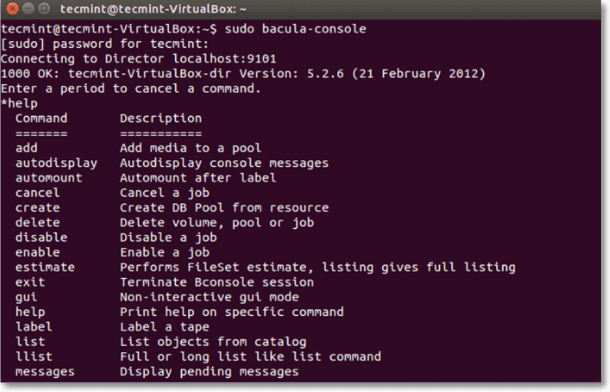
BaculaBacula is the most popular open-source server backup software for Linux users, offering wide usability and a large contributor base. It handles large data volumes and allows syncing data from different networks.
The data scheduler feature allows end-users to automate the backup process, making it easy to adjust backup frequency and have everything taken care of.
Pros:
- Offer an interactive user interface
- Support duplicate job control feature
- Bring a proactive report of your enterprise
- Provide virtual backups and TLS authentication
Cons:
- Beginners may take time to learn this software
- Take time to search for the proper documentation
2. Clonezilla
Tag: Offer a high-speed multicast restore service that can restore data at a rate of 8GB per minute, and also provide backup capabilities for individual systems and large-scale deployments.
Compatibility: Desktop and Server
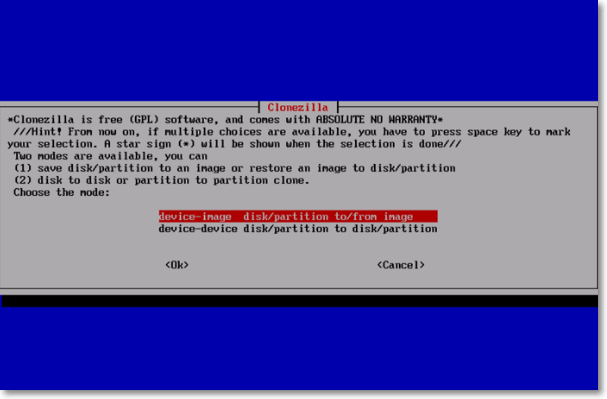
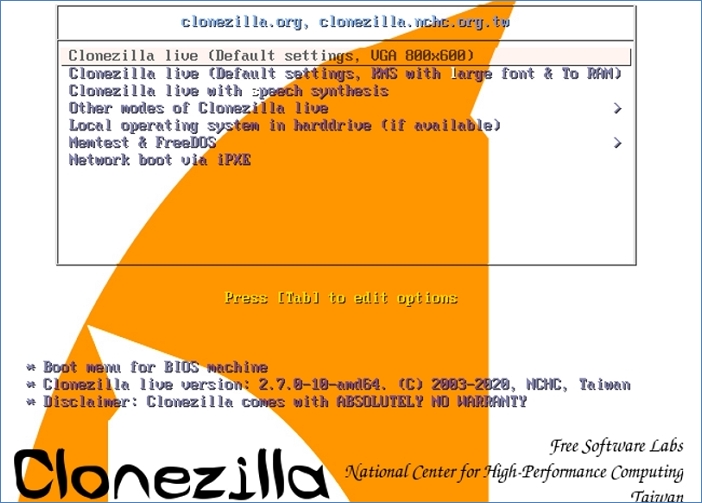
Clonezilla, available at https://clonezilla.org/, is a free backup tool that specializes in cloning, disk imaging, and more. It offers features like UDPcast, partial cloning, and image partitioning, catering to both general users through Clonezilla Live and server usage through Clonezilla SE.
Even allows you to perform Linux data backup to a local drive, NFS server, SSH server, and SAMBA server, providing flexibility in data storage options. Additionally, it supports Diskless Remote Boot on a Linux desktop, which is ideal for user desktops.
Pros:
- Allow massive multicast cloning
- Offer image and AES-256 encryption
- Let you back up multiple file systems
- Support UEFI and BIOS machine
Cons:
- Unable to restore a single image
- Require customization during cloning and imaging

Download Clonezilla Alternative for Windows 11/10/8/7 for Easy Clone
Clonezilla is free and open-To make HDD or SSD cloning easy, fast and safe, download this command-line based disk cloning software, a Clonezilla alternative for Windows, perfect for beginners.
3. Timeshift
Tag: Support excluding filters with multiple backup levels
Compatibility: Desktop
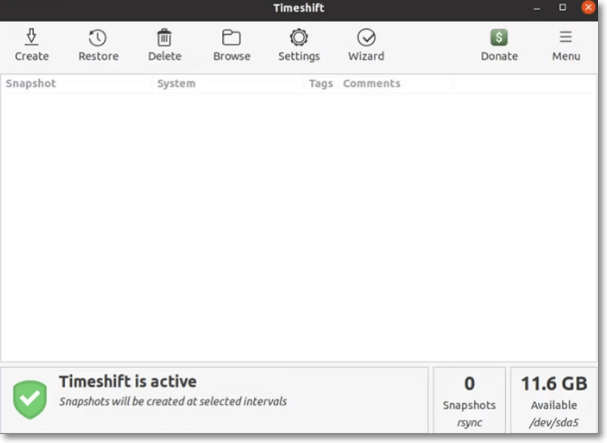
TimeshiftTimeshift is a powerful backup and restore software that helps protect your Linux desktop by taking snapshots of all files at regular intervals. It uses Btrfs or Rsync on the backend to store these snapshots, providing a reliable way to backup and restore your system. (Source: https://github.com/teejee2008/timeshift)
The software allows for backups of files and settings to be stored on external devices if needed. Additionally, it offers a unique feature of scheduled snapshots.
Pros:
- Simple to use and easy to configure
- Ensure no loss of data during backup creation
- Let you restore snapshots during live system runtime
Cons:
- Unable to take snapshots of pictures and music
- Can't transfer snapshots to Cloud automatically
4. Rsync
Tag: A CLI-driven tool that enables users to easily transfer backup data to an online cloud destination.
Compatibility: Desktop and Server
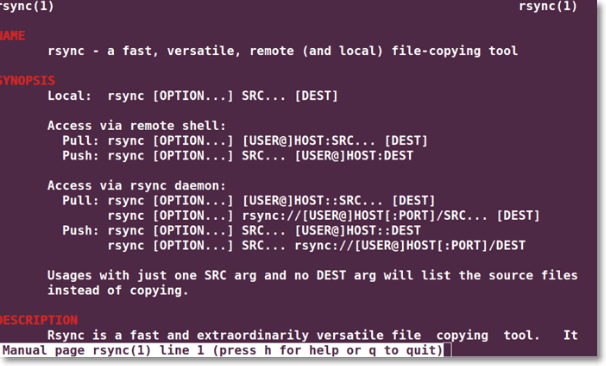
RsyncRsync is a popular command-line tool among Linux desktop users, offering system backup services. It features incremental backups and can update the entire file directory tree, preserving file ownership, permissions, links, and more.
The software allows for local and remote backups, accommodating users' preferences. It also enables automation of backup processes through the use of cron jobs and scripts, making it a valuable tool for professional administrators.
Pros:
- Help you sync two servers effortlessly
- Offer a graphic user interface as Grsync
- Support rsync for anonymous mirroring
Cons:
- Show instability while processing massive data
- Prove beneficial for the experts mostly
5. Back in Time
Tag: Capable of working on KDE and GNOME-based desktops
Compatibility: Desktop
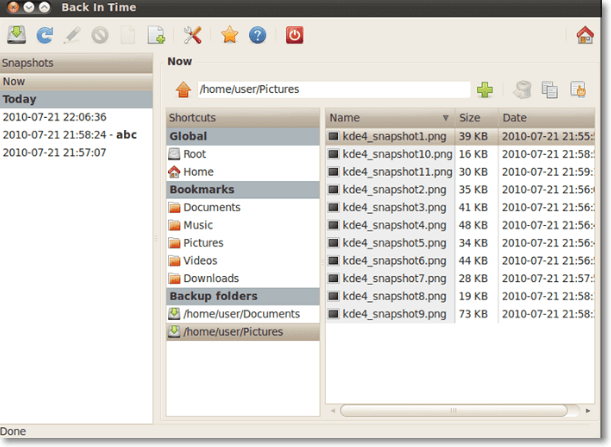
Back in Time is a tool that allows you to transfer directory, system, and file data back in time, similar to Timeshift. It captures snapshots and records them in a directory as a backup, with the tool itself being written in Python3 and QT, but saving backups in simple text.
You can automatically or manually back up your data, and even choose where to store snapshots.
Pros:
- Easy and simple to use backup tool
- Support automatic and scheduled backups
- Store file permissions in a compressed file
Cons:
- Require adding a PPA repository before installation
- Use non-labeled and non-intuitive icons
For Linux users, there are several whole-disk backup software options available, including the software options below. Additionally, if you're looking for ways to recover lost data on Linux, you can find more information on the topic by clicking here.
The Ending Words
While there are many Linux file backup software options available, the top 5 recommendations for desktop and server backup are Timeshift and Back in Time for desktop backup, and Bacula for server backup, making them the most valuable choices for users.
Rsync and Clonezilla are both capable of backing up Linux files, suitable for both desktops and servers. You can choose the one that best fits your needs.
FAQ on Linux File Backup
For more information, you may also want to ask:
1. What is .BAK file in Linux?
In Linux, files being backed up are saved with the .BAK extension, indicating they are a copy of the original file.
2. How do I backup and restore files in Linux?
In Linux, you can use backup commands like tar, cpio, ufsdump, Dump, and restore to backup and restore files, which are suitable for small setups. For larger backups, customized options like Amanda, EMC networker, and Symatic netbackup are recommended. Additionally, using software like Timeshift and Rsync can also be beneficial for backup and restore purposes.
3. Does Linux have a backup?
Linux offers various tools for backup, including Tar, which allows for desktop or server backup and can handle data on multiple devices. For network backups, command tools like SSH and NetCat (NC) can be used. However, Dump is an older procedure that was used to backup entire Linux file systems, rather than individual files.
Related Articles
- 5 Ways to Uninstall Application on Mac [Complete Guide]
- Windows Solution: Can't Create Restore Point Windows 10
- What If Error Message -- We Couldn't Find Any Drives Appears? [2023 Fixed]
- Windows 10 Quick Access Not Working, Not Responding, Slow to Open
- Primary vs. Extended Partition | Compare Their Features and How to Manage Them
Learn the key differences between primary and extended partitions on MBR disks. Find out when to use each type, how to create them, and how to convert between primary and logical partitions. - 6 Fixes: Windows Has Problem Ejecting USB Mass Storage Device
This article is mainly about the problem of failed to eject USB mass storage devices. No matter you are using a USB flash drive or an external hard drive, you can apply the methods introduced on this page to solve your problem.
Products
Articles & Tutorials
- Data Recovery
- Data Backup
- File Recovery
- File Backup
- System Backup and Restore
- Disk and Partition Clone
- Technical articles
- Mobile articles
- Disk Master Help
- Windows Data Recovery Tutorials
- Windows Secure Delete Tutorials
- Windows Partition Management Tutorials
- Windows File Backup and Restore Tutorials
- Windows System Backup and Restore Tutorials
- Windows Disk Backup and Restore Tutorials
- Windows Clone Tutorials