How Do I Format External Hard Drive for PS5? Follow and Learn How-To
The PS5 is an upgraded version of the PS4, released in November 2020, featuring improved storage and faster speeds, but with a limited storage capacity of 667GB.
The PS5's storage limitation necessitates the use of an external hard drive for additional storage and backup purposes. To utilize an external hard drive, it must support a fast data transfer rate, specifically USB 3.0/3.2. This allows for the storage of more games and backup files.
The external hard drive should have a storage capacity between 250GB and 8TB, and be connected directly to the back USB ports, without using a USB hub. Additionally, it needs to be formatted before use on the PS5.
To format an external hard drive for PS5, you'll need to use a computer. Connect the drive to your computer and format it using the operating system's built-in formatting tool. Make sure the drive is set to FAT32 or exFAT file system, as these are compatible with PS5. Once formatted, you can then connect the drive to your PS5 and use it to store and play games.
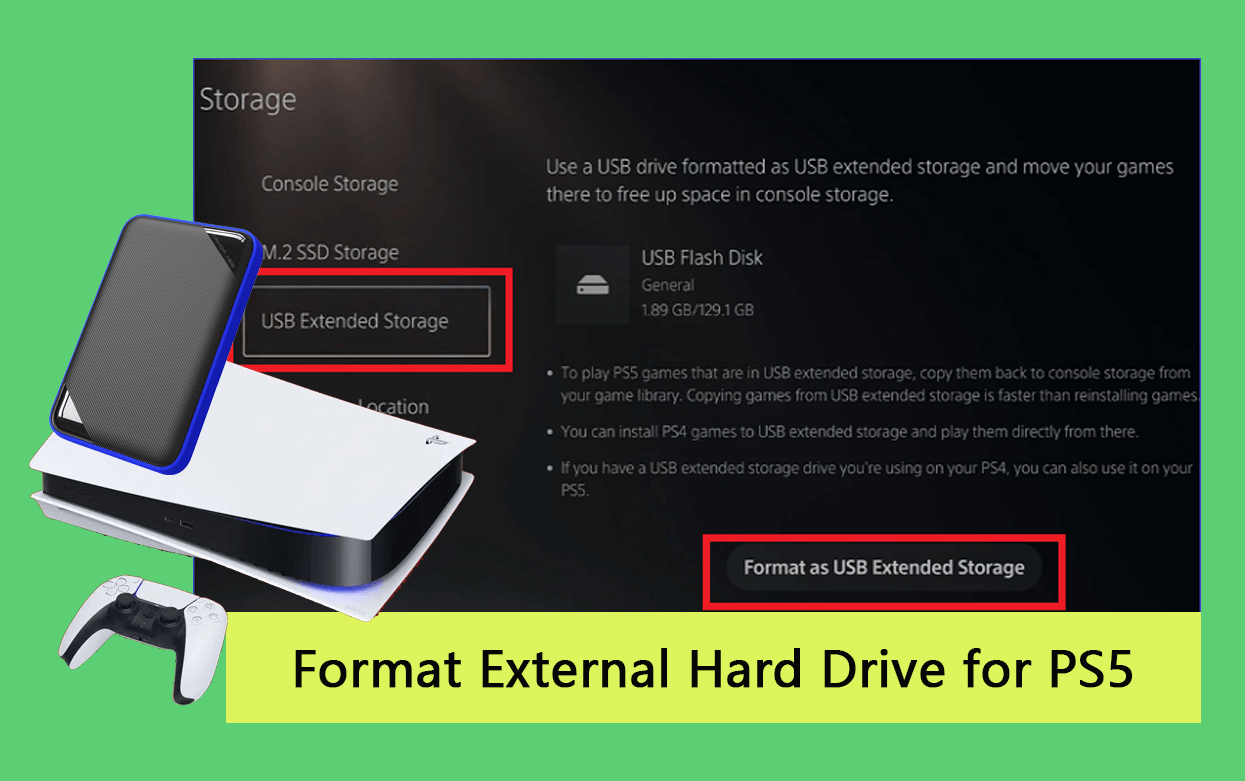
What Format Does PS5 Need for External Hard Drive?
The PS5 supports both exFAT and FAT32 file formats, but exFAT is recommended as it has no file size restrictions, allowing for single files larger than 4GB.
Selecting exFAT over FAT32 is better for storing PS5 games on an external hard drive, as it allows for improved operability and easy file copying.
How to Format External Hard Drive for PS5 (Your Guide Here)
To format an external hard drive for use with your PS5, you can follow a straightforward guide. You can either format the drive on your PC or directly on the PS5 console. The process is simple and will be covered in this guide, ensuring you're able to use your external hard drive with your PS5 without any issues.
Method 1. Format External Hard Drive for PS5 on PC
To format an external hard drive for use on PS5, you can use free software like Qiling Disk Master or a Windows built-in tool like Windows Explorer. Using Qiling Disk Master is a straightforward process where you simply select the drive you want to format, choose the format type, and confirm the action. Alternatively, you can use Windows Explorer to format the drive by right-clicking on the drive, selecting "Format," and following the on-screen instructions.
#1. Format External Hard Drive for PS5 with Qiling Disk Master
The best way to format an external hard drive for PS5 is using Qiling Disk Master Free, which allows formatting from NTFS to FAT32, overcoming FAT32 limits, and erasing all data, including disk partitions.
To use your external hard drive on a PS5 for the first time, you'll need to format it using Qiling Disk Master, which you can download and install on your computer. This will set up the external disk in a format compatible with your device.
Step 1. Launch Qiling Disk Master, right-click the partition on your external hard drive/USB/SD card which you want to format and choose the "Format" option.

Step 2. Assign a new partition label, file system (e.g.

Step 3. To start formatting your external hard drive, USB, or SD card, click the "Proceed" button. This will initiate the formatting process, which will erase all data on the drive.

Step 4. In the Warning window, click "Yes" to continue.
Qiling Disk Master is a powerful software that not only allows you to manage your disks but also serves as a disk optimizer. With it, you can quickly clean up all data on existing disk partitions with just one click, and also check your drive for file system errors if it's not functioning correctly. Additionally, the software's "Surface Test" feature enables you to check the health state of your external hard drive and fix bad sectors, allowing you to format your external hard drive and perform various other functions.
If you like using Qiling Disk Master to format an external hard drive for your PS5, you can share this with others by clicking the social button below.
#2. Format External Hard Drive for PS5 Using File Explorer
To prepare an external hard drive for use on a PS5, you can format and clear all data on it using File Explorer. Simply follow these steps to achieve this.
Step 1. To transfer files from your computer to an external hard drive, plug the external hard drive into your computer and open File Explorer.
Step 2. To format a drive, locate it and right-click on it, then select "Format" from the menu.
Step 3. Choose a file system, rename your drive, and select the "Quick Format" option.
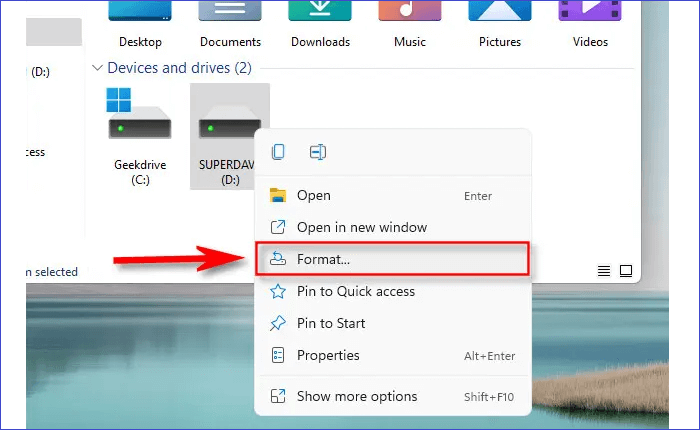
Step 4. To begin, click on the Start button, and your PC will initiate the process of formatting the external hard drive.
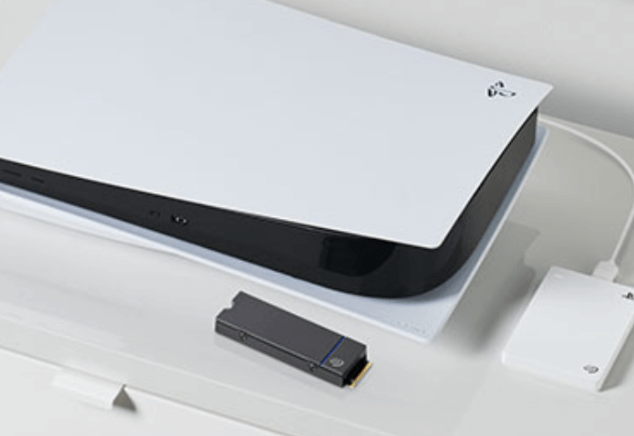
Solved: PS5 Not Recognizing External Hard Drive - 2023
The issue of a PS5 not recognizing a USB drive can be frustrating, and understanding the possible reasons behind it is key to resolving the problem. The PS5 may not recognize a USB drive due to various reasons, including a faulty USB drive, incorrect formatting, or a problem with the PS5's USB port. To troubleshoot the issue, users can try plugging the USB drive into a different USB port on the PS5, checking the drive's formatting, or using a different USB drive altogether.
Method 2. Format External Hard Drive for PS5 Using PS5 Console
If it's the first time using an external hard drive on a PlayStation console, you'll need to format it first to make it compatible with your device. To format an external hard drive for PS5 using a PS5 console, follow these steps: insert the external hard drive into the PS5, navigate to Settings > Storage > External HDD, select the drive and choose Format. This will erase all data on the drive, so make sure to back up any important files before proceeding.
Step 1. Connect the external hard drive to the back of your PS5 console.
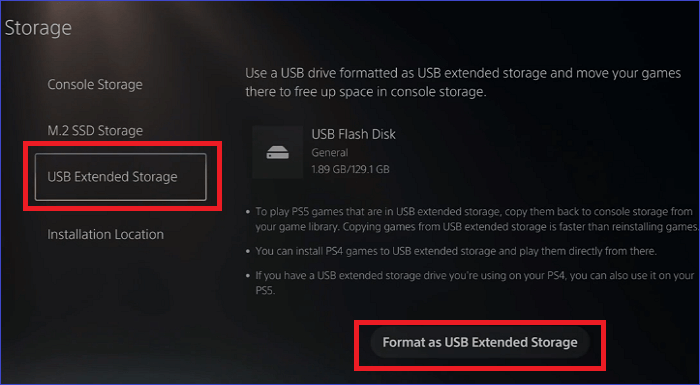
Step 2. Using the controller, go to "Settings" and then "Storage".
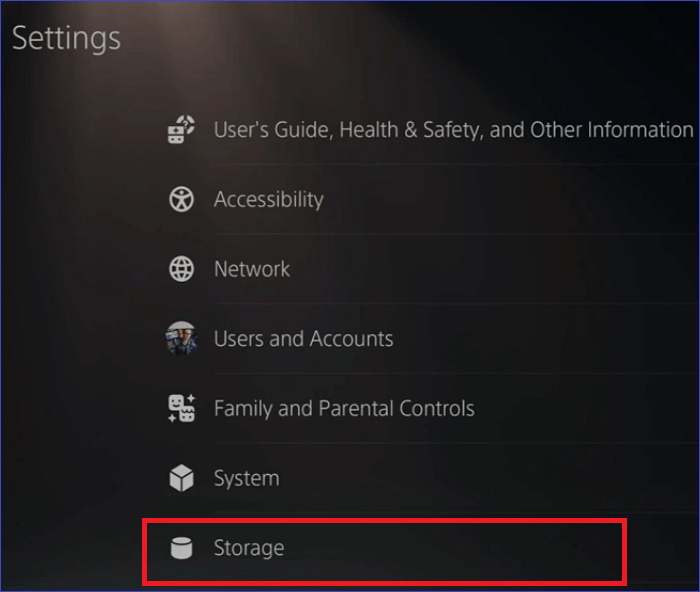
Step 3. To format your external hard drive, select "USB Extended Storage" from the menu and choose "Format as USB Extended Storage". This process may take some time, so be patient.
BONUS TIP:
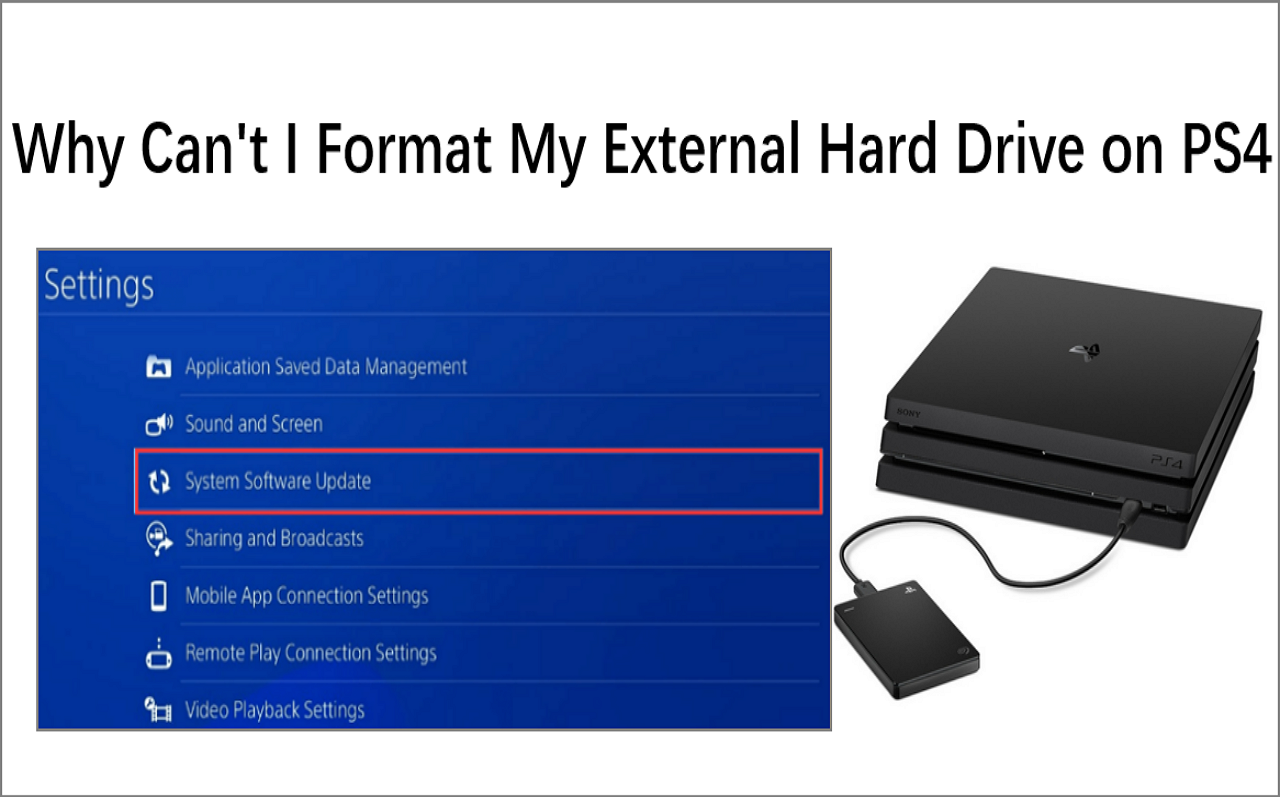
It doesn't matter if you are unable to format external hard drive on PS5. Here is a tutorial guide that assist you fix the same issue of being unable to format external hard drive on PS4 and you can follow to learn the fixes. Here we go:
Why Can't I Format My External Hard Drive on PS4
Have you arrived with the same problem as the above? Are you also wondering, "why can't I format my external hard drive on PS4"? There are many ways to format for PS4. Follow and get the answers and fixes.
Conclusion
Formatting your external hard drive before using it with your PS5 is crucial. You can format it using Qiling Partition Manager software, which is the recommended method. Alternatively, you can also use File Explorer or the PS5 console itself to format the drive. However, using Qiling Partition Manager is the most effective way to ensure your external hard drive is properly formatted for PS5 use.
Qiling Disk Master is a tool that allows you to wipe out all data and partitions on your drive, as well as change the file system from NTFS to FAT32. To use it, simply download and install the free version of the software on your computer.
FAQs about Formatting External Hard Drive for PS5
Below are common questions about formatting external hard drives for PS5.
1. Why Can't You Play PS5 Games from External Hard Drive?
Playing PS5 games from an external hard drive is not recommended due to their slow speed, which can cause issues with the console's performance. It's best to play games from the internal drives for a smoother gaming experience.
2. Can I Use a Regular External Hard Drive for PS5?
You can use any external hard drive that supports USB 3.0 with your PS5, as long as it connects via the back of the console.
3. What Format Does USB Need to be for PS5?
The PS5 supports either exFAT or FAT32 file formats, but exFAT is the more suitable option due to its ability to handle larger files and provide a more user-friendly experience.
4. Why Can't I Format My Hard Drive on PS5?
The PS5 console may not recognize an external hard drive due to its file format, which is not supported by the console. To resolve this, format the drive to either FAT32 or exFAT, which are the only file formats compatible with the PS5. This should allow the console to recognize and utilize the external hard drive.
Related Articles
- How to Check Seagate SSD Temperature on Windows 10/11
- How to Fix HP Laptop Running Slow on Windows 11/10 [2023 Newest]
- How Do I Format Samsung SSD in Windows 10/11 [Easy & Efficient Ways]
- How to Clone 1TB HDD to 2TB SSD Without Reinstalling on Windows 11/10/8/7
- Fix Not Enough Disk Space But There Is Plenty [Five Solutions]
There are several reasons why your computer may say there is not enough disk space, despite having plenty of free space available. This issue can be caused by various factors such as corrupted system files, incorrect disk space calculations, or software issues. - Best NTFS to exFAT Converter [2024 Top]
Struggling to use your drive on both Windows & Mac? Convert NTFS to exFAT quickly and safely with a top-rated converter for 2024, which is compatible with both Windows and Mac operating systems.
Products
Articles & Tutorials
- Data Recovery
- Data Backup
- File Recovery
- File Backup
- System Backup and Restore
- Disk and Partition Clone
- Technical articles
- Mobile articles
- Disk Master Help
- Windows Data Recovery Tutorials
- Windows Secure Delete Tutorials
- Windows Partition Management Tutorials
- Windows File Backup and Restore Tutorials
- Windows System Backup and Restore Tutorials
- Windows Disk Backup and Restore Tutorials
- Windows Clone Tutorials