Best NTFS to exFAT Converter [2024 Top]
Transferring essential files from a Windows computer to a Mac or Linux-based computer can be effortless, thanks to understanding and connecting NTFS and exFAT file systems. While NTFS is specific to Windows, making it challenging to link to other systems, exFAT is compatible across both Windows and non-Windows computers, making file transfer a seamless process.
Qiling will guide you through the process of converting your NTFS drive to exFAT without losing any important data, introducing the best and most reliable NTFS to exFAT converter.
Before Converting NTFS to exFAT
To convert NTFS to exFAT, back up your data first to avoid losing it when you format the drive. This ensures your important files and folders are safe. Then, you can proceed with the conversion.
After securing your data, you'll need a professional tool to assist you. Qiling Disk Master is a powerful tool that offers various functions, including disk management and conversion. If you need to convert your disk layout from MBR to GPT, Qiling Disk Master can handle this task for you.
How do you cover NTFS to exFAT on Windows/Mac?
- Way 1. Using Qiling Disk Master - Fast & Safe
- Way 2. Using Disk Management
- Way 3. Covert NTFS Drive to exFAT on Mac
With your data backed up, we can proceed to the conversion process! We'll guide you through two convenient methods for converting your NTFS drive to exFAT: using the Qiling Disk Master tool or the built-in Disk Management utility on Windows. We'll also provide a bonus tip for Mac users, ensuring a seamless experience across platforms. Let's get started!
Way 1. Using Qiling Disk Master - Fast & Safe
Qiling Disk Master Professional is a fast and safe disk management tool that streamlines the conversion from NTFS to exFAT and offers more advanced functionalities for disk management. It provides various conversion options, a plus over the built-in Disk Management utility, making it a user-friendly tool.
Follow the steps:
Step 1. Right-click the target device partition and select "Advanced" > "Convert to FAT".
Step 2. Once the check process is complete, click "Proceed" to initiate the NTFS to FAT32 conversion.
Step 3. Click "Apply" to save all changes.
Additional Features of Qiling Disk Master:
- Convert exFAT to NTFS Without Losing Data
- Fix MBR2GPT Conversion Failed
- Fix The Specified Disk Is Not Convertible
Qiling Disk Master is a versatile tool that not only converts file systems but also transfers saved data from PS4 to PS5, making it a must-try for all disk management needs.
Way 2. Using Disk Management
To convert NTFS to exFAT on Windows using Disk Management, open the Disk Management tool by pressing the Windows key + X and selecting Disk Management. Select the drive you want to convert, right-click on it, and choose "Convert to FAT32". Then, confirm the conversion by clicking "OK".
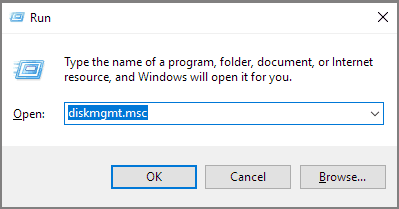
Step 1. To launch the Disk Management tool, hold down the Windows key and the R key simultaneously on your keyboard, then type "diskmgmt.msc" and press Enter. This will open the Disk Management window, where you can manage and view the disks connected to your computer.
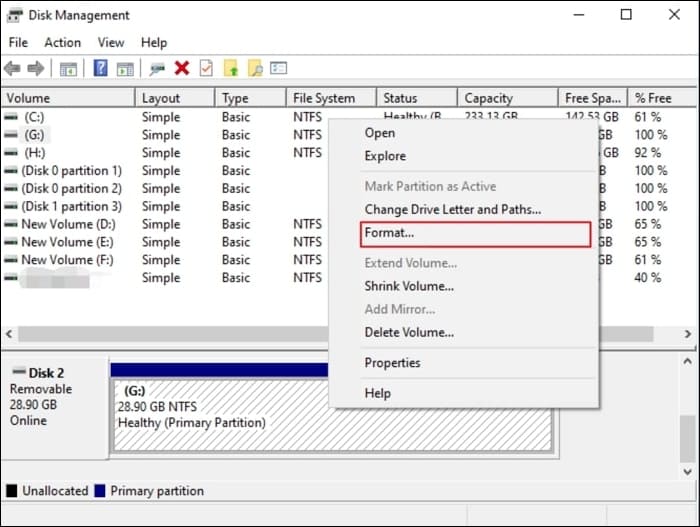
Step 2. Right-click on the NTFS drive you want to convert, then click Format from the context menu.
Step 3. If you wyou can enter a new name for your drive in the "rename" field and then click on the "rename" button to give your drive a new name.Volume label field. From the File system dropdown menu, select exFAT.
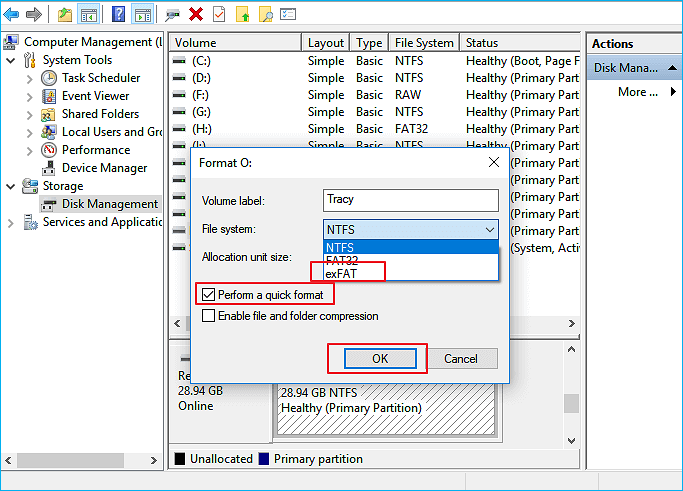
Step 4. Finally, click OK to begin formatting the drive to exFAT.
You can convert NTFS to exFAT using a few simple steps. First, you'll need to format your external drive with the exFAT file system.
Bonus Tip: Covert NTFS Drive to exFAT on Mac
Mac users can convert NTFS drives to exFAT by erasing them and reformatting them with exFAT using Disk Utility, but this method will erase the data, so creating a backup is necessary beforehand.
Follow the steps:
Step 1. Connect your external NTFS drive to your Mac.
Step 2. To use Disk Utility, follow these steps: Open Disk Utility, which can be found in Applications > Utilities. Select your startup disk from the list on the left, then click on the "Erase" tab. Select the format you want to use, such as Mac OS Extended (Journaled), and click on the "Erase" button.
Step 3. Locate your NTFS drive in the sidebar.
Step 4. Select the NTFS drive and click the "Erase" button.
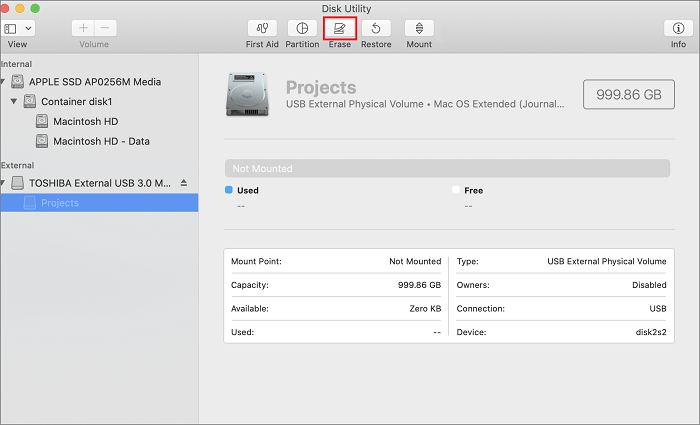
Step 5. Name your drive and select the "exFAT" format in the given field.
Step 6. To start the process of reformatting the drive to exFAT, click the "Erase" button.
Conclusion
Converting your NTFS drive to exFAT ensures compatibility across devices and operating systems. This can be done quickly and safely using various methods, such as Qiling Disk Master, which offers a fast, reliable, and user-friendly solution with advanced disk management features, or through Windows Disk Management and Mac's Disk Utility.
We highly recommend Qiling Disk Master for its comprehensive functionality and ease of use, making it a great tool for simplifying disk management tasks and ensuring seamless file transfer between digital environments.
FAQs About How to Convert NTFS to exFAT
NTFS is a file system developed by Microsoft for Windows operating systems, while exFAT is a file system also developed by Microsoft for use on various operating systems, including Windows, macOS, and Linux. Converting NTFS to exFAT can be useful in certain situations, such as when you need to share files with users who use operating systems other than Windows. The process of converting NTFS to exFAT typically involves using a third-party software tool or built-in Windows features, such as the "Convert to exFAT" option in the Disk Management console.
1. How do I convert the USB drive to exFAT?
Here is how you can convert the USB drive to exFAT:
- Connect your USB drive to your computer.
- Navigate to Disk Management.
- Locate your USB flash drive and right-click on it.
- To format the USB drive, go to "Format," select exFAT as the file system, and click OK.
2. Can I convert FAT32 to exFAT without formatting?
Unfortunately, there's no direct way to convert FAT32 to exFAT without formatting the drive.
3. Which format is better: NTFS vs exFAT?
When choosing between NTFS and exFAT, the better format depends on your specific needs. NTFS is ideal for Windows systems and offers advanced security features, while exFAT is compatible with multiple devices and operating systems, making it perfect for external drives and USB drives.
Related Articles
- How to Transfer OEM Windows 10 to A New PC [Easy & Quick]
- Solutions to Wsappx Takes High Disk and CPU Usage on Windows 11/10
- Solved - Windows Not Booting After Installing New SSD
- Beginner's Guide - Install A New Hard Drive/SSD in Windows 10/8/7
- What is MBR Disk(Master Boot Record)?
This post will explain what is MBR disk and show how to convert to MBR or GPT without losing data. - How Can You Convert GPT to MBR without Data Loss Using Command Prompt?
This article will show how can you convert GPT to MBR without data loss using command prompt.
Products
Articles & Tutorials
- Data Recovery
- Data Backup
- File Recovery
- File Backup
- System Backup and Restore
- Disk and Partition Clone
- Technical articles
- Mobile articles
- Disk Master Help
- Windows Data Recovery Tutorials
- Windows Secure Delete Tutorials
- Windows Partition Management Tutorials
- Windows File Backup and Restore Tutorials
- Windows System Backup and Restore Tutorials
- Windows Disk Backup and Restore Tutorials
- Windows Clone Tutorials