How Do I Format Samsung SSD in Windows 10/11 [Easy & Efficient Ways]
If you're looking to format your Samsung SSD, this guide can help! This article provides detailed guides on how to do so efficiently. Before we dive in, let's quickly address why formatting is necessary - but in short, we'll get straight to the point and provide the necessary steps to format your Samsung SSD.
Why Do I Need to Format Samsung SSD?
Samsung SSDs are widely used due to their high performance and long warranty. However, before using a Samsung SSD, it needs to be formatted. The reasons for this include ensuring the drive is properly initialized, deleting any existing data, and preparing the drive for use with a specific operating system or file system. Formatting a Samsung SSD also helps to prevent any potential issues or conflicts that may arise from using a drive that has not been properly formatted.
- Use Samsung SSD: Before using a Samsung SSD, it needs to be formatted with a file system, as it cannot store data without one. This is necessary to organize and store data on the drive.
- Change the file system format of Samsung SSD: When using a Samsung SSD on a specific system or platform, you may need to format it to match the required file system, depending on the system or platform you're using.
- Have not formatted Samsung SSD for a while: If you haven't formatted your Samsung SSD in a long time, you can format it to free up more storage space, but make sure you've backed up all your important data first.
To format a Samsung SSD, you'll need to access the system's BIOS or UEFI settings, which can vary depending on your computer's manufacturer and model. Typically, you'll need to restart your computer, enter the BIOS or UEFI settings by pressing a specific key (usually F2, F12, or Del), navigate to the storage or boot settings, and select the Samsung SSD as the primary boot device. From there, you can usually find an option to format or erase the drive.
Samsung Format Utility Download Free [With Guide]
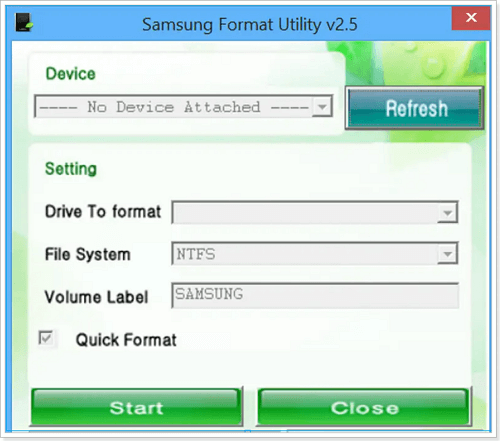
Samsung Format Utility is a software tool designed to format Samsung storage devices, such as memory cards, solid-state drives, and other storage media. It is a free utility that can be downloaded from the official Samsung website, and it is compatible with various Samsung storage devices. The utility allows users to format their storage devices to their original factory settings, which can help resolve issues related to data corruption or device malfunction. To download Samsung Format Utility 2.5 or 2.4 for free, users can visit the Samsung website and search for the utility, which will provide a direct download link. However, it is essential to note that formatting a storage device will erase all data on it, so users should ensure they have backed up any important files before proceeding.
How Do I Format Samsung SSD - [Two Easy Ways]
You can format a Samsung SSD safely using one of two efficient methods. The first method is to use the built-in formatting tool on your computer, while the second method involves using a dedicated formatting software specifically designed for Samsung SSDs. Both methods can help you format your Samsung SSD safely and efficiently.
Way 1. Format Samsung SSD via Qiling Disk Master
Way 2. Format Samsung SSD via Disk Management
There is a table to help you learn more about the two ways. It is clear that formatting a Samsung SSD via Qiling Disk Master Free is more convenient.
| Features | Qiling Disk Master | Disk Management |
|---|---|---|
| File System Supported | NTFS, exFAT, FAT16, FAT32, EXT2,EXT3,EXT4 | NTFS, exFAT, FAT32 |
| Interface | simple, graphical, clean | A little cluttered |
| Operation Difficulty | Easier | A little difficult |
Well, we have learned the features of the two ways. It is time to learn how to use the two tools to format.
First, let's see how to use Qiling Disk Master to format Samsung SSDs.
Way 1. Format Samsung SSD via Qiling Disk Master
Qiling Disk Master is a user-friendly tool that allows even non-expert computer users to safely and easily format Samsung SSDs. Its clear interface makes it easy to use, and it supports almost all Windows versions, making it a reliable choice for those in need of help.
Step 1. Run Qiling Disk Master, right-click the hard drive partition you intend to format and choose "Format".

Step 2. In the new window, set the Partition label, File system, and Cluster size for the partition to be formatted.

Step 3. Click the "Proceed" to continue.

Step 4. This is a warning message that you will see when attempting to format a partition on your hard drive. Clicking "Yes" will initiate the formatting process, overwriting all data on the selected partition.
You see! You have to format your Samsung SSD in this way. By the way, do you know what else Qiling Disk Master can do? Well, now, let's learn more about it.
What Can Qiling Disk Master Help?
Qiling Disk Master is a comprehensive disk manager that offers a wide range of features to help users manage their disks efficiently. It can help with disk partitioning, formatting, and cloning, as well as providing disk analysis and repair tools. Additionally, Qiling Disk Master can migrate operating systems, clone disks, and even convert disk formats, making it a powerful tool for disk management. Its user-friendly interface and robust features make it an essential tool for anyone who needs to manage their disks.
- Format SSD to FAT32
- Format external SSD for Mac
- Cloning larger HDD to smaller SSD
- Resize, merge, delete, and create partitions
- Format hard drives, USB drives, and other external hard drives.
Qiling Disk Master is a professional format tool that can assist with various disk management issues. To try it out, you can download this helpful tool.
Way 2. Format Samsung SSD via Disk Management
You can use Windows' built-To format a Samsung SSD, you can use the built-in Disk Management tool in Windows. This tool allows you to perform some basic disk and partition operations, including formatting. However, formatting an SSD using Disk Management may not be the most efficient or recommended method, as it may not be able to take full advantage of the SSD's capabilities. Nevertheless, if you need to format your Samsung SSD, Disk Management can be a useful tool to have.
Step 1. To access the Disk Management tool, click the "Search" icon on your computer, type "Create and format hard disk partitions", and then click it. This will open the Disk Management utility.
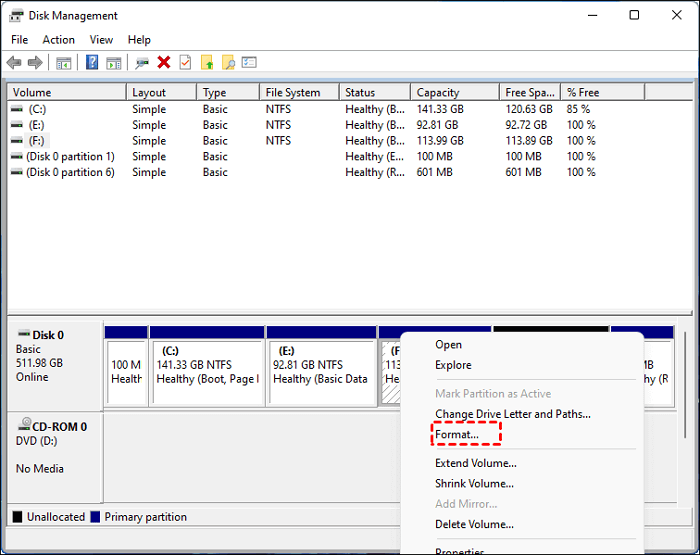
Step 2. To format an SSD, select it, right-click it, and choose the "Format" option.
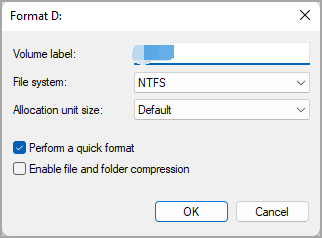
Step 3. You can determine the volume label, allocation unit size, and file system yourself and then click "OK."
- Notice:
- Make sure you tick the "Perform the quick format" option since the full format will damage the lifespan of your SSD.
Step 4. Then click "OK" to confirm your action.
Once the process is complete, your Samsung SSD will be quickly formatted, resulting in all data being erased and making it ready for use.
Conclusion
Formatting a Samsung SSD can be a crucial step, especially when you need to change the file system format or free up space. Fortunately, there are two ways to do this safely and effectively.
Qiling Disk Master and Disk Management are both format utilities, with Qiling Disk Master being a better choice if you want to perform an efficient format easily.
FAQs About Format Samsung SSD
If you're still reading, you can find three questions and answers about the format Samsung SSD in this section, which may help with any issues you're currently facing.
1. Do I need to format Samsung SSD?
You may need to format your Samsung SSD if you're experiencing issues such as corruption, errors, or incompatibility with your computer system. Formatting the drive can resolve these problems by completely erasing all data and restoring the drive to its factory settings.
- Change the file system format of it.
- Get more storage space.
- Format a new SSD before use.
2. What format should I format SSD?
It depends on the operation system you are using. You need to choose the corresponding file system format for the operation system. Choose one based on your operation system:
- Windows File System: NTFS, exFAT, FAT
- macOS: HFS+, APFS, HFS, exFAT, FAT32
- Linux: EXT2/3/4, XFS, JFS, Btrfs
3. Does formatting an SSD damage it?
The high-Level formatting, typically doesn't damage your SSD, but low-level formatting may shorten its lifespan. Always back up your data before performing any formatting. Low-level formatting should only be done when necessary, as it can cause permanent damage to your SSD.
Related Articles
- How to Reset Windows XP Passwords [Full Guide in 2026]
- 5 Ways | Reset Windows 10 Password Without a Disk 🔥
- Step-By-Step Guide: How to Install Windows 11 on a GPT Partition
- How to Fix Computer Stuck on Restarting | 2026 Hot Ways🔥
- How to Fix PS4 Can't Read USB [Quick & Easy]
If your PS4 can't read your external USB drive. We've got solutions for you to try and fix the issue. - Solved: PS5 Not Recognizing External Hard Drive - 2023
Cannot log in to Windows 10? Follow this guide to reset your password without a password reset disk using several practical methods.
Products
Articles & Tutorials
- Data Recovery
- Data Backup
- File Recovery
- File Backup
- System Backup and Restore
- Disk and Partition Clone
- Technical articles
- Mobile articles
- Disk Master Help
- Windows Data Recovery Tutorials
- Windows Secure Delete Tutorials
- Windows Partition Management Tutorials
- Windows File Backup and Restore Tutorials
- Windows System Backup and Restore Tutorials
- Windows Disk Backup and Restore Tutorials
- Windows Clone Tutorials