How to Fix PS4 Can't Read USB [Quick & Easy]
If your PS4 is suddenly unable to read your USB drive, don't worry - it's an easy fix. The PS4 supports installing external USB flash drives and hard drives, but sometimes you may encounter an error message saying "PS4 can't read USB". This article will guide you through understanding why your PS4 might be unable to read USB devices and provide a solution to resolve the issue.
View the Necessary Information to Solve PS4 Can't Read USB:
| ⏱️Reading Time | 3- 5 minutes |
| 🖥️Problem | PS4 can't read USB |
| 🧑💻Reason |
🎯File System Restrictions 🎯USB Interface Incompatibility |
| ✍️Solution |
✔️Convert PS4 USB Format via Qiling Disk Master - Easy ✔️Format PS4 USB via Windows File Explorer - Medium ✔️Format PS4 USB via CMD (Command Prompt) - Difficult ✔️Change the PS4 USB Interface - Easy |
Why PS4 Can't Read USB
The PS4 will prompt two error messages for the "PS4 can't read USB" issue: "USB storage device cannot be used. File system not supported" or "USB storage device not connected."
If you're experiencing issues with your PS4 not reading USB, don't panic. There are several reasons why this might be happening, and we'll explore them together. Your PS4 can't read USB due to various reasons such as corrupted files, incorrect file format, or issues with the USB drive itself.
1. File System Restrictions:
The "PS4 Can't Read USB" error can be caused by an incorrect file system on the USB drive, specifically if it's formatted to a file system other than FAT32 or exFAT that the PS4 supports.
2. USB Interface Incompatibility:
The PS4 may throw the "PS4 can't read USB" error due to USB interface compatibility issues, as not all USB devices are fully compatible with the PS4's USB ports. This can be caused by USB devices with incompatible versions or requiring more power than the PS4 can provide, leading to the device not being correctly read by the console.
To fix the issue of your PS4 being unable to read your USB, you can try the following steps: First, ensure that the USB drive is properly formatted for the PS4. Then, check if the USB drive is recognized by the PS4 by inserting it into the console and checking the USB icon on the PS4's home screen.
How to Fix PS4 Can't Read USB
If your USB device isn't formatted with the compatible file system, you can try formatting it to FAT32 or exFAT. Alternatively, if there's an issue with your USB interface, you can try changing it. For specific steps, please follow the methods.
Method 1: Convert PS4 USB Format via Qiling Disk Master:
Qiling Disk Master is a user-friendly partition management tool that allows you to format your USB device to the correct file system and convert it to FAT32 without formatting the drive, preserving your existing files.
It's a versatile tool that can come in handy for various disk-related tasks, and you should try this out today!
Step 1. Right-click the target device partition and select "Advanced" > "Convert to FAT".
Step 2. When the check process finishes, click "Proceed" to initiate the NTFS to FAT32 conversion.
Step 3. Click "Apply" to save all changes.
As a powerful format tool, Qiling Disk Master also provides many other features to manage your drive better, including various functions to help you manage your drive more efficiently.
- Repartition a hard drive
- Fix unable to format usb
- Low-level format USB drives
- Get more storage on PS4
- Format an external hard drive that is not visible
You can download a free tool to help with partitioning and formatting issues. It can assist you with any problems you're experiencing.
Method 2: Format PS4 USB via Windows File Explorer
You can format a PS4 USB drive using the Windows built-in tool, but be careful as you can only format drives up to 32GB to FAT. Alternatively, you can use the Files Explorer to format the USB for PS4.
Step 1. Connect the USB device to your computer.
Step 2. To open Windows File Explorer, you can click on the Start button located at the bottom left corner of the screen, then select "File Explorer" from the menu. Alternatively, you can press the Windows key + E keys simultaneously on your keyboard.
Step 3. Locate and right-click on the USB device.
Step 4. From the context menu, select the "Format" option.
Step 5. In the Format window, select the desired file system, which is either "FAT32" or "exFAT".
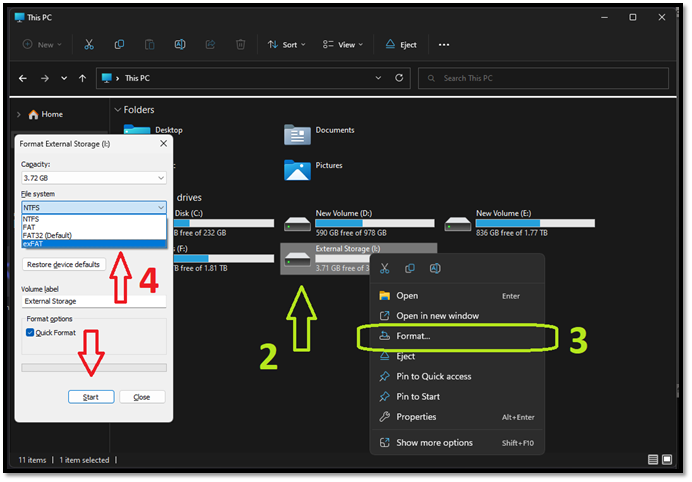
Step 6. Click the "Start" button to initiate the formatting process.
If you're experiencing the PS4 cannot read USB error, the solutions provided may be able to help you resolve the issue. You can click the buttons to share these solutions with others who may be in need of assistance.
Method 3: Format PS4 USB via CMD (Command Prompt)
To format a USB for PS4 using the command prompt, first connect the USB device to your computer. Then, open the command prompt as an administrator and navigate to the drive where the USB is located. Type the command "format" followed by the drive letter of the USB, for example "format E:", and press enter.
Step 1. To open the Command Prompt, press the "Win+R" to open the Run dialog box and type "cmd."
Step 2. Within the Command Prompt window, enter "diskpart" and press "Enter."
Step 3. To view the list of available disks, type "list disk" and press "Enter". This will display the list of disks, including your USB device. Note down the disk number corresponding to your USB device.
Step 4. To boot from a USB device, type "select disk 3" (replace 3 with the disk number of your USB device) and press "Enter" in the Command Prompt.
Step 5. To format the USB device, type either "format fs=FAT32" or "format fs=exFAT" and press Enter, choosing the appropriate file system.
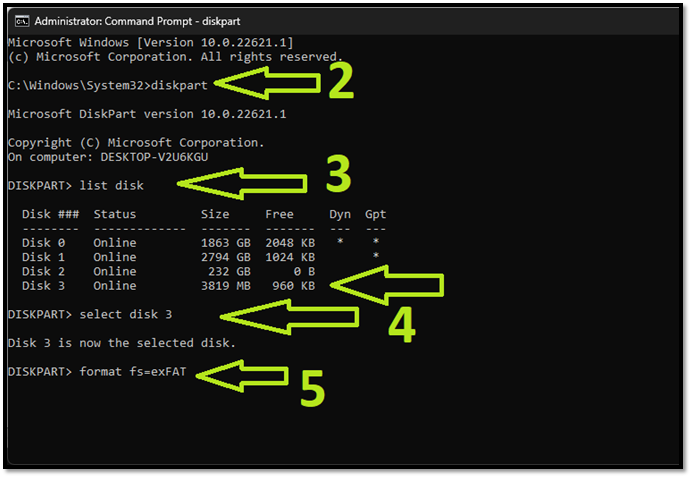
Step 6. Wait for the formatting process to complete.
Windows CMD is a versatile disk management tool that can be used to fix disk errors and manage partitions. To use it effectively, users need to have a good understanding of the command line interface. For more information on CMD, click on the provided link.
Method 4. Change the PS4 USB Interface
If your USB drive is using the USB 3.1 standard, it may not be compatible with the PS4, which only supports USB 3.0, so you may need to use a USB 3.
All USB drives have a standard:
- The PlayStation 4 and PlayStation 4 Slim consoles only support the USB 3.0 standard.
- The PlayStation 4 Pro supports the USB 3.0 and USB 3.1 standards, allowing for faster data transfer speeds.
If you have a PlayStation 4 or PlayStation 4 Slim, we recommend using a USB drive with the USB 3.0 standard instead of the USB 3.1 standard, and plugging that into your console.
If your PlayStation 4/PlayStation 4 Slim/PlayStation 4 Pro can't read your USB drive, it might be due to the file system being incompatible, such as the drive being formatted to the exFAT file system. Alternatively, the issue could be caused by the USB interface being damaged or the connectors being broken, in which case you should consider getting a new USB drive, formatting it to the FAT32 file system, and then plugging it into your PlayStation to access your files.
If you're experiencing issues with your PS4's USB or hard drive not working, you can find more information on the topic by clicking the provided link.

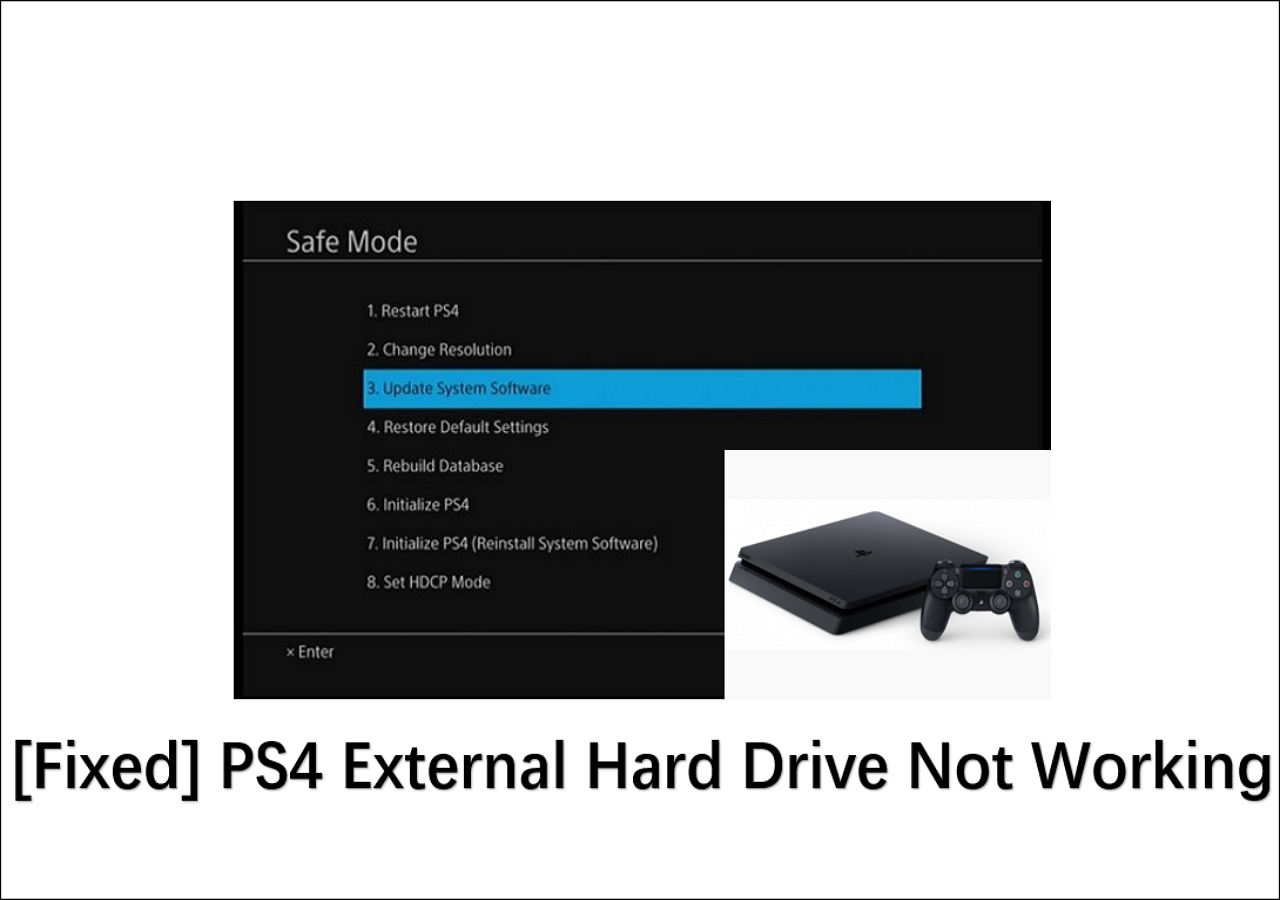
[Fixed] PS4 External Hard Drive Not Working/Recognized [Step-by-Step]
If your PS4 external hard drive is not working, it may be due to an issue with the hard drive itself or a problem with the PS4 system. To resolve this, you can try troubleshooting steps such as checking the hard drive's power and connection to the PS4, ensuring the drive is formatted for the PS4, or resetting the PS4 system. If the issue persists, it may be necessary to replace the external hard drive or seek further assistance from Sony's support.
Conclusion
Our solutions should have resolved the issue, allowing your PS4 to read the USB. If you haven't used one of our solutions yet, we recommend using the Qiling Disk Master to convert the file system, which doesn't require formatting the drive like other methods do.
FAQs About PS4 Can't Read USB
If your PS4 is unable to read your USB drive, it's likely because the drive is not formatted correctly for the console. The PS4 requires a specific file system, called XMB, to read USB drives. If your drive is not formatted with XMB, it won't be recognized.
1. Why is the PS4 not reading FAT32 USB?
The PS4 may not read a USB drive formatted with FAT32 due to compatibility or the drive being broken. For PS4 and PS4 Slim, use a USB 3.0 drive, while PS4 Pro can use 3.0 or 3.1 drives.
2. How to fix the PS4 USB storage device not connected?
If your PS4 can't read your USB drive, it may say the storage device is not connected. This could be because it can see your drive but can't read it. Try changing the file system to FAT32, which your PS4 can read.
3. What USB format does the PS4 support?
The PS4 supports exFAT and FAT32 file systems, but not NTFS. While exFAT is the preferred format, FAT32 is a safer option due to occasional compatibility issues with exFAT on USB drives.
Related Articles
- [Fixed] EmuDeck Not Recognizing SD Card on Steam Deck
- Toshiba External Hard Drive Repair Tool | Fix Corrupted Drives Efficiently
- How to Hide System Reserved Partition in Windows 11/10/8/7 [Step-by-Step Guide]
- How to Format PS4 Hard Drive on PC in Windows [Your Full Guide Here]
- How To Convert Guid Partition Table (GPT) To Master Boot Record (MBR)?
How to convert guid partition table to MBR is a problem that many computer users may be encountered. You can find three ways to solve the problem from here. - How to Convert System Boot Disk to GPT without Losing Data?
Need to convert system disk to GPT, but not want to reinstall the OS? Here, you can learn how to convert MBR system disk to GPT without losing data or Windows operating system in Windows step by step.
Products
Articles & Tutorials
- Data Recovery
- Data Backup
- File Recovery
- File Backup
- System Backup and Restore
- Disk and Partition Clone
- Technical articles
- Mobile articles
- Disk Master Help
- Windows Data Recovery Tutorials
- Windows Secure Delete Tutorials
- Windows Partition Management Tutorials
- Windows File Backup and Restore Tutorials
- Windows System Backup and Restore Tutorials
- Windows Disk Backup and Restore Tutorials
- Windows Clone Tutorials