How to Fix Corrupted Hard Drive Using CMD
External hard drives can be a lifesaver for those struggling to organize their data, but dealing with data corruption or hard drive problems can be frustrating. Fortunately, you can repair a hard disk using the built-in Command Prompt of Windows, and this article will guide you through the process.
How to Fix a Corrupted Hard Drive
If your hard drive has become corrupted, there are two ways to fix it. You can attempt to repair it using the Command Prompt (CMD), or you can use a simpler solution like Qiling Disk Master Free, which can help you repair corrupted drives with ease.
- The Command Prompt executes shell commands, including CHKDSK, an official Windows application that checks a hard disk's integrity and repairs it if damaged.
- Another alternative to fix a corrupted hard drive is using Qiling Disk Master, a disk repair tool. With just one click, you can check for and correct partition issues in Windows 10, 8, or any other Windows OS using Qiling Disk Master Free.
Here is the comparison:
| 🆚Comparison | ||
|---|---|---|
| 🤩Pros |
|
|
| 🦹Cons |
|
|
| ✍️Difficulty | Simple | Complex |
| 🧑💻Suitable Users | For all users, including beginners | For experienced users |
Editor's Advice: Qiling Disk Master offers more features and greater compatibility, making it a more reliable choice for hard drive recovery. Unlike CMD, which requires users to master command parameters to avoid data loss, Qiling Disk Master provides a user-friendly interface that can handle various hard drive conditions, ensuring a successful recovery process.
Keep reading. Let's figure out the detailed step for the two solutions.
How to Fix Corrupted Hard Drive Using CMD Free Alternative
Qiling Disk Master will inspect hard disk issues and automatically repair them, serving as a reliable alternative when CHKDSK fails to work with RAW drive errors. It offers various methods to repair a damaged drive, making it a useful tool for addressing hard disk problems.
- Check and repair the corrupted file system
- Rebuild corrupted hard drive MBR
- Formatting a corrupted hard drive
- Clone a hard drive with bad sectors
For a quicker solution, this guide offers two methods to repair a corrupted hard drive. To get started, simply download the guide and try out the suggested approaches.
1. Check and Repair the Corrupted File System
Step 1. Right-click the target partition that has a problem.
Step 2. Choose "Advanced" > "Check File System".
Step 3. Confirm if you want to hide the partition or not.
Step 4. In the Check File System window, check the "Fix the error on the disk" option.
Step 5. Click "Start" to check errors on your partition.
2. Rebuild Corrupted Hard Drive MBR
Step 1. Create a WinPE bootable disk
- Launch Qiling Disk Master, and click "Bootable Media" on the toolbar. Select "Create bootable media".
- Click "Next" to finish the process.

Step 2. Boot Qiling Disk Master Bootable USB
- Connect the bootable USB or CD/DVD to your PC.
- To access the BIOS screen, press F2 or Del when restarting the computer. Set your computer to boot from the "Removable Devices" or "CD-ROM Drive". This will allow Qiling Disk Master to run automatically.
Step 3. Rebuild MBR
- To fix a disk, click the "Disk management" tab, right-click the disk in question, and select the "Rebuild MBR" option.

- Select the disk and the type of MBR. Then, click "Proceed".

- The system will then inform you that the MBR has been successfully rebuilt on the specified disk.
For more solutions:
How to Fix Corrupted Hard Drive Using CMD
The command-The Command Prompt, also known as CMD, is a line interface used to run shell commands. To use it effectively, each command must be entered precisely at the command prompt. If you're experiencing hard disk issues, you might be interested in learning about the Command Prompt's capabilities in resolving such problems. Some of the features that can help repair a corrupted hard drive include:
- Use CHKDSK to Repair Hard Drive
- Try Diskpart to Repair Corrupted Drive
- Run SFC Scan
1] Use CHKDSK to Repair Hard Drive
To repair a corrupt hard drive using CMD, you can use the built-in Check Disk (chkdsk) utility. Simply type `chkdsk C:` (replace `C:` with the drive letter of the hard drive you want to check) and press Enter. The utility will scan the drive for errors, and if any are found, it will attempt to fix them. You can also use the `/f` option to force the utility to fix any errors it finds, or the `/r` option to run a thorough scan and repair the drive.
Step 1: Open Command Prompt as Administrator.
Step 2: `echo "Hello, World!"`
chkdsk X: /F
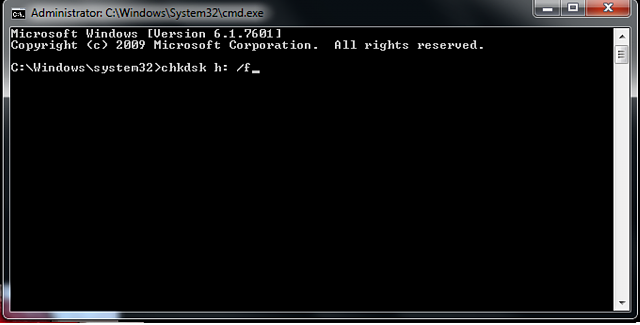
Note: Change H with the letter of the hard drive you want to restore or repair.
Here are the various parameters and what they do:
- /f- Locates and corrects all hard drive errors.
- A disk recovery tool that finds corrupt sectors on a disk and restores readable data from them, making the disk readable again.
- /x- Unmounts the drive before the procedure begins.
- The command removes bad clusters from a disk and rechecks all allocated and free clusters for errors, making it suitable for use with the NTFS File System.
Step 3: To run a more thorough scan, you can modify the program to include each option. The G drive's command line would be: `chkdsk /f /r /x`
If you fix an internal drive, the application will prompt you to restart the computer. To restart directly from the command prompt, press Y and Enter.
You May Also Like:
2] Try DiskPart to Repair the Corrupted Drive
To forcibly format a RAW hard drive to NTFS/exFAT/FAT32 using the DiskPart program, open the Command Prompt as an administrator, type "DiskPart" and press Enter, then type "list disk" and press Enter to list all the disks, type "select disk X" where X is the number of the disk you want to format, type "clean" and press Enter to clean the disk, type "convert mbr" and press Enter to convert the disk to MBR, type "convert to ntfs" and press Enter to format the disk to NTFS, and finally type "exit" and press Enter to exit the DiskPart program. Alternatively, you can format the drive using the Windows File Explorer or the Disk Management program.
Step 1: Open the Command Prompt as an administrator, type diskpart, and press Enter.
Step 2: To see all the connected storage devices, type "list disk" or "list volume" and press Enter.
Step 3: To format a disk, first select it by typing 'select disk X' or 'select volume X', replacing X with the number of the disk you want to format.
Step 4: After choosing the corrupted disk, type the following command and press Enter to format it.
format fs=ntfs quick
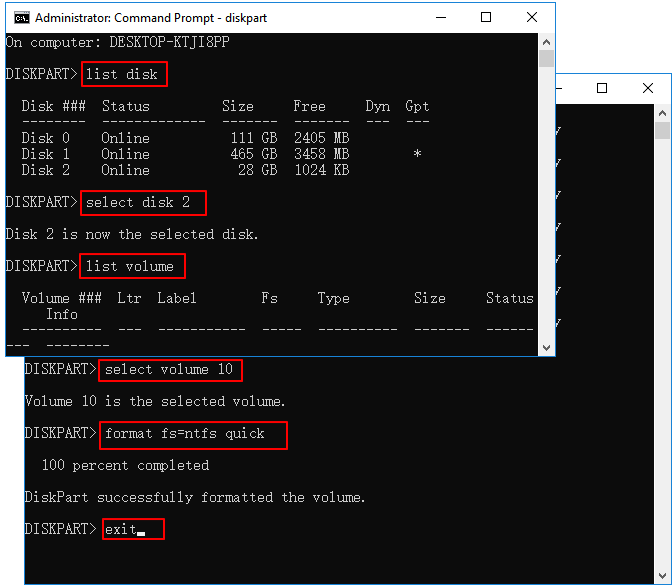
After formatting, the confirmation message "DiskPart successfully formatted the volume" will appear, and you can then close the elevated command prompt window.
3] Run SFC and DISKM Scan
A corrupted file system can cause a hard drive to become corrupt, but it can be repaired using the System File Checker tool. To run an SFC scan, you can follow these steps.
Step 1: As an administrator, launch Command Prompt.
Step 2: For those who use Windows 10 and above, copy and paste the following command and press Enter. Those who are using the earlier versions of Windows need not execute it.
DISM.exe /Online /Cleanup-image /Restorehealth
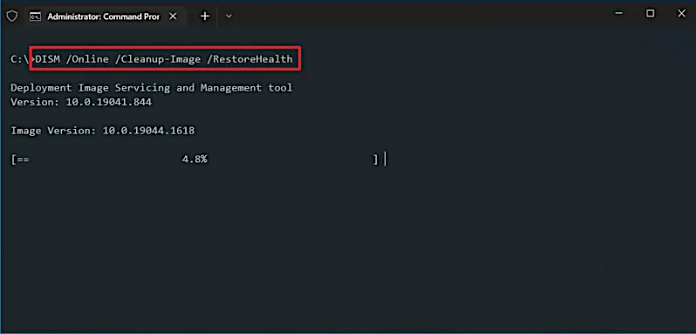
After the scan, your computer will automatically connect to the Windows Update service to download and replace corrupted files.
Step 3: To run the System File Checker (SFC) in Windows, type the command `sfc /scannow` in the Command Prompt, and press Enter. This will initiate a scan of all protected system files and replace any corrupted ones with a cached copy.
The application will run a scan to check the integrity of system files, replacing any damaged or missing ones, and will not close until the scan is 100% complete.
If the hard drive is external, run the following command:
sfc /scannow /offbootdir=X:\ /offwindir=C:\Windows
Note: Change x: to the letter the external hard drive was assigned. Remember to substitute the location where Windows was installed for C:\Windows as well.
Further Reading: SFC SCANNOW Stuck
To fix a corrupted hard drive, you can either use a data recovery software or take it to a professional data recovery service. Data recovery software can be downloaded and installed on a computer, and it can scan the corrupted hard drive to recover any lost data. On the other hand, a professional data recovery service can physically examine the hard drive and attempt to recover the data. Both methods can be effective, but the choice ultimately depends on the severity of the corruption and the type of data that needs to be recovered.
Bonus Tip: The Reasons and Symptoms of Corrupted Hard Drive
Why does the hard disk crash or become corrupted? Here are a few major causes.
- Logical damage refers to various issues that affect a computer's ability to access or use data, including virus infections, faulty sectors, unknown file systems, unformatted disks, raw file systems, and lost or damaged partition tables.
- Physical damage to a hard drive can occur through various means, including short circuits, chip damage, corrupted headers, being dropped from great heights, and the aging of the hard disk's moving parts, which can ultimately lead to its failure.
- Manual damage refers to the unintended harm caused to a system or device by human actions that are not in line with the manufacturer's guidelines, such as an unexpected power outage, removal without safe removal, or improper system shutdown.
A corrupted hard drive typically indicates that it's not being recognized or functioning correctly, with symptoms such as sudden shutdowns, data loss, or failure to boot, which can be handled with caution.
- The majority of your hard drive's files are corrupted or missing.
- If your external hard drive is not being recognized by your computer, there are several potential reasons and solutions. Firstly, ensure that the hard drive is properly connected to the computer, and the USB cable is securely plugged in. If this is not the case, try reconnecting the hard drive.
"X:\ is not accessible. Access is denied."
"You need to format the disk in the drive before using it. Do you want to format it?"
- The hard disk is showing 0 bytes of free and utilized space in Disk Properties, indicating an issue with the disk's storage capacity. This could be due to various reasons such as disk corruption, insufficient disk space, or a problem with the disk's formatting.
- In Disk Management, the hard disk is shown as RAW.
Although your hard drive is corrupted, it doesn't have to be discarded immediately. Since the computer recognizes the hard disk, it's likely that the issue is software-related and can be resolved. You can use the Command Prompt (CMD) on your Windows computer to attempt to fix and recover the hard drive.
If you want to know more about repair tools on Windows 11, click the link below:
Conclusion
To repair a corrupted hard drive, you can use the Command Prompt (CMD) and try various fixes. Qiling Disk Master is a great tool for quickly repairing a corrupted hard drive, but you can also try running the chkdsk, diskpart, and sfc scan commands to fix the issue. These commands can help identify and repair corrupted files, partitions, and other disk-related problems. By following these steps, you can potentially recover your hard drive and regain access to your important files.
If none of the fixes helped fix your hard drive, check for any clicking noises when you connect the hard drive to your PC. Clicking noises indicate physical or mechanical damage, so contact the service center.
FAQs About How to Fix Corrupted Hard Drive Using CMD
Do you have more questions about how to fix a corrupted hard drive using CMD? View the following frequently asked questions and their answers:
1. How to repair a corrupted SSD with CMD?
To fix a corrupted SSD using the chkdsk command in CMD, follow these steps:
Step 1: Type CMD into the Windows search bar, right-click on the result, and choose Run as administrator from the context menu.
Step 2: Copy and paste the command given below and press Enter:
chkdsk C: /f /r /x
Note: Replace the letter C with the letter of your corrupted hard drive.
2. Can I reset the hard drive with CMD?
To reset your hard drive using DiskPart, you can use the Clean command to quickly remove any SSD partitions and reset the drive. This will erase all data on the drive.
3. How to check disk errors via CMD?
The command chkdsk/F/R fixes errors found on the C: drive by examining the file system, security descriptors, file name linkage, and file system structure, and then repairing on-disk faults and restoring information from corrupt sectors that can be read.
Related Articles
- 5 Best Windows (11) Disk Utilities Free Download 2024 [Free & Paid]
- Is exFAT The Same As FAT32 Format? Everything You Need to Know
- 3 Ways to Combine or Merge Partitions in Windows Server 2022/2019/2016
- How to Install Windows on SSD via 2 Easy Ways 🏆
- How to Install Windows 11 From ISO Files - 2 Easy Tips
To install Windows 11 from ISO files efficiently, follow these 2 essential tips. First, ensure you have the latest Windows OS ISO file, which can be downloaded from the official Microsoft website. - Fix 'Invalid Partition Table' Error Dell Computers [100% Working]
If you're experiencing the 'invalid partition table error' on your Dell system, this guide provides multiple methods to resolve the issue, offering a solution to get your system up and running smoothly again.
Products
Articles & Tutorials
- Data Recovery
- Data Backup
- File Recovery
- File Backup
- System Backup and Restore
- Disk and Partition Clone
- Technical articles
- Mobile articles
- Disk Master Help
- Windows Data Recovery Tutorials
- Windows Secure Delete Tutorials
- Windows Partition Management Tutorials
- Windows File Backup and Restore Tutorials
- Windows System Backup and Restore Tutorials
- Windows Disk Backup and Restore Tutorials
- Windows Clone Tutorials