How to Check Hard Disk Health Using CMD [Full Guide]
Maintaining your hard drive's health is crucial to your computer's overall functioning, as a failure can result in lost data and significant downtime. Regularly checking the hard drive's health is essential, and using Windows's built-in Command Prompt tool is a convenient way to do so.
This guide explains how to check hard disk health using CMD and professional disk management tools, helping you identify potential problems with your drive and take necessary steps before it's too late.
How to Check Hard Disk Health Using CMD
The Command Prompt (CMD) in Windows is a command line interface similar to Terminal in Linux, allowing users to execute various commands via the shell. CHKDSK, which stands for Check Disk, is a crucial CMD command that plays a significant role in this interface.
The command line interface (CMD) has limitations in checking the health of a hard drive, prompting the need for alternative tools like Qiling Disk Master Free.
To check the health of your hard drive, you can use either the built-in Windows utility, Check Disk (chkdsk), or a third-party tool like CrystalDiskInfo. Check Disk is a simple and free method that scans your hard drive for errors and fixes them, but it may not detect all issues.
| Comparison | Qiling Disk Master | CMD |
|---|---|---|
| Pros |
|
|
| Cons |
|
|
Since using the CMD alternative tool can solve the problem faster and can monitor more detailed hard drive health and SMART data, we will start with the CMD alternative tool to explain the detailed steps.
If you want to know more about repair tools on Windows 11, click the link below:
Check Hard Disk Health Using CMD Alternative
For those who prefer a more user-friendly method to CHKDSK on Windows, a third-party software like Qiling Disk Master offers an alternative. Unlike the Command Prompt, which can be complex, Qiling Disk Master provides a graphical user interface and additional built-in functions, simplifying the process of running CHKDSK and offering more features than the traditional CMD.
The Qiling Disk Master is a reliable alternative to CMD's CHKDSK for evaluating the health of your hard drive, offering two ways to check hard disk:
Guide 1. Check Hard Disk Health
Guide 2. Check Hard Disk Bad Sector
You can run a disk surface test to check your hard disk's health and identify faulty sectors, and it's also easy to check hard drive health, including temperature and performance. This can be done even by a novice, and the process is straightforward. A step-by-step guide can help you master the tool.
Guide 1. Check Hard Disk Health
Step 1. Launch Qiling Disk Master and click the blue arrow to activate the "Disk Health" feature under the "Discovery" section.

Step 2. To check the health condition of your disk, select the target disk and click the "Refresh" button, allowing you to view the status of your disk.

Guide 2. Check Hard Disk Bad Sector
Step 1. Open Qiling Disk Master, right-click the desired disk, and select "Surface Test".
Step 2. The operation will be performed immediately, marking all bad sectors as red.
What Else Can Qiling Disk Master Do?
Qiling Disk Master is a comprehensive tool that not only checks for disk and partition errors but also offers additional features related to disk partition issues.
- Rebuild MBR
- Check hard drive health
- Check SD card health
- Repair bad sectors on external hard drive
- Resize partition on SSD or delete partition on SSD.
If you're experiencing disk or partition issues, Qiling Disk Master is a reliable solution to consider. It can help you manage and repair disk problems, making it a worthwhile download.
Check Hard Disk Health Using CMD
CHKDSK examines the disc for potential problems, but requires computer knowledge and doesn't provide a detailed SMART health report. For a more comprehensive health check, consider using a third-party tool like Qiling Disk Master for hard drive health check.
To use the CHKDSK command from the Command Line to assess the health of your hard disk on a Windows computer, follow these steps: Open the Command Prompt as an administrator, type the command "chkdsk" followed by a space and the drive letter of the disk you want to check (e.g.
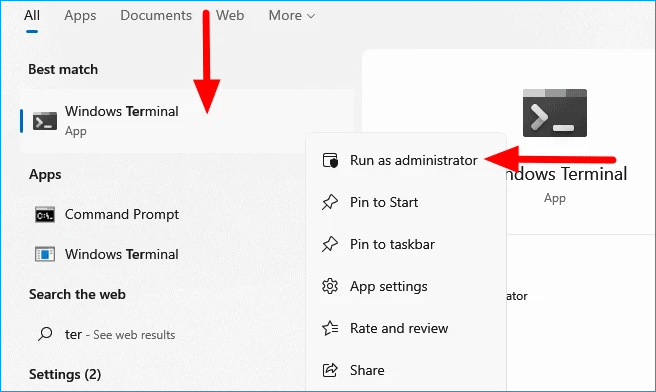
Step 1: To launch the Command Prompt with administrative privileges, open the Start menu, type "cmd" in the search box, and select the "Command Prompt" result. Right-click on it and choose "Run as Administrator" from the context menu. This will open the Command Prompt with elevated privileges. Alternatively, you can search for "Windows Terminal" and follow the same steps to open it with administrative privileges. This provides full access to system files and folders, allowing you to perform administrative tasks.
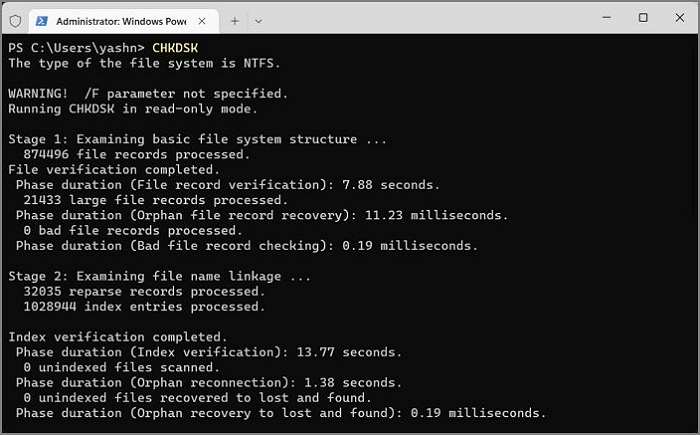
Step 2: To check your hard drive for errors, type `chkdsk` and press Enter. This will scan your basic file system structure, name linkage, and security descriptors, and report any potential issues.
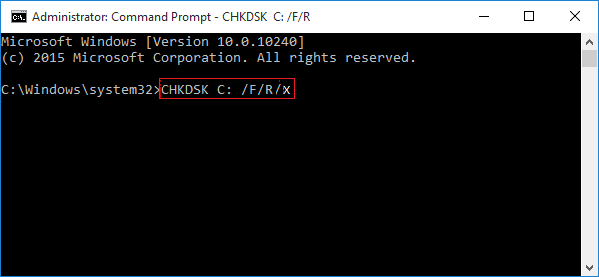
Step 3. To fix errors on the disk using the command line, type "CHKDSK /f /r/x" and press Enter.
The CHKDSK command is a built-in Windows utility that checks the integrity of the file system and disk for errors, inconsistencies, and potential problems. It scans the disk for bad sectors, lost clusters, cross-linked files, and other issues that can cause system crashes, data corruption, or file loss.
The Command Prompt and its shell can be overwhelming for new users unfamiliar with scripts or the Windows operating system, especially if they prefer not to use the Command Prompt or want to check the hard drive health with a different technique.
Conclusion
To ensure the health of your hard disk and maintain peace of mind regarding your data, it is essential to monitor your disk's health regularly. You can use the Command Prompt's CHKDSK command to test the health of your hard disk, but a more user-friendly alternative is Qiling Disk Master, which offers additional functionality.
Qiling Disk Master is a reliable and convenient tool that not only checks the health of your hard disk but also provides disk management capabilities, including partition resizing and disk cloning, to ensure your hard disk runs smoothly.
FAQ of Check Hard Disk Health Using CMD
Let's look at some frequently asked questions concerning this process to get more information and troubleshooting tips.
1. How Do I Check My Hard Drive's Health?
To check your hard drive's health using the CHKDSK command, open the Command Prompt, navigate to the drive you want to check, and type the command `chkdsk /f` followed by the drive letter (e.g., `chkdsk /f C:`).
Step 1. To access the Command Prompt or Terminal with administrative privileges, follow these steps: Right-click the Windows icon in the Taskbar and select Command Prompt (Admin) or Terminal (Admin).
Step 2. On the terminal, type CHKDSK and press Enter. Windows will now examine your computer's hard drives for faults and notify you of any that it finds.
2. How to check SSD health on CMD?
To check the health of your solid-state drive (SSD), use the WIMC command, which is comparable to CHKDSK. This command-line interface for Windows, called WIMC, can help identify any potential issues with your SSD.
Step 1. To open the Run Dialog, press the Win + R keys on your keyboard, type "cmd" in the box that appears, and then press Enter or click the "OK" button. This will open the Command Prompt.
Step 2. To check the disk drive status, open the command line and type "wmic" followed by a space, then "diskdrive gets status", and press Enter.
If the disc drive shows "Status OK", it means it's functioning properly. However, if you notice any other issues, you may need to repair or replace the drive.
3. Can HDD health be repaired?
Running CHKDSK with the "/f" flag may be able to repair an HDD by scanning and correcting drive problems, but if the damage is severe, the drive may be beyond repair and need to be replaced.
Related Articles
- Fixed: Chrome Browser Not Open/Working in Windows 10 Creator
- How to Solve Sound Not Working on Laptop |5 Troubleshooting Tips for Laptop
- Fix 99% or 100% High CPU Usage Issue in Windows 10 Fall Creators
- (All Methods to Fix) Computer Keeps Booting to BIOS
Fix a computer that keeps booting to BIOS. Learn common causes, boot order checks, disk issues, and ways to protect your data. - How Sonoma Game Mode Boosts Your Mac Performance
Are you wondering how sonoma game mode boosts your Mac performance? This article will guide you on how to do so with simple and easy steps! - macOS Sonoma Runs Slow After Update | 8 Ways to Fix
Fix macOS Sonoma running slow after update. Learn how to free space, check startup items, reset settings, and improve performance.
Products
Articles & Tutorials
- Data Recovery
- Data Backup
- File Recovery
- File Backup
- System Backup and Restore
- Disk and Partition Clone
- Technical articles
- Mobile articles
- Disk Master Help
- Windows Data Recovery Tutorials
- Windows Secure Delete Tutorials
- Windows Partition Management Tutorials
- Windows File Backup and Restore Tutorials
- Windows System Backup and Restore Tutorials
- Windows Disk Backup and Restore Tutorials
- Windows Clone Tutorials