Fix 99% or 100% High CPU Usage Issue in Windows 10 Fall Creators
To fix high CPU usage error in Windows 10 Fall Creators, you can try restarting the system, checking for malware, disabling startup programs, ending resource-intensive processes, updating drivers, and running a system file checker. Additionally, you can use the Task Manager to identify and close resource-intensive processes, and also use the Performance Monitor to monitor system performance and identify potential issues.
- Windows 10 1709 (Fall Creators), End of Service:
- Microsoft released the final security update for Windows 10, version 1709 on October 13, 2020, marking the end of services for this edition.
- To keep your OS and data safe, update your computer to the latest Windows 10 version, which is 2004, or the upcoming 2009 version.
- To install the latest Windows 10 update, click on the link to download the latest update.
Get 99% or 100% high CPU usage after Windows 10 Fall Creators update and the computer gets extremely slow
If your computer is slow after the Windows 10 Fall Creators update and your CPU is showing extremely high usage, it's likely due to the Windows Search service consuming high resources. You can try disabling the Windows Search service to resolve the issue. Additionally, check for any malware or viruses that might be causing the high CPU usage. If you're still experiencing issues, consider running a System File Checker (SFC) scan to repair any corrupted system files.
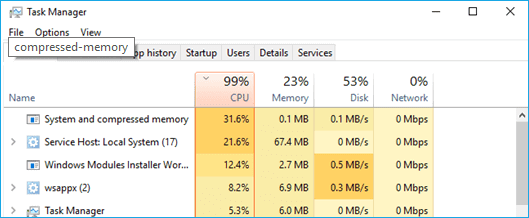
If your computer runs slower after installing Windows 10 Fall Creators and the CPU shows high usage in the task manager, don't worry. Below, you'll find quick fixes and complete methods to resolve the high CPU usage issue and speed up your PC with a few clicks.
- Notice:
- If your computer is running extremely slow, you can try Quick Fix 1 or Quick Fix 2 to resolve the high CPU usage issue on your Windows 10 Fall Creators PC. Alternatively, you can follow Method 1, 2, or 3 for a full and complete solution.
Quick Fix 1. End Task of running programs to fix high CPU usage error in Windows 10 Fall Creators
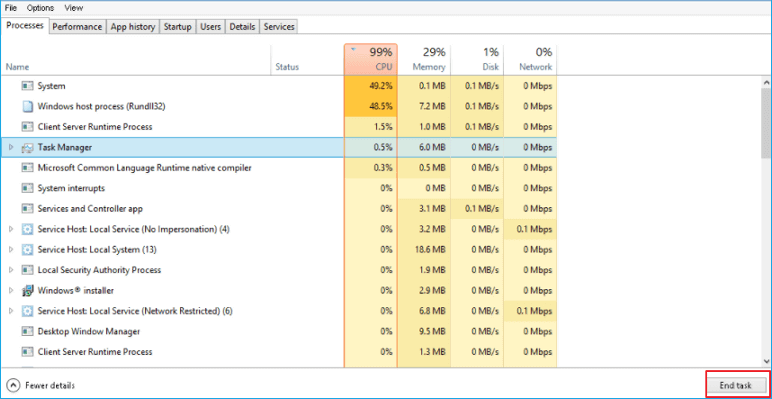
To quickly resolve high CPU usage issues in Windows 10 Fall Creators, you can try this fix: your PC becomes extremely slow or even gets stuck with running programs.
1. To bring up the Task Manager, press the Ctrl + Alt + Del keys at the same time.
2. To free up memory and CPU usage, open Task Manager, identify and select programs consuming high resources, and click "End Task" to close them.
Quick Fix 2. Disable Startup programs, fix file system error and clean up junk files to fix high CPU usage issue
1. Disable Startup programs that takes high CPU and slows PC
1. Pressing the keys Win + R brings up the Run dialog, where you can type msconfig to open the System Configuration utility, which is essentially the Task Manager.
2. To stop unnecessary programs or apps from running at startup, click on "Startup" in the Task Manager, select the unwanted program or app, right-click on it, and choose "Disable".
2. Fix file system error that causes high CPU and disk usage
Download, install, and run Qiling Partition Master in your Windows 10 Creators PC.
3. Clean up junk files that take high CPU and disk usage
When the C drive is full of junk files and application caches, it can cause the computer's CPU to become overloaded, leading to unexpected high CPU and disk usage issues.
Qiling CleanGenius' System Cleanup feature can help resolve the issue.
Step 1. Download and install Qiling Partition Master Suite.
Step 2. Click PC Cleaner and install Qiling CleanGinus. Then, click "Cleanup" and click "Scan" to start cleaning up the system and make your PC as good as new.
Step 3. The software scans your computer to identify large, unnecessary files, junk files, and invalid Windows entries, allowing you to select and remove them with a single click.
Step 4.When the scan is complete, click "Done" to finish cleaning system junk files.
Full solutions for fixing high CPU usage in Windows 10 Fall Creators
Method 1. Run DISM command to decrease high CPU usage
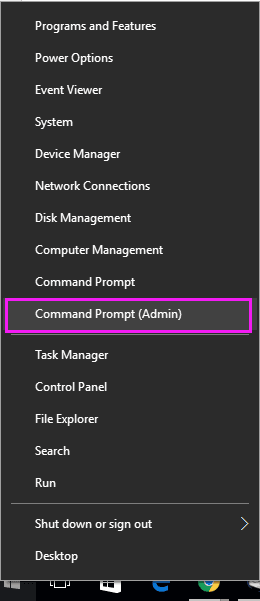
1. Right-click on the Start button and select "Command Prompt (Admin)" to open a Command Prompt window with administrator privileges, allowing you to run commands that require elevated permissions. Sign in with your administrator account to access the elevated Command Prompt.
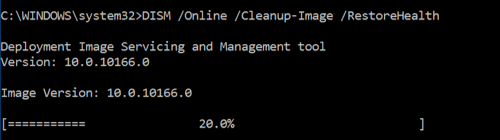
2. Type: DISM.exe /Online /Cleanup-image /Restorehealth and hit Enter;
3.Type: DISM.exe /Online /Cleanup-Image /RestoreHealth /Source:C:RepairSourceWindows /LimitAccess and hit Enter;
4.Type: sfc /scannow and hit Enter;
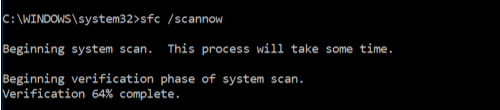
To resolve the CPU high usage or RAM high usage issue, restart your PC. This should help lower down the issue after the restart.
Method 2. Disable Superfetch and Windows services to fix Windows high CPU usage
1. Press Ctrl + Shift + Esc to open Task Manager;
2. Go to "Services" tab and click "Open" services;
3. To locate Superfetch, right-click on the Task Manager and select "Properties".
4. To stop the Superfetch service, click "Stop" and then click OK to confirm the change.
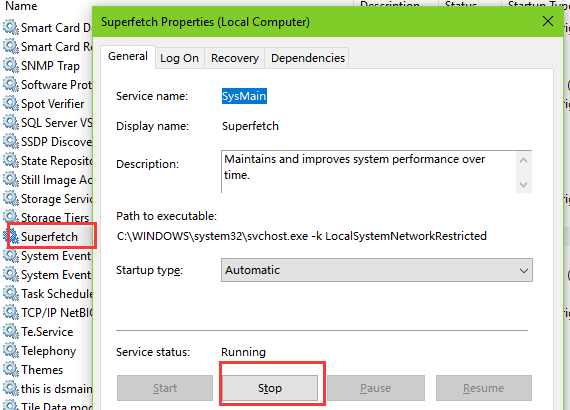
5. Press Win + R to open Run dialog > Type: msconfig and click OK;
6. Check "Hide all Microsoft services" under Services tab > Uncheck all other remaining services > "OK" to save all changes;
7. Restart Windows 10 Fall Creators > Enable any services individually and reboot PC > Repeat the process till Windows 10 Fall Creators high CPU usage issue gets fixed by then.
Method 3. Use Registry Editor to fix Windows 10 Fall Creators high CPU usage error
Note: You should be aware that using Registry Editor to run a clear command to fix high CPU usage in Windows 10 Fall Creators may inadvertently clear and remove some useful files on your PC.
Before attempting the tips below, please make sure to backup important files and data to an external storage device to avoid any potential loss.
1. Press Win + R to open the Run dialog and type Regedit, then hit Enter.
2. Follow the path: HKEY_LOCAL_MACHINE\SYSTEM\CurrentControlSet\Control\Session Manager\Memory Management;
3. Find: "ClearPageFileAtShutDown" and set its value to 1;
4. Restarting the computer is a simple troubleshooting step that can resolve high CPU usage issues. By restarting the computer, you are essentially shutting down and then starting up the system again, which can help resolve any temporary software or system issues that may be causing the high CPU usage.
Related Articles
- How to Solve Webcam Freeze Up in Windows 10 Error?
- Fix: Windows 10 Upgrade Stuck at 75% or 76%
- How to Fix Windows 10 Start Menu Critical Error
- How to Fix/Remove Bad Image Error Windows 10
- How to Transfer User Account and Profile from Windows 7 to Windows 10/11
Transferring user accounts from Windows 7 to Windows 10/11 can be a seamless process with the right tool. - How to Update BIOS Windows 10
When users need to update their computer's hardware or resolve BIOS-related issues, they may want to update their BIOS. However, improper BIOS updates can lead to severe problems like computer breakdown and data loss.
Products
Articles & Tutorials
- Data Recovery
- Data Backup
- File Recovery
- File Backup
- System Backup and Restore
- Disk and Partition Clone
- Technical articles
- Mobile articles
- Disk Master Help
- Windows Data Recovery Tutorials
- Windows Secure Delete Tutorials
- Windows Partition Management Tutorials
- Windows File Backup and Restore Tutorials
- Windows System Backup and Restore Tutorials
- Windows Disk Backup and Restore Tutorials
- Windows Clone Tutorials