How to Fix/Remove Bad Image Error Windows 10
To fix the Bad Image error on Windows 10, try the following: Run the System File Checker (SFC) tool to scan and replace corrupted system files, or use the DISM tool to check and repair the system image. If that doesn't work, try running the Windows Update Troubleshooter to resolve any update-related issues.
| Workable Solutions | Step-by-step Troubleshooting |
|---|---|
| Fix 1. Reinstall the program | Reinstalling the affected program helps in most cases. Be sure to have the setup file ready....Full steps |
| Fix 2. Uninstall Windows Update | If the Bad Image error occurred after installing a Windows Update, try uninstalling the update....Full steps |
| Fix 3. Run SFC Scan | The SFC will run a check of file integrity and automatically repairs all corrupt system files....Full steps |
| Fix 4. Run Automatic Repair | Try Windows Automatic Repair to fix Bad Image error on Windows 10...Full steps |
| Fix 5. Perform System Restore | Windows System Restore can revert Windows system to a previous workable state without data loss....Full steps |
What Is Bad Image Error in Windows 10
To fix the Bad Image error on Windows 10, users can try disabling the Windows Update service, booting in Safe Mode, and then enabling it again. This can be done by going to the Services tab in the Task Manager, finding the Windows Update service, and right-clicking on it to select Stop. Then, restart the computer and try checking for updates again.
When running a program in Windows 10, error 0xc000012f may appear, stating that the files and binaries are corrupted. This error, also known as Bad Image, indicates that the program's executable or a supporting module is corrupt or there's a DLL mismatch, preventing the program from running correctly.
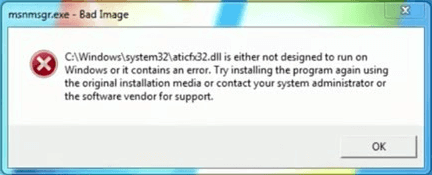
Detailed error information
(program name).exe - Bad Image
The file C:\Windows\system32\xxx.dll is not compatible with Windows or contains an error. To resolve the issue, try reinstalling the program using the original installation media or contact the system administrator or software vendor for further assistance.
The error status 0xc000012f is typically caused by a problem with the Windows Update service or a corrupted system file. This can be resolved by running the System File Checker (SFC) tool, checking for corrupted system files, and resetting Windows Update components.
The Bad Image error in .exe applications is not solely caused by a defective Windows update, but rather by various factors such as system or file corruption, excessive system cleaning, critical program files deletion, or virus/malware infection. This issue can occur in any version of Windows, including Windows 10, and the following fixes can be applied to resolve the problem.
Backup Files Before Fixing Bad Image Error Windows 10
Dealing with a never-ending popup that prevents you from launching any program on your PC can be frustrating and annoying. To resolve the Windows Bad Image error, it's essential to start by backing up your computer and ensuring your data is secure before proceeding with the fix.
Qiling Backup is a Windows tool that enables users to create backups of their important files or entire partitions/disks with ease, making it a convenient option for users who want to safeguard their data.
To resolve the Bad Image error, download and install Qiling disk cloning software on your PC, then launch the software and follow the guide to create a full disk partition backup, which is a crucial step before permanently removing the error through system restore.
Step 1. To start a disk backup, click on "Disk backup" in the "Backup and recovery" page.

Step 2. It is available to back up a whole disk or a certain partition. Choose the one you need and click OK.

Step 3. Select the destination where you want to save the backup.

Step 4. For disk/partition backup, you can save the backup to a local drive or a NAS.

Step 5. After the backup process is completed, your task will be displayed at the left. You can right-click on any task to further manage your backup, such as recovering it or creating an incremental backup.
How to Fix Windows Bad Image Error with 5 Best Ways
Now, feel worry-To fix the Bad Image error on Windows 10, try the following troubleshooting methods without risking your important computer data. First, run a full system scan with a reputable antivirus program to detect and remove any malware that might be causing the issue.
Fix 1. Uninstall and Reinstall Program
Uninstalling and reinstalling the problematic program is usually the first step to resolve a Bad Image error. Make sure you have the setup file ready before proceeding with the uninstallation and subsequent reinstallation. This simple process often resolves the issue.
Step 1. To open the Programs and Features window in Windows, press the Windows key + R to open the Run dialog, type "appwiz.cpl" and press Enter. This will open the Programs and Features window, where you can view, add, or remove installed programs.
Step 2. To resolve the Bad Image error, double-click on the program causing the issue and select the "Uninstall" option from the context menu. This will remove the problematic program and potentially resolve the error.
Step 3. Go to the program's official website and download the program again.
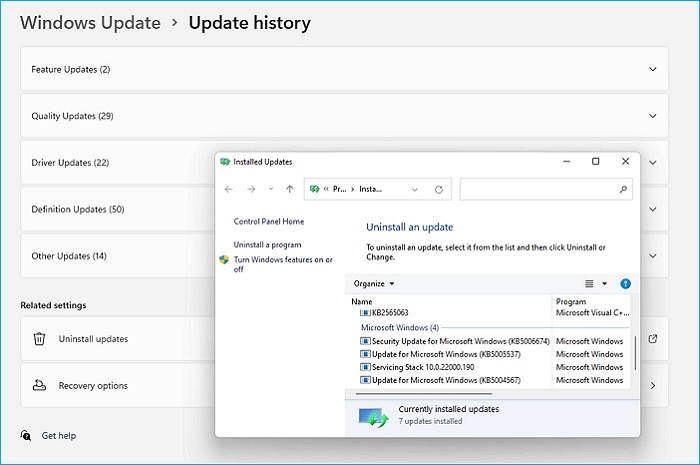
Fix 2. Uninstall the Defective Windows Update
Uninstalling the problematic Windows update is a simple yet effective solution to resolve the Bad Image error, allowing the system to function normally again.
Step 1. To access the Control Panel in Windows, simply type "Control Panel" in the search box located at the bottom left corner of the screen and press the Enter key. This will open the Control Panel window, where you can manage various settings and options for your computer.
Step 2. Navigate to "Programs and features".
Step 3. On the left panel, click "View installed updates".
Step 4. To resolve the Bad Image error on Windows, go to the right panel, find the problematic Windows update version, click "Uninstall", and restart your computer.
Fix 3. Run SFC Scan to Repair System File and Fix Bad Image Error
If the Bad Image - Error status 0xC000012F is typically caused by a damaged system file. To resolve this issue, you can run the System File Checker (SFC) tool, which performs a thorough check of file integrity and automatically repairs all corrupt system files.
Step 1. Press Windows + X simultaneously and click "Command Prompt (Admin)".
Step 2. Type the following cmd and hit enter.
Sfc /scannow
sfc /scannow /offbootdir=c:\ /offwindir=c:\windows
Step 3. The command "sfc /scannow" will run a system file check and repair all corrupt system files, and then restart the computer.
If the System File Checker is unable to repair certain files, it will display an error message stating that Windows Resource Protection found corrupt files but was unable to fix some of them. The details of the issue can be found in the CBS.Log file located in the windir\Logs\CBS\CBS.log directory, for example C:\Windows\Logs\CBS\CBS.log. To fix the issue instantly, you can refer to the log file for more information.
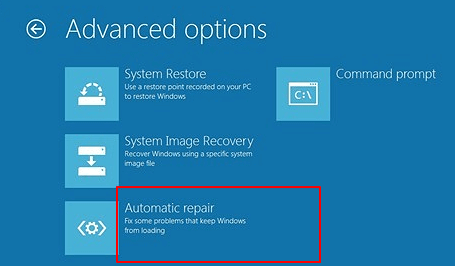
Fix 4. Run Windows Automatic Repair
Step 1. Boot Windows from a bootable installation media and select the "Repair your computer" option.
Step 2. Click "Troubleshoot" > "Advanced" options and then "Automatic Repair".
Step 3. Wait until Windows Automatic Repair finished. Restart your computer.
Fix 5. Perform System Restore
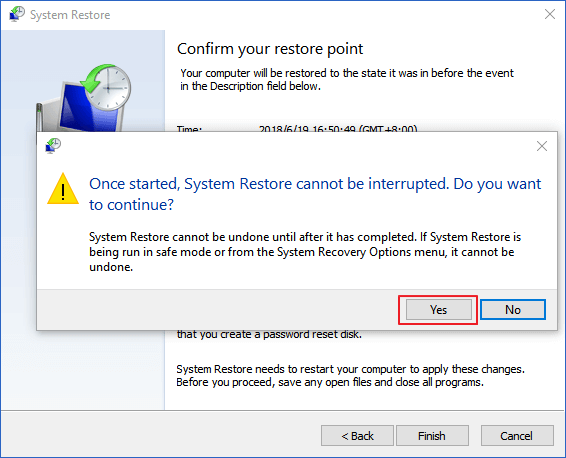
Windows 10 setup turns off System Restore by default. If you've enabled System Restore and created a system restore point beforehand, it's the last resort to fix Bad Image errors.
Step 1. You can create a restore point by searching for "system restore" in Windows 10, then clicking on "Create a restore point" in the results.
Step 2. To resolve the Bad Image error, click on "System Restore" and select a different restore point, then follow the on-screen instructions to complete the system restore. This will revert your system to a previous point in time when the error was not present.
Final Verdict
If you encounter a Bad Image error on Windows 10, follow this tutorial to fix the issue effectively. If you're experiencing other problems, feel free to contact our technical support team via live chat for assistance.
More FAQs About Bad Image Error Windows 10
The Bad Image error in Windows 10 is a common issue that occurs when the operating system is unable to load a legitimate system file, causing the system to crash or freeze. This error can be caused by a variety of factors, including corrupted system files, malware, or driver issues, and can often be resolved by running a System File Checker (SFC) scan, checking for malware, or updating drivers. Additionally, some users have reported that the error can be triggered by specific programs or applications, and in some cases, a simple restart of the system may resolve the issue.
What is a Bad Image error?
A Bad Image error, also known as error status 0xc000012f, occurs when Windows can't run a program due to corrupted files and libraries caused by an update, affecting various Windows versions, including Windows 10, 8, and 7.
What does Bad Image mean on Windows 10?
A bad Image error occurs when a system process is interrupted or files affecting the system are corrupted. To fix this, you can run a System File Checker (SFC) tool to scan and repair corrupted files on your computer.
How do I fix a Bad Image? How do I fix error 0xc000012f?
To resolve the Bad Image error on Windows 10, several methods can be employed. These include.
- Reinstall the program that can't be opened
- Uninstall the problematic Windows update
- Run a System File Checker to check corrupted system file
- Run Windows Automatic Repair
- Perform a System Restore
How do I fix the Rundll error in Windows 10?
- Reinstall the programs which report the DLL errors
- Re-download a copy of the Rundll file
- Test the same Rundll file on another computer
- Fix the Windows registry problem
Related Articles
- SFC Windows Resource Protection Could not Perform the Requested Operation
- How Long Does It Take to Factory Reset A PC
- How to Upgrade Switch SD Card and Transfer Switch Games to A New SD Card
- Install IDE Hard Drive
- How to Solve Outlook Not Syncing with Gmail[2023 Tutorial]
Is your Outlook Not Syncing with Gmail? You can find out the reasons and the right techniques for syncing your Outlook with Gmail here! - pCloud Backup vs Sync: What's the Difference & How to Choose
Compare pCloud Backup and Sync to understand how each works, when to use backup or sync, and how to protect files in the cloud.
Products
Articles & Tutorials
- Data Recovery
- Data Backup
- File Recovery
- File Backup
- System Backup and Restore
- Disk and Partition Clone
- Technical articles
- Mobile articles
- Disk Master Help
- Windows Data Recovery Tutorials
- Windows Secure Delete Tutorials
- Windows Partition Management Tutorials
- Windows File Backup and Restore Tutorials
- Windows System Backup and Restore Tutorials
- Windows Disk Backup and Restore Tutorials
- Windows Clone Tutorials