How to Upgrade Switch SD Card and Transfer Switch Games to A New SD Card
How to Upgrade Nintendo Switch SD Card without Losing Data
Many users experience the need to upgrade and replace their Switch's SD card when it becomes full. If you're in this situation, you'll want to know how to swap out your current SD card for a larger one and transfer all your saved game files. This process involves purchasing a new SD card with sufficient storage capacity, physically replacing the old card with the new one, and then transferring your saved games to the new card using a process that varies depending on the game and the method you're using.
Upgrading the Switch SD card is a common issue for many users. To migrate and transfer saved games to a new SD card, there are two recommended methods. You can follow one of them to change your Switch SD card without losing any files.
Note: If you prefer a straightforward way to directly move all games and hidden files to the new SD card, powerful Disk clone software can help.
To upgrade and change the Switch SD card on your own, you can use Method 2, which involves purchasing a new SD card, removing the old one, and inserting the new one into the Switch console. This method allows you to upgrade your storage capacity and replace the old SD card with a new one, giving you more space to store your games and data.
Method 1. Clone and Upgrade Switch SD Card for Free in 3 Steps
To ensure a smooth Switch SD card upgrade process, we recommend following the step-by-step guidelines to fully transfer saved game files to the new SD card. This will help you upgrade your Switch's SD card without losing any saved game data.
1. Prepare both new and old Switch SD card ready
1. Format the new SD card and set the file system to NTFS.
2. To turn off your Nintendo Switch, hold the Power button until the Power option appears on the screen, then select it to shut down the console.
3. Remove the old memory SD card from the Nintendo Switch console.
2. Upgrade and clone old Switch SD card to new SD card
To clone files and games from an old SD card, you can use Qiling Backup software, which offers a sector-by-sector clone feature, allowing for a full clone of the old SD card with simple clicks.
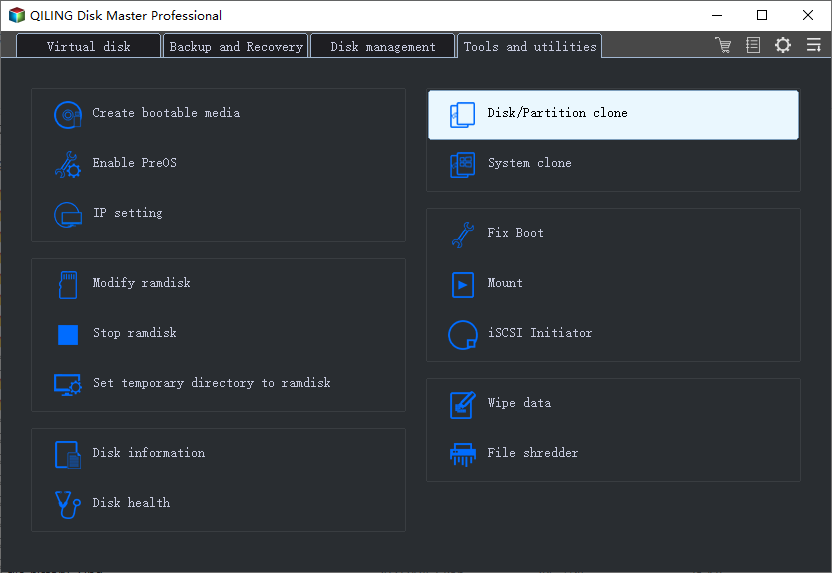
Step 1. Launch Qiling Backup and click on the "Tools and utilities" page, where you can see clone and other utilities.
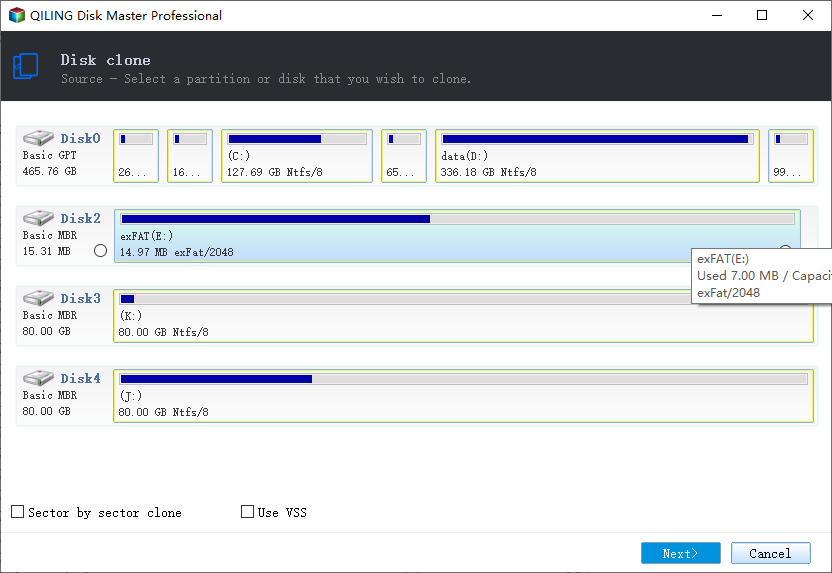
Step 2. Choose the source disk or partition as well as the target disk. (Make sure the space of the target disk is larger than that of the source disk or partition.)
Step 3.If you clone a disk or partition, it will erase all data on the target disk/partition. If you have backed up your data, you can proceed with the clone. Otherwise, it will be lost forever.
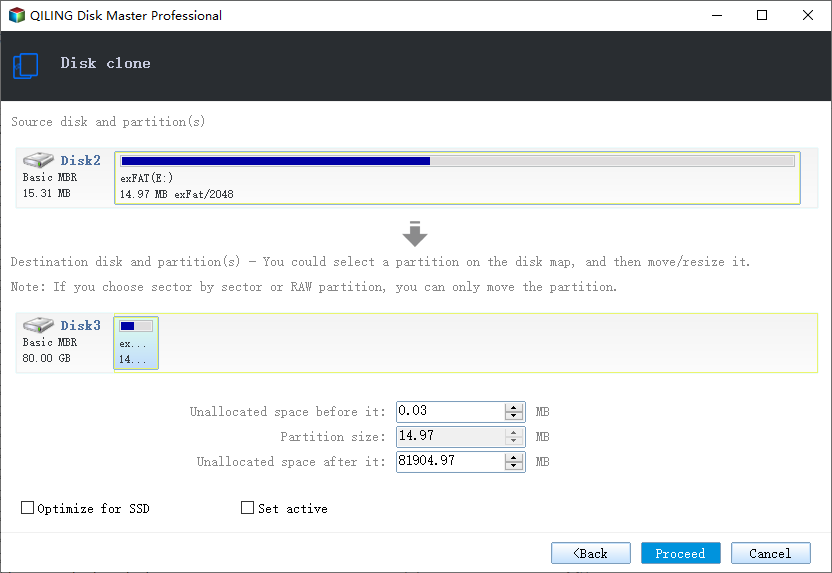
Step 4. Click "Proceed" to start cloning.
When the process is complete, unplug the SD cards and proceed with Step 3, which involves inserting a new SD card into your Switch box to get it working again.
3. Add new SD card to Switch and make it work normally
1. Insert SD card into the Switch game box.
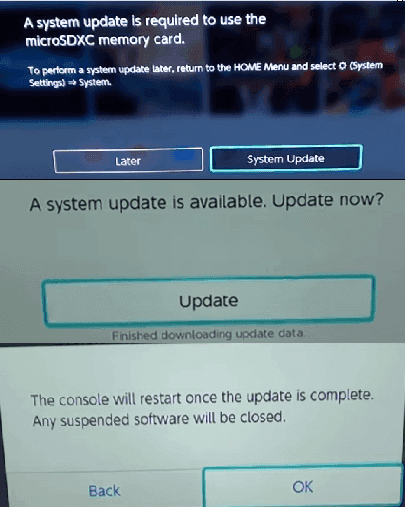
2. To get the new SD card working normally with your Nintendo Switch, you'll need to turn on the console and perform a system update. This will allow the Switch to recognize and utilize the new SD card.
To update your system, click on "System Update", then click "Update", and lastly click "OK" to confirm the update operation.
Transferring games and saves to a new SD card in the Nintendo Switch is a relatively straightforward process. First, you'll need to insert the new SD card into the Switch's SD card slot and format it.
Method 2. Change Switch SD Card and Copy Game Files to New Card
Step 1. Turn off Switch by holding the "Power" button and remove the old SD card from Switch.
Step 2. Insert the new SD card into Switch and let it format, and update it in Switch system if it's required.
Step 3. "Turn off" Switch again and remove the new SD card.
Step 4. To transfer files from your old SD card to your new one, simply insert both cards into your PC, and then copy the files from the old card to the new one. This process is straightforward and allows you to preserve your data.
- Notice:
- 1. When transferring files to a new memory card, make sure to copy them to the same location or folders on the new card, ensuring that all your files are properly organized and easily accessible.
- 2. If you receive a prompt asking if you want to overwrite a file that already exists on your new card, click NO. Instead, copy files that don't exist on your new card. This will prevent accidental overwrites and ensure your files are safely transferred.
Step 5. Put your new SD card back in Switch and turn on the box.
There, you can play games with the new SD card on Switch again.
Related Articles
- How to Fix Grayed Out Folders or Files on Mac
- Fix Invalid Partition Table Error in Windows 10/8/7
- Mac Won't Boot or Start After macOS Big Sur/Catalina/Sierra Update
- Best Ways To Fix Windows PowerShell Keeps Popping Up
- How to Find Office 2016/2019 Product Key (Windows 11 Available)
Lost your Office 2016 or 2019 product key? Learn 3 proven methods to find your Office 2016/2019 product key on Windows 11/10/8/7, including Qiling Key Finder, Microsoft Store, and CMD. - How to Find Windows 8 Product Key | Quick Methods to Get Windows 8 Product Key
Can't find your Windows 8 product key? Discover 6 quick methods to retrieve your Windows 8 product key, including Qiling Key Finder, Command Prompt, PowerShell, Registry, and more.
Products
Articles & Tutorials
- Data Recovery
- Data Backup
- File Recovery
- File Backup
- System Backup and Restore
- Disk and Partition Clone
- Technical articles
- Mobile articles
- Disk Master Help
- Windows Data Recovery Tutorials
- Windows Secure Delete Tutorials
- Windows Partition Management Tutorials
- Windows File Backup and Restore Tutorials
- Windows System Backup and Restore Tutorials
- Windows Disk Backup and Restore Tutorials
- Windows Clone Tutorials