How Long Does It Take to Factory Reset A PC
If your computer is working slowly, hanging frequently, crashing apps, freezing the screen, or displaying error messages, it may seem like its lifespan is over, but it's often caused by bugs or technical issues. A factory reset can resolve these problems, and the time it takes to complete the process varies depending on the system and the speed of the computer.
What is A Factory Reset
A soft reset, hard reset, and factory reset are often confused. A soft reset is simply logging off and rebooting your computer, clearing the cache. A hard reset involves removing the battery to reboot, also clearing cache. A factory reset, however, is a more comprehensive process that returns your device to its original settings.
A factory reset is the most extreme option, wiping out all data, system files, software, and programs, and resetting settings and configurations to their default state.
A factory reset on a computer or laptop is similar to wiping a formatted hard drive, retaining only data stored in secondary storage or external devices. Various factory reset methods are available on your device.
After a factory reset, your system reinstalls the OS and restarts, requiring you to set up your device from scratch and reinstall software and tools.
While there are some drawbacks to using it, relying solely on the built-in troubleshooting methods of your computer is not the most effective way to resolve issues, whether it's freezing, device malfunctions, error messages, performance problems, or similar.
Just like electronic devices can malfunction, your PC can also experience technical issues. However, you can resolve these problems by resetting your PC, which can help fix any issues and get your device back up and running smoothly.
How Long Does it Take Factory Reset a PC?
Laptops and computers require different times to perform a factory reset, which depends on hardware configurations, data, and the PC's current condition.
The time taken to reset a PC can vary from 30 minutes to 3 hours, depending on factors such as the amount of data on the PC, the type of storage, and whether the user chooses to retain or erase data. This process can be done overnight or in 6-7 hours if the user's PC is slow.
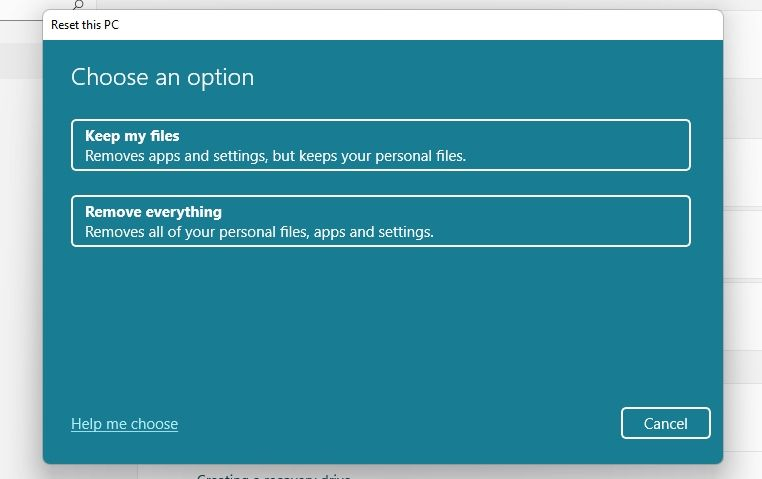
When you reset your PC, you'll have two options: "Keep my files" and "Remove everything". Choosing "Keep my files" will reset all your apps and settings, but keep your personal files intact, which takes a shorter time to complete. This is because the CPU doesn't need to delete your files, so everything isn't cleaned. Your files will remain on your system after the reset is complete and the PC reboots.
Proceeding with the "Remove Everything" option will result in the deletion of all files, folders, including system and personal data, and apps, as well as resetting all system settings to their default state. This process will take longer than usual due to the need to clean up files, and upon completion, the system will restart, resulting in the permanent loss of all data.
How to Backup Data before Factory Reset
You can backup your data before a factory reset using Windows Backup and Restore, but not everyone uses this feature. As an alternative, Windows offers File History, although it may not be very effective. If you're looking for a more comprehensive solution, third-party tools can help fill the gap left by Backup and Restore.
Backup using Windows Backup and Restore
Windows has a built-in feature that allows you to backup and restore your files without needing any external software, which is useful before performing a hard reset.
Follow the steps given below to Backup using Windows Backup and Restore on Windows 10:
Step 1: Press the Win+S keys simultaneously to open the search box on your Windows computer, allowing you to quickly search for files, apps, and settings.
Step 2: Type Backup Settings and click on the first search result.
Step 3: To restore your files, go to Backup and Restore, select Restore my Files, and then browse for the files you want to restore.
Step 4: Select all the files to Restore, and press the Next button. Then, choose the destination drive and press the Finish button.
Step 5: Select the location where you want to restore all the files and click the Restore button
Follow the steps given below to Backup and Restore files on Windows 11:
Step 1: Open the Control Panel, and then click on System and Security
Step 2: To set up a backup, navigate to the Backup and Restore section, select the "Set up Backup" option, and you may need to enter administrator credentials.
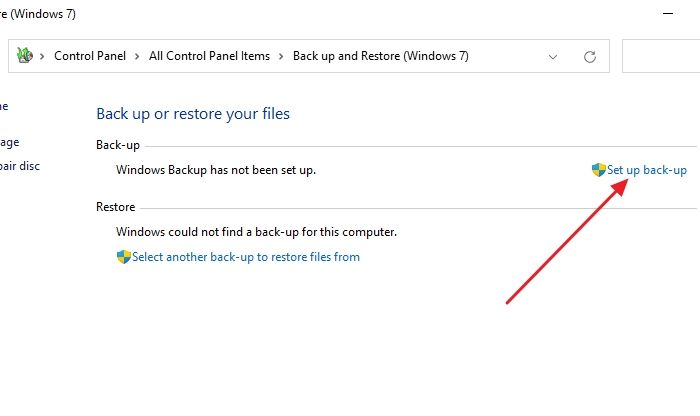
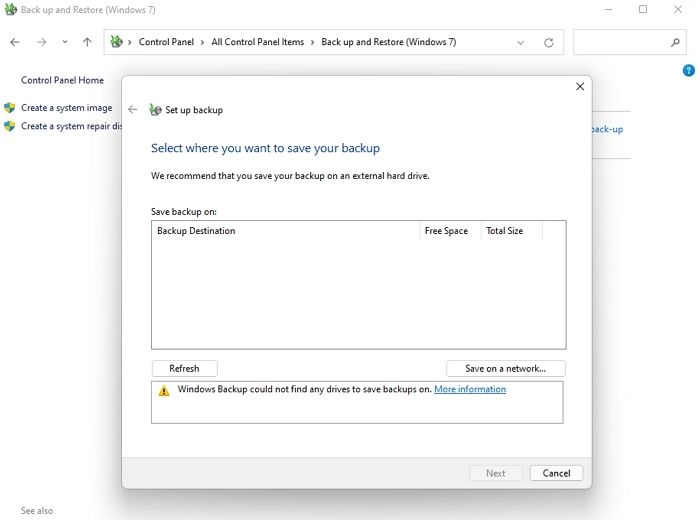
Step 3: Choose Backup Drive, whichever you have. Press the Next button, and then click on Let Windows Choose. Then press the Next button.
Step 4: All your files, folders, and multimedia will be backed up on your PC in the Backup Drive or Windows folder. To confirm, click on Save Settings and Run backup.
Losing data can be a significant issue when you retain all your files on your PC. If you don't choose to recover your files, it can be a substantial loss. Regardless of the method you choose, you'll lose all your applications and software. However, you can use a third-party tool like Qiling Backup to backup all your data.
Backup using Qiling Backup
Using Qiling for backup before Factory resetting your computer has several benefits.
1. Cloud Storage: It uses cloud storage technology so that you can retrieve your files from any computer. However, it would help if you had an internet or WiFi connection to access your files.
2. Easy to use: The tool is easy to use, a friendly GUI. The software is incredibly user-friendly, requiring no technical expertise or command line knowledge, making it as easy to use as the Windows operating system.
The Qiling backup tool offers budget-friendly options with several premium plans to choose from, varying based on your needs.
3. Speed: One of the biggest boons of using Qiling Backup is better speed. The process of transferring data is efficient and time-saving, allowing you to move all your applications, personal files, and media without significant delay. Additionally, it is mindful of storage space, minimizing the amount of space it occupies.
The tool is reliable, operating since 2004, and prioritizes client satisfaction, ensuring no data loss. For more on how to backup and restore data with Qiling Backup, check out this article.
How to Perform a Factory Reset on a PC
If you're experiencing issues with your PC or want to improve its performance, a factory reset is a must. This process will essentially "rest" your system, allowing you to start fresh and potentially resolve any problems you've been facing.
Follow the steps given below to Factory reset your PC:
Step 1: Open Windows Settings using Win + I
Step 2: Navigate to System > Recovery and click on Reset PC.
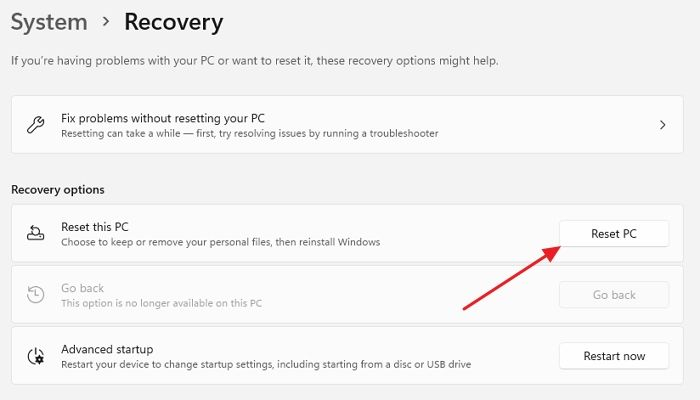
Step 4: You will be given two options, "Keep my Files" or "Remove everything". Choose the one that aligns with your preferences.
Step 5: The "Reset this PC" process will open a new window, displaying the effects of the reset, including the removal of all apps, settings, and user accounts, except for the administrator account. The process will also inform the user that all files and data will be deleted.
Step 6: After reading the instructions, click on the Reset button to start the reset process. This process may take some time, and once completed, your PC will automatically reboot.
How to Fix PC Factory Reset Stuck?
If you're experiencing a PC Factory Reset Stuck issue while performing a factory reset, several fixes can help resolve the problem.
Method 1: Wait for a While
Factory reset takes longer to run and complete, requiring a wait that varies depending on data and hardware configurations. This process can take several hours, during which the reset can be tracked by the hard drive's LED light, and some users have had to leave the process overnight to complete.
Method 2: Fix your Network Connection
To resolve the factory reset screen issue, disable the internet connection on your PC to complete the process.
Follow the steps given below to do so:
Step 1: Unplug the Ethernet Cable on your PC.
Step 2: Switch off your router.
Step 3: After the reset process, your internet connection will be disabled, and once complete, you can turn on your router and plug the ethernet cable back into your PC.
Method 3: Modify the BIOS Settings
Improper BIOS settings are often the cause of factory reset issues, as they can interfere with the reset process. To resolve this, you may need to configure your BIOS settings, specifically deactivating Secure Boot and activating CSM, to allow the factory reset to complete successfully.
To summarize, select the USB Boot option if needed, choose a USB or boot disc as your Boot device, save the changes, and then perform a factory reset again. If you're not familiar with BIOS, consider alternative methods or seek expert assistance.
Method 4: Clean Install Windows OS
To reinstall Windows, you'll need to clear install the OS and start from scratch. Before doing so, it's essential to backup all your files to restore them later. This will ensure that you don't lose any important data during the process.
Using these methods, you can resolve the issue of a hard reset being stuck on the screen.
Summary
A factory reset on a PC typically takes around 30 minutes to 3 hours to complete, depending on the device configuration. Before proceeding, it's essential to backup your data to prevent loss. You can use built-in tools like Windows Backup and Restore or third-party software like Qiling Backup to ensure your files are safely backed up.
We recommend using the Qiling Backup option, which is safe and reliable, as your one-stop tool for all kinds of backups and later restores.
For a Windows 10-specific estimate, see how long a full PC reset can take and what affects the timing.
Related Articles
- Access Denied When Copying Files Windows 10/8/7
- Best Free SyncToy Alternative Software for Windows 10/8/7
- Fix boot sector of FAT16/FAT32/NTFS partitions
- Hard Drive Not Spinning? Causes and Fixes Here!
- How to Find Office 2016/2019 Product Key (Windows 11 Available)
Lost your Office 2016 or 2019 product key? Learn 3 proven methods to find your Office 2016/2019 product key on Windows 11/10/8/7, including Qiling Key Finder, Microsoft Store, and CMD. - How to Recover Windows 7 Password? Try to Reset It!
Recovering a Windows 7 password can be a breeze with the right tool. A professional Key Finder like KeyUS can make the process a piece of cake, and following a step-by-step guide can help you reset your password with ease.
Products
Articles & Tutorials
- Data Recovery
- Data Backup
- File Recovery
- File Backup
- System Backup and Restore
- Disk and Partition Clone
- Technical articles
- Mobile articles
- Disk Master Help
- Windows Data Recovery Tutorials
- Windows Secure Delete Tutorials
- Windows Partition Management Tutorials
- Windows File Backup and Restore Tutorials
- Windows System Backup and Restore Tutorials
- Windows Disk Backup and Restore Tutorials
- Windows Clone Tutorials