macOS Sonoma Runs Slow After Update | 8 Ways to Fix
Upgrading to a fresh macOS version, like macOS Sonoma, is a fun and exciting experience, bringing new features, a fresh appearance, and solutions for old problems.
Upgrading to macOS Sonoma can be frustrating if you discover it runs slow after the update. However, there are several potential fixes, starting with the simplest ones, such as updating apps on your Mac, which can make a big difference.
To fix the macOS Sonoma runs slow after an update error, you may need to inspect different aspects of your system and eliminate incompatible programs. This process involves troubleshooting to identify and remove any programs that are causing the issue, allowing your system to run smoothly again. By doing so, you can resolve the problem and enjoy a faster and more efficient macOS Sonoma experience.
- ⏫Fix 1. Update Applications to Speed Up macOS Sonoma
- 🗑️Fix 2. Optimize Mac Performance via Empty Trash Bin
- 📈Fix 3. Quit Resource-Hungry Applications
- ✅Fix 4. Manage Startup Programs to Speed Up macOS Sonoma
- ⛔Fix 5. Turn off Stage Manager on macOS Sonoma
- 🧩Fix 6. Uninstall Incompatible Programs
- 🔍Fix 7. Rebuild Spotlight Index
- 💻Fix 8. Reset SMC/PRAM/NVRAM on macOS Sonoma
Sonoma Runs Slow after Update, Why
Mac users often experience slowdowns or crashes after macOS updates, including issues with their MacBook's performance after the Ventura update.
Upgrading to macOS Sonoma might not necessarily result in a noticeable speed boost, especially if your system is already running smoothly. This is because macOS Sonoma is designed to optimize existing performance, rather than significantly increasing it. As a result, you might not see a dramatic improvement in speed, even if the new operating system is supposed to be more efficient.
macOS Sonoma can run slow after an update due to several reasons, including the reasons below
- Resource-Hungry Processes: Running multiple resource-intensive processes at the same time can cause a strain on your computer's RAM and CPU, leading to slow performance.
- Incompatible Apps: Some apps may not be optimized for Sonoma, potentially slowing down your system.
- Software Bugs: macOS Sonoma updates can sometimes introduce software bugs that may cause performance issues.
- Insufficient Space: The upgrade process can consume a significant amount of space, potentially leaving your Mac with insufficient storage, especially if it already has limited capacity, which can hinder its smooth operation.
In most cases, the solution is simple and quick. However, some situations can be more complex, such as meeting specific system requirements, which we'll start by addressing.
How to Fix macOS Sonoma Runs Slow After Update
If your macOS is running slow after updating to Sonoma, various steps can be taken to increase the speed of macOS Sonoma on your Mac.
To avoid data loss after fixing the problem, back up your essential data using Time Machine or Deep Data Recovery for Mac Pro.
Back Up Your Mac and Never Lose Data
To back up and restore your MacBook/iMac without using Time Machine, iCloud, or external hard drives, you can use the built-in "About This Mac" feature to create a backup of your system, or use a third-party backup software like SuperDuper or Carbon Copy Cloner to clone your startup disk. You can also use the "Archive and Install" option in the "About This Mac" feature to create a backup of your system and then reinstall macOS while keeping your personal files and settings intact.
We've arranged the solutions based on their ease of implementation and effectiveness in speeding up Sonoma. Let's cut to the chase!
Fix 1. Update Applications to Speed Up macOS Sonoma
When a new macOS version is released, developers typically update their apps to optimize them for the new system. If your apps haven't been updated to the latest versions, it may cause your Mac to run slowly.
To update your apps, go to the App Store, navigate to the Updates section, and install any available updates for your other apps.
Step 1. Go to the App Store on your Mac, then click on the app's name in the menu bar to access its menu.
Step 2. Choose the option to check for updates.
If you're experiencing an unresponsive App Store, this article can provide effective solutions to help you resolve the issue.
If the App Store is not working on your Mac, try these 5 quick solutions: restart your Mac, check for software updates, reset the App Store, clear cache and data, and check for any issues with your Apple ID. If these don't work, try these 4 practical fixes: reset the System Management Controller (SMC), reset the Power Management Unit (PMU), reset the Network Stack, and reinstall the App Store.
If you're experiencing issues with the App Store not working on your macOS Monterey, Ventura, or Sonoma, there are several troubleshooting steps you can take to resolve the problem. First, try restarting your Mac and opening the App Store again. If that doesn't work, check your internet connection and ensure that you're signed in with the correct Apple ID.
Fix 2. Optimize Mac Performance via Empty Trash Bin
A slow Mac can often be attributed to insufficient storage space, which can be exacerbated by the upgrade process itself. As a result, it's essential to free up space on your Mac to ensure that it can run other applications smoothly after the upgrade.
To free up storage space, simply click on "Empty Trash" or force empty Mac Trash by right-clicking on the Trash icon and selecting "Empty Trash" from the context menu. This will delete all files and folders in the Trash, freeing up space on your Mac. Alternatively, you can also use the "Secure Empty Trash" option to permanently delete files and prevent them from being recovered.
Step 1. To access the "About this Mac" section, click on the Apple logo in the menu bar, which is located at the top left corner of the screen, and select "About this Mac" from the dropdown menu.
Step 2. Select "Storage > Manage".
Step 3. Go to System Preferences, then select "Users & Groups", and click on the lock icon to unlock it. Select your username, then click on the "Login Items" tab.

Manual cleaning of a Mac can be time-consuming and may not provide thorough cleaning results, leaving storage space unchanged even after deleting files.
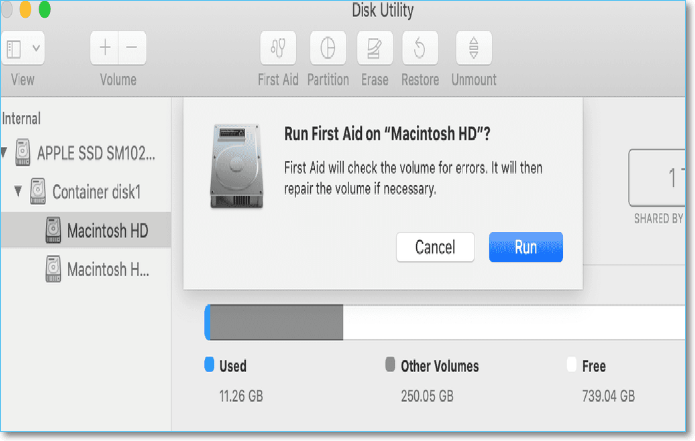
Delete Files Mac But Still No Space: 4 Fixes
If you're experiencing the problem of deleted files still taking up space on your Mac, this article can help. It will provide guidance on how to resolve this issue and free up space on your device.
Fix 3. Quit Resource-Hungry Applications
Resource-Running too many resource-hungry tasks at once can slow down your Mac, cause crashes, and lead to overheating. To maintain your Mac's speed, it's best to avoid running multiple resource-intensive tasks simultaneously.
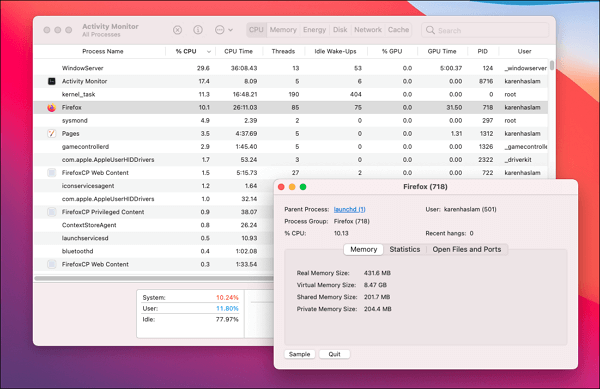
To quickly identify and stop tasks using the Activity Monitor, follow these steps: locate the Activity Monitor on your computer, click on the "Processes" tab, and look for the task you want to stop. Once you've found the task, click on it and then click the "Quit Process" button. Alternatively, you can also click on the "Force Quit" button to immediately stop the task.
Step 1. Launch "Activity Monitor" using "Launchpod" or "Spotlight".
Step 2. Check the processes listed under "CPU and Memory" to identify any abnormal processes.
Step 3. To stop an abnormal process, tap on the process in the list, then select the "Quit" or "Force Quit" button to terminate it.
If the "Force Quit" button is not working on your Mac, there are several troubleshooting steps you can take to resolve the issue. First, try restarting your Mac in Safe Mode to see if the problem persists. If it does, try booting in Recovery Mode and running a System Report to check for any hardware issues.
Force Quit Not Working on MacBook Pro/Air
Forcing an application to quit can be accomplished through various methods, depending on the operating system being used. On a Windows computer, you can press the Ctrl + Alt + Del keys simultaneously to open the Task Manager, then select the application you want to close and click the "End Task" button. On a Mac, you can press Command + Option + Esc keys at the same time to open the Force Quit Applications window, then select the application and click "Force Quit".
Fix 4. Manage Startup Programs to Speed Up macOS Sonoma
To save time, you can disable the apps you don't need to start automatically on your Mac. To do this, go to System Preferences, then Users & Groups, and select your account. Click on the Login Items tab, then select the app you want to disable and click the minus button to remove it. Repeat this process for any other apps you don't want to start automatically.
Step 1. Tap the "Apple" icon, and hit "System Preferences".
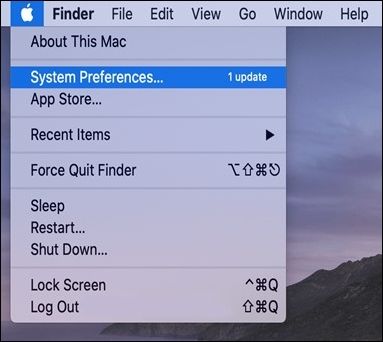
Step 2. Choose "User & Groups > Login Items".
Step 3. Consider avoiding tasks that require intense focus or concentration during the startup phase, such as complex problem-solving, creative work, or high-stakes decision-making. Instead, focus on tasks that are more routine, require less mental effort, or can be done in a more relaxed state.
Step 4. To remove apps from the startup list, select the apps you want to remove and click the (-) button at the bottom.

If your macOS Sonoma is running slow after the update, there are some steps you can take to fix the issue. First, try restarting your Mac to see if that resolves the problem.
Fix 5. Turn off Stage Manager on macOS Sonoma
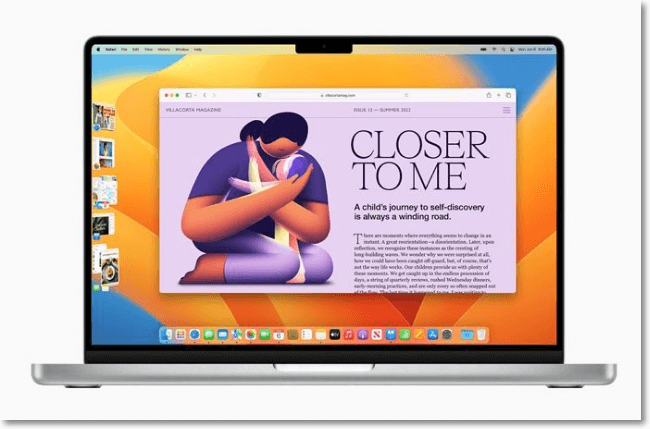
If you're using multiple apps at once, it's best to avoid Stage Manager, as it shows previews of all apps not currently in use.
Some users have reported that Stage Manager can consume a significant amount of computer resources, particularly RAM, which may cause Mac slowdowns.
If you're still facing speed issues, you can turn it off for a while and see if there's a change. You can turn it back on if you notice that the Stage Manager isn't the issue. To turn off the Stage Manager:
Step 1. To launch "System Preferences", tap the "Apple" icon at the top left corner of your screen and select "System Preferences".
Step 2. In the left sidebar of System Preferences, choose "Desktop & Dock".
Step 3. Scroll down the right-side panel until you locate "Stage Manager".
Step 4. Toggle the switch to turn off "Stage Manager".
After completing these steps, check your system's speed. If you don't notice an immediate improvement, consider restarting your system to ensure a complete reset and removing any related processes from memory.
Fix 6. Uninstall Incompatible Programs
Your Mac may run slower in Sonoma if some apps need an update, but updates are usually on the way to optimize them for the new OS.
To identify and stop an app running in the background on your Mac, follow these steps:
Step 1. To force quit an application on a Mac, press the keys "Option + Command + Esc" at the same time. This will open the "Force Quit Applications" window.

Step 2. To force quit multiple apps on your device, select each app listed, click "Force Quit" on each one, and to select all at once, hold down the "Shift" key and click on each app.
If your MacBook Pro speeds up after closing certain apps, it means one of those apps might be the cause of the slowdown. To identify it, start each app individually and see which one causes the issue.
After identifying the troublesome app:
- I recommend waiting for an update that resolves the issue. This is because the update may fix the problem and improve the overall performance of the software.
- If you're experiencing issues with an app, you can try troubleshooting steps, such as restarting the app or your device, or checking the app's settings. If that doesn't work, you can reach out to the app's creator to report the issue and they may be able to provide a solution.
Be careful when uninstalling software, double-checking if removing essential apps, and finding replacements compatible with macOS Sonoma, even after uninstalling an incompatible app.
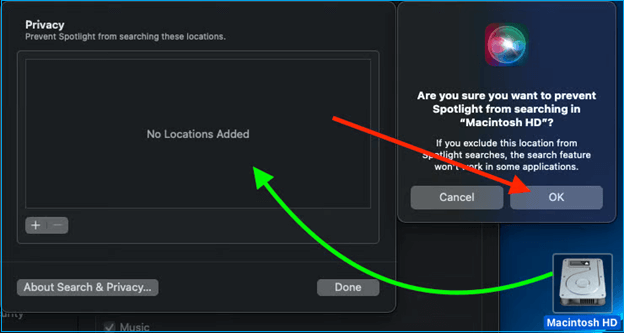
Fix 7. Rebuild Spotlight Index
When upgrading to macOS Sonoma, your Mac may appear slower than usual due to Spotlight rebuilding its index, so be patient and let it finish its work.
Fix 8. Reset SMC/PRAM/NVRAM on macOS Sonoma
Resetting the System Management Controller (SMC) can resolve severe problems and improve the performance of your Mac. Issues like rapid battery drain, sluggish performance in macOS Sonoma, and specific hardware problems can be addressed by resetting the SMC.
Step 1. Switch off your Mac.
Step 2. Remove the cable from your power source.
Step 3. Wait for about 8 minutes and restart normally.
This is a good option when your Mac is acting strangely. It's a harmless action that can potentially speed up macOS. Here are the steps to reset NVRAM/PRAM:
Step 1. Turn off your Mac.
Step 2. To restart your Mac, tap the "Power button" and immediately hold down the "Command+Option+P+R" keys. This will force the Mac to shut down and restart, bypassing the normal shutdown process.
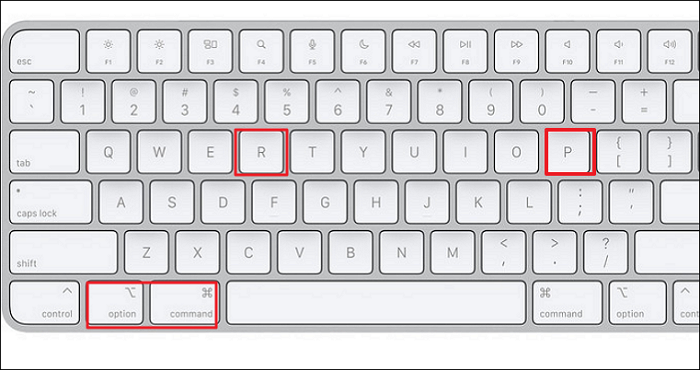
Step 3. Keep holding these keys until your Mac restarts.
Step 4. Release all the buttons and restart your Mac again.
👍Extra Tip: Avoid Data Loss after macOS Sonoma Update
Creating backups for your important files, videos, and documents is crucial to prevent data loss due to accidental deletion, software updates like macOS Sonoma, or virus attacks.
System crashes, hardware failures, unexpected shutdowns, and human errors can also lead to data loss, emphasizing the need for a backup system to prevent such losses.
If you've experienced data loss, Deep Data Recovery for Mac is a powerful solution to help you retrieve your data. This software can assist in recovering deleted files on macOS Sonoma, whether you've accidentally emptied your Mac's Trash or lost a single Office Word document, and can help in different data loss situations.
Check out the following steps to recover the lost or deleted data from the backup:
Conclusion
Upgrading to a new macOS can be a thrilling experience, making your Mac feel like new again. However, it's not uncommon for Macs to slow down after installing the latest operating system, causing some unexpected issues.
Before installing new updates, creating backups is vital to avoid losing crucial data. However, you can sometimes run into issues that can lead to data loss without a backup.
If you lose important files, you can rely on Deep Data Recovery for Mac to help you recover lost music files, photos, documents, emails, and videos within a few minutes.
Sonoma Runs Slow After Updating FAQs
Here are some common questions about why macOS runs slow after an update:
1. Why is my Mac running slow after the Sonoma update?
macOS Sonoma is using more of your Mac's resources, causing slow performance, due to the additional power required for its new features and enhancements, which may not be suitable for some Macs that can run Ventura.
2. Why is my Mac so slow after the macOS Ventura update?
Installing the latest macOS Ventura update on your Mac may decrease performance due to some issues and problems that come with the new build, as well as apps and services still being fine-tuned for the operating system.
3. Why are the apps not working on my Mac Sonoma?
Some apps may not work correctly in macOS Sonoma due to outdated software or file corruption, which can be resolved by updating the app or reinstalling it.
Related Articles
- How to Fix Asus Laptop Black Screen with 11 Efficient Ways
- How to Use Git Delete File [Full Tutorial for Git]
- How to Fix Desktop Refers to A Location That Is Unavailable Error
- Can I Use My SD Card as RAM on Android and Windows?
You can use your SD card as RAM on both Android and Windows devices, but it's not a straightforward process. This article explains how to do it correctly, providing a step-by-step guide on how to utilize your SD card as a makeshift RAM to improve your device's performance. - Don't Pass: Is It Safe to Update BIOS?🔥
Is it safe to update BIOS? That's the question on a lot of users' minds, and this article answers that question thoroughly. It'll also tell users what to do to avoid data loss and important things about updating BIOS. - Is Primary and Active Partition the Same [Beginner's Guide]
Learn whether primary and active partitions are the same. Compare their meanings, roles in booting Windows, and how to manage partitions.
Products
Articles & Tutorials
- Data Recovery
- Data Backup
- File Recovery
- File Backup
- System Backup and Restore
- Disk and Partition Clone
- Technical articles
- Mobile articles
- Disk Master Help
- Windows Data Recovery Tutorials
- Windows Secure Delete Tutorials
- Windows Partition Management Tutorials
- Windows File Backup and Restore Tutorials
- Windows System Backup and Restore Tutorials
- Windows Disk Backup and Restore Tutorials
- Windows Clone Tutorials