How to Fix Asus Laptop Black Screen with 11 Efficient Ways
Asus laptop black screen is a common issue where the screen turns black, frustrating many users. For example, some users on forums have reported experiencing this problem, citing various reasons such as faulty hardware, software glitches, or driver issues.
Don't worry, Qiling can help you explore the cause of the problem and provide 11 effective solutions to fix your Asus Laptop Black Screen on Windows 11/10.
How to Fix Asus Laptop Black Screen on Windows 11/10
If your Asus laptop is experiencing a black screen, there are several potential fixes to try. You can start by removing the battery and checking the cables, or try resetting the computer screen. Additionally, you can check for hard disk errors, run the Explorer.exe process, update the graphics card, and more to resolve the issue.
- Fix 1. Reset the Asus laptop Display
- Fix 2. Check Asus Laptop Connection and Screen
- Fix 3. Use Windows Boot Repair Tool
- Fix 4. Hard Reset Asus Laptop
- Fix 5. Check Hard Disk Errors
- Fix 6. Repair Corrupt MBR
- Fix 7. Update the Graphics Card Driver
- Fix 8. Restart the Explorer.exe Process
- Fix 9. Update BIOS
- Fix 10. Disable Fast Startup
- Fix 11. Perform a System Restore
Let's take a look at the detailed step-by-step guide:
- Notice:
- If you're concerned that repairing your files will result in data loss, consider using Deep Data Recovery to recover your files first, as some repair solutions may damage them or make them unreadable.
Fix 1. Reset the Asus laptop Display
When your Asus laptop experiences a black screen error, the first step to try is to reset the display mode by pressing the Windows logo key, Ctrl key, Shift key, and B simultaneously.
If your Asus laptop is stuck on a black screen, try pressing the power button for 30 seconds to discharge the power, then press it again to turn it on. If that doesn't work, try pressing the F2, F12, or Del key to enter the BIOS settings and reset the display settings. If the black screen still appears, try disconnecting any external monitors and peripherals, and then press the power button to turn it on.
How to Fix ASUS Laptop Won't Turn On Error
ASUS laptop not turning on with power light on? Don't worry, this article is here to help. If your ASUS laptop's power light is on but it won't turn on normally, there could be a few reasons behind it. To troubleshoot the issue, you can try checking the power cord, battery, and charging port for any signs of damage or malfunction. If none of these seem to be the problem, you may need to reset your laptop or seek professional help.
Fix 2. Check Asus Laptop Connection and Screen
When experiencing black screen issues, the first step is to verify if the power light is on, as this can indicate a more serious problem. If the power light is not on, it's likely that the issue is with the power supply, and the next step would be to check the power cord and ensure it's securely connected to both the device and the wall outlet.
If the power light is not on, check the following:
- Check the power adapter and AC power cord. If the adapter is damaged, replace it.
- Check external devices and reboot after removing all external devices.
- Check that the battery is powered, and if not, supply power or replace the battery.
If the power indicator light is on, do the following:
- To check if a laptop is responding, press the Fn key and the function key (usually F7), as hotkey functions may vary from laptop to laptop.
- Press Fn + F6 to adjust the screen brightness.
- Press Fn + F8 to switch between the laptop screen and an external monitor, checking for display issues.
Fix 3. Use Windows Boot Repair Tool
If you can't determine the cause of the black screen on your Asus laptop, try a quick fix with Qiling Disk Master - a professional Windows boot repair tool.
The tool features a "Boot Repair" function that enables you to create a WinPE bootable disk on a healthy PC, which can then be used to fix the black screen issue.
Step 1. After connecting the external drive/USB to your computer, start Qiling Disk Master, go to "Bootable Media," and click "Create bootable media."

Step 2. To create a bootable Windows installation media, select a suitable USB drive or CD/DVD, and click on the "Create" button. Alternatively, you can burn the Windows ISO file onto the chosen storage media.

Step 3. Connect a bootable drive to the new computer, reboot by pressing F2/Del to enter the BIOS, set the bootable drive as the boot disk and exit by pressing F10.
Step 4. To resolve the issue, boot the computer again and enter the WinPE interface. From there, open Qiling Disk Master and select the "Fix Boot" option under the "Tools and utilities" tab page.

Step 5: Select the system you want to repair and click "Proceed."

Step 6. Wait a moment, and you will receive an alert that the system has been successfully repaired. Click "Finish" to complete the boot repair process.
If you meet other errors, such as Asus stuck on logo, click the link below to view more information:
If your ASUS laptop or device is stuck on the logo screen, don't worry, there are several efficient solutions to fix the issue. First, try pressing the power button for 30 seconds to discharge any residual power.
Here are the best solutions to troubleshoot and resolve the ASUS stuck on logo issue quickly and easily.
Fix 4. Hard Reset Asus Laptop
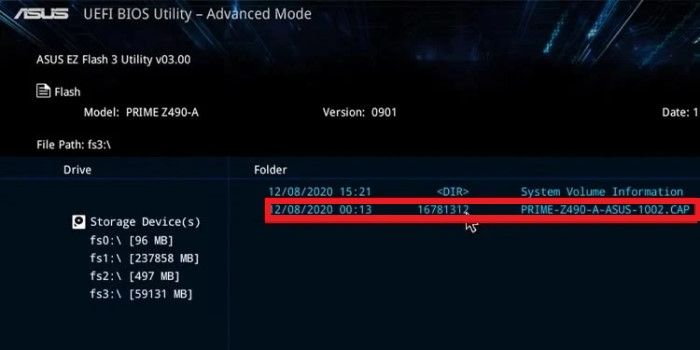
Asus laptops may experience black screen issues due to peripheral devices. To troubleshoot this, try performing a hard reset to see if the issue is caused by an external device.
Step 1. Unplug all power cords, adapters, and external devices from your Asus laptop, and then turn it off.
Step 2. Remove the battery from your Asus laptop.
Step 3. Press and hold the Power button for 40 seconds to do a hard reset.
Step 4. Install the battery and restart the computer.
If the computer boots up normally, the issue may lie with external devices, but if it doesn't, it could be due to a problem with the computer itself.
To resolve the hard drive and graphics card issues on your Asus laptop, you'll need to access the laptop normally, which may involve booting it into safe mode or using a bootable USB to access it. This will allow you to troubleshoot and fix the problems.
Fix 5. Check Hard Disk Errors
If a black screen error occurs during use, it could be a hard disk drive issue. You can use a powerful tool like Qiling Disk Master to scan and repair hard disk errors after entering your computer using bootable media, which is suitable for inexperienced users. This software can easily check the disk for bad sectors and repair disk errors without requiring specialized computing skills.
Step 1. Choose "Surface test" in "Disk Management" page.
Step 2. Select the target partition that has a problem.
Step 3. Click "Proceed" to check errors on your partition.
Fix 6. Repair Corrupt MBR
The corrupted Master Boot Record (MBR) on your system disk can also cause black screen issues. To resolve this issue quickly, we suggest using Qiling Disk Master to rebuild MBR partitions. This partition management software allows you to partition your hard disk and correct errors by creating WinPE bootable disks if your computer fails to boot properly.
See Also:
Fix 7. Update the Graphics Card Driver
If you get a black screen after booting normally and entering the desktop, it might be due to a graphics card driver issue. To resolve this, try booting in safe mode, then update the graphics card driver using Device Manager, which can automatically find the correct driver for your computer model. This should fix the black screen issue.
Step 1. Open the "Run" dialog box, type "devmgmt.msc" and press "Enter."
Step 2. In Device Manager, click "Display Adapters."
Step 3. To update your graphics card driver, right-click on the target graphics card in the Device Manager, then select "Update Driver" from the context menu. Next, click on "Automatically Search for Updated Driver Software" to initiate the driver update process.
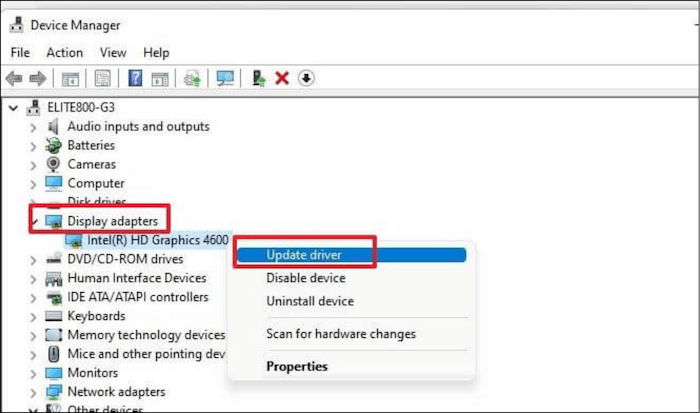
The action automatically downloads and updates the graphics card driver on your Asus laptop, ensuring you have the latest version.
📖Read Also: Acer Laptop Screen Black
Fix 8. Restart the Explorer.exe Process
If Explorer.exe fails to start properly, it can cause the laptop's display to turn black, and restarting the process may resolve the issue.
Step 1. To open Task Manager, you can press the keys Control + Shift + Esc or right-click the Windows icon.
Step 2. Click on the Details tab and locate explorer.exe.
Step 3. Right-click on explorer.exe and select End Task.

Step 4. Restart your computer to see if the black screen problem has been resolved.
Further Reading:
How to Fix Computer Stuck on Restarting
If your computer is stuck on restarting, don't worry! There are quick and easy solutions to get you back up and running. Follow these methods to resolve the issue and start using your PC again.
Fix 9. Update BIOS
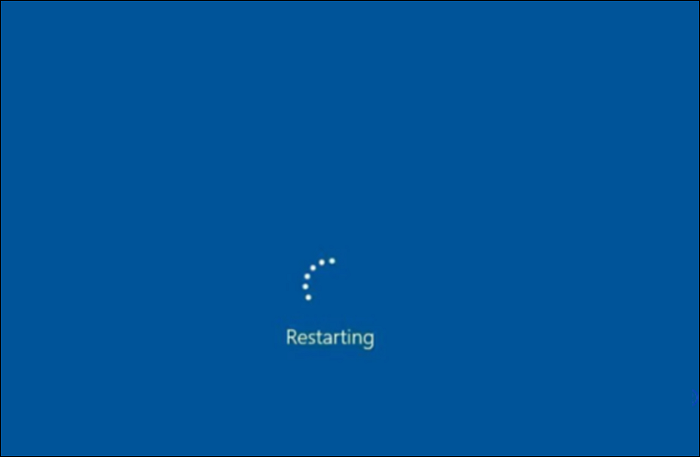
Updating the BIOS on your Asus laptop can potentially resolve the issue of a black screen, but this process requires having a second laptop available for assistance. To proceed, you would need to prepare two laptops. Then, follow the necessary steps to update the BIOS on your Asus laptop.
Guide 1. Download the BIOS file
Step 1. To update the BIOS on your Asus laptop, download the correct BIOS file from the Asus support website by entering your laptop's model number to get the exact file.
Step 2. 1. Download the BIOS file from the manufacturer's website. 2. Extract the downloaded BIOS file.
Step 3. Send the ".bin" file to a FAT32 formatted USB drive.
Guide 2. Updating BIOS on Asus Laptops
Step 1. Connect a USB drive to the black-screen laptop, then press Ctrl + R to enable BIOS Recovery Mode.
Step 2. To enter the EZ Flash utility, go to the EZ Flash menu, select the option to enter the utility, and then select the ".bin" file from the USB drive.
Step 3. Update the BIOS file and restart the computer.
Further Reading:
To fix a Windows 11 black screen with a cursor, try pressing the Windows key + X and selecting the Power option to restart in Safe Mode. If that doesn't work, try pressing the Windows key + D to switch to the desktop, then press Ctrl + Shift + Esc to open Task Manager and end any unresponsive programs.
If you're experiencing a black screen with a cursor on Windows 11, follow this guide to quickly fix the issue and get your PC back to normal.

Fix 10. Disable Fast Startup
If you have fast boot enabled on your Asus laptop, it may save the operating system state to a hibernation file, allowing for faster boot times, but it can also cause issues like a black screen during boot. Try disabling fast boot to see if it resolves the problem.
Step 1. Type "powercfg.cpl" and click "Enter."
Step 2. To change the power button settings, click on "Choose what the power buttons do" and then select "Change currently unavailable settings". Uncheck the box next to "Turn on fast startup".
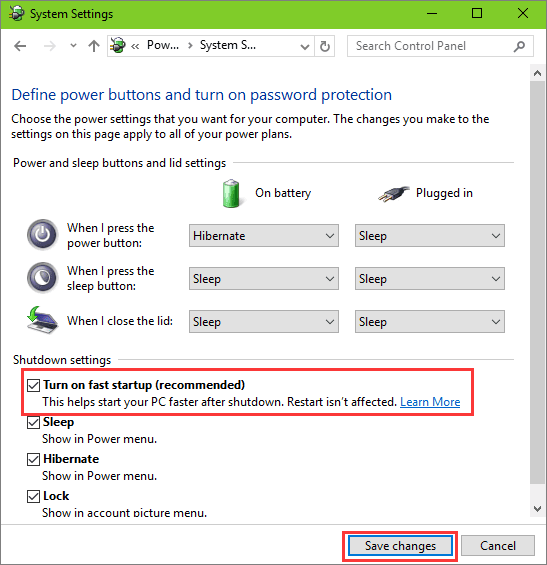
Step 3. Save the changes and restart the computer.
Read Also:
How to Fix Windows 10 Boot Loop
If you're experiencing a Windows 10 boot loop, don't panic! This troubleshooting guide can help you fix the error and get your PC up and running again. Follow the steps to resolve the issue and securely use your Windows 10 PC.
Fix 11. Perform a System Restore
To resolve the issue of an Asus laptop black screen, try restoring your system to an earlier point in time if you've recently made changes such as installing new programs or running Windows updates. This can be done by following these steps:
Step 1. To create a restore point, type "System Restore" in the search box and select "Create Restore Point".
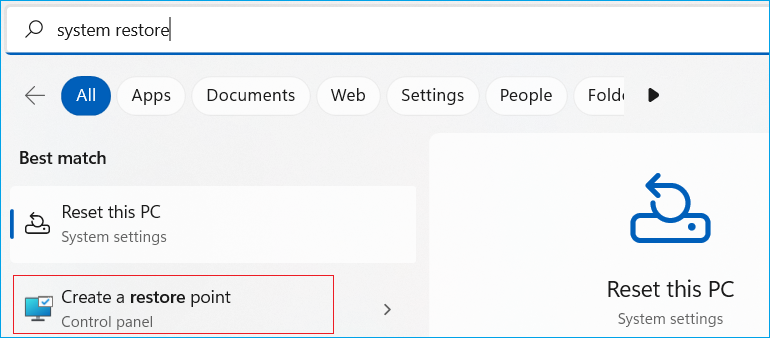
Step 2. In the System Protection tab, click "System Restore...".
Step 3. To complete the system restore, follow the on-screen actions and instructions. This will guide you through the process of restoring your system to a previous state, undoing any changes made since then.
You May Also Like:
Why Asus Laptop Black Screen Error Happen?
Asus Laptop Black Screen can occur when the laptop fails to boot up or stops functioning while in use, due to various reasons such as disk problems, connectivity issues, faulty graphics cards, or internal laptop issues.
Here are some common causes and corresponding solutions:
| 🔎Cause | 📃Explanation | 🔨Solutions |
|---|---|---|
| 🔦Connection problems |
|
|
| 🖥️Asus laptop problem |
|
|
| 💽Hard disk drive problems |
|
|
| 💻Driver problems |
|
|
| 🧩Firmware problem |
|
|
| 🚩Other causes |
|
After identifying the common causes of an Asus laptop screen not turning on, let's try the solutions. If you think these causes and methods can help you solve the problem better, you can share this article with other friends experiencing this issue.
Conclusion
The black screen issue on Asus laptops can be caused by various factors, including firmware, software, cables, and hard disk problems. Fortunately, This guide provides 11 effective solutions to help resolve this issue, allowing you to successfully fix the problem and get your laptop up and running again.
If you encounter advanced errors, a reliable tool like Qiling Disk Master can be used to rebuild the Master Boot Record (MBR). This tool allows for better management of partitions and hard disks, according to experts.
FAQs About Asus Laptop Black Screen
Users may experience Asus Laptop Black Screen But Still Running Errors when their laptop's screen remains black, but the system is still operational. This issue can be caused by a faulty display driver, corrupted system files, or a malfunctioning graphics card. To resolve this problem, users can try updating their display drivers, running a System File Checker (SFC) scan, or resetting their graphics settings. In some cases, a hard reset or a BIOS reset may be necessary to resolve the issue.
1. Why is my Asus laptop screen black but still running?
To resolve the black screen error on a Lenovo laptop, press the Windows logo key, Ctrl key, Shift key, and B keys simultaneously to reset the connection and regain the display. This should resolve the issue and restore the normal display on your laptop.
2. Why my Asus laptop won't turn on, but the power light is on?
If the power light is on, but the laptop won't start, there's likely an issue with another component. First, try pressing Fn + F7 to toggle the display on/off, ensuring the screen isn't simply unresponsive. If that doesn't work, proceed with troubleshooting other parts of the laptop.
3. How to fix Asus desktop black screen on startup?
If your computer has a black screen on startup, try the following: First, check if the screen is on by pressing the power button and seeing if the screen lights up, even if it's just a black screen. If it does, try booting in safe mode by pressing the F8 key as the computer starts up.
- Check your cables and connections
- Optimize your startup application
- Boot into Safe Mode
- Start Windows Repair
- Update all drivers in safe mode
- Repair corrupted system files
Related Articles
- Guide on Image Capture on Mac/MacBook Pro [with Shortcut]
- How to Solve "Steam Takes Forever to Allocate Disk Space" Issue?
- How to Fix Last USB Device Malfunctioned Error on Windows [Efficient Ways]
- How to Stop Windows 10 Deleting Files Automatically
- [Fixed] No Boot Disk Has Been Detected or The Disk Has Failed
When booting the computer, you may encounter the error: 'No boot disk has been detected or the disk has failed.' In this article, Qiling provides some valuable solutions to fix this error, and you can follow this tutorial. - How to Fix No Bootable Device Acer in Windows 11/10/7
We've discussed all the efficient solutions in this guide for no bootable device Acer problem. And you should be able to deal with the related issues.
Products
Articles & Tutorials
- Data Recovery
- Data Backup
- File Recovery
- File Backup
- System Backup and Restore
- Disk and Partition Clone
- Technical articles
- Mobile articles
- Disk Master Help
- Windows Data Recovery Tutorials
- Windows Secure Delete Tutorials
- Windows Partition Management Tutorials
- Windows File Backup and Restore Tutorials
- Windows System Backup and Restore Tutorials
- Windows Disk Backup and Restore Tutorials
- Windows Clone Tutorials