Solved: Screen Black But Still Running Issue
Qiling discusses the black screen but still running problem on Lenovo laptops, including its symptoms, and provides a detailed guide on how to fix this error.
| 🚩Aspects | 📃Details |
|---|---|
| 🔎Causes | The system may crash or freeze due to various reasons such as malware or virus, disk error, video card error, peripheral equipment failure or damage, etc. |
| 🧩Symptoms | Screen flickering or freezing, Lenovo computer overheating, Increased fan noise, drive full warning, etc. |
| 🔨Fixes |
|
| 🔦Complex Level | Low, step-by-step guide |
Before encountering this error, your Lenovo computer may have shown warning signs and symptoms, such as slow performance, frequent crashes, or error messages, indicating that the system is struggling to handle the workload and may be on the verge of a critical failure.
- Screen flickering, freezing
- Lenovo computer overheating
- Increased fan noise
- Suddenly and automatically opening and closing unwanted windows
- Drive or SSD full warning
When a Lenovo laptop experiences a black screen error, it's essential to identify the underlying cause before attempting to fix it. Symptoms such as a black screen but still running may indicate a problem with the computer, and being aware of these signs can help prevent further damage. To resolve the issue, it's crucial to understand what triggers a black screen error on a Lenovo laptop.
Why Is the Lenovo Laptop Screen Black But Still Running
Knowing why a Lenovo laptop goes black but is still running is crucial to avoid the same issue in the future. The common causes include a faulty or loose connection, overheating, power management settings, graphics driver issues, or a malfunctioning cooling system, among others. Understanding these potential reasons can help you troubleshoot and resolve the problem, ensuring your laptop runs smoothly and efficiently.
- 🔎Disk error
A Lenovo laptop's black screen but still running error can often be attributed to a hard drive error, which can be caused by various factors such as power outages or fluctuations, file system errors, hardware failures, poor system maintenance, manual negligence, or viruses.
- 💻Video card error
Early warning signs of a failing graphics card include stuttering, screen glitches, blue/black screens, and excessive fan noise.
- 💽The Windows operating system behaves abnormally
Your laptop may experience a black screen error when the Windows operating system starts behaving abnormally, such as slowing down, delaying command execution, or making unusual notification sounds.
- 🖥️Lenovo laptop display failure
Laptops have a non-detachable screen, making them portable. However, this can lead to a situation where the screen socket becomes damaged, causing a black screen but still a functioning laptop.
- 🔨Virus/malware attack
A virus on a Lenovo laptop may cause programs to malfunction and result in a black screen error due to the lack of antivirus protection.
- 🔦Peripheral equipment failure or damage
The Lenovo laptop's black screen issue is likely caused by peripherals connected to it, such as an external hard drive, printer, SD card, or USB device, which are still running despite the laptop's screen being black.
Lenovo Laptop Stuck on Lenovo Screen? 9 Fixes Here!
If your Lenovo laptop is stuck on the Lenovo screen, don't worry! This page provides a solution to help you fix the issue and get your laptop booting properly again. Learn how to troubleshoot and resolve the problem with our step-by-step guide. Dive in and get your Lenovo laptop up and running in no time!
10 Fixes: Lenovo Laptop Screen Black But Still Running Error
10 fixes to remove Lenovo laptop screen goes blank but still running error. Check if the screen is working properly, update BIOS, and disable fast startup. If the issue persists, try booting in safe mode, updating drivers, and running a System File Checker.
- Notice:
- During the repair process, some data may get corrupted or lost. System restore can also corrupt files or make data unreadable. Before fixing errors, consider using Deep Data Recovery to recover files and prevent data loss damage.
Fix 1. Reset Lenovo Laptop Display or Screen Mode
The black screen issue in Lenovo laptops is often caused by a lost connection between the Lenovo screen display and the Windows operating system. However, this problem can be easily fixed by pressing the keys Windows + Ctrl + Shift + B to reset the display mode. This simple solution can resolve the issue and get your Lenovo laptop up and running again.
Fix 2. Safely Remove Unwanted Devices
Remove any external devices or hardware connected to your Lenovo notebook, as they can cause black screen but functioning errors. These include external hard drives, printers, Bluetooth mice, keyboards, and USB storage drives. To safely eject unwanted external devices, follow these steps:
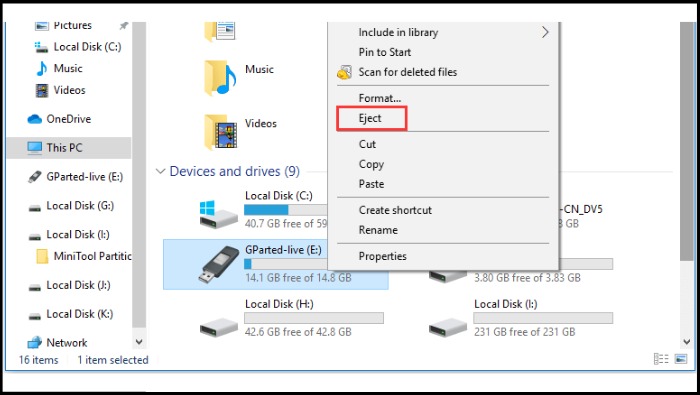
Step 1. To access the "This PC" section, open "File Explorer" and click on "This PC" in the left-hand menu.
Step 2. To eject an external device, right-click on it and select "Eject" from the menu. This will safely disconnect the device from the computer.
See Also:
Fix 3. Test the Display with an External Monitor
If your Lenovo laptop shows a black screen, but generally works, there may be a display issue. To troubleshoot, try connecting it to an external monitor or smart TV, or check the BIOS and RAM for any problems.
Fix 4. Check Hard Drive Errors
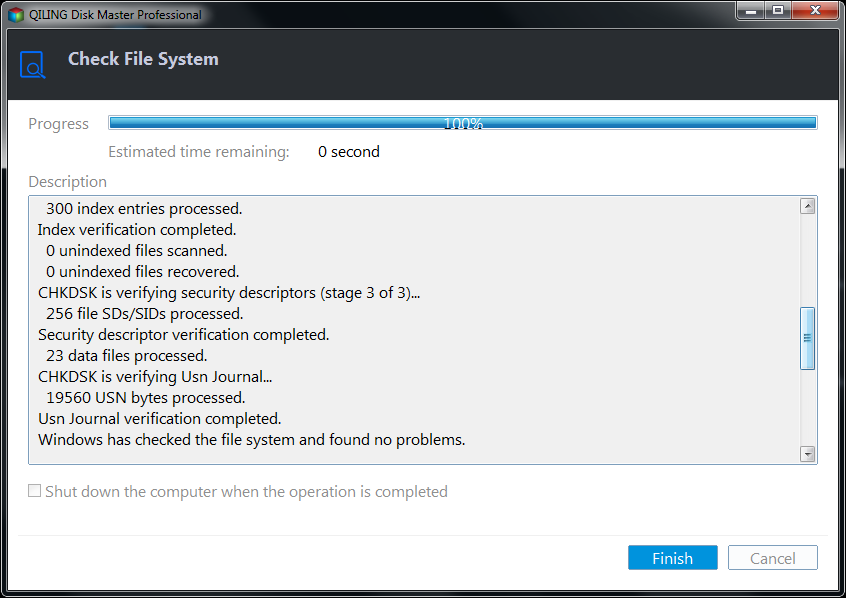
If you're experiencing black screen errors on your Lenovo computer due to hard drive problems, you can use the advanced hard disk management software, Qiling Disk Master, to fix the issue. This user-friendly tool is ideal for inexperienced users and offers powerful functionality to scan and correct problematic drive errors, allowing you to resolve the issue without requiring professional computing skills.
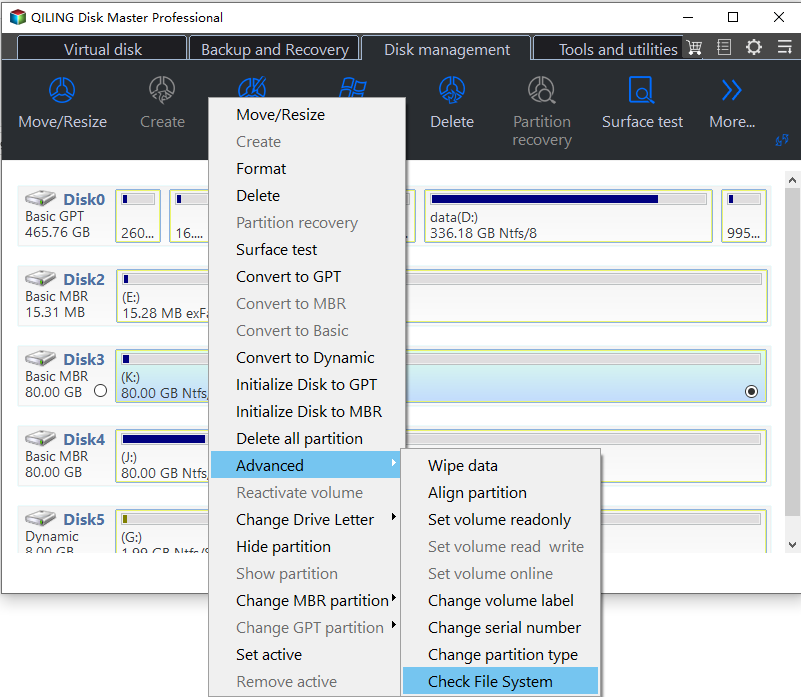
Step 1. To check the file system on a partition using Open Qiling Disk Master, open the program on your computer, locate the disk you want to check, right-click on the partition you're interested in, and select "Advanced" followed by "Check File System".
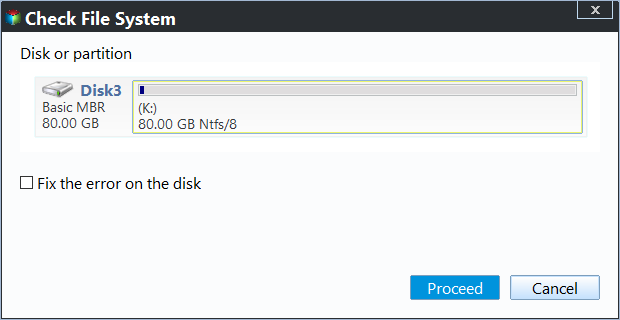
Step 2. In the Check File System window, select the "Fix the error on the disk" option and click "Proceed".
Step 3. The software will start scanning your disk's partition file system, and once it's done, click on "Finish".
Fix 5. Hard Reset Your Lenovo Laptop
To perform a hard reset on your Lenovo laptop, press and hold the Power button for 30 seconds. This will discharge any residual power and reset your laptop's hardware. Release the Power button and immediately press it again to turn your laptop back on. This should resolve any issues caused by peripherals.
Step 1. To properly shut down your Lenovo laptop, start by turning it off completely. Next, unplug the power cord from the laptop.
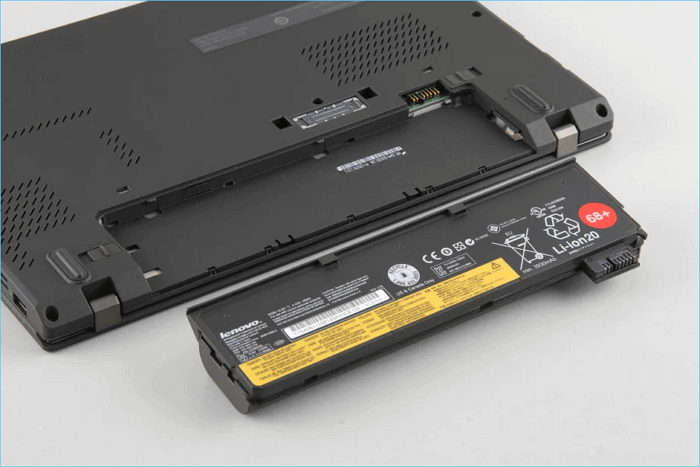
Step 2. Let the laptop idle for 30-40 seconds, then press the power button for about 1 minute, after which you can reinstall the battery and power it on.
Step 3. To troubleshoot the issue of the Lenovo laptop freezing and going black, try disconnecting all peripherals such as USB devices, external hard drives, and monitors. Then, reconnect each device one by one, observing if the laptop freezes again. This will help identify which device is causing the problem.
📖Read Also: Acer Laptop Screen Black
Fix 6. Update Graphics Card Driver
Lenovo laptops can also experience a black screen issue due to outdated or incorrect graphics drivers. Since updating drivers is not possible on a black screen, try booting your laptop in safe mode first, which will allow you to update the graphics card driver.
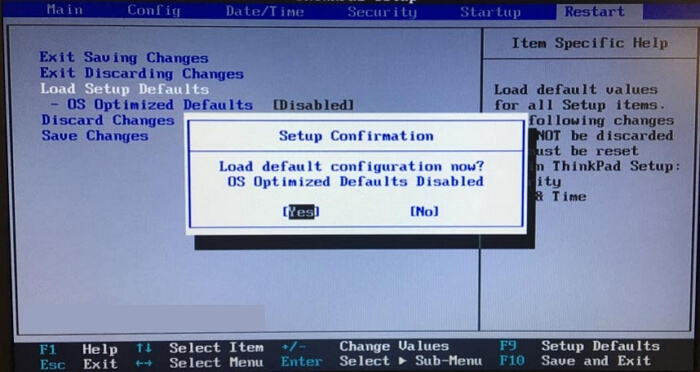
Step 1. Press the power button to turn on the laptop, and press the F8 key repeatedly when it starts to turn on.
Step 2. You will see "Advanced Boot Options" when the hardware information is displayed.
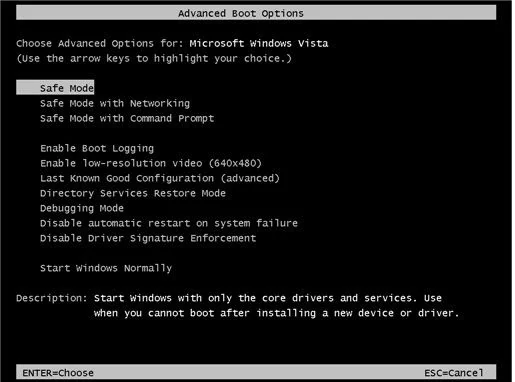
Step 3. To enter Safe Mode with Networking, click the "Safe Mode with Networking" option and press Enter. This will allow you to successfully enter Safe Mode with Networking, after which you can update your graphics card driver.
- To open the Device Manager, press the Windows key + R keys simultaneously, type devmgmt.msc, and press the Enter key.
- To update the driver for the target graphics card, click on "Display Adapters", right-click on the target graphics card, select "Update Driver", and then choose "Search automatically for updated driver software".
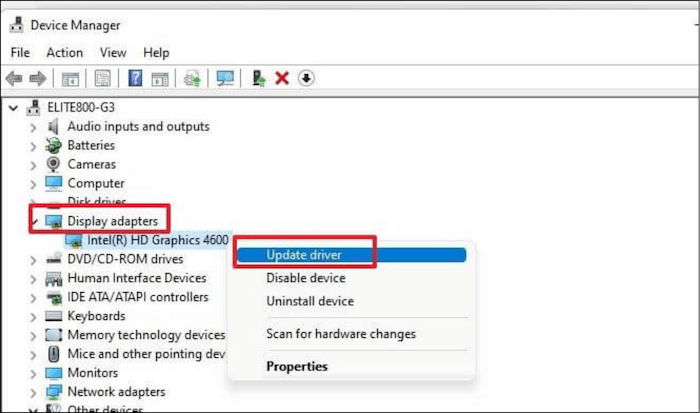
The operation will automatically download and update the graphics driver for your Lenovo laptop or Thinkpad.
Fix 7. Restart Explorer.exe Process
Explorer.exe manages the basic operations of various Windows computers and notebooks, including the desktop and taskbar. If it's turned off, your desktop and taskbar may become invisible, potentially causing issues like Lenovo's black screen of death. To resolve this, reopening Explorer.exe may be necessary.
Step 1. To open the Task Manager, press the keys Control + Shift + Escape simultaneously.
Step 2. To view the details of the Lenovo laptop's system resources, click on the "Details" tab. This may be labeled as "Processes" on Windows 7.
Step 3. Locate the explorer.exe program and click End Task.

To resolve the issue, you can try restarting the Windows Explorer process, which can be done by pressing the Windows key + X and selecting Task Manager, then finding and clicking the "Restart" button next to the Explorer process. Alternatively, you can restart the computer. If this doesn't work, you may want to learn about other topics such as troubleshooting common Windows issues, using the Task Manager, or resetting Windows Explorer.
Fix 8. Disable Fast Startup
Windows 10's "Fast Startup" feature can make your system start up faster, but it may also cause issues with the boot process. If your Lenovo laptop has this feature enabled, it could be disrupting the boot process and resulting in a black screen error. To resolve this, you can disable fast startup by following the instructions.
Step 1. To open the Power Options tab, press the Windows key + R simultaneously to open a "Run" dialog box, then type "powercfg.cpl" and click "Enter."
Step 2. To disable fast startup, click on the Start menu, then select "Settings" and click on the "Power" option on the left side of the screen. Next, select "Change settings that are currently unavailable" and uncheck the box next to "Turn on fast startup (recommended)".
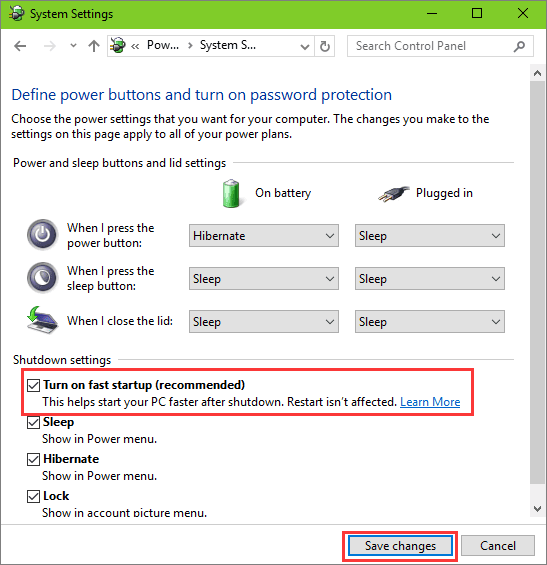
Step 3. Click Save Changes and close Windows.
Fix 9. Reseat the Memory Modules
To reseat a memory module, start by turning off your laptop and unplugging the power cord. Next, locate the memory module slots on the motherboard, usually labeled as DIMM or RAM. Gently pull out the module from the slot at a 45-degree angle, taking care not to touch the contacts or the gold fingers.
Step 1. To shut down the Lenovo laptop, you should first disconnect the power cord and remove the battery. Then, open the service door located on the back of the laptop.
Step 2. To remove the memory module, you need to pull the arm securing the memory socket and carefully release the memory module.
Step 3. Gently remove the memory module from the hatch.

Step 4. Wipe the memory module with a soft, clean cloth, then slowly push the memory module into the socket.
Step 5. Close the service door and reinstall the battery.
Read Also:
Fix 10. Perform a System Restore
If you're experiencing a black screen issue on your laptop, it's possible that some recent changes you've made to your system are to blame. In this case, restoring your laptop to an earlier point in time may resolve the problem. To do this, follow the steps outlined below.
Step 1. To create a restore point, click the Search icon on your computer, type "system restore," and then choose the option to Create Restore Point.
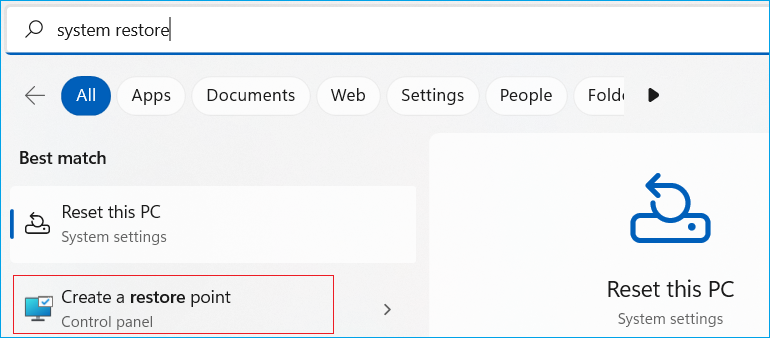
Step 2. Click System Restore under the System Protection tab.
Step 3. Click Next to continue.
Step 4. Check "Show more restore points" and select a restore point, then click "Next".
Step 5. Follow the on-screen guide and instructions to complete the system restore process. The system will guide you through each step, so simply follow along and respond to any prompts or questions that come up.
Further Reading:

To fix a Windows 11 black screen with a cursor, try booting in Safe Mode, disabling any recently installed drivers or software, and running a System File Checker (SFC) scan to check for corrupted system files. If the issue persists, reset your Windows 11 to its default settings, and consider reinstalling the operating system if necessary.
If your Windows 11 PC is stuck on a black screen with a cursor, don't worry - this guide can help you fix it quickly and get your PC back to normal. Follow the steps to resolve the issue and get your PC up and running smoothly again.
Conclusion
Lenovo laptops are a popular choice among users due to their excellent performance, but like any machine, they can experience issues. One common problem is the Lenovo laptop's black screen, which can be frustrating. Fortunately, there are fixes available to resolve this issue, and if you've found this article helpful, please share it with others.
Lenovo Laptop Screen Black But Still Running FAQs
We've discussed the symptoms, causes, and fixes for a Lenovo laptop screen that is black but still running errors. Here are some related questions you may have during fixing this error. Check them out.
1. What should I do if my Lenovo laptop screen is black but still running?
Press the Windows logo key, Ctrl, Shift, and B simultaneously to reset the connection and regain the display on your Lenovo laptop. This may resolve the issue.
2. Why is my Lenovo laptop stuck on a black screen when I turn it on?
This error is typically caused by issues such as bad Windows updates, corrupted system files, outdated or malfunctioning apps/drivers, file system errors, viruses, or hard disk errors.
3. How to restart a Lenovo laptop with a black screen?
When a Windows device shows a black or blank screen, try pressing the Windows logo key + P or Ctrl + Alt + Del to wake up the screen.
Related Articles
- 9 Best Solutions to Fix Windows Stop Code 0xC000021A
- What Does Format Disk Mean? [Most Detailed Answer 2023]
- What Laptop Hard Drive Size Should I Use [2023 Explanation]
- Frustration and Loss: The Sandisk Extreme Pro Portable SSD Not Working
- RAW to NTFS Converter Software Free Download (for Windows Only. 100% FREE)
Need a free RAW to NTFS converter? Discover the top 3 methods to convert RAW drives to NTFS without losing data, including CMD commands, Disk Management, and specialized tools. - What is Remote Direct Memory Access (RDMA)
Learn what RDMA (Remote Direct Memory Access) is, how it works, and its benefits. Discover how RDMA enables high-speed, low-latency data transfer between computers without CPU involvement.
Products
Articles & Tutorials
- Data Recovery
- Data Backup
- File Recovery
- File Backup
- System Backup and Restore
- Disk and Partition Clone
- Technical articles
- Mobile articles
- Disk Master Help
- Windows Data Recovery Tutorials
- Windows Secure Delete Tutorials
- Windows Partition Management Tutorials
- Windows File Backup and Restore Tutorials
- Windows System Backup and Restore Tutorials
- Windows Disk Backup and Restore Tutorials
- Windows Clone Tutorials