RAW to NTFS Converter Software Free Download (for Windows Only. 100% FREE)
"Help! My external HDD suddenly went to a RAW format and I am unable to access the drive to retrieve my files. I searched how to fix a RAW drive problem but totally lost myself in the massive results. It's hard for me to find the right answer. Does anyone know clearly how to solve this kind of problem without losing data?"
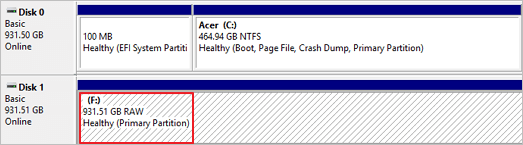
What's RAW?
A RAW file system indicates a hard drive with no or unknown file system, which can be fixed by formatting the drive with a Windows recognizable file system like FAT or NTFS.
Formatting a disk will convert the RAW file system to a more usable format like NTFS, but it will also erase all data on the drive.
The proper way to handle a RAW HDD, USB flash drive, or SD card should be like this:
-> No data in the RAW drive
Handling a RAW drive without much data inside is relatively straightforward. The solution is to simply format the drive using a reliable and professional program.
-> There is important data inside the RAW drive
90% of the time, data is involved. To maximize the chances of successful data recovery from a RAW drive, perform data recovery before formatting the device, as formatting will overwrite lost data, making it unrecoverable by any third-party data recovery program.
It's recommended not to run 'chkdsk' or 'clean' commands on a RAW disk before attempting data recovery, as these commands can potentially damage the files and reduce the chances of successful recovery. Instead, focus on using data recovery software specifically designed for RAW disk recovery. These tools can help extract data from the disk without causing further damage.
How to Convert RAW to NTFS in Windows 10/8/7 Without Losing Data
Download Deep Data Recovery, a user-friendly and powerful hard drive data recovery software that can recover data from inaccessible or unreadable storage devices, including hard drives, USB flash drives, and memory cards, with no technical expertise required. It can recover up to 1000 types of files in various data loss scenarios.
One of the standout features of Deep Data Recovery is its ability to automatically repair corrupted files, including videos, audio files, and documents, after recovery, which sets it apart from its competitors and minimizes the likelihood of encountering issues like files not opening after recovery.
How to Repair Corrupted MP4/MOV Files on Windows and Mac
If MP4 or MOV files get corrupted, you can use the best MP4 video repair tool - Qiling MP4 file repair software, or try other methods like converting the file to another format, using a video repair app like iMyFone, or running a system file checker to repair corrupted system files.
Recovering data from a raw drive involves three key steps. First, you need to identify the drive as raw, which means it's not formatted and won't be recognized by your operating system.
Step 1. Select file types and click "Fast Scan" to start
Run Qiling virus file recovery software on your Windows PC. Select file types and click "Fast Scan" to start the recovery process.

Note: You can choose different search modes based on where and why the data was lost.
Step 2. Select and scan the RAW partition
If the RAW partition has a label, you can select it from the drive list and click "Scan" to search for lost files. If the label is missing, it will be listed as "Lost Partition" and you can select it to initiate a full scan on the RAW drive.

Step 3. Preview found data from the scan result
After completing the scan, all files available on the RAW hard drive will be displayed, allowing you to view and select the files you want to recover. You can sort the scanned data by file format or use the "Search files or folders" box to directly search for specific files.

Step 4. Recover data from RAW partition
To recover data from a RAW drive, select all files and click "Recover" to retrieve all data. Then, choose another internal or external hard drive to save the recovered data and click "OK" to initiate RAW drive recovery.
Whenever you encounter difficulties in running software to recover data from a RAW drive, such as a lengthy recovery process on a large RAW disk, or you've already tried recovery but didn't find the desired files, you can consider Qiling's manual data recovery service.
Consult with Qiling data recovery experts for a one-on-one manual recovery service, which includes a free diagnosis, followed by a range of services such as data recovery, data backup, and data protection.
- Repair damaged RAW drive without formatting<
- Recover data from RAW drive, including BitLocker encrypted drives
- Recover RAW partition, RAW USB, RAW flash drive, RAW external hard drive, etc.
Best RAW to NTFS Converter Free Download for Windows 10/8/7
The solution to fixing a RAW drive is simple and straightforward, but we recommend using Qiling Partition Master Free, a third-party RAW to NTFS converter program, over other choices. This program offers a reliable and effective way to convert the RAW drive to NTFS, making it a top pick for this task.
① 7-Zip is a free and open-source file archiver that supports all Windows platforms, including Windows 10, 8, 7, XP, Vista, and Windows Server.
② The code snippet is rewritten to prevent further errors like "Windows was unable to complete the format" in Windows Explorer, "The format did not complete successfully" in Disk Management, and "Chkdsk is not available for RAW drives" in Windows Command Prompt.
③ Qiling Partition Master can directly format a RAW drive to various file systems, including FAT, EXT, and NTFS, without deleting and recreating the partition.
④ Qiling Partition Master is a program that offers multi-functional disk management solutions, allowing users to resize/move, copy, migrate OS, merge partitions, and more. It's a practical tool that can serve as a long-lasting friend for personal and home users, providing them with a reliable companion for their disk management needs.
To convert a RAW file system to NTFS, you can use the Qiling RAW to NTFS converter. This tool allows you to convert the RAW file system to a fully functional NTFS file system, making it possible to access and manage the files on the drive again.
Step 1. Launch Qiling Partition Master.
To format a RAW partition or RAW external hard drive/USB/SD card, click on the device and select the "Format" option.

Step 2. Format RAW Partition and reset the file system.
Assign a new partition label, set the file system to NTFS/FAT32/EXT2/EXT3/EXT4/exFAT, and cluster size to the selected partition, then click "Proceed".

Step 3. To start formatting your RAW partition/USB/SD/external hard drive, click "OK" in the Warning window.
RAW Drive Is Fixable, So Is Data!
Converting a RAW drive to NTFS can be a tiring and time-consuming process, but it's necessary to recover data from a RAW drive. To convert RAW to NTFS, you can use the RAW to NTFS converter free download, which is a reliable and efficient tool that can help you convert your RAW drive to NTFS without losing any data. This converter is available for free download and can be used to convert RAW to NTFS on Windows 10, 8, 7, and other operating systems.
1. Deep Data Recovery is a tool that helps recover data from a drive that is currently inaccessible, such as a RAW drive.
2. Qiling Partition Master is a tool that can fix RAW drive issues by reformatting the RAW drive with an NTFS file system, making it usable again.
Related Articles
- How to Recover Deleted Files from Hard Drive
- How to Recover Uninstalled Programs on Windows 10 and Windows 11
- [Self-Check-and-Repair]: How to Repair External Hard Disk Not Detected in Windows 10
- PhotoRec Review: Pros, Cons, Alternatives
- [100% Working] 3 Easiest and Successful Ways to Unprotect Excel
If you've forgotten the password for your Excel sheet, there are ways to unprotect it. You can try one of three methods to regain access to your file, and it's a good idea to make a backup of the original file in case you need it. - How to Fix Unsupported SanDisk SD Card Error [Step-by-Step Guide]
SanDisk SD card has proven useful when you're looking to expand the storage capacity of a device. If your SD card is showing the Unsupported SanDisk SD Card error, there might be some issue that needs fixing. In this article, you'll find effective ways to fix unsupported SanDisk SD card errors.
Products
Articles & Tutorials
- Data Recovery
- Data Backup
- File Recovery
- File Backup
- System Backup and Restore
- Disk and Partition Clone
- Technical articles
- Mobile articles
- Disk Master Help
- Windows Data Recovery Tutorials
- Windows Secure Delete Tutorials
- Windows Partition Management Tutorials
- Windows File Backup and Restore Tutorials
- Windows System Backup and Restore Tutorials
- Windows Disk Backup and Restore Tutorials
- Windows Clone Tutorials