How to Recover Uninstalled Programs on Windows 10 and Windows 11
What Does Uninstalling a Program Remove
A user removes a program due to insufficient disk space on their Windows 10 or Windows 11 computer, which frees up space on the hard drive, or because of Windows updates that automatically uninstall incompatible apps.
When removing a program from your PC, you might inadvertently delete associated data, including files generated by the app. This guide will help you recover lost data if you've removed a program and its associated files.
| Workable Solutions | Step-by-step Troubleshooting |
|---|---|
| Solution 1. Use Data Recovery Software | Launch Deep Data Recovery. Select the drive that you uninstalled programs and click "Scan". Find and select the target program setup & installation files and click "Recover"...Full steps |
| Solution 2. Use System Restore | Select the "Start" button and click "Settings (the gear icon)". Search for "Recovery" in Windows Settings. Select "Recovery" > "Open System Restore" > "Next". Choose a restore point...Full steps |
How to Recover Uninstalled Programs on Windows 10/11
To recover uninstalled programs on Windows 10/11, you can either use a third-party data recovery tool or use Windows System Restore to retrieve the installation files and related data.
Method 1. Recover Uninstalled Programs with Deep Data Recovery
With Deep Data Recovery, you can easily recover uninstalled programs' files, including the .exe file, installation folder, and generated data, without affecting other installed apps.
Here are the salient features of this tool:
- Recover deleted, formatted, and lost files
- "Retrieve files from various storage devices, including local hard drives, external hard drives, USB flash drives, memory cards, and other Windows-compatible devices."
- Recover all kinds of files
- 100% secure, virus-free, and plugin free
To reinstall uninstalled programs, download the software and follow this guide.
Step 1. Deep Data Recovery can be used to recover deleted files. To start the process, select the file types you want to recover and click "Fast Scan" to begin the recovery process.

Note: You can choose different search modes based on where and why the data was lost.
Step 2. Choose the drive where you lost files and start scanning with this software. It allows you to recover lost data from various devices, including HDD, SSD, USB drive, SD card, pen drive, and camera.

Step 3. Qiling data recovery software supports 1000+ file types, including photos, videos, documents, emails, audio files, and more, allowing you to browse the full scan results and choose the file type you need.

Step 4. To recover data from selected files, click "Recover" and choose a storage location to save the recovered data.
- Important
- To recover deleted data, it's essential to act quickly and avoid using the hard drive that contains the lost files to prevent overwriting, allowing for a successful data recovery process.
After retrieving your uninstalled programs files on Windows 10, you can reinstall the application by double-clicking the program's .exe file.
Method 2. Use System Restore to Recover Uninstalled Programs
System Restore is a Windows feature that allows users to revert their computer's state to a previous point in time, enabling recovery from system malfunctions or other problems, and also allowing recovery of uninstalled programs.
This feature allows you to restore your PC to a previous state, known as a system restore point, which is generated when you install a new app, driver, or Windows update. When you restore, your personal files remain intact, but any apps, drivers, or updates installed after the restore point will be removed.
To restore from a Windows system restore point:
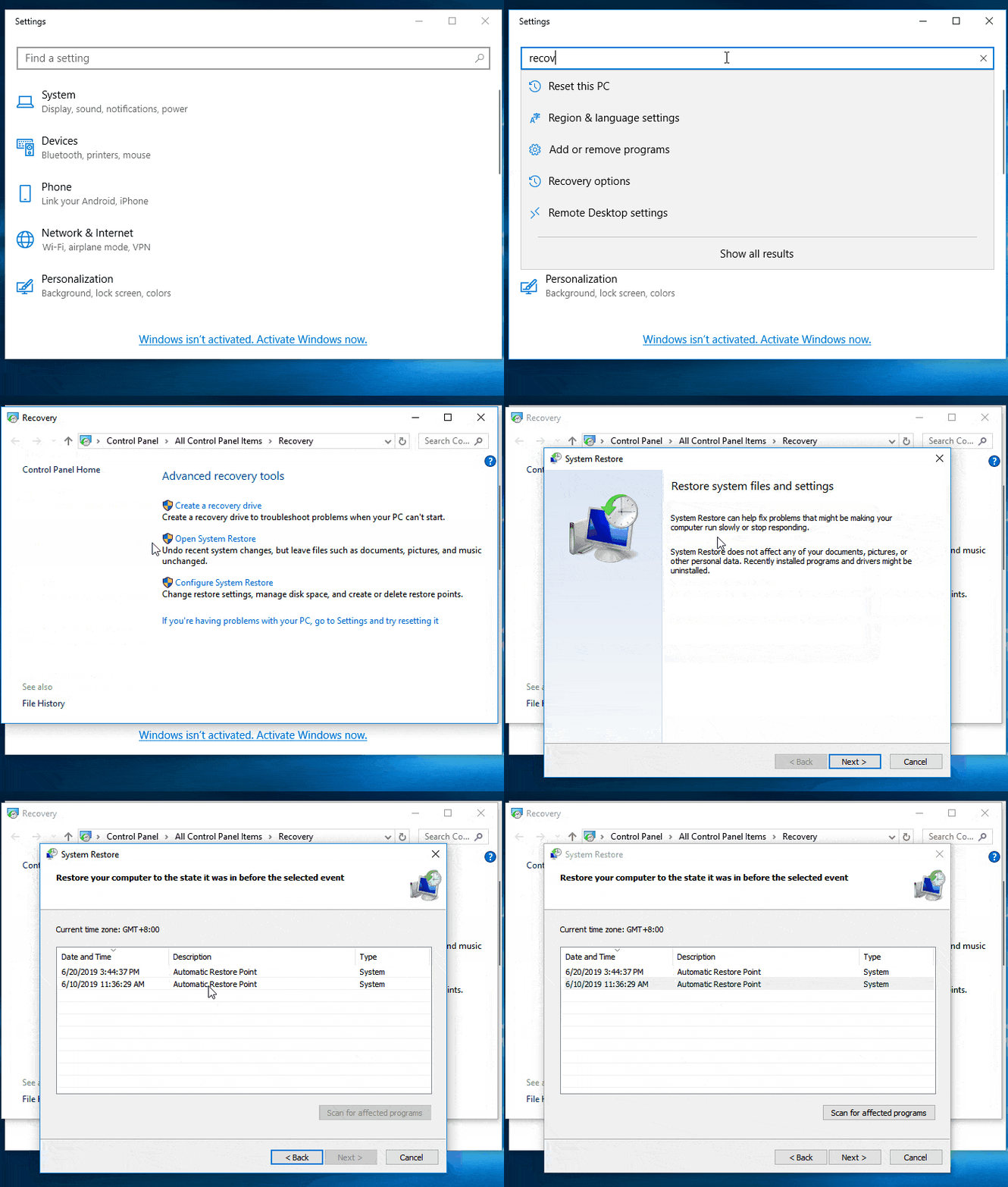
Step 1. Select the Start button and click Settings (the cog icon).
Step 2. Search for Recovery in Windows Settings.
Step 3. Select Recovery > Open System Restore > Next.
Step 4. To restore a program, select a restore point that was created before the program was uninstalled, then click Next.
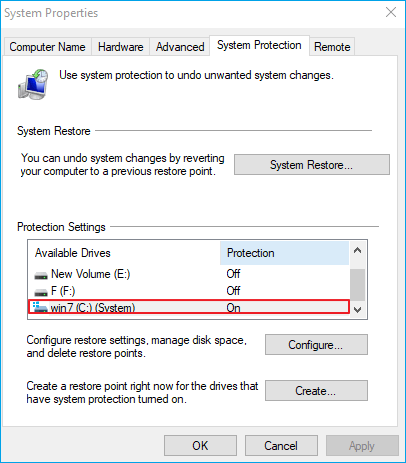
If you don't see any restore points, it might be because system protection isn't turned on, which can be verified by going to Control Panel, searching for "Recovery", selecting "Configure System Restore", and ensuring "Turn on system protection" is selected.
Both methods allow you to retrieve uninstalled programs, and you can choose the one that suits you best. If system protection is turned off on your PC, a third-party data recovery tool is your only option to recover deleted applications.
Also Read: Top 10 Best Data Recovery Software on Windows and Mac
Choose Which Way to Recover Uninstalled Programs
Here's a comparison table that will help you decide what tool you should go for to recover uninstalled programs.
| Comparison | Deep Data Recovery | Windows System Restore |
|---|---|---|
| Affect newly installed programs | × | √ The restore point would remove apps installed after the restore point was made. |
| Recover accidentally deleted/formatted files | √ |
× |
| Retrieve files from external hard drive | √ | × |
| Preview before recovery | √ | × |
The Bottom Line
Uninstalling programs to free up disk space or speed up your computer may not be the most effective solution. It won't yield a significant amount of storage space or a notable performance boost. Instead, consider using Disk Management or a partition manager tool to efficiently free up space and enhance your PC experience.
Related Articles
- Deep Data Recovery Review for Windows/Mac, Is It Any Good for Users
- (3 Ways) How to Recover Deleted Photos from Computer/External Hard Drive
- How to Recover Files After Format
- How to Cancel a Format in Progress If Windows Won't Cancel Format
- Solved - Files in Downloads Folder Disappeared [2021]
There are several workarounds for you to fix the files in downloads folder disappeared and get back the missing files. - [Solved] PS4 Not Recogizing/Reading External Hard Drive 2021
PS4 not recognizing USB hard drive is a problem that bothers a lot of people. Here are the steps for how to solve the problem.
Products
Articles & Tutorials
- Data Recovery
- Data Backup
- File Recovery
- File Backup
- System Backup and Restore
- Disk and Partition Clone
- Technical articles
- Mobile articles
- Disk Master Help
- Windows Data Recovery Tutorials
- Windows Secure Delete Tutorials
- Windows Partition Management Tutorials
- Windows File Backup and Restore Tutorials
- Windows System Backup and Restore Tutorials
- Windows Disk Backup and Restore Tutorials
- Windows Clone Tutorials