(3 Ways) How to Recover Deleted Photos from Computer/External Hard Drive
To recover deleted pictures, follow the 3-step quick guide:
Step 1. Download, install, and launch Qiling photo recovery software.
Step 2. Select the disk partition that contained the deleted images.
Step 3. Scan, preview, and recover deleted photos.
What's the Best Photo Recovery Software?
If you lost photos from a hard drive, the recovery method depends on the circumstances. If the photos were deleted, you can try using data recovery software or a third-party service to scan the drive and recover the deleted files.
If you deleted your pictures using the "Delete" key or by right-clicking the photos and choosing "Delete", you can easily retrieve them from your computer's hard drive or external hard drive by checking the recycle bin on your PC.
If you've permanently deleted photos from your hard drive using "Shift + Delete" or by formatting, the best way to recover them is to use professional hard drive recovery software, specifically Deep Data Recovery, to bypass the recycle bin and retrieve the lost photos.
Key Features of Deep Data Recovery:
- Data recovery software can help recover deleted or formatted files, including photos, videos, music, emails, and Microsoft Office files, from various storage devices such as hard drives, memory cards, and USB drives. The software can scan the device, identify recoverable files, and provide options to restore them.
- Losing important files can be frustrating, but there's hope to retrieve them. If your files are stored on an internal or external hard drive, memory card, USB, digital camera, or other storage devices, you may be able to recover them using data recovery software or a professional service.
- Recover files after emptying recycle bin, OS crash/reinstallation, virus attack, and other data loss situations
- Recover files from FAT/exFAT/NTFS/ext2/ext3/HFS+/ReFS partitions
You can download Deep Data Recovery for free and use it to scan and recover your photos quickly.
How to Recover Photos from Hard Drive with Deep Data Recovery
Deep Data Recovery is a top-rated software that enables users to search, preview, and recover lost photos on Windows devices, even in situations such as format recovery, lost partition recovery, and RAW partition recovery.
The software is compatible with all Windows systems, including Windows 10/8/7/XP, and can search and retrieve lost photos due to formatting, deletion, or partition loss from various storage media, such as internal hard drives, external hard drives, USB flash drives, digital cameras, memory sticks, and SD cards. You can download the software and follow the steps to retrieve your photos from the hard drive.
Step 1. Select file types and click "Format Scan" to start
Launch Deep Data Recovery software, select the desired file types, and click "Format Scan" to initiate the recovery process.

Note: You can choose different search modes based on where and why the data was lost.
Step 2. Choose the location and start scanning
After deleting or losing pictures, hover on the SD card, camera, or hard drive partition where the pictures were stored, and then click on the "Scan" option.

Step 3. Select the pictures you want to recover
After the scanning process is complete, navigate to the "Pictures" section in the left panel. To locate lost photos, click on "Lost" at the top of the list, and then browse through the photos by device, type, or date.

Step 4. Recover lost photos
After the preview, click "Recover" and choose another location to save the desired pictures.
Recovering pictures from a hard drive can be done through various methods. Using data recovery software is the most effective way, but other alternatives include using the command prompt for data recovery or seeking help from a data recovery service center, which can be a more expensive option.
Recover deleted photos on Mac is a crucial aspect of Deep Data Recovery. To get solutions, move the topic and explore ways to retrieve lost photos on your Mac device.
How to Get My Pictures Back from Recycle Bin
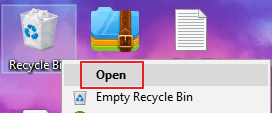
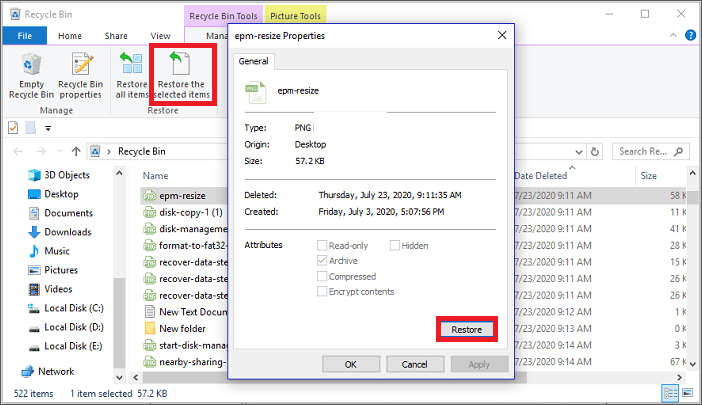
If you don't delete photos from your computer's hard drive, they're still in the recycle bin. You can search for them and click "restore" to bring them back.
Step 1. Open Recycle bin.
Step 2. To restore a photo, input the photo name in the search box, right-click the picture, and select "Restore". Alternatively, select a photo and click "Restore the selected items" on the toolbar.
How to Recover Photos from Hard Disk via Backup & Restore Utility
If you've previously backed up your photos on a computer, you can recover them using the Backup & Restore Utility. If you don't have a backup plan, you can try this function to try to recover your deleted photos.
How to Back Up Files
Step 1. Head to Settings > Update & Security > Backup
Step 2. Choose Plus to add a drive.
Step 3. To get File History running again, select the target drive you want to use for storing the backups, and File History will automatically start up again.
How to Restore Deleted Photos
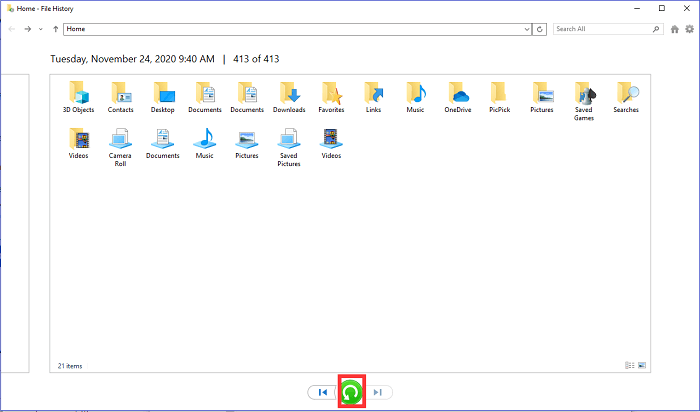
Step 1. To restore files on a Windows computer, search for "File History" in the search box, click on it to open it, and then follow the prompts to restore your files.
Step 2. Select the desired items, then click the green button to restore them.
Related Articles
- How to Format SD Cards in All Devices
- Is It Safe to Delete Windows Update Cleanup Folders/Files? Get Answers Here
- How Do I Disable OneDrive in Windows 10? Your Complete Guide
- SSD vs HDD, HDD vs SSD Speed and Gaming, Which Is Best for You
- Best Wondershare Recoverit Free Alternative for Windows PC [2023]
Wondershare Recoverit is not a free option, as it requires payment to use its data recovery software. However, Qiling Free Data Recovery stands out as a free alternative, allowing you to recover files without incurring any cost. - 2 Ways to Complete Recycle Bin Recovery in Windows PC
Permanently deleted files from recycle bin or emptying recycle bin can be recovered using recycle bin recovery software, which can completely retrieve deleted files.
Products
Articles & Tutorials
- Data Recovery
- Data Backup
- File Recovery
- File Backup
- System Backup and Restore
- Disk and Partition Clone
- Technical articles
- Mobile articles
- Disk Master Help
- Windows Data Recovery Tutorials
- Windows Secure Delete Tutorials
- Windows Partition Management Tutorials
- Windows File Backup and Restore Tutorials
- Windows System Backup and Restore Tutorials
- Windows Disk Backup and Restore Tutorials
- Windows Clone Tutorials