Is It Safe to Delete Windows Update Cleanup Folders/Files? Get Answers Here
On my Dell laptop, when using Disk Cleanup, the following files are automatically selected for deletion by default:
- Downloaded Program Files
- Temporary Internet Files
- Windows Update Cleanup
- Thumbnails
Is it safe to delete Windows Update Cleanup when using Disk Cleanup without damaging the PC? The Disk Cleanup tool warns NOT TO DELETE: Service Pack Backup files but gives no such warning about any of the other files that can be manually selected to delete. Thanks, looking to Clean Up This PC, thanks for taking the time to read/ reply."
Everything About Disk Cleanup in Windows 11/10
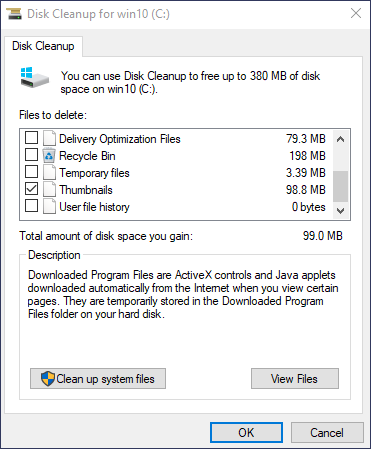
When your PC runs out of space, Windows might suggest using DiskCleanup, a built-in utility that can free up a lot of space on your Windows PC. DiskCleanup is a computer utility that searches for and removes unnecessary files, freeing up disk space on your hard drive. You can launch it from the Start menu by searching for "Disk Cleanup". The utility targets various file categories, including temporary files, system files, and other items that are no longer needed, to help declutter your computer's hard drive.
Windows Update Cleanup
When you install Windows updates, the operating system keeps older versions of system files as backups, allowing you to uninstall updates later and troubleshoot issues. In most cases, deleting these backup files is safe.
Downloaded Program Files
Downloaded Program Files contain ActiveX controls and Java applets that are automatically downloaded from the internet when viewing certain web pages. These files are temporarily stored in the Downloaded Program Files folder on your hard drive and can be safely deleted.
Temporary Internet Files
The Temporary Internet Files folder stores web pages on your hard disk for quick viewing, preserving personalized settings, but clearing this folder will only temporarily free up space as the browser cache will refill automatically, and this only applies to Microsoft browsers.
Delivery Optimization Files
Delivery Optimization files are files that were previously downloaded to your computer and can be deleted if currently unused by the Delivery Optimization service.
Temporary Files
If you check this option, Disk Cleanup will delete temporary files that haven't been modified in over a week.
Recycle Bin
The Recycle Bin holds deleted files until you empty it, after which they are permanently removed.
Thumbnails
Windows stores thumbnails of images and documents in a cache to speed up folder browsing, and these thumbnails are automatically regenerated if deleted.
Others
- Windows upgrade log files
- System error memory dump files
- System queued Windows Error Reporting
- Device driver packages...
Important! Don't Delete Windows ESD Installation Files
Deleting Windows ESD Installation Files is not recommended as they are necessary for the "Reset this PC" feature, which allows restoring your computer to factory settings.
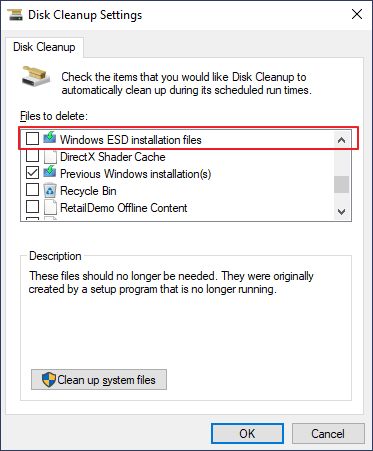
Don't delete Windows ESD installation files in Disk Cleanup if you want to factory reset your computer.
What to Delete from Disk Cleanup According to the Actual Situation
Most of the files in Disk Cleanup are safe to delete, so you can choose to delete them based on your specific situation.
- Windows Upgrade Log Files
- Windows Update Cleanup
- System Error Memory Dump Files
- Temporary Windows Installation Files
- Delivery Optimization Files
- DirectX Shader Cache
- Device Driver Packages
- Recycle Bin
You Can Directly Delete These Files in Disk Cleanup - Safe
You can safely delete most files in Disk Cleanup, except for Windows ESD installation files, unless you need to downgrade Windows, roll back a device driver, uninstall a Windows update, or fix a system issue. The files that can be deleted include, but are not limited to, system logs, temporary files, and other unnecessary files. Deleting these files can help free up disk space for new data. However, it's always a good idea to exercise caution when deleting files, especially if you're unsure what they are or what they're used for. If in doubt, it's best to leave them alone.
- Temporary Internet Files
- Temporary Files
- Windows Defender
- Thumbnails
How to Recover Mistakenly Deleted Files in Disk Cleanup
If you accidentally delete files in Disk Cleanup, you can recover them using Qiling data recovery software, which can restore lost, deleted, or formatted files from various storage devices.
Qiling Deleted Data Recovery Software
- Retrieve data after deleting, formatting, system crash, etc.
- Recovering lost data from storage devices like hard drives, SSDs, and USB drives is a straightforward process that can be completed in just three steps.
- In addition to data recovery, it can also repair videos and photos like MP4, MOV, JPG, JPEG, PNG, etc.
Download this data recovery software and follow these steps to find your needed files.
Step 1. Launch Deep Data Recovery, select the desired file types, and click "Fast Scan" to initiate the recovery process.

Note: You can choose different search modes based on where and why the data was lost.
Step 2. To proceed, select the specific file location you'd like to scan and click the "Scan" button.

Step 3. After the process, select the "Deleted Files" and "Other Lost Files" folders in the left panel. You can then apply the "Filter" feature or click the "Search files or folders" button to find the deleted files.

Step 4. Click the "Recover" button and save the restored files in a location different from the original one.
Conclusion
The items and files in Disk Cleanup are generally safe to delete, but deleting some may prevent you from uninstalling updates or rolling back your operating system, so it's best to keep them if you have the space. If your computer is slow, you can delete files as suggested in this post.
Related Articles
- Disk Drill Review for Windows/Mac, Is It Any Good for Users
- How to Recover Deleted Files from Recycle Bin | Recover Recycle Bin
- Hard Drive Randomly Wiped Data! What's WRONG? I Want Data Back
- Zoom Meeting Disappeared for No Reason? Fix It and Recover Zoom Meetings Now
- Halo Infinite Won't Download? Download Halo Infinite Free
If you're having trouble downloading Halo Infinite, there are several potential solutions to try. You can check for Windows updates, try reinstalling the game through the Xbox app, or troubleshoot the download process by checking for any errors or issues with your internet connection. - Downloads Not Showing up in Download Folder/Desktop
If downloaded files are not showing up on the desktop or in the downloaded folder, follow these methods to check and view them in Windows 10/Mac. If the files are still taking up space but can't be found, consider using a professional data recovery tool to recover the missing files with ease.
Products
Articles & Tutorials
- Data Recovery
- Data Backup
- File Recovery
- File Backup
- System Backup and Restore
- Disk and Partition Clone
- Technical articles
- Mobile articles
- Disk Master Help
- Windows Data Recovery Tutorials
- Windows Secure Delete Tutorials
- Windows Partition Management Tutorials
- Windows File Backup and Restore Tutorials
- Windows System Backup and Restore Tutorials
- Windows Disk Backup and Restore Tutorials
- Windows Clone Tutorials