Hard Drive Randomly Wiped Data! What's WRONG? I Want Data Back
Help: Why Hard Drive Randomly Wiped Data
"Lately, one of the two hard disks in my computer starts malfunctioning. It wipes data by itself. I didn't create any backups before the first 2-3 times I saw the problem, so some of the data has been removed without a trace. I can't remember what those wiped data are all about, but the items in the Pictures and Videos folder have totally disappeared! Should I keep using the hard drive or should I stop it to avoid more data loss in the future?"
If your hard drive randomly wipes itself, it's a warning sign of impending component or hardware failure. To prevent data loss, it's essential to act quickly and recover data from the hard drive. If the damage is severe and the hard drive is beyond repair, consider replacing it with a new one to avoid further data loss and potential system crashes.
How to Recover Data Being [Wiped] by Hard Drive Itself
Hard drive wipes data in different manners, but technically, wiped data is almost impossible to recover. When data is wiped, it means everything on the drive, including previously deleted files, is erased. This is usually done through third-party data destruction software, also known as hard drive sanitization programs. In most cases, when a hard drive is said to randomly wipe data, it's not a true wipe, but rather a quick format, deletion, or hidden behavior.
In most situations, data can be easily recovered using Qiling data recovery software.
- When you try to open a drive, Windows asks you to format the disk before you can use it.
- When you enter a wrong password to an encrypted hard drive too many times, it will automatically erase its data to protect the information from unauthorized access.
- The drive is not saving the data, which causes it to disappear when you close the window. This is likely due to a problem with the drive's cache or storage settings.
- Files get deleted every time the OS is installed or updated, causing data loss.
By using hard drive recovery software, you can recover deleted data from a problematic hard drive or access data from a hard drive that you cannot currently open.
Step 1. Select file types
Download and install Deep Data Recovery on your Windows 11/10 64-bit computer. Select the file types you want to recover and click "Fast Scan" to start the recovery process.

Note: You can choose different search modes based on where and why the data was lost.
Step 2. Scan the hard drive partition
Select the drive on your hard disk where you lost or deleted files, then click "Scan" to let Qiling data recovery software scan for all lost data and files on the selected drive.

Step 3. Check the results
After the scan is complete, you can apply the "Filter" feature or click the "Search files or folders" option to search for lost files on the hard drive.

Step 4. Restore lost hard drive data
Select the files you want to recover and click "Recover" to save them to a different location.
Fix #1. Scan and Repair Hard Drive Errors
To diagnose and repair errors on your Windows hard drive, you can use the built-in Windows Check Disk utility. First, run the utility to identify any issues with your hard drive, and if errors are found, proceed with repairing them to maintain the health and performance of your drive.
Step 1. In Windows 10, press the Windows + E keys to open File Explorer, click "This PC", right-click on the drive that's eating data, and select "Properties".
Step 2. To check for file system errors on your hard drive, click on the "Tools" tab, then click the "Check" button under the "Error checking" section. This will scan the drive for errors that could be causing it to malfunction.
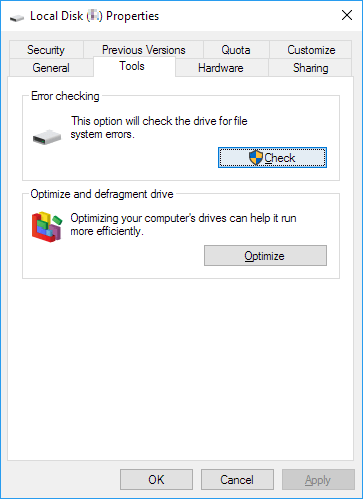
Step 3. Windows will prompt you that you don't need to scan this drive when no errors were found, otherwise you'll continue clicking Scan drive, and you can keep using the drive during the scan.
Step 4.If errors are found, you'll see a message saying "Restart your computer to repair file system. You can restart right away or schedule the error fixing on the next restart. Follow the instructions.
- Tip
- Prefer a more advanced way of checking the disk for errors, including file system corruption and bad sectors? Follow to learn how to repair hard drive bad sectors on the linked page.
Fix #2. Reformat Is A Solution, Too
Formatting a hard drive partition will delete all data on it, so back up any important files before proceeding. The process of quick formatting will not scan the disk for bad sectors, but it will still delete all data. To format a partition, you'll need to follow the steps outlined in the guide, which will overwrite the existing data and prepare the partition for new data.
If your hard drive is deleting data without your permission, it may be infected with malware or viruses. In that case, you can try reformatting the hard drive, which may resolve the issue if the drive is not severely damaged.
Hard drive failure can be a stressful experience, but knowing the signs, causes, and potential fixes can help you take control of the situation. Signs of a failing hard drive include sudden shutdowns, slow performance, unusual noises, and data corruption. Causes can range from physical damage, overheating, or electrical surges to software issues or user error. If you suspect a hard drive failure, it's essential to act quickly to prevent data loss.
A computer's hard drive is a crucial component that can fail, causing significant data loss and system downtime. If a hard drive failure occurs, it's essential to recognize the warning signs, understand the possible causes, and know the available solutions to mitigate the damage. By learning about the hard drive failure signs, causes, and solutions, you can take proactive steps to prevent data loss and ensure the smooth operation of your computer system.
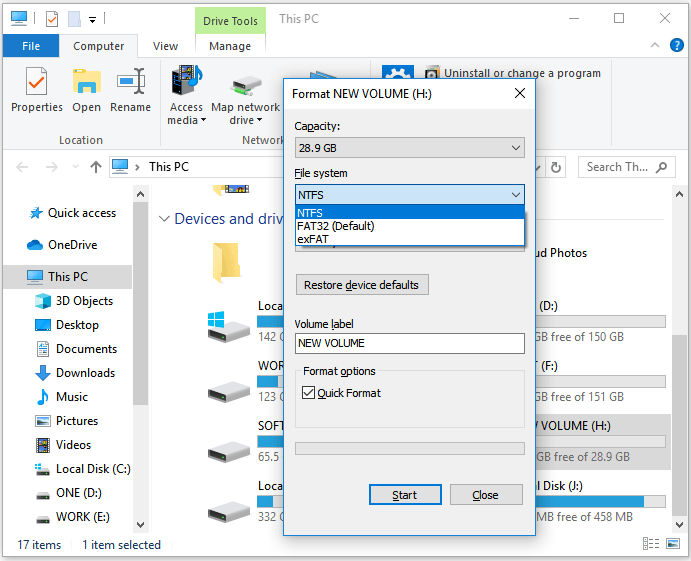
Step 1. To format a drive in Windows, open File Explorer, right-click on the drive, and select "Format..." from the context menu.
Step 2. Select a working file system, such as NTFS or exFAT, for the hard drive partition used in Windows. Choose the "Quick format" option and click "Start" to begin the process.
Fix #3. Increase C Drive Space
The C drive space is filling up, with a red bar covering the C drive partition, which may be causing the hard drive to wipe data due to insufficient disk space. To resolve this, consider transferring free space from the D drive or other drives with ample free space to the C drive. This should help ensure the operating system and programs can function properly.
To extend C drive space with ease, use Qiling partition magic software, which offers a one-click-done method. This will save you time and technical expertise, making it a hassle-free process.
Step 1. Select C drive on Disk management page. Click "Resize/Move" to extend C drive.
When the C drive runs out of space, you can find a Low Disk Space alert on Qiling Partition Master. To resolve this, click the Adjust button to extend the drive.

Step 2. Drag dots rightward of C drive to extend C drive.
Select the C drive, and drag the dots to the right to add more space to C drive. Click "Proceed" to extend the C drive.

Replace Your Failing Hard Drive to Avoid More Data Loss
If the hard drive is wiping data occasionally, it may be a sign that the drive is failing and needs to be replaced. In this case, it's best to back up any important data and replace the hard drive as soon as possible to prevent further data loss.
When choosing a new hard drive, consider factors such as storage capacity, interface type, and power consumption. You'll also need to decide whether to upgrade your existing drive or install a new one. To install a new drive, you'll need a screwdriver and possibly a drive enclosure or adapter, depending on the type of drive and your computer's configuration. Researching the specific requirements for your computer and drive type will help ensure a smooth installation process.
Step 1. When choosing a hard drive to buy:
Step 2. When installing a new hard drive:
Step 3. When transfer data from the old hard drive to the new hard drive:
- Clone hard drive with easy and simple steps
- Clone a failing hard drive to a new HDD/SSD
- Clone a hard drive with bad sectors
Related Articles
- 4 Ways to Fix Windows Update Stuck at 0%
- Microsoft Partition Recovery Tool Free Download (2022): How to Get It and Apply
- Fix: The Volume Does Not Contain A Recognized File System in Windows 10/8/7
- How to Recover Corrupted Macro Enabled Excel File with Top 5 Ways
- Genshin Impact Game Folder Empty, Get the Answers Here!
If you're experiencing an empty Genshin Impact game folder, you can find the solution here. The post provides answers on why your Genshin Impact game folder might be empty and how to fix it. - Genshin Impact Progress Lost : Restore Lost Genshin Data [Quick & Easy]
find a solution here. If you encounter the Genshin Impact progress lost. We will introduce two methods to recover lost Genshin Impact game progress. You can recover game data with Deep Data Recovery or recover the lost account.
Products
Articles & Tutorials
- Data Recovery
- Data Backup
- File Recovery
- File Backup
- System Backup and Restore
- Disk and Partition Clone
- Technical articles
- Mobile articles
- Disk Master Help
- Windows Data Recovery Tutorials
- Windows Secure Delete Tutorials
- Windows Partition Management Tutorials
- Windows File Backup and Restore Tutorials
- Windows System Backup and Restore Tutorials
- Windows Disk Backup and Restore Tutorials
- Windows Clone Tutorials