4 Ways to Fix Windows Update Stuck at 0%
"The Windows update is stuck at 0% and keeps asking you not to turn off the computer. This is a frustrating issue. To resolve this, try restarting the update by going to Settings > Update & Security > Windows Update > Stop and then start the update again. If that doesn't work, try running the Windows Update Troubleshooter or checking for any pending updates in the Services app. If you're still having trouble, you can try booting your computer in Safe Mode and running the update from there."
-- A user from Reddit
If you're experiencing the same issue as the user described, reading this article will be a good choice. There are four methods you can try to resolve the problem, which will be outlined in the article.
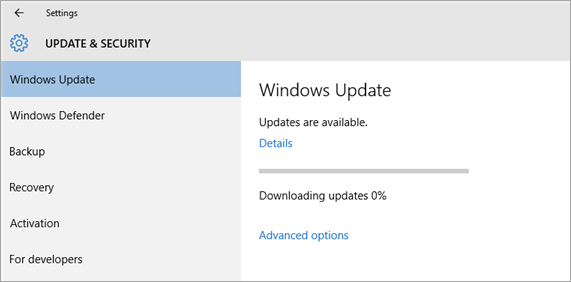
Method 1. Check Computer Battery
Windows update may be stuck due to a low computer battery, requiring at least 40% charge. Please check the battery level before attempting to update.
If you encounter the Windows Update error 8024004C, you may need to remove and reinstall the battery driver to resolve the issue. To do this, follow these steps.
Step 1. Plugin your Surface.
Step 2. To access Device Manager, enter "Device Manager" in the search bar and click on the best match that appears. This will open the Device Manager window, where you can view and manage the devices connected to your computer.
Step 3. Unfold the Battery category.
Step 4. To uninstall the Microsoft ACPI-Compliant Control Method Battery, double-click on it, navigate to the Driver tab, select Uninstall, and then click OK to confirm the action.
Step 5. Restart your computer, it will automatically reinstall the driver.
The Windows Update error can be resolved by running the Windows Update Troubleshooter, checking the Windows Update service, and checking for corrupted system files. To do this, go to the Settings app, then Update & Security, then Troubleshoot, and then Additional troubleshooters.
Method 2. Restart Your Computer
Sometimes, the Windows update gets stuck at 0% due to minor hardware issues, which can be easily fixed by a simple restart, allowing the computer to continue downloading Windows updates.
Method 3. Run Windows Update Troubleshooter
Windows has a built-You can try using the Windows built-in Update Troubleshooter, which can fix some common Windows update problems, as an alternative method to the automatic update troubleshooter. To do this, simply follow these steps:
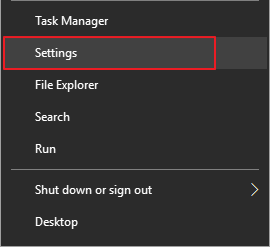
Step 1. Right-click on the Windows icon, choose Settings.
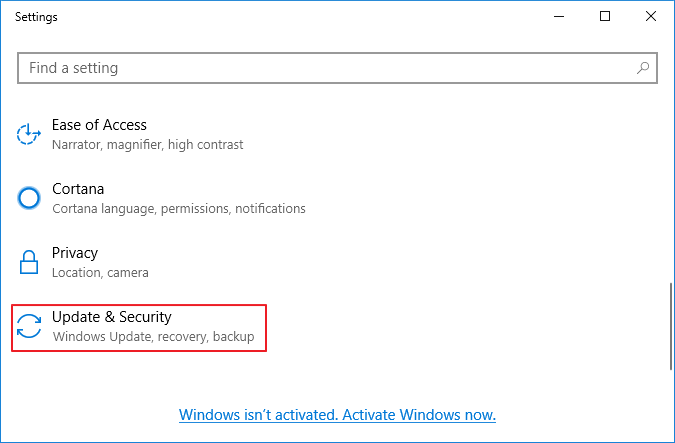
Step 2. Find Update & Security, click to enter.
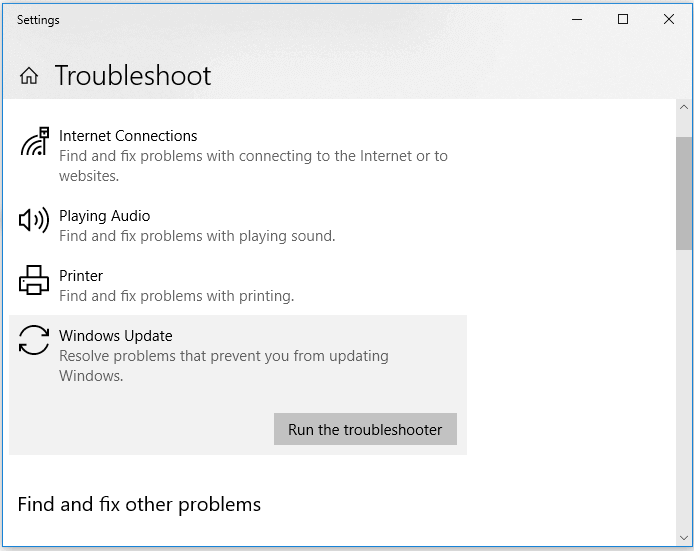
Step 3. To resolve the issue, go to the Windows settings, select Troubleshoot, and find Windows Update under the Get up and running option.
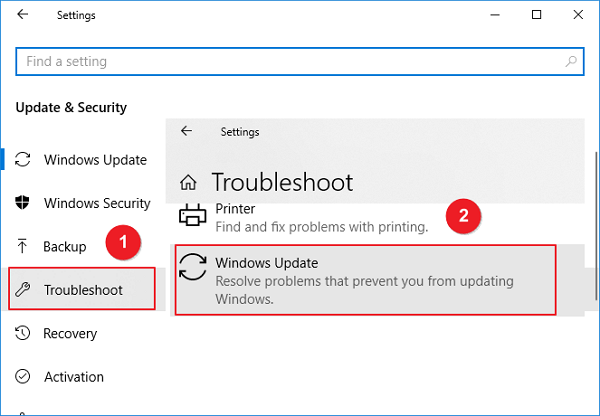
Step 4. Click Run the troubleshooter, Windows will start to fix the update problems.
Method 4. Stop Windows Update Service
If you're having trouble with Windows Update, restarting the Windows Update service may help refresh the download process. If other methods have failed, this could be your last resort. To do this, you'll need to access the Services window, find the Windows Update service, and restart it. This may resolve any issues you're experiencing with Windows Update.
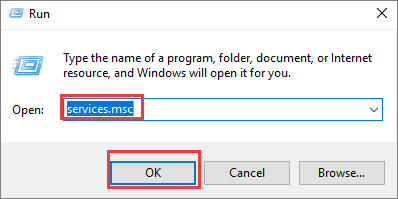
Step 1. To open the Services window, press the Windows key + R keys at the same time, then type service.msc and press Enter.
Step 2. To disable Windows Update on Windows, open the Services console, which shows you all the services installed on your system. Find the Windows Update service in the list, right-click on it, and choose Stop to temporarily disable it.
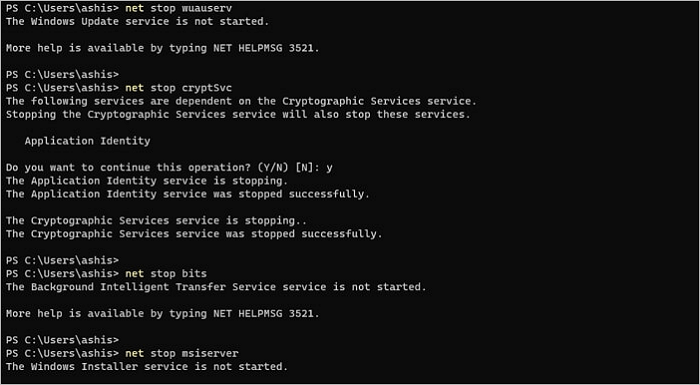
Step 3. To resolve the issue, go to the SoftwareDistribution folder, which is likely located at C:\Windows\SoftwareDistribution, and delete all of its contents. This will remove any downloaded installation files that may be causing the problem.
Step 4. Open the Services window, find Windows Update, and click the Start button to start the Windows Update service.
Step 5. To update Windows, go to Settings > Update & Security > Windows Update, and click on the "Check for updates" button. If there are any available updates, click on the "Download and install now" button to start the update process. If you're prompted to restart your computer, follow the instructions to complete the update.
How to Get, View, Remove Windows 10 Update?
To get Windows 10 updates, view update history, or remove unwanted updates, this page provides all the necessary information. It serves as a comprehensive guide to help users navigate the Windows 10 update process.
Bonus Tip: How to Recover Data that Lost After Windows Update
Performing Windows Update can cause the problem of stuck downloading of updated files, but it can also lead to data loss after the update process is finished. To recover lost data, solutions from the first scenario can be applied.
Deep Data Recovery is a specialized tool for data recovery that has been around since 2004. It effectively covers a wide range of data loss scenarios, including accidental deletion, formatting, system updates, OS crashes, and virus attacks. This tool can delve deep into your computer and retrieve the lost data you need.
You can download Deep Data Recovery from the button below and follow the steps to see how to recover lost data with this tool.
Step 1. Select file types to start
Launch Deep Data Recovery and select the file types you want to recover, then click "Fast Scan".

Note: You can choose different search modes based on where and why the data was lost.
Step 2. Select a location and start scanning
Launch Deep Data Recovery, select the partition where the data was lost, and click "Scan" to proceed.

Step 3. Filter and preview files
To find the files you need, use the file format filter on the left or upper right corner of the screen. Once you've selected the desired files, you can either click the "Preview" button or double-click on a file to view its content.

Step 4. Recover lost data or files
To recover lost data, click the checkbox next to the file, then click "Recover" to restore it to a secure location.
Act Now to Fix Windows Update Stuck at 0%
If Windows Update gets stuck at 0%, 20%, or 70%, we've can help. Our article provides 4 efficient methods to help you resolve the issue, and with these solutions, you should be able to successfully complete the update.
If you're interested in how Deep Data Recovery performs data recovery, you can download the software for a free trial.
Related Articles
- Lexar USB Flash Drive Format & Repair Tool Free Download
- OneDrive Recycle Bin Retention | Recover Deleted Files in OneDrive
- (3 Ways) How to Recover Deleted Photos from Computer/External Hard Drive
- How to Recover Uninstalled Programs on Windows 10 and Windows 11
- Free Recover Files from Formatted Hard Drive with Hard Drive Data Recovery Software
Download the ten best data recovery software - Qiling data recovery software to recover files from the formatted hard drive for free. You can restore formatted hard disk data with simple steps. - Top 10 Best Free Data Recovery Software for Windows 11
This post provides you with the top 10 free data recovery software for Windows 11, allowing you to recover deleted, formatted, and lost data without spending money. Qiling data recovery software stands out for its reliability in restoring data from any device, and it's available for free.
Products
Articles & Tutorials
- Data Recovery
- Data Backup
- File Recovery
- File Backup
- System Backup and Restore
- Disk and Partition Clone
- Technical articles
- Mobile articles
- Disk Master Help
- Windows Data Recovery Tutorials
- Windows Secure Delete Tutorials
- Windows Partition Management Tutorials
- Windows File Backup and Restore Tutorials
- Windows System Backup and Restore Tutorials
- Windows Disk Backup and Restore Tutorials
- Windows Clone Tutorials