Microsoft Partition Recovery Tool Free Download How to Get It and Apply
You can resolve hard drive partition issues with the Microsoft partition recovery tool we recommend, which can help recover data without a hitch.
- Accidentally deleted a drive
- Choose a wrong drive to format
- Select the wrong drive to install Windows
- Hard drive partition disappeared after a recent Windows update
- A hard drive partition can become unallocated, not initialized, RAW, or other invalid states due to various reasons such as operating system crashes, disk formatting issues, or physical disk failures. In these cases, the partition table becomes corrupted, leading to the partition being marked as unallocated, not initialized, or RAW.
Does Microsoft Have A Partition Recovery Tool?
Microsoft has a tool called DiskPart, which can be used to recover a partition, but it's not a traditional recovery tool. It's more of a low-level partition management tool. If you're looking to recover data from a lost partition, you might want to look into third-party tools like Deep Data Recovery or Recuva, which can help recover data from lost or deleted partitions. However, if you're looking to recover the entire partition, including the operating system and all data, you might be better off using a tool like Qiling backup, which can help recover a lost partition and all its data.
Microsoft offers a command line utility to recover files from a specific drive partition, which can recover various types of files, including pictures, videos, and documents, from local hard drives, external HDDs, USB flash drives, camera SD cards, and phone microSD cards. However, this method may be challenging for average users due to its command line interface, requiring caution at each step.
However, if you still want to try this method, here are the steps to follow fordata recovery The new system is simpler to operate and has little risk of ruining lost data on the drive.
Microsoft has a native Windows File Recovery Tool to recover deleted and lost files from a drive, rather than a partition recovery tool. The Windows File Recovery Tool can be used to recover files from a drive, including deleted and lost files.
How to Use Microsoft File Recovery Tool: Step-by-Step Guide
Step 1. To download and install Windows File Recovery, open the Microsoft Store on your PC, search for "Windows File Recovery", and click the "Get" button to download and install it.

Step 2. Launch the program and you'll be welcomed to a Command Prompt window, similar to the one shown.
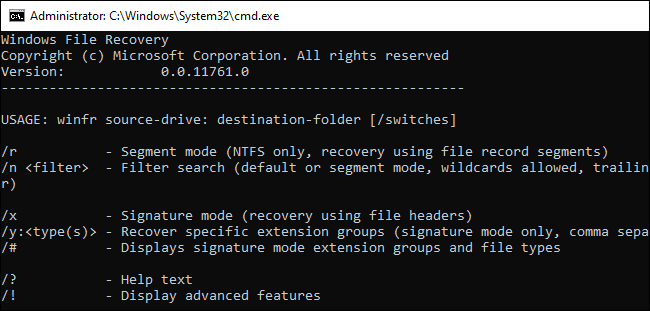
The `winfr` command is used to recover deleted files, but it has three modes to achieve different purposes: Default, Segment, and Signature.
- In Quick Scan mode, the software scans only the recycle bin and recently deleted files, making it the fastest mode to scan and find deleted files. This mode is ideal for users who need to quickly locate deleted files without scanning the entire hard drive.
- The alternative to the Default, this mode performs slower and more thorough, but still maintains a balance between speed and thoroughness. It's like the Default, but with a more cautious approach, taking its time to ensure accuracy and completeness.
- The command line utility is used to search for files based on their type, such as images, documents, presentations, and spreadsheets. It allows users to specify a file type and then search for all files with that type in a given directory or subtree.
To search for lost files, always try the Default mode first, followed by Segment and then Signature. The basic command is winfr source-drive: destination-drive: /switches.
After entering the command, the Windows File Recovery tool will automatically create a directory named "Recovery_[date and time]" on the specified destination drive.
How to Recover Partition Data Using A Simpler Solution
Microsoft's File Recovery tool is geared towards advanced users with technical expertise, whereas third-party file recovery software like Deep Data Recovery is simpler and more effective. With just three clicks, Deep Data Recovery can retrieve files from deleted, lost, formatted, corrupted, and RAW partitions of various file systems, making it a more convenient option. Users can avoid the hassle of using Microsoft's command tool and instead rely on Deep Data Recovery to recover lost data from hard drives and removable storage devices.
Step 1. Run Deep Data Recovery. Select file types and click "Fast Scan" to start.

Note: You can choose different search modes based on where and why the data was lost.
Step 2. To recover lost files, select the partition where they are stored and click "Scan". Qiling data recovery software supports partition recovery with various file systems, including FAT (FAT12, FAT16, FAT32), exFAT, NTFS, NTFS5, ext2, ext3, HFS+, and ReFS.

Step 3. You can use the filter or search function to quickly find the lost data from numerous scan results.

Step 4. You can preview files before recovering them, select the desired data, and click "Recover" to restore files from existing partitions, but do not save the files to the same partition where the data was lost.
How to Perform Individual Partition Recovery
If you've completely removed a drive partition, such as a D drive or G drive, use Qiling Partition Recovery to restore the lost partition and its data. You can also check Data Backup and Drive Clone Tutorials for related backup and disk management guidance.
Step 1. Run Qiling Partition Recovery on your PC.
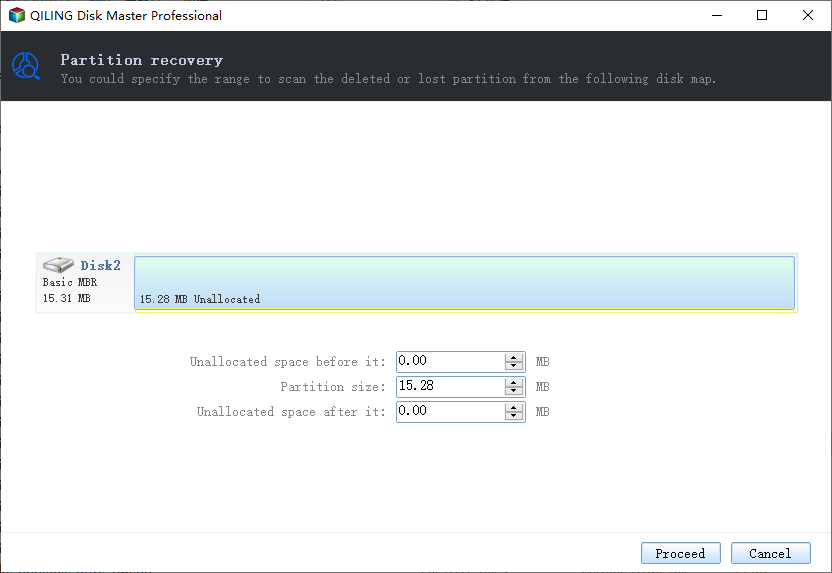
The disk or device where the lost partition(s) was/were located needs to be selected to proceed with the recovery process. Click "Proceed" to continue.
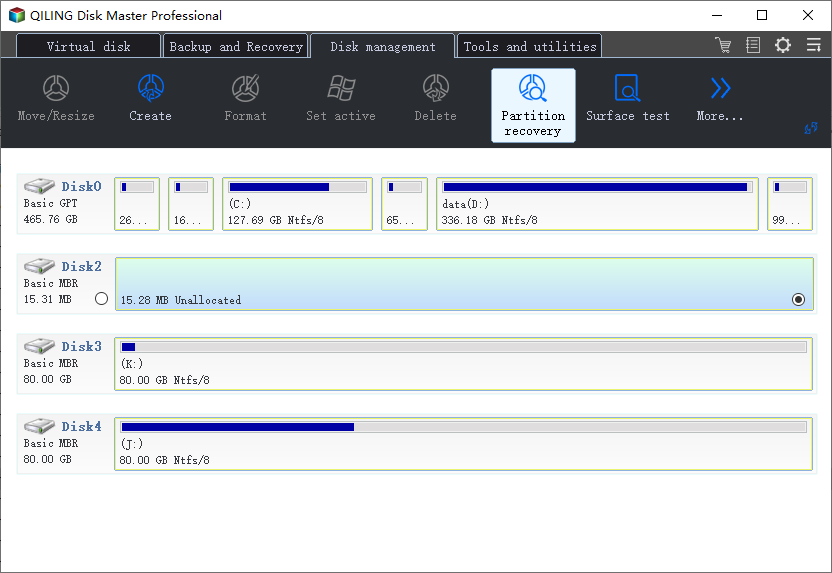
Step 2. Wait for the scanning process to complete.
The program will scan the selected disk and locate any lost partition(s) that may be present.
Step 3. Preview and restore the lost partition(s).
To recover data from a lost partition with good recoverability, click on the partition that is marked as "Lost" and has a "Good" recoverability status. This indicates that the partition is still intact and the data is likely recoverable.
Preview the content of the lost partition, then click "OK" and click "Proceed" to start restoring the lost partition.
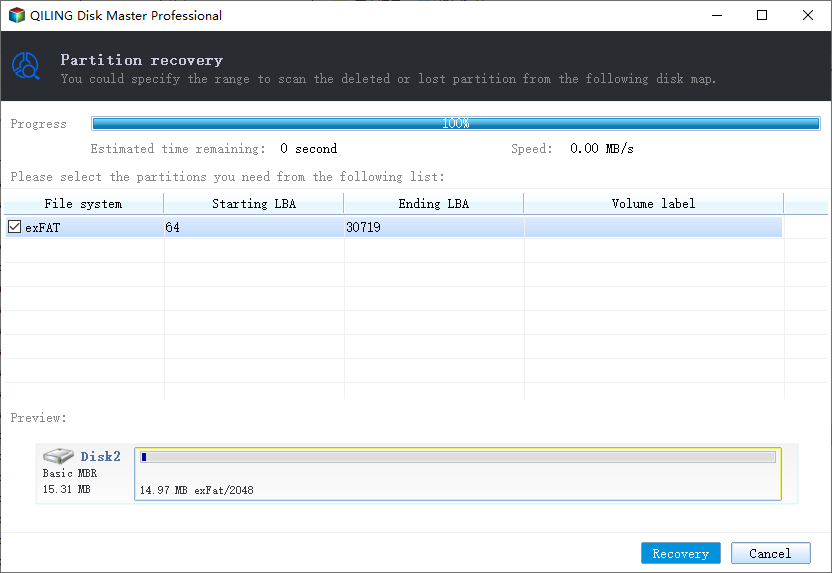
Step 4. Click "Recover" to finish the partition recovery process.
To resolve a partition conflict, first back up any essential data from the listed partition to an external hard drive. Once the data is safely backed up, execute the final operation to restore the lost partition. This approach ensures that any important files or data are preserved, allowing you to proceed with the partition restoration without risking data loss.
Conclusion: Partition Recovery & Partition Data Recovery - We've Had Both Covered
The Microsoft partition recovery tool is available in various forms, including the native Windows File Recovery command line tool, as well as third-party options such as Deep Data Recovery and Qiling Partition Recovery.
The three tools are designed for different scenarios: the first two are specifically for recovering data from a problematic hard drive partition, while the third is tailored for individual partition recovery, restoring both the partition and its data. Each tool is effective in its own way, and the choice between them depends on your specific needs.
Related Articles
- File Recovery Software to Restore Deleted Files on Dell Laptop
- How to Fix 'Getting Windows Ready, Don't Turn off Your Computer'
- Fixed: Restart to Repair Drive Errors on Windows 10
- How to Remove/Delete Directory in Linux
- Hard Drive Recognized in BIOS But Not in Windows
If your hard drive is detected in BIOS but not in Windows 10, this article provides can help. You'll find easy and effective solutions to fix the issue. If you've lost data on the hard drive, you can try Deep Data Recovery, which restores data in just a few simple steps. - FIX: HDD/SSD Unknown Device in Device Manager Windows 10/8/7
If you see the internal/external HDD, SSD or USB removable disk showing 'unknown device' in device manager, try to disable USB selective suspend setting or update necessary drivers by the instruction on this page.
Products
Articles & Tutorials
- Data Recovery
- Data Backup
- File Recovery
- File Backup
- System Backup and Restore
- Disk and Partition Clone
- Technical articles
- Mobile articles
- Disk Master Help
- Windows Data Recovery Tutorials
- Windows Secure Delete Tutorials
- Windows Partition Management Tutorials
- Windows File Backup and Restore Tutorials
- Windows System Backup and Restore Tutorials
- Windows Disk Backup and Restore Tutorials
- Windows Clone Tutorials