PhotoRec Review: Pros, Cons, Alternatives
| Workable Solutions | Step-by-step Troubleshooting |
|---|---|
| What Is PhotoRec | PhotoRec is software designed to recover long-lost files, such as videos and pictures, from a hard drive...Full steps |
| What Is Photorec Used For | PhotoRec allows users to retrieve multimedia, files, and archives from storage mediums...Full steps |
| PhotoRec Software Free Download | Download and install the latest version of PhotoRec to recover the lost data...Full steps |
| Use the Photorec to Recover Data | Follow the instructions and steps below to know how to use PhotoRec to retrieve the lost data...Full steps |
| TestDisk VS PhotoRec | Make a detailed comparison between TestDisk and PhotoRec concerning their main features...Full steps |
| Top 5 PhotoRec Alternatives | 5 Best PhotoRec alternatives and their features, pros, and cons. Pick one according to your preference...Full steps |
What Is PhotoRec
PhotoRec is a free and open-source data recovery software that uses a simple and powerful textual interface to help recover lost files, including videos and pictures, from a hard drive.
This tool comes with TestDisk, allowing you to retrieve non-bootable disks and lost partitions. It also scores high in terms of compatibility with different operating systems, making it accessible to most PC owners.
These are the detailed list of OS that you can operate on PhotoRec:
- macOS
- Windows 10/8.1/8/7/Vista/XP, Windows Server 2016/2012/2008/2003
- FreeBSD, NetBSD, OpenBSD
- DOS/Windows 9x
- Linux
- Sun Solaris
Pros and Cons of PhotoRec
Pros:
- Works with a wide variety of storage devices.
- Retrieves various files, such as office documents, ZIP files, graphics, and HTML files.
- Entirely free to use.
Cons:
- Poor customer support
- Obsolete graphical interface with an elementary command-line aesthetic.
In this article, we'll delve into the details of PhotoRec and TestDisk, two powerful data recovery tools, and explore their best alternatives. We'll provide a comprehensive review of these tools, covering their features, capabilities, and limitations, as well as recommend other options for those looking to recover lost data.
What Is PhotoRec Used For
PhotoRec is a credible file recovery tool that allows users to retrieve different multimedia, files, and archives from various storage mediums, including USB drives, memory cards, and hard disk drives, with its top features being its ability to recover various file types and its user-friendly interface.
Price:
PhotoRec is a free and open-source data recovery tool, unlike other recovery platforms that often require a paid upgrade to their Pro versions.
Compatibility:
PhotoRec is compatible with a wide range of operating systems, including Windows, Mac OS, and Linux, making it a versatile tool that can be used across different platforms.
Supported File Systems:
This software supports a wide range of file systems, including exFAT, FAT, NTFS, ext2/ext3/ext4, and HFS+, among others.
Performance:
PhotoRec provides two major retrieval methods, the Expert mode and Paranoid, for retrieving data, offering efficient and thorough recovery options.
PhotoRec Software Free Download
PhotoRec doesn't have a strong graphical interface, instead relying on text-based interactions with the user. Despite this, it's still easy to install and use, making it a hassle-free data recovery tool. To get the latest version, you can download PhotoRec.
Download PhotoRec Version 7.1 for PC:
- Free & rapid downloader
- Experimented virus-free
- Always available
Click here to download PhotoRec for your Windows or Mac
How to Use the PhotoRec to Recover Data
To use PhotoRec, follow these steps: Once installed, launch PhotoRec and select the drive or device where your lost data is located. Choose the file system type (e.g., NTFS, FAT32) and select the file types you want to recover.
Step 1. Download, install, and launch the software on your Windows or Mac PC, then run it as an administrator.
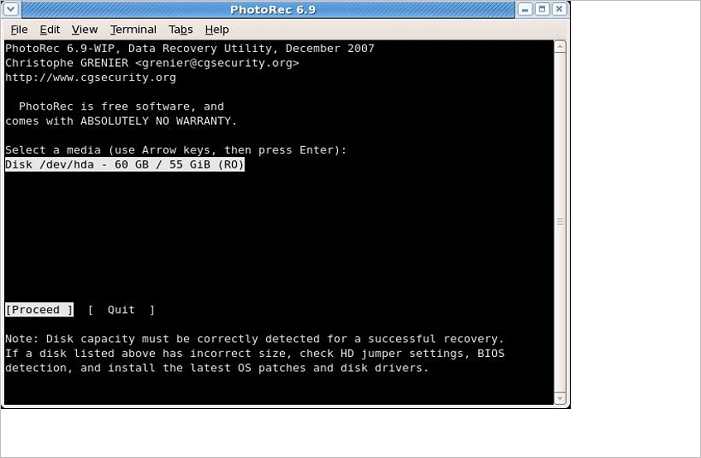
Step 2. In the 2nd step, use the up/down arrow keys to select the disk to work closely, and then hit the enter button.
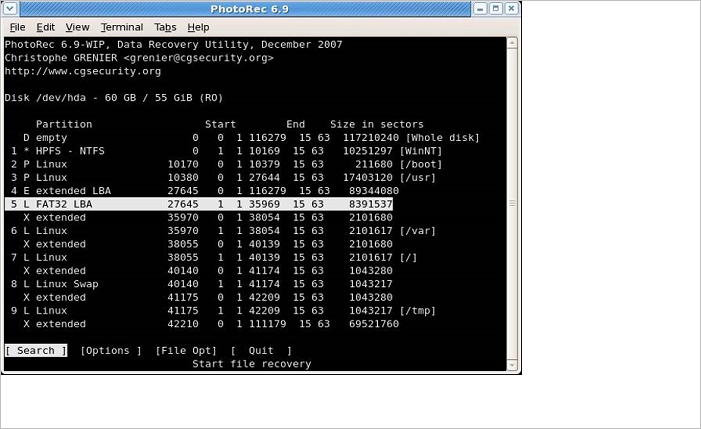
Step 3. There will be 4 options to select from: "File Opt", "Search", "Options", and "quit". To proceed with data retrieval, choose the "Search" option.
Step 4. In the 4th stage, you need to select the partition of your hard drive where you want to scan for deleted files. You'll also need to provide the file system's information, and select "Other" unless the file system is ext2, ext3, or ext4.
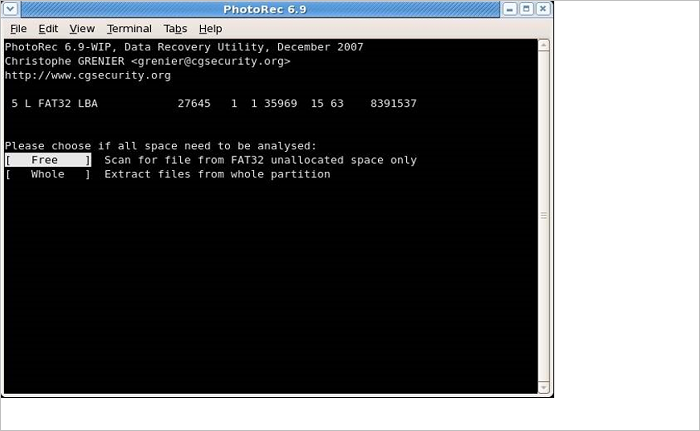
Step 5. After selecting the required partition, you have two options: "Free" and "Whole". To recover deleted files, choose the "Free" option, while the "Whole" option is suitable if the file system has been damaged.
Step 6. Navigate to the folder where your deleted files were located by using the up/down arrow keys on your keyboard. This will allow you to select the correct directory where your files were stored before they were deleted.
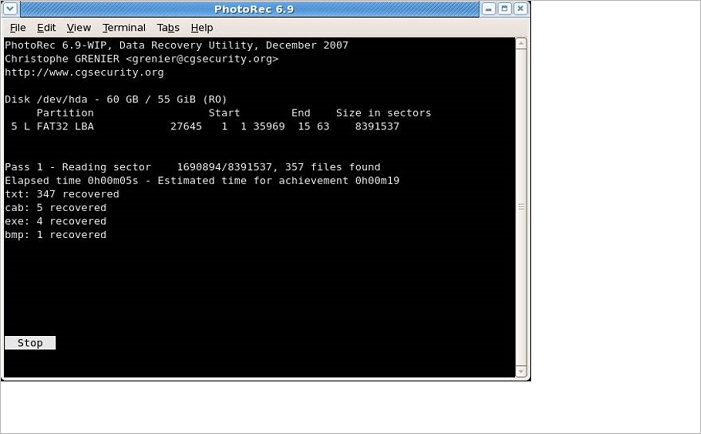
Step 7. As you've chosen the folder, the retrieval process will start. You need to wait for a while to complete the process.
TestDisk VS PhotoRec, Which Is Better
As you search for a free file retrieval tool, you're likely to come across TestDisk and PhotoRec, open-source platforms that have gained popularity since 2008 due to their ease of use and flexibility, despite their command-line interface.
Both PhotoRec and TestDisk are highly effective data recovery tools, but a closer look at their features reveals some key differences. While both tools offer robust data recovery capabilities, they cater to different needs: PhotoRec is specifically designed for recovering lost photos and other media files, whereas TestDisk is a more comprehensive tool for recovering entire partitions and operating systems. Despite their differences, both tools excel in their respective domains, making them both valuable options for users seeking reliable data recovery solutions.
Key recover features:
Recovery with PhotoRec and TestDisk involves two main categories: recovering file systems, partitions, and photos.
PhotoRec can help you recover various file formats, including ordinary image files, OpenOffice, TXT, Microsoft Office, and PDFs, with over 440 file types recorded, allowing for recovery if data remains unchanged.
TestDisk can recover lost file systems such as NTFS, ext1, ext2, FAT3, exFAT, JFS, HFS, and others, allowing it to undelete files on those systems.
Multi-language support:
There is no file recovery software available without some issues. If you encounter any problems with PhotoRec or TestDisk, you can seek help from their support forums, which offer multi-language support in English, French, and German.
Although there are some potential downsides, such as the possibility of an issue and solution being considered in the French subforum, it can still be helpful to you in the German or English subforums.
Despite its capabilities, TestDisk has a significant drawback - it is flagged by Microsoft Defender SmartScreen as undetected, which is concerning for a data retrieval tool with a long history in the tech market.
Top 5 PhotoRec Alternatives
If you're looking for alternatives to PhotoRec, there are 5 tools you can consider. Each tool has its own features and pros and cons, so you can choose the one that best suits your needs. These alternatives can be compared based on their features and advantages, allowing you to pick the one that works best for you.
1. TestDisk
Name of the data recovery tool: TestDisk
Features: Quick data recovery of the files, such as exFAT, ext2, ext3, HFS, FAT32, etc; Numerous OS support, such as Linux, macOS, and Windows; Multi-Language Support.
Pros: TestDisk is a free and open-source software that allows users to recover lost partitions and file systems, as well as support multiple operating systems. It can retrieve various partition schemes and file systems, making it a versatile tool for data recovery.
Cons: It has a poor user interface.
Final Verdict: If you want to retrieve various files from the storage devices, such as SSD, HDD, flash drive, and SD card, it's recommended to use TestDisk. It's a free and safe tool to use, and you will obtain a complete analysis of your storage through it.
2. Recuva
Name of the data recovery tool: Recuva
This software allows for easy retrieval of word documents and essential emails, and supports multiple languages.
Pros: Recuva is great for deep and normal scanning, which lets you scan through the hard disc and motherboard; Retrieving your files via NTFS, ex-FAT, and FAT drives have made it hassle-free to work with this tool.
Cons: If Windows overwrites the MFT space of the existing eliminated files, there's no way you can retrieve that file.
Final Verdict: Recuva can retrieve your long-lost or eliminated files from the hard drive. Being a free tool, Recuva is worth trying in case you don't have access to another data retrieve method. Compared to other tools available in the market, this tool lacks efficiency.
3. Qiling Data Recovery Wizard
Name of the data recovery tool: Qiling Data Recovery Wizard
Features: Flexible scanning modes; Retrieve suddenly deleted files; Crash recovery of the OS; Virus attack retrieval5. Recoup a lost partition.
Pros: Retrieves endless data; Offers the best-in-class quality of recovered files; Absolute preview quality and interface; Super-fast data scanning ability.
Cons: Expensive tool; No option is there to choose a particular folder to scan.
Final Verdict: Even though this software is pretty expensive, you can still purchase this data recovery tool due to its seamless feature performance. If you're looking for the best-in-class data recovery software, Qiling is highly recommended. You can purchase only bootable media when your system can't boot.
4. Disk Drill
Name of the data recovery tool: Disk Drill
Features: Proprietary ADVANCED technology; Data retrieval for a wide array of file types and storage devices; Scanning partitions, corrupted files, and raw disk data restore and backup.
Pros: Automatic scans; Quick and deep scan algorithms; Seamless compatibility with multiple file systems, for example, NTFS, FAT32, and ext2/ext3/ext4.
Cons: This tool doesn't work on smartphones; Constrained customer support facility.
Final Verdict: Disk Drill is indeed a top-notch tool for your professional and personal data recovery. But you need to use it if you want a good solution for data protection, experience data loss often, and work significantly with storage devices, which experience wear and tear.
5. R-Studio
Name of the data recovery tool: R-Studio
This software offers complete support for various volume types, including Linux mdadm, LVM/LVM2, Apple CoreStorage/File Vault/Fusion Drive, and Apple Software RAIDs, all presented in a standard "Windows Explorer" interface style. It also features smart indentation and allows direct operation of R code from the source editor.
Pros: Competitive pricing for what you obtain; Various advantageous features, including, disk managing, RAID retrieval, and SMART monitoring.
Cons: A bit complicated pricing structure for Windows.
Final Verdict: R-Studio is a comprehensive recovery solution that gives users full control over the data retrieval process, providing them with the necessary tools to perform advanced retrievals in complex situations. While initially navigating and using the app can be cumbersome, once familiarized, scanning and data retrieval become much easier with Studio.
Conclusion
PhotoRec is a reliable and user-friendly tool that allows you to recover images and documents from your PC for free. Its text-based UI may not be for everyone, but if you're looking to retrieve photos and don't mind the interface, PhotoRec is a great option.
PhotoRec FAQs
You now have a detailed understanding of PhotoRec and its top alternatives. However, to truly grasp its usage, it's suggested to read the FAQs provided, which will give you a profound understanding of this data recovery tool and its capabilities.
1. Is PhotoRec safe?
PhotoRec is 100% safe and can be downloaded from the developer's website to ensure the app is the only thing downloaded.
2. Is PhotoRec for Mac safe?
PhotoRec for Mac is safe to use as the files that the program retrieves are written into the directory that the PhotoRec program runs from, ensuring that external drives, flash drives, memory sticks, and USB drives are not overwritten.
3. Is PhotoRec better than Recuva?
PhotoRec outperformed Recuva in data recovery, retrieving the same number of deleted files multiple times, showcasing its superiority over the latter.
Related Articles
- All You Need to Know About a Rooted Device
- Free CF Card Recovery Software to Recover Data in Windows/Mac
- How to Fix Error Code 43 for USB in Windows 10 & Recover Data
- GoPro Support: How to Fix Corrupted GoPro Video Files Efficiently
- How to Run CHKDSK on SSD [2023 Most Efficient Ways]
Learn whether you should run CHKDSK on an SSD, when it helps, and how to check and repair SSD file system errors safely. - Samsung 990 Pro vs WD Black SN850X: How to Choose?
Compare Samsung 990 Pro and WD Black SN850X SSDs by speed, gaming performance, reliability, and upgrade value.
Products
Articles & Tutorials
- Data Recovery
- Data Backup
- File Recovery
- File Backup
- System Backup and Restore
- Disk and Partition Clone
- Technical articles
- Mobile articles
- Disk Master Help
- Windows Data Recovery Tutorials
- Windows Secure Delete Tutorials
- Windows Partition Management Tutorials
- Windows File Backup and Restore Tutorials
- Windows System Backup and Restore Tutorials
- Windows Disk Backup and Restore Tutorials
- Windows Clone Tutorials