How to Solve "Steam Takes Forever to Allocate Disk Space" Issue?
Steam's simple message about allocating disk space can sometimes hang indefinitely, disrupting gameplay and requiring players to search for the cause. This article will explore the major reasons behind this issue and provide easy-to-follow solutions to help resolve the problem and prevent it from happening in the future.
Why Does Steam Take Forever to Allocate Disk Space
As a gamer, you need to download and play games to improve your skills, but encountering an allocated disk space message while downloading from the Steam Client can be frustrating. Let's identify the causes behind this issue to help you resolve it.
- Problems of downloaded cache: The Steam cache becomes overloaded when multiple packages are installed or updated, resulting in a message indicating that the cache is full and needs to be cleared to free up space for new updates.
- Speed of the disk: A slow hard drive can cause delays in processing data, leading to a stuck screen. This is because the speed at which your hard drive reads and writes data affects how quickly it can allocate disk space. As a result, if your hard drive is slow, it may take longer to process data, causing your screen to freeze.
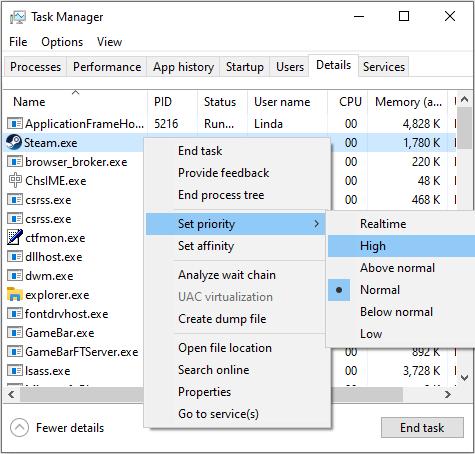
To fix the Steam unpacking slow error efficiently, try restarting Steam, checking for updates, and verifying the integrity of game files. Also, clear the Steam cache, disable any running antivirus software, and close unnecessary programs to free up system resources.
If you've preinstalled a game on Steam, you might encounter a slow unpacking issue when installing it. Fortunately, this problem can be solved with some troubleshooting steps, which can be found in this article.
- Firewall blockage: A firewall may have blocked your Steam connection due to a corrupt game installation, which could be causing issues with establishing a connection and resulting in allocated disk space problems.
- Internet connectivity: If you have slow internet, Steam's game downloading process will be affected because it needs to download files quickly. This might take time for the system to allocate disk space.
You can check the speed of your hard drive or SSD by clicking on the provided links to get more information on the topic.
How to Fix Steam Takes Forever to Allocate Disk Space
When gaming, a delay or disruption in gameplay is frustrating, and a stuck screen with an "allocating disk space" message while downloading a game from Steam can be particularly annoying.
Don't waste time searching online for answers to why Steam is taking forever to allocate disk space. Instead, find reliable solutions to this issue on this platform, where you'll discover working and valuable fixes to resolve the problem.
Solution 1. Perform Computer Restart
If you encounter random glitches or specific errors on Steam, try restarting the software by reopening it. If the issue persists, restart your computer to eliminate the problem. To do this, follow these steps: restart your computer.
Step 1: To shut down your Windows computer, click on the Windows icon located at the bottom left side of your screen and select the "Power" button from the menu that appears.
Step 2: A small menu will appear where you're required to select and press on the "Restart" button.
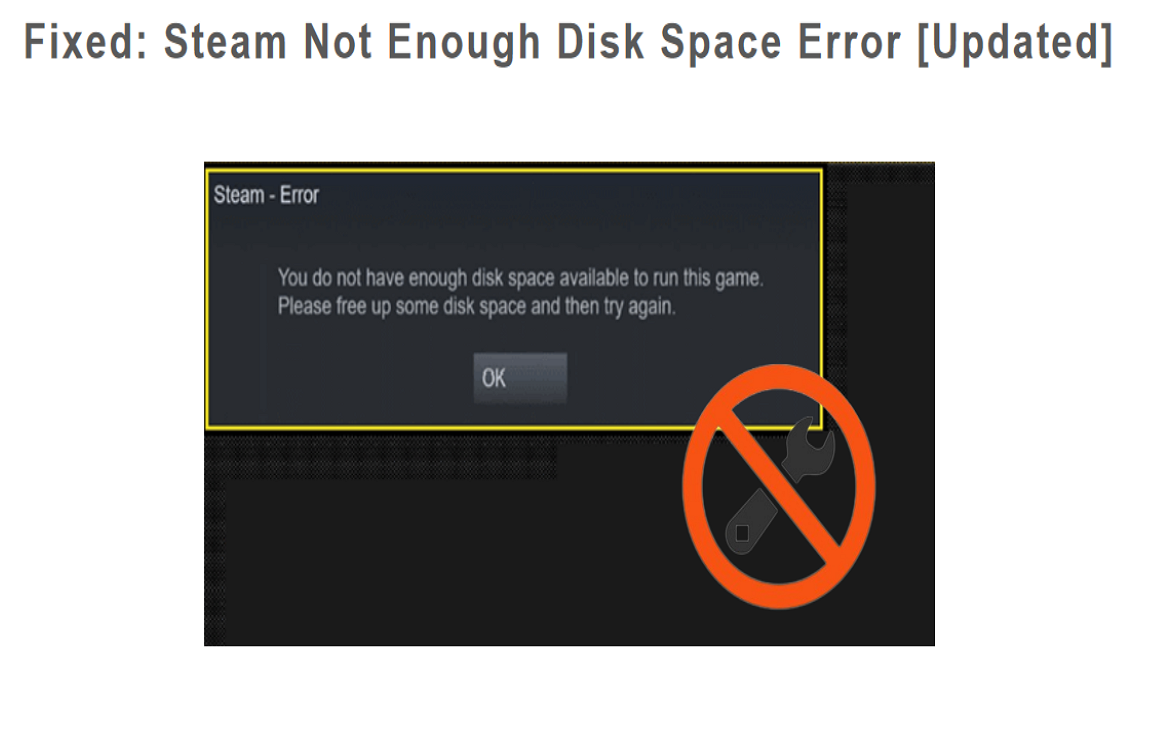
How to Fix Steam Not Enough Disk Space Error [Updated]
When the Steam "not enough disk space" error occurs, you can resolve it by freeing up disk space on Steam. This can be done by deleting unnecessary files, uninstalling unused games, and removing any unwanted game updates. Additionally, you can extend your partition using third-party free software to create more space for Steam. This will allow you to continue using Steam without any issues.
Solution 2. Clearing the Downloaded Cache
When downloading games from the Steam Client, excessive or unnecessary data is also installed, which can fill up your cache memory, disrupting your system's speed and affecting Steam's optimal functionality. To resolve cache issues, follow these steps.
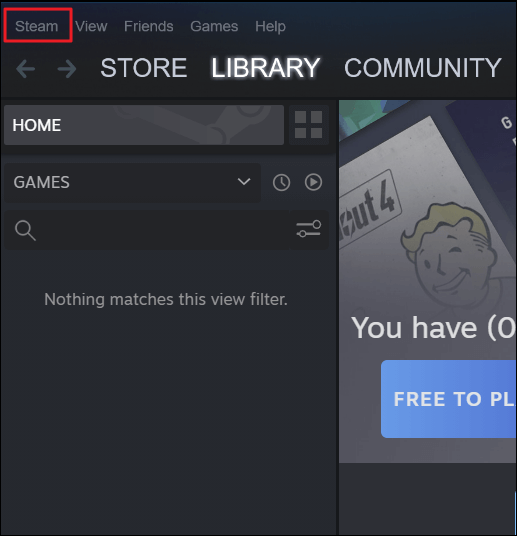
Step 1: Open Steam Client
To start, open the Steam Client on your computer, then click on "Steam" from the top-right corner and select "Settings" from the given options.
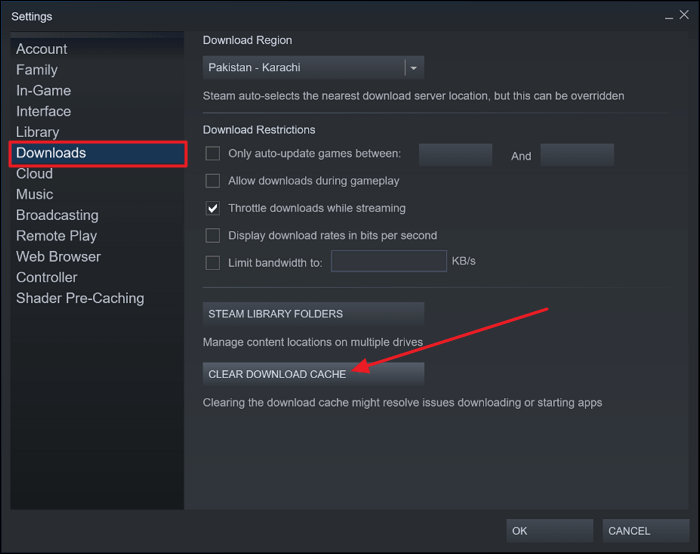
Step 2: Clear Download Cache
Click the "Downloads" tab from the left panel, then click the "Clear Download Cache" button, and confirm the action by clicking "OK" in the pop-up window.
You can use Qiling Disk Master to manage the hard drive of your Steam, allowing you to extend your hard drive and gain more usable space. This can be particularly helpful if you're experiencing low disk space errors on your Steam Deck.
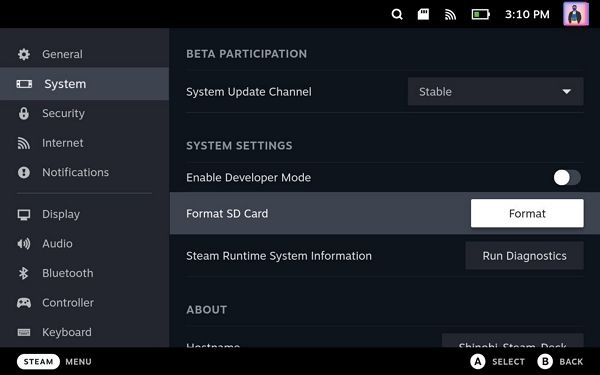
How to Add Storage to Steam Deck [2023 Full Guide]
You can expand your Steam Deck storage using a micro SD card, USB drive, or a larger SSD drive. This can be done in various ways, from simple to complex, and will be detailed below.
Solution 3. End the Steam Process in Task Manager
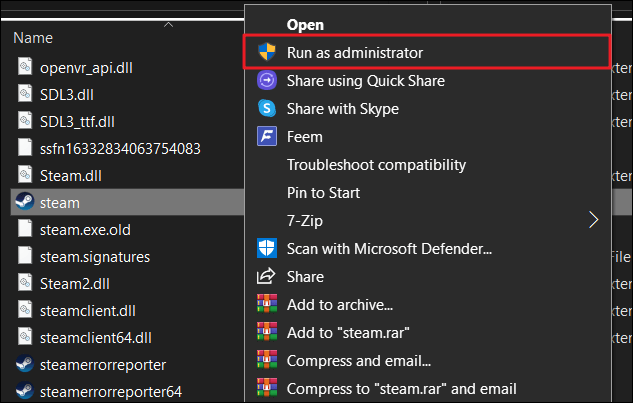
Most of the time, Windows stops the Steam Client due to corrupted files or client errors, preventing access to Steam. To resolve this issue, you can run Steam as an administrator to grant it special privileges and reopen it. To do this, follow the given instructions.
Step 1: To close the Steam app, open the Task Manager by searching for it in Windows, clicking on it, and opening it. Then, navigate to the "Apps" section and select the Steam app. Finally, click on "End Task" to close the application.
Step 2: To run your Steam client with administrative privileges, right-click on the Steam icon and select the "Run as administrator" option from the context menu. This will open the Steam client with elevated permissions, allowing you to perform tasks that require administrator access.
Read Also:
Solution 4. Change the Download Server
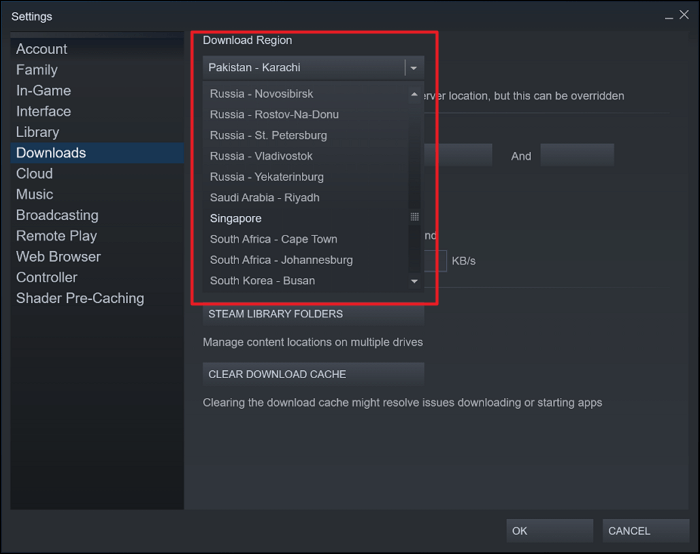
The server you're downloading games from might be full or under maintenance, causing the error message. Try changing the download region by following these steps, which could resolve the issue.
Step 1: To access Steam settings and download settings, open the Steam Client software and select "Steam" from the top left corner. From the drop-down menu, choose "Settings" and then select "Downloads" from the left-panel menu.
Step 2: To download the game, access the "Download Region" option and select a server in a region that suits you.
Solution 5. Disable Windows Defender Firewall
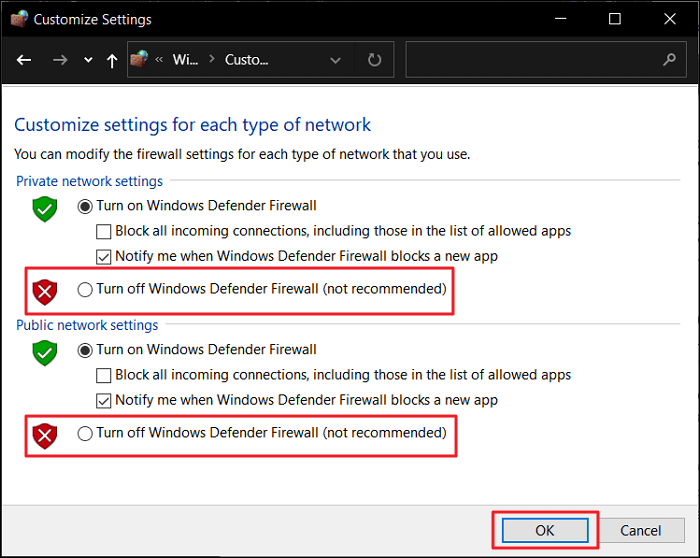
The Windows Defender Firewall can block Steam's network when downloading games from the Steam Client, especially if the games are corrupted or virus-infected. Disabling the Windows Defender Firewall is a solution to allow Steam to function without issues.
Step 1: To access the Windows Defender Firewall, click on the "Control Panel" app from the Windows search, then select the "System and Security" menu, and finally choose the "Windows Defender Firewall" option.
Step 2: To disable the Windows Defender Firewall, click the "Turn off Windows Defender Firewall (not recommended)" option for both private and public network settings, then press the "OK" button to confirm the changes.
Conclusion
The Steam Client is a great platform for downloading and playing the latest games on the Steam network, but its persisting disk space allocation issue can be frustrating for PC gamers. This article aims to help users understand why Steam takes forever to allocate disk space and provides the best fixes to resolve such problems, which can be shared with others to help more users.
Steam Takes Forever to Allocate Disk Space FAQs
This guide offers briefly explained the causes of Steam taking forever to allocate disk space and provided solutions to this problem, addressing common questions and concerns.
1. What does allocating disk space mean on Steam?
Allocating disk space means that Steam reserves portions on your hard drive to store your gaming data and other important files.
2. Why does Steam say I don't have enough disk space when I do?
There are several reasons why a game may not be launching, but the most common causes are issues with the downloaded cache and the installation of corrupted or partial games.
3. Do Steam games take up hard drive space?
The program utilizes your drive's storage to download gaming data, updates, mods, and everything related to the downloaded game.
For broader Steam startup problems, see Steam Games Not Launching on Windows. For game-specific stutter and lag, see Star Citizen Stuttering and Lagging.
Related Articles
- How to Resolve reCAPTCHA Not Working in Any Browser
- What Is the Latest Version of macOS Until 2023 [Ventura]
- How to Fix Asus Laptop Black Screen with 11 Efficient Ways
- How to Fix Can't Type in Command Prompt [6 Working Ways on Windows 11/10]
Fix cannot type in Command Prompt on Windows. Learn why CMD stops accepting input and how to repair keyboard, system, and console issues. - Five Ways to Fix "Path Not Found C:Boot" Error in Windows
Do you know why the path not found C:\boot error happens? This guide will help you figure out the reasons and provide you with several ways to fix this issue. - How to Fix PC Black Screen While Gaming in 6 Ways
Fix a PC black screen while gaming by checking graphics drivers, hardware, power, display settings, and other common causes.
Products
Articles & Tutorials
- Data Recovery
- Data Backup
- File Recovery
- File Backup
- System Backup and Restore
- Disk and Partition Clone
- Technical articles
- Mobile articles
- Disk Master Help
- Windows Data Recovery Tutorials
- Windows Secure Delete Tutorials
- Windows Partition Management Tutorials
- Windows File Backup and Restore Tutorials
- Windows System Backup and Restore Tutorials
- Windows Disk Backup and Restore Tutorials
- Windows Clone Tutorials