Steam Games Not Launching on Windows: Fix and Recover
Fix Steam games that will not launch in Windows and back up or recover game files before reinstalling.
Why Steam Games May Not Launch
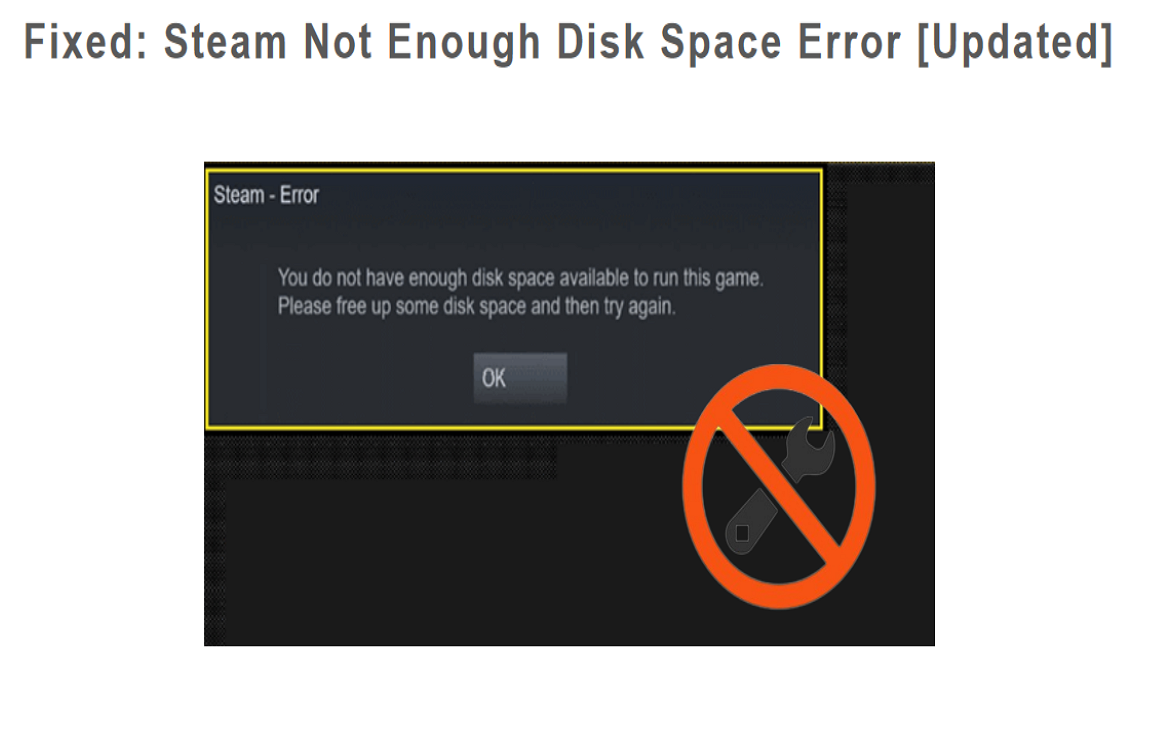
Steam games may fail to launch because of missing game files, blocked permissions, outdated GPU drivers, damaged Visual C++ runtimes, antivirus quarantine, or a nearly full game drive. Do not delete the game folder until you have checked saves and screenshots.
What to Check First
- Restart Steam and run it as administrator.
- Verify game files in Steam Library properties.
- Update graphics drivers and Windows components.
- Check whether the game drive has enough free space.
- Back up saves before reinstalling large games.
Back Up Important Files with Qiling Disk Master
Before you change Windows settings, reset a PC, format a drive, or repair a failing disk, copy user files to a safe location. A file backup is easier to restore when you only need documents, photos, game saves, or work folders.
Choose File Backup
- Open Qiling Disk Master and choose File Backup. Select the folders that matter most, such as Desktop, Documents, Pictures, game save folders, browser profiles, and project folders.

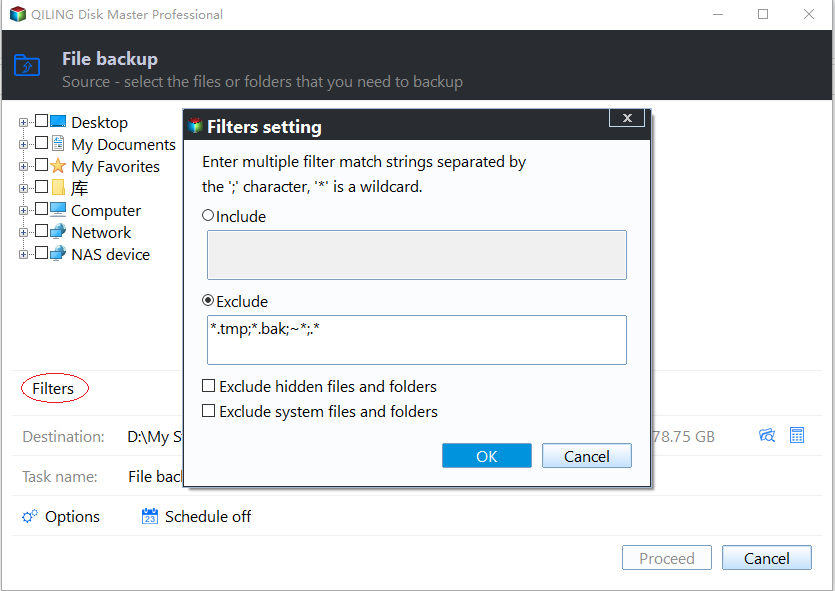
- Use the filter option if you need to include only certain file types or exclude temporary files.
Select a Safe Destination
- Choose an external drive, another internal disk, or a network location as the backup destination. Do not save the backup on the same partition that may be reset, formatted, or repaired.

- Click Proceed to start the backup and wait until it finishes. Open the destination afterward and confirm that the backup image is visible.

For Palworld crashes and safe handling of game saves, read Palworld Keeps Crashing on Windows: Diagnose Without Losing Saves.
If game performance points to an older hard drive, the hard-drive gaming optimization guide separates storage maintenance from graphics and game-file problems.
Related Articles
- Windows Partition Management Tutorials
Find practical Windows partition guides for resizing, formatting, checking, converting, and repairing disks without unnecessary risk. - Windows System Backup and Restore Tutorials
Browse Windows backup and restore guides for system images, recovery drives, restore points, and safe repair preparation.
Products
Articles & Tutorials
- Data Recovery
- Data Backup
- File Recovery
- File Backup
- System Backup and Restore
- Disk and Partition Clone
- Technical articles
- Mobile articles
- Disk Master Help
- Windows Data Recovery Tutorials
- Windows Secure Delete Tutorials
- Windows Partition Management Tutorials
- Windows File Backup and Restore Tutorials
- Windows System Backup and Restore Tutorials
- Windows Disk Backup and Restore Tutorials
- Windows Clone Tutorials