How to Fix "Steam Not Enough Disk Space" Error [Updated]
User Case 1:
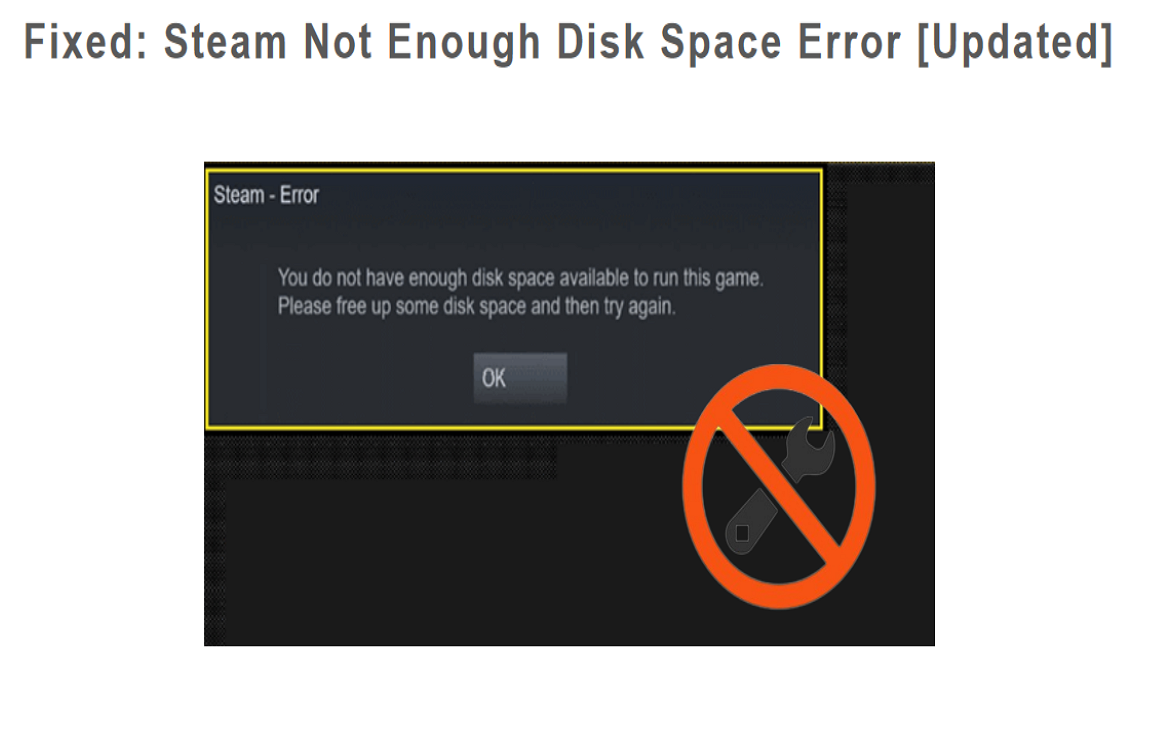
"Not enough disc space" error. Plenty of disc space. I have tried Restarting Steam, deleting, and re-downloading it (The problem started during an update). Please help. I really want to play this game right now. - From Steam Community
User Case 2:
You're experiencing a frustrating issue with Steam's disk space requirement. Despite having 44.8 GB of free space on your drive, Steam is claiming there's not enough space to update a 500 MB game. You've tried moving the game to another drive but can't, and you're out of space to delete anything. One possible solution is to try updating the game in offline mode, which might bypass the disk space check. Alternatively, you could try reinstalling Steam or updating the game manually by downloading the update files and installing them manually. If none of these work, you might want to consider reaching out to Steam support for further assistance.
Steam, developed by Valve in 2003, is a leading game distribution platform that has revolutionized the gaming industry. Named after its fast download speed, Steam has become a household name, offering a vast library of games, including popular titles like CSGO, Dota 2, and PUBG, which have attracted millions of players worldwide.
Overview of Steam Not Enough Disk Space Issue
Steam, a popular game distribution platform, is troubled by bugs that frustrate many users. One common issue is the "Steam Out of Disk Space" error, which appears even when users have ample storage space on their drives. This error can be particularly annoying as it interrupts gameplay or other activities, causing a real headache for those affected.
To quickly resolve the error, the fastest and safest method is to use the solution below. This approach will efficiently eliminate the error and get you back on track. Let's learn how to do it.
Extend Partition Without Losing Any Game Data
When the disk space for installing games is insufficient, the most direct and effective method is to extend the current partition without any loss of game data, which can be achieved by using unallocated space on the disk or available space on other drives with the help of Qiling Disk Master Professional.
To expand the partition where you install Steam games, use Qiling Partition Master to resize the partition. First, download and install the software, then launch it and select the partition you want to expand.
Step 1. Locate the Target Partition.
To resize or move a partition in Partition Manager, follow these steps: Locate the target partition, select it, and then choose the option to resize or move it. This will allow you to adjust the partition's size or move it to a different location on the disk.

Step 2. Extend the Target Partition.
Drag the partition panel rightward or leftward to add the unallocated space into your current partition.

Extra Option: Get Space from Another Drive
If there is not enough unallocated space on your disk, right-click on a big partition with enough free space, select "Resize/Move".
To extend a partition on a disk, select the target partition and click on the "Allocate Space to" option in the disk management interface. This will allow you to add additional space to the partition, effectively increasing its size.
Step 3. Execute Operations to Extend Partition.
Drag the dots of the target partition into the unallocated space.
Then Click the "Proceed" to keep all the changes.
You'll see that the target drive has enough space after extending partitions. Qiling Disk Master is also a powerful tool that allows you to not only extend partitions but also shrink, move, merge, delete, or create partitions, making it a must-have for your disk management needs.
How to Fix Steam Not Enough Disk Space Error
The "Steam Out of Disk Space" issue is frustrating for many players worldwide. When customer service doesn't offer a clear solution, trying the following steps can help resolve the error.
Fix 1. Reboot PC and Steam
Shutting down your PC and Steam, then restarting them, usually resolves the error, as it allows Steam to refresh and correct any issues caused by updates or Windows bugs. This process also prevents third-party software from interfering with the download or installation of Steam games, which may be the cause of the problem.
Fix 2. Verify the Integrity of Steam Game Files
When Steam users encounter errors, they often use the "Verify Integrity of Game Files" feature to resolve the issue. This method is commonly used due to the large size of most Steam games, which can be tens of gigabytes. The verification process helps identify corrupted game files, delete them, and re-download them, which can resolve the error.
Step 1. Close all games running on your computer.
Step 2. After closing, navigate to the Steam "Game Library".
Step 3. Locate the problematic game in the game list on the left, right-click on it, and select "Properties".
Step 4. Once you have entered the property options, navigate to the "Local Files" tab located in the navigation bar.
Step 5. Click "Verify integrity of game files" to get started.
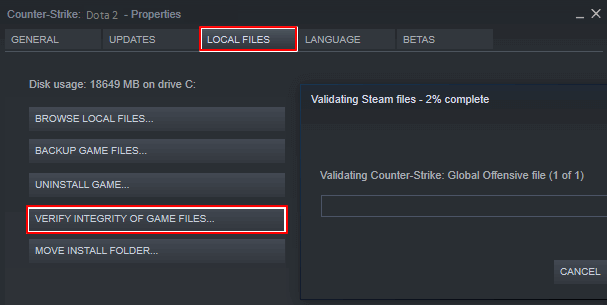
To resolve the Steam game out-of-space error, you can try restarting the game after clearing the cache and deleting any unnecessary files. Once done, restart the Steam game and see if the out-of-space error still occurs.
Fix 3. Clear Steam Download Cache
Clearing the Steam download cache can resolve the out-of-disk-space error caused by excessive download cache data.
Step 1. To access Steam settings, launch Steam from the desktop and select "Steam" from the top navigation bar, followed by selecting "Settings" from the drop-down menu.
Step 2. To clear the download cache, select the "Download" tab in the list on the left, click "Clear Download Cache," and follow the instructions.
Step 3. Once completed, Steam will restart itself.
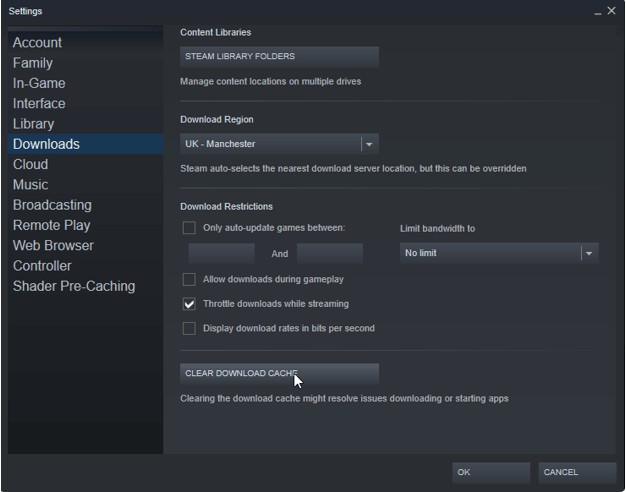
Try resuming the download or installation after Steam restarts and see if everything is working fine now.
Fix 4. Run Steam in Administrator Mode
To resolve Steam errors, try loading Steam in administrator mode, as the issue often stems from a lack of necessary permissions for your Windows account to modify Steam.
Step 1. Close all Steam-related applications.
Step 2. To run the desktop icon as an administrator, right-click on the icon and select "Run as administrator" from the context menu. This will open the application with elevated privileges, allowing you to perform administrative tasks.
Step 3. Once Steam loads, enter management mode, then redownload, install or run the game to see if the problem is fixed.
To help more Steam users who are facing the same issue, these fixes can be shared. By doing so, more people can resolve their Steam issues and get back to gaming without any hassle.
Fix 5. Check Hard Drive Error
A "Steam Out of Disk Space" error is likely to appear if there are any errors on your hard drive. To verify whether the hard drive has bad sectors or other possible errors, check the hard drive for errors using the built-in check disk utility, and then run a full disk scan. If errors are found, run a disk repair tool to fix them.
Step 1. Double-click "This PC" on the desktop, right-click on the drive where you want to install or download the game, and click "Properties."
Step 2. In the Properties wizard, select Tools.
Step 3. Click "Check" under the "Error Checking" section.
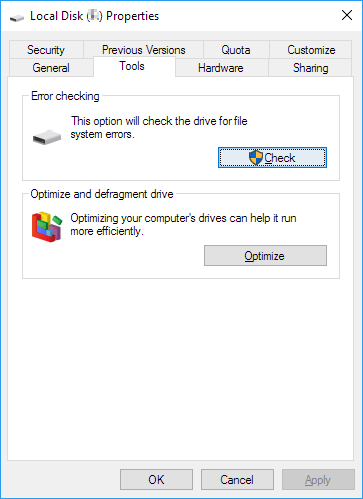
Step 4. Select Scan and try to recover the bad sectors option.
Step 5. Finally, click "Start".
Once the process is complete, restart or revert to the download/installation process to see if the issue has been resolved.
Fix 6. Run Disk Cleanup
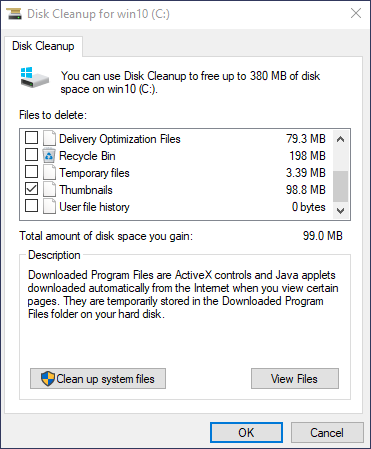
If the Steam not enough space error appears, it might be because the disk space has decreased significantly. In this case, deleting junk files or unnecessary data from the hard drive can quickly resolve the issue. A simple solution is to use Disk Cleanup to remove unwanted data with just one click, which will be covered in the next tutorial.
Step 1. To perform a disk cleanup on your computer, start by clicking on the "Start" button and selecting "Settings." From the Settings menu, click on "System" and then select "Storage" from the left-hand menu.
Step 2. To resolve the issue, select the correct drive to clean, delete the unwanted items, and then wait for the process to complete before reinstalling or running the game.
Conclusion
If you encounter the "Steam disk space is low" error, you can try expanding the current partition using Qiling Disk Master, a tool that allows you to expand the partition without deleting any data. This is a recommended solution if you want to solve the error without deleting any data.
Steam Low Disk Space Error FAQs
If you're encountering a Steam insufficient disk space error when trying to install or run a game, don't worry - this issue can be resolved. To overcome this problem, you can try deleting any unnecessary game files or updates, freeing up space on your hard drive. You can also consider upgrading your storage capacity or moving some of your files to an external drive to make room for your games.
1. Why is Steam saying there is no disk space?
This error may be caused by low disk space on the Steam installation drive, third-party software conflicts, excessive Steam game cache, or bad sectors on the hard drive.
2. How do I add more storage to Steam?
To free up space for Steam, you can run Disk Cleanup. This process will help remove temporary files, system logs, and other items that are no longer needed, thus freeing up disk space. To do this, go to the Start menu, type "Disk Cleanup" in the search bar, and select the appropriate result.
Step 1. To run Disk Cleanup on Windows, type "disk cleanup" in the search box on the taskbar, then press the "ENTER" key.
Step 2. To clean a drive, select the drive (such as the C drive) you want to clean and click OK. Then, select the items you want to delete and click OK.
3. How do I fix Steam not enough disk space?
To fix not enough free disk space errors in Steam, try the following fixes: clear up disk space by deleting unnecessary files, uninstalling unused games, and updating Steam to the latest version, and also check if any of your games are taking up too much space and delete them if necessary. If none of these work, try verifying the integrity of game files in Steam, which can often resolve the issue by re-downloading any missing or corrupted files. Additionally, checking for any disk space issues in your operating system and running a disk cleanup can also help resolve the issue.
- Restart your computer.
- Delete the downloading folder.
- Clear the download cache.
- Run Steam as administrator.
- Repair the Steam Library Folder.
- Verify the integrity of game files.
- Clear up space.
Related Articles
- DiskPart Force Delete Partition: How to Force Delete Partition on Windows 11/10/8/7
- How to Clone Windows to a New Drive [2023 Full Guide]
- (3 Free Methods) How to Remove or Delete Partition Windows 11/10
- Setup SSD/HDD and Change System/OS Disk for Windows 11/10
- How to Fix Pen Drive Showing Write-Protected Error
Do you need some solutions to fix pen drive showing write-protected error?. This article will provide you with a complete tutorial to fix your issue. Now, you can read this article. - Quick Format an External Hard Drive in Windows 10 With CHKDSK Pass, or Full Format?
Do you need a quick format with CHKDSK or a full format? This page provides you the answer and reasons, then provide a full guide on formatting an external hard drive.
Products
Articles & Tutorials
- Data Recovery
- Data Backup
- File Recovery
- File Backup
- System Backup and Restore
- Disk and Partition Clone
- Technical articles
- Mobile articles
- Disk Master Help
- Windows Data Recovery Tutorials
- Windows Secure Delete Tutorials
- Windows Partition Management Tutorials
- Windows File Backup and Restore Tutorials
- Windows System Backup and Restore Tutorials
- Windows Disk Backup and Restore Tutorials
- Windows Clone Tutorials