DiskPart Force Delete Partition: How to Force Delete Partition on Windows 11/10/8/7
Key Takeaways
- Learn an A-Z guide about Diskpart force delete partition.
- For users who are not tech-savvy, run another free alternative - Qiling Disk Master.
- Read time: 3 mins.
Page Content
When Do You Need "Diskpart Delete Partition Force"?
How to Use Diskpart Force Delete Partition?
User-Friendly Alternative to Diskpart: Force Delete Partition by Software
Diskpart Delete Partition FAQs
When Do You Need "Diskpart Delete Partition Force"?
In Diskpart, deleting a partition requires using the "delete partition override" command to force deletion, especially when the partition is corrupt or cannot be deleted normally.
How to Use Diskpart Force Delete Partition?
- Warning
- Be careful when typing commands, especially selecting the correct partition number, as deleting a partition will permanently erase all data on it. It's recommended to back up important data before running these commands, especially if you're new to using the command line.
If you're new to using Diskpart commands, it can be intimidating. To help, here's a detailed guide to walk you through the process. You can start by opening the Command Prompt as an administrator and typing "diskpart" to enter the Diskpart environment.
How to force delete partition with Diskpart? Follow the steps:
Step 1. Press the Windows + R keys to open the Run box, type `cmd` and press OK to open the Command Prompt.
Step 2. Type diskpart and press Enter.
Step 3. Type list disk and press Enter, and it will display all disks connected to your computer.
Step 4. Type select disk x and hit Enter. (X equals to your disk number. Replace it with the correct number.)
Step 5. When you type "list partition" and hit Enter, it displays all the partitions available under the disk. This command is used to list all the partitions on a disk, including the primary and extended partitions, as well as any logical partitions. It provides a detailed view of the disk's partition structure, showing the partition number, type, start sector, and end sector for each partition. This information can be useful for managing disk space, troubleshooting partition-related issues, and planning disk upgrades or repartitioning.
Step 6. Check the targeted partition by typing "select partition X" and hitting Enter, where X is the partition number you want to check. For example, if you want to check the first partition, you would type "select partition 1".
Step 7. Type delete partition override and press Enter.
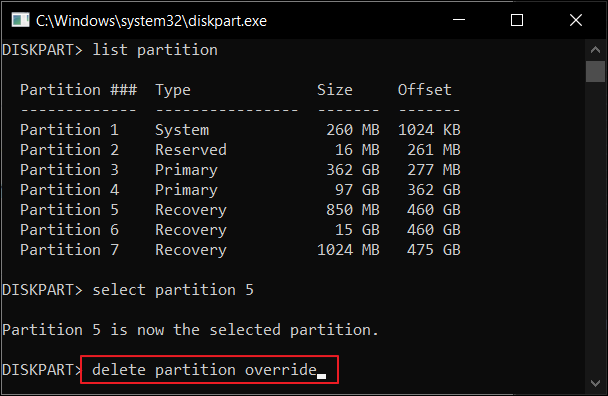
Once the next move shows "Diskpart successfully deleted the selected partition." Type exit and hit Enter to close Diskpart.
User-Friendly Alternative to Diskpart: Force Delete Partition by Software
Qiling Disk Master is a better choice than Diskpart for deleting partitions in Windows, as it offers an intuitive interface and simple operation steps, making it easy to delete partitions even for those unfamiliar with Diskpart commands.
Qiling Disk Master Free is a reliable and safe partition manager that can force delete any partition on Windows 10/8/7 and lower versions with simple steps, ensuring the security of data and the system during the deletion process.
Follow these steps to remove a partition or delete all partitions with Qiling Disk Master:
Step 1. Launch Qiling Disk Master, and click "Partition Manager".
It's crucial to back up your data before deleting any partition on your disk to avoid losing essential information.
Step 2. You can choose to either delete a specific partition or delete all partitions on the hard drive.
- Delete single partition: To delete a partition, right-click on it and select the "Delete" option.
- Delete all partitions: To delete all partitions on a hard drive, right-click on the drive you want to delete all partitions from and select "Delete All".
Step 3. Click "Proceed" to save the change.
Step 4. Click "Yes" to confirm the deletion.
Other "force delete" topic you like:
Concluding Thoughts
Diskpart, a built-in Windows tool, allows users to create, delete, and format hard drive partitions. Its ability to delete hidden or protected partitions is particularly useful, especially when using the "force" option to override errors. However, to avoid data loss and hassle, users can consider using a free alternative like Qiling Disk Master to safely delete partitions.
Diskpart Delete Partition FAQs
This part issues some specific questions about Diskpart deleting the partition.
How do I force delete a partition?
To force delete a partition, use a disk partition manager like Windows Disk Management or a third-party tool like Qiling Disk Master. Select the partition to delete, then click "Delete" to remove it from your computer.
How do I wipe a Diskpart partition?
Step 1. Enter CMD on the search box and open Command Prompt.
Step 2. Type commands and hit Enter after typing each command:
diskpart
list disk
To select a disk, type "select disk [number]" (e.g., "select disk 1", "select disk 2").
clean
Diskpart succeeded in cleaning the disk.
How do I force delete a partition in Windows 10?
To delete a partition in Windows, right-click the "Start" button at the bottom left of your taskbar, select "Disk Management", open it, right-click the partition you want to delete and select "Delete Volume".
How do I delete a partition with a force protected parameter?
To delete a partition with a force protected parameter:
Access command prompt and type the following commands:
diskpart
list disk
select disk X
list partition
select partition X
delete partition override
exit
Related Articles
- Reset Windows 10 Password with USB Drive - 3 Ways with Guide
- How to Remove Write Protection from SD Card and Format It
- 4 Solutions To Fix Bootmgr Is Missing Windows 11
- How to Fix HP Laptop Stuck on HP Screen | 10 Efficient Ways
- Best Free System Clone Software for Windows 10 Recommend
Looking for a free system clone software to clone Windows 10 to a new disk or computer? This page presents the best free system clone software for Windows 10, which can be downloaded and used to clone Windows 10 for free, making it bootable on a new disk. - Top 3 Best Free System Clone Software Free Download for Windows [2024 Reviews]
If you're looking for reliable and free system clone software to clone the Windows operating system and transfer to a new disk with simple steps, this page collects 3 top free system clone software you can download to accomplish system migration operations on your own.
Products
Articles & Tutorials
- Data Recovery
- Data Backup
- File Recovery
- File Backup
- System Backup and Restore
- Disk and Partition Clone
- Technical articles
- Mobile articles
- Disk Master Help
- Windows Data Recovery Tutorials
- Windows Secure Delete Tutorials
- Windows Partition Management Tutorials
- Windows File Backup and Restore Tutorials
- Windows System Backup and Restore Tutorials
- Windows Disk Backup and Restore Tutorials
- Windows Clone Tutorials