Best Free System Clone Software for Windows 10 Recommend
Key Takeaways of Free System Clone Software for Windows 10:
- 1. Cloning an operating system to a new disk or computer can be a complex process, requiring specialized software to achieve the goal.
- 2. If you're looking for a reliable free system clone software, Qiling Disk Master Free is a trustworthy option that can successfully clone your Windows 10 system to a new disk.
For a detailed guide to clone the system to a new disk on Windows 10, your guide is here. Follow and check out the complete process here.
In this article, you'll learn:
- For Windows 10 users looking for a reliable and free system clone software in 2024, I recommend using a tool that offers benefits such as automatic backups, disk imaging, and file recovery.
- To clone a Windows 10 system to a new disk using Qiling Disk Master Free.
- Free system clone software is a type of utility that allows users to create an exact copy of their operating system, including installed applications, settings, and data. This software can be used for various purposes, such as backing up the system, transferring the operating system to a new computer, or creating a portable version of the OS.
Best Free System Clone Software for Windows 10 Recommend 2024 [Benefits & Freatures]
So which is the best system clone software available for Windows 10 users to download and apply to clone the system for free?
You can either apply the above-listed 4 principles to define if the current software you find can fulfill your demand, or you can apply the recommended software here in this part for help.
Qiling Disk Master Free is a free disk cloning software that is perfect for all levels of Windows users to clone Windows 10 to a new HDD, SSD, or M.2/NVMe SSD successfully using its Disk Clone feature.
What Can I Do with Qiling Disk Master Free? Benefits and Features
Qiling Disk Master Free offers several benefits and features, including the features listed below.
| Benefits of Qiling Disk Master Free | Features in Qiling Disk Master Free |
|---|---|
|
|
Editors' Review on Qiling Disk Master Free
Reviews from various sites suggest that Qiling Disk Master is a decent tool, but opinions from editors and reviewers are mixed. Some praise its user-friendly interface and effectiveness in recovering data from damaged disks, while others criticize its limitations and poor performance in certain situations. Overall, it seems that Qiling Disk Master is worth trying, but users should have realistic expectations and be aware of its potential shortcomings.
Qiling Disk Master is a powerful tool that goes beyond just OS cloning, also allowing for the management and optimization of computer disk and partition performance. It even provides perfect support for managing external storage devices, such as.
To clone Windows 10 to a new HDD or SSD without reinstalling the OS, use Qiling Disk Master and follow the tutorial in the next part to get a full guide on how to do so.
Tutorial: Clone Windows 10 System to a New Disk with Qiling Disk Master Free
To clone Windows 10 to a new disk, you'll need to use a cloning software. Here's a step-by-step guide:
#Guide 1. Install New Disk to Windows 10 and Set It Ready for OS Cloning
Step 1. To upgrade your computer's storage, shut down the device, open the case, and carefully install the new hard drive or solid-state drive (SSD) in place of the old one. Make sure to secure the new drive properly and reconnect any cables that were disconnected during the process.
- HDD or SATA SSD - Connect the drive to your PC via a SATA data cable and a power cable. Then, install the drive to your PC by screwing it into place.
- M.2 or NVMe SSD - To install the SSD, insert it into the SSD slot and secure it with the provided screw.
Step 2. To resolve the issue, reboot the PC or laptop and enter Disk Management. Right-click on the external hard drive to initialize it to the same OS disk type as the internal drive, either Master Boot Record (MBR) or GUID Partition Table (GPT).
Right-To prepare the new disk for use, click on it and select the option to "Initialize Disk". Then, choose either "MBR" (Master Boot Record) or "GPT" (GUID Partition Table) as the disk type, and click "OK" to proceed.

Step 3. Right-click on the unallocated space on the SSD, select "New Simple Volume", assign a drive letter and file system (such as NTFS), and confirm to create a new partition.
To create at least two partitions if your Windows 10 system partition and boot partition are separated on two volumes, repeat Step 3, ensuring that your system and boot partitions are on the same volume. This will allow you to maintain a clean and organized setup, making it easier to manage and maintain your system.
#Guide 2. Launch Qiling Disk Master Free and Clone Windows 10
To clone Windows 10 to a new disk and make it bootable, you'll need to repeat the partition copy process twice, ensuring that both the system and boot volumes are cloned to the SSD or HDD. This will allow the new disk to boot properly and have a fully functional copy of Windows 10.
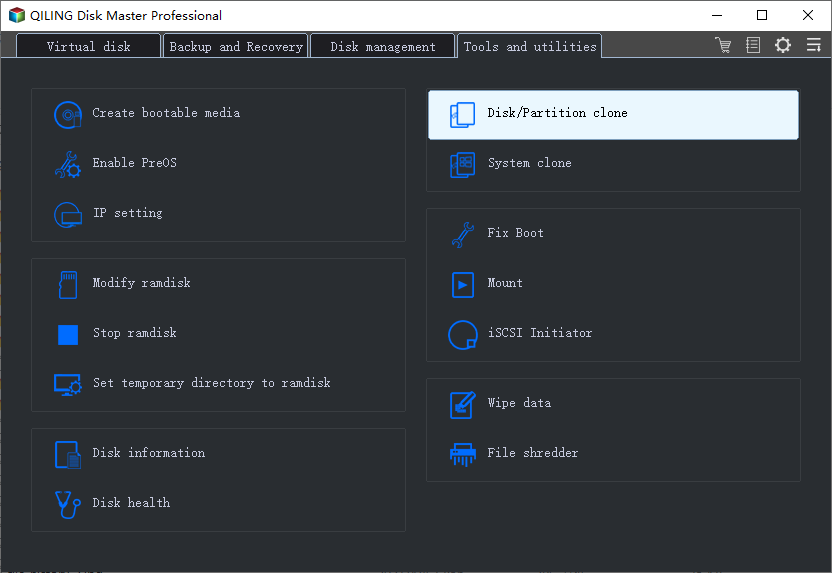
Step 1. Select "Tools and utilities" tab page. Click "Clone Partition".
Step 2. Select the source partition and click "Next".
Step 3. Choose your the target partition and click "Next "to continue.
- If you're cloning a partition to an existing partition, make sure to transfer or back up your data first, as it will be overwritten during the cloning process.
- Check warning message and confirm "Yes".
Step 4. Click "Proceed" and wait for the clone to complete.
#Guide 3. Change the Boot Drive and Make Windows 10 Bootable on New Disk
To reset the boot drive on Windows 10 and make the new drive as the boot drive in BIOS settings, follow these steps:
Step 1. To restart your PC and access the BIOS settings, you need to press a specific key during the boot process. The key you need to press varies depending on your PC manufacturer, but common keys include F2, F8, F11, or the Del key.
Step 2. To set the new disk with the cloned Windows 10 OS as the boot drive, you can follow these steps: 1. Restart your computer and enter the boot menu by pressing the corresponding key (usually F2, F12, or Del).
Step 3. Save changes and exit the BIOS, then restart the PC. The computer will now boot from the new disk successfully.

Overview of Free System Clone Software, Everything You Need to Know
Before we dive into finding the best system clone software for Windows 10, it's essential to understand what free system clone software is and what it can do. In simple terms, system clone software allows you to create an exact copy of your current Windows 10 operating system, including all installed programs, settings, and files, which can then be transferred to another computer or used to restore your system in case of a problem.
Free system clone software, Clonezilla, a free OS cloning software, allows Windows users to clone their operating system (OS) from one disk to another, including Windows 10/11 and older OS, without any boot issues.
The best free system clone software for Windows 10 can be defined by evaluating criteria such as ease of use, compatibility, speed, and reliability. A good system clone software should be able to create a perfect clone of the system, including all installed applications, settings, and data, in a matter of minutes, without any errors or issues. It should also be able to handle multiple disk configurations and support various file systems.
- Free
- Simple and practical
- Clone the OS of Windows 10 to a new disk.
- Offer instant and reliable technical support service
A number of Windows 10 or older Windows users may experience the issue of a cloned OS being unbootable on Windows computers after system cloning, highlighting the importance of instant technical support.
Conclusion: Don't Miss the Best Free System Clone Software for Windows 10
We discussed what free system clone software is and how to choose the best one for your operating system. Qiling Disk Master Free is recommended as the top free system clone software for all Windows users, including beginners and professionals, to easily copy and clone Windows 10 OS to a new HDD or SSD disk for free with step-by-step guidelines.
Qiling Disk Master Free offers features beyond cloning the system to a new disk, providing practical tools for Windows users to manage and optimize disk performance, including creating volumes, checking disk errors, testing HDD or SSD speed, and converting file system of volumes, among other functionalities.
FAQs about Free System Clone Software in Windows 10
If you have further questions about free system clone software in Windows 10, check the listed hot topics below and find answers here.
1. Is there free cloning software for Windows 10?
If you're looking for free software to clone your Windows 10 system or hard drive, Qiling Disk Master Free is a reliable option that can clone both data disks and system partitions for free on Windows 10.
2. Does Windows 10 have a cloning tool?
Windows 10 doesn't have a cloning tool, but it has a system backup feature that creates a system restore point to rescue the OS from system failure. To clone Windows 10 or disk drives, use a reliable Windows or disk cloning software like Qiling Disk Master.
3. How can I clone my system for free?
- Install and set up the new disk with the same disk type as the system disk.
- Create at least two volumes on the new disk.
- Launch Qiling Disk Master free, go to the Disk Clone section, select 'Copy Partition' and click 'Next'.
- Select the OS partition as the source and choose a new volume on the target disk as the destination.
- Click 'Next' and 'Proceed'.
- To clone the boot partition to the other volume on the target disk, repeat the process of selecting the source and target partitions, and then clicking "Clone" in the Qiling Backup interface. This will create a copy of the boot partition on the other volume, allowing you to boot from the target disk.
- Reboot the PC and access the BIOS settings. Set the new disk with the cloned system as the boot drive in the BIOS settings.
For a detailed guide on cloning Windows to an SSD, you can refer to this link: Clone Windows to SSD Free.
Related Articles
- How to Reset Windows 11 Password with USB - 3 Easy Tips
- Resize Dynamic Disk to Extend or Shrink Dynamic Disk
- How Do I Clone Windows to SSD for Free? Your Reliable Guide
- How to Convert GPT to MBR Without Operating System
- Tutorial | Separate OS from Programs Without Losing Data
Are you looking for a way to partition your C drive and separate OS from programs? By doing this, you can enhance the performance of your computer and manage your files better. To learn how to do this, continue reading this informative article, and you can find your answers. - How Do I Shred Files for Free in Windows with Pictures
If you're looking for a free tool to shred files on Windows, this guide can help. It provides a list of the best free file shredder software available, making it easy to find the right tool for your needs.
Products
Articles & Tutorials
- Data Recovery
- Data Backup
- File Recovery
- File Backup
- System Backup and Restore
- Disk and Partition Clone
- Technical articles
- Mobile articles
- Disk Master Help
- Windows Data Recovery Tutorials
- Windows Secure Delete Tutorials
- Windows Partition Management Tutorials
- Windows File Backup and Restore Tutorials
- Windows System Backup and Restore Tutorials
- Windows Disk Backup and Restore Tutorials
- Windows Clone Tutorials