Why Is Hogwarts Legacy Not Downloading on My PC? [Causes and How-To Fix]
Key Takeaways of Hogwarts Legacy Not Downloading:
- 1. Many causes may block your computer from downloading Hogwarts Legacy.
- 2. If you're experiencing issues with the Harry Potter game not downloading on your PC, follow this page for specific solutions to resolve the problem successfully.
In this article, you'll learn:
- Method 1. Fix Network Connection Unstable Issue
- Method 2. Extend Game Drive Space or Upgrade Game Disk
- Method 3. Delete Useless Games
- Method 4. Update Computer Hardware - RAM, CPU, Graphics Card
- Method 5. Upgrade Windows 10 to the Newest Editions

Why Is Hogwarts Legacy Not Downloading?
You may be experiencing issues downloading and installing the newest Hogwarts Legacy game due to various reasons. These could include technical difficulties, server problems, or other obstacles that are preventing you from accessing the game.
- 1. Unstable network connection.
- 2. Game files get patched.
- 3. Game disk usage is too high, not enough space.
- 4. OS compatibility issue.
- 5. CPU or GPU compatible issue.
- 6. Steam contains too many download caches.
To confirm the problem, try the following steps: Check your internet connection and ensure it's stable. Restart your computer and Steam client. Check for any updates on your operating system and Steam.
Hogwarts Legacy Not Downloading Causes List [Your Checklist]
Here are the tips to help you identify the cause of why you can't download the game:
1. Check the Network Connection
When the gaming downloading procedure doesn't process or gets stuck, a common yet often overlooked reason is a weak or unstable network connection.
- Click the Start or right-click on the Windows icon, and select "Settings".
- Go to Settings, and click "Network & internet".
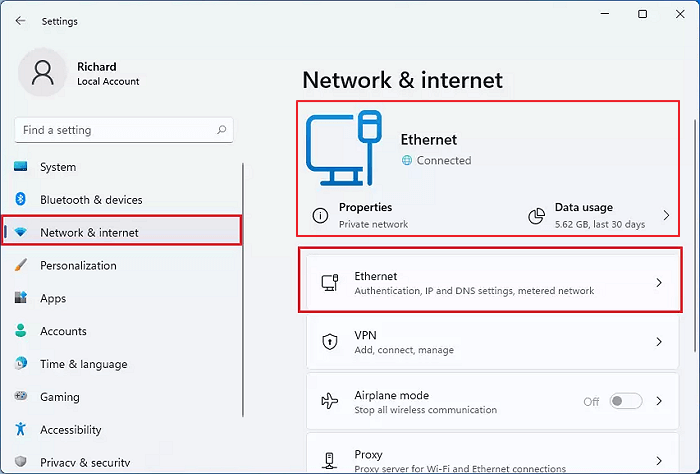
If your network connection is stable and smooth, check other factors that may be blocking your download of Hogwarts Legacy, such as insufficient storage space, outdated software, or conflicting system settings. Ensure you have enough space on your device, update your operating system and browser, and review your system settings to avoid any conflicts that might be hindering the download process.
2. Check Hogwarts Legacy Spec Requirements
The minimum spec requirements for Hogwarts Legacy include a 64-bit Windows 10 or Windows 11 operating system, an Intel Core i5-11400 or AMD Ryzen 5 5600X processor, 16 GB of RAM, and a 2 GB NVIDIA GeForce RTX 2060 or AMD Radeon RX 6700 XT graphics card, with a 50 GB of free space required.
- RAM: 16GB
- Graphics Card: NVIDIA GeForce GTX 980
- GPU: Intel Core i5-6600
- File Size: 85GB
- OS: Windows 10 (64-bit)
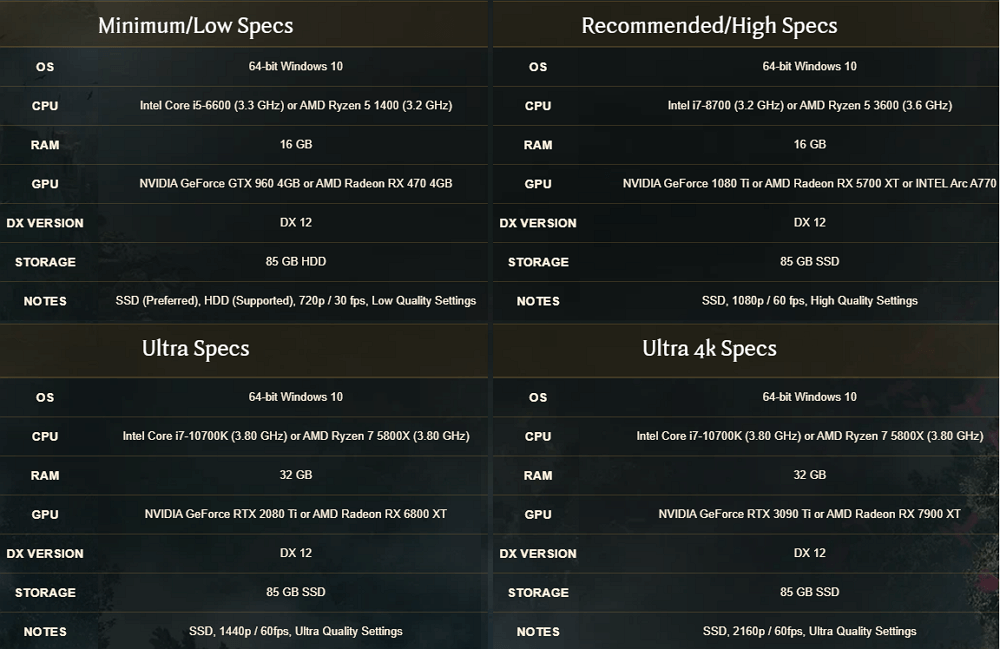
Image Source: hogwartslegacy.com
3. Check if the Game Drive Has Enough Storage Space
Gaming enthusiasts often designate a separate or new drive specifically for storing their favorite games, typically to keep them organized and separate from other computer files.
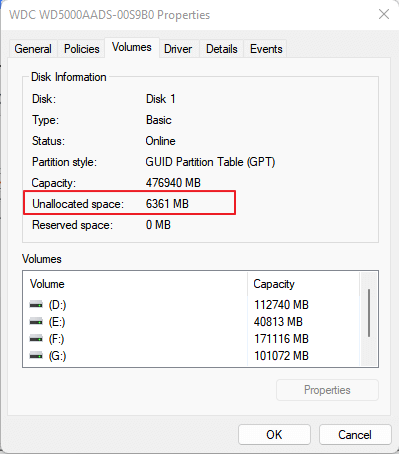
To confirm your game drive has enough space, simply check the available space on your drive and ensure it's greater than or equal to the game's installation size. You can do this by checking the drive's properties or by running a disk space check tool.
- Right-click the Windows icon and select "Disk Management".
- Right-click on the game disk and select "Properties".
- Go to the Volumes tab and check the Unallocated space.
And then, you can confirm how much space you have left on the disk.
4. Check Your Computer Specification
To confirm if your computer meets the system requirements for Hogwarts Legacy, you can check your computer's specifications by going to the Control Panel, then System and Security, and finally System. This will display your computer's hardware and firmware information, allowing you to verify if your computer meets the minimum requirements for the game, which include a 64-bit processor, 8 GB of RAM, and a compatible graphics card.
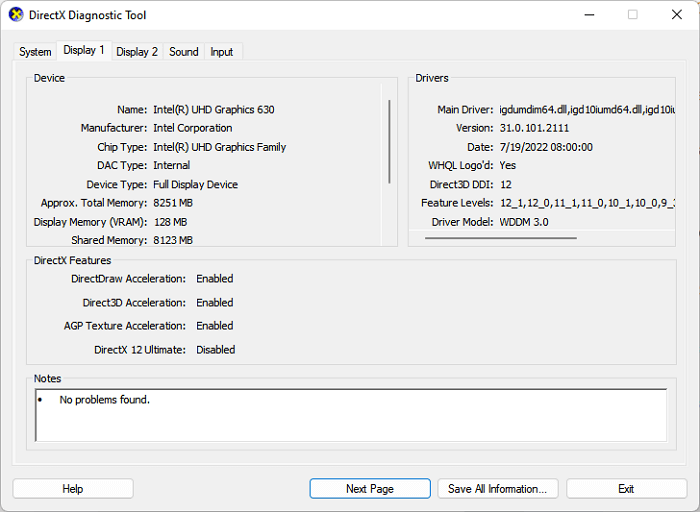
- Press the Windows key + R keys, type dxdiag in the search box and hit Enter. This will open the DirectX Diagnostic Tool, which shows you the system's graphics card, sound card, and other system information.
- At the System tab, you can view information about your computer's RAM, operating system, processor, and other system details. This includes the amount of RAM installed, the type of OS you're running, the processor type and speed, and other system specifications.
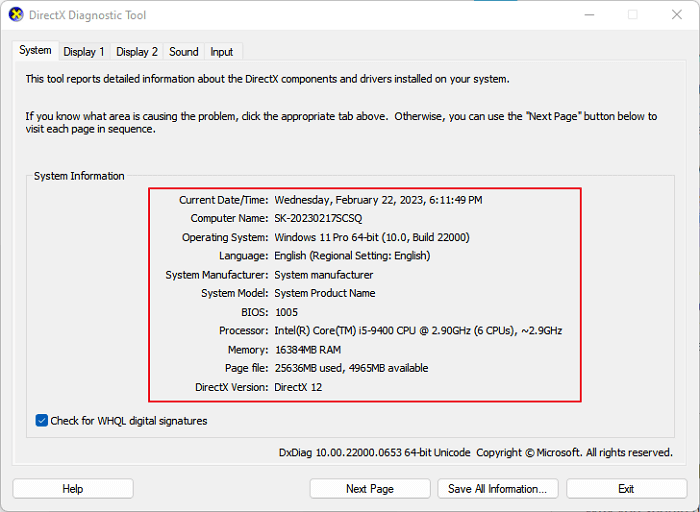
- To view the Graphics card edition, go to the Display tab.
If your computer is in the same situation as the image shown, you'll need to consider updating the Graphics card with an NVIDIA Graphics card.
Fix Hogwarts Legacy Not Downloading on PC Issue [5 Methods with How-To Guides]
If you're experiencing issues with game downloads getting stuck or not downloading at all on your PC, there are several methods you can try to resolve the problem. These include checking your internet connection and ensuring it's stable, closing and restarting the game client or browser, verifying the game files through the client or Steam, deleting the game's cache and reinstalling it, and checking for any pending updates to the client or game itself.
To select the right methods, consider the following factors: the type of data you're working with, the level of accuracy you need, the resources available to you, and the time constraints you're under. Think about whether you need to analyze large datasets, make predictions, or classify data.
- For unstable internet or problematic network connection, try Method 1.
- For insufficient or not enough space for game downloading, try Method 2 and Method 3.
- If you're experiencing issues with Hogwarts Legacy due to unsupported hardware or firmware, try updating your graphics drivers, reinstalling the game, or running it as an administrator. If none of these solutions work, you may need to consider upgrading your hardware or seeking assistance from the game's developers or a technical support team.
- For incompatible OS, try Method 5.
Let's get started here:
Method 1. Fix Network Connection Unstable Issue
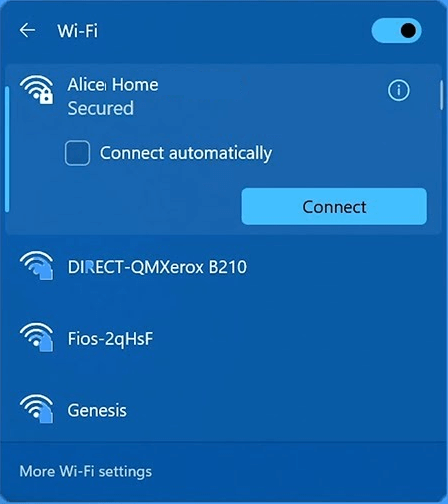
- To access network and internet settings, click the Start button or the Windows icon, then select the "Settings" option followed by "Network & internet".
- Turn on Wi-Fi, and click "More options".
- Select "Show available networks", select your current Wi-Fi network with the strongest signal mark, and click "Connect".
Method 2. Extend Game Drive Space or Upgrade Game Disk
When the game drive has insufficient space, you may encounter a game not downloading or download failure error, due to insufficient space for downloading your preferred games.
To address the issue of insufficient space on the game drive, the most effective solution is to either expand the drive's storage capacity or upgrade to a larger storage device, such as a hard disk drive (HDD) or solid-state drive (SSD). This can be achieved by using reliable disk management software, such as Qiling Disk Master, which simplifies the process with user-friendly interfaces and minimal technical expertise required.
Let's see how to do so:
#1. Extend Game Drive Space
Step 1. Locate the Target Partition.
To resize a partition, go to Partition Manager, locate the target partition, and select "Resize/Move".

Step 2. Extend the Target Partition.
To expand the current partition, drag the partition panel to the right or left, incorporating the unallocated space into the existing partition.

Extra Option: Get Space from Another Drive
If there's not enough unallocated space on your disk, right-click on a larger partition with sufficient free space, select "Allocate space".
To extend the target partition, select the partition you want to expand at the "Allocate space to" column in the partition management interface.
Step 3. Execute Operations to Extend Partition.
To resolve the issue, drag the dots of the target partition into the unallocated space. This will allocate the space to the target partition and resolve the partitioning conflict.
Then Click the "Proceed" to keep all the changes.
#2. Upgrade Game Disk to a Bigger HDD/SSD
Step 1. Select the source disk.
- To clone a disk, click the "Clone" button from the left menu, then select either "Clone OS Disk" or "Clone Data Disk" depending on your needs, and proceed by clicking "Next".
- Choose the source disk and click "Next".
Step 2. Select the target disk.
- Select the desired storage device, such as a Hard Disk Drive (HDD) or Solid-State Drive (SSD), as the target for the installation and click "Next" to proceed.
- Read Warning message and confirm "Yes" button.
Step 3. View the disk layout and edit the target disk partition size.
To reformat the target disk, first click "Continue" when the program warns that it will erase all data on the target disk. If you have valuable data on the target disk, back it up in advance to avoid losing it. Once you've taken this precaution, you can proceed with the reformatting process.
To customize your disk layout, you can choose from three options: Autofit the disk, Clone as the source, or Edit disk layout. The last option is recommended if you want to leave more space for your C drive.
Step 4. Click "Start" to start the disk cloning process.
After upgrading the game drive by cloning everything from the old disk to a new, larger one, you'll need to configure the game settings to load game data from the new disk.
To access the game on the new disk, you can either remove the old game drive and boot the game from the new disk, or you can simply copy the game files from the old disk to the new one. The latter method is often easier and less time-consuming.
Method 3. Delete Useless Games
This method also works to free up space on your game drive, allowing you to complete downloading the Harry Potter game from the network.
You have two options here:
- One is to Move Games to Another Drive.
You can move some useless games to another empty drive by following the link here.
- To free up space on your computer, you can delete games that you no longer play or use. This will help declutter your computer and make it run more efficiently.
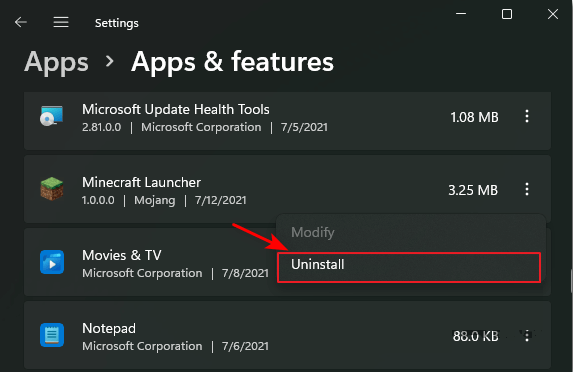
- 1. Right-click on the Windows icon, and select "Settings".
- 2. Go to "Apps", and select "Apps & Features".
- 3. Select the unwanted games, and click "Uninstall".
Method 4. Update Computer Hardware - RAM, CPU, Graphics Card
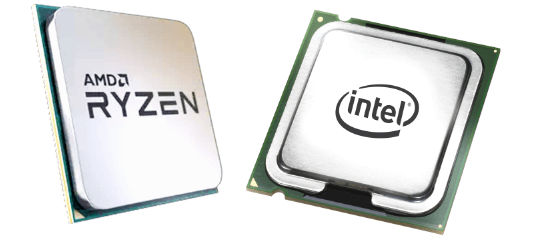
If your computer hardware, such as RAM memory, CPU, or Graphics card, is not compatible with the system requirements of Hogwarts Legacy, you have two options to consider. Firstly, you can upgrade your computer hardware to meet the game's requirements.
- Upgrading your computer to a professional gaming PC is one possible solution. This would involve replacing your current computer with a high-performance gaming machine that can handle demanding games and graphics.
This is the best option for Windows beginners.
- Upgrading the computer hardware is another option to improve performance, which involves adding more RAM memory, replacing the CPU, and changing the Graphics Card.
If your computer's RAM or CPU is outdated, you can potentially improve its performance by adding new RAM memory or upgrading the CPU processor. However, if the hardware is too old, it might be more cost-effective to consider replacing it altogether. For a step-by-step guide on upgrading the CPU, RAM, or replacing the graphics card, you can refer to a detailed tutorial.

Upgrading your gaming PC can be straightforward, even for beginners, and this guide will walk you through the process step by step. Whether you're looking to improve your computer's performance, add new features, or simply upgrade your existing hardware, this guide can help. With clear instructions and a straightforward approach, you'll be able to upgrade your gaming PC on your own and enjoy a smoother, more enjoyable gaming experience.
Method 5. Upgrade Windows 10 to the Newest Editions
If the Windows 10 operating system is too old or incompatible with Hogwarts Legacy, you can directly upgrade the OS to fix this issue.
Here we also found two tutorials for you, and you may select either one based on your needs:
Enjoy New Hogwarts Legacy Game On Your PC Once Downloading Issues Resolved
This page aims to help you identify and resolve issues preventing the download of the Hogwarts Legacy game on your PC, providing solutions from various angles to get you back on track.
As long as your issues are resolved, you can immediately enjoy a new gaming experience on your PC.
The methods provided on this page can also be used to fix other types of gaming downloading or stuck issues. Simply remember to:
First, The computer may not be able to download the game due to various reasons such as poor internet connection, outdated browser or operating system, insufficient storage space, corrupted game files, or issues with the game's digital distribution platform. Additionally, firewall or antivirus software may be blocking the download, or the game's server may be experiencing technical difficulties.
Second, fix the specific issue with the provided methods.
- Fix network issue
- Upgrade or extend the game drive
- Delete or move useless games
- Upgrade gaming PC hardware - CPU, RAM memory, graphics card.
- Upgrade the operating system
FAQs About Hogwarts Legacy Not Downloading or Unpacking Stuck
If the listed methods fail to resolve your issue, or you have new questions, follow the questions and find an answer below:
1. Why won't Hogwarts legacy download?
The Hogwarts Legacy download may not work due to various reasons such as low RAM memory, insufficient disk space, too many cache files, outdated network drivers, unstable or broken network connection, or changed game download locations.
You may revert to the above-If you're experiencing issues with the game, try the following solutions: update your graphics drivers, ensure your system meets the game's minimum requirements, check for any pending Windows updates, and verify the integrity of your game files. If none of these steps resolve the issue, you can try reinstalling the game or seeking further assistance from the game's support team.
2. Why is my Harry Potter game not loading?
When you're unable to load your favorite games on your PC, it could be due to a few common issues, such as corrupted game files, outdated graphics drivers, or conflicting software programs. These problems can prevent the game from launching properly, resulting in an error message.
- Unstable or broken network connection.
- The operating system is incompatible.
- Computer hardware doesn't support the game.
- The numerous apps running in the background are causing a delay in loading games, making it difficult to access them instantly.
With this issue, you may need an efficient solution. Follow this link, and you'll get a brief guide on fixing the My Games Take Forever to Load issue.
3. How to fix Hogwarts Legacy stuck on unpacking in Steam?
Option 1. To find and delete the Steam download cache on PC, follow these steps: Press the Windows key + R to open the Run dialog box, type `%localappdata%\Steam` and press Enter. Navigate to the `appcache` folder and delete its contents.
- To access Steam settings, launch Steam and click on the "Settings" option located at the top-left corner of the Steam window.
- Select "Downloads" and hit "Clear".
- Clear the browser cache by clicking "Clar downloads cache" and selecting "Yes" to confirm the operation.
You can install Hogwarts Legacy on Steam by unpacking the game, which involves extracting the game files from the downloaded archive to a designated directory on your computer, allowing you to run the game through Steam.
Option 2. Uninstall Steam
- To uninstall Steam, first back up your account and password, then go to Windows Settings, select Apps & features, choose Steam, and click "Uninstall".
- To resolve the issue, download and reinstall Steam, then log in with your account and password. Once logged in, you can load and unpack your games from the cloud, making them available for play.
Related Articles
- How to Repair Windows 11 UEFI Bootloader [Full Guide]
- How to Repair Bad Sectors on SD Card [Step-by-Step Guide]
- We Couldn't Create a New Partition or Locate an Existing One
- Steam Is Not Recognizing SSD, Here Is What I Can Do
- How to Tell If a Hard Drive Is Bad (Physically & Logically) 2023
To determine if a hard drive is bad, you can check for physical and logical issues. From a physical standpoint, look for signs of physical damage, such as dents, scratches, or water damage, which can cause the drive to fail. - How to Tell If a Hard Drive Is Failing or Not [Step-by-Step Guide]
To check if your hard drive is failing, follow these steps: First, open the Disk Management tool on your computer, which can be accessed by pressing the Windows key + R and typing “diskmgmt.msc”. In this tool, look for any disk errors or problems that may be indicated by a red “!
Products
Articles & Tutorials
- Data Recovery
- Data Backup
- File Recovery
- File Backup
- System Backup and Restore
- Disk and Partition Clone
- Technical articles
- Mobile articles
- Disk Master Help
- Windows Data Recovery Tutorials
- Windows Secure Delete Tutorials
- Windows Partition Management Tutorials
- Windows File Backup and Restore Tutorials
- Windows System Backup and Restore Tutorials
- Windows Disk Backup and Restore Tutorials
- Windows Clone Tutorials