Steam Is Not Recognizing SSD, Here Is What I Can Do
Steam not recognizing your SSD can be a frustrating issue, especially for gamers who've invested in a high-speed SSD to boost their gaming performance. This problem can significantly impact your gaming experience and storage management, making it a vexing issue that many gamers have grappled with.
To resolve SSD recognition issues, try restarting your computer, checking the SSD's power management settings, and ensuring it's properly connected to the motherboard. You can also try reformatting the SSD, updating your BIOS, or using a different USB port. If none of these solutions work, consider consulting the user manual or contacting the manufacturer for further assistance.
| 🎯Goal: | Troubleshooting Steam Not Recognizing SSD Issue |
| ⏳Duration: | 5-10 minutes |
| 🧰Fixes: | |
| 💵Fees: | Free |
Troubleshooting Steam Not Recognizing SSD Issue
If Steam is not recognizing your SSD, check your hardware connections and ensure they are secure. Additionally, verify that your SSD is compatible with your system. You can also try restarting your computer and Steam, and if the issue persists, consider reinstalling Steam or updating your graphics drivers. If none of these steps resolve the issue, you may need to contact Steam support for further assistance.
Fix 1: Checking Hardware Connections and Compatibility
To verify your SATA or NVMe connections to the SSD, confirm that the second SSD is connected correctly and recognized by your system, follow these steps: check the motherboard manual or online documentation for specific instructions on how to connect and configure the second SSD, ensure that the SSD is securely fastened to the motherboard or a separate SSD tray, and verify that the system recognizes the second SSD in the BIOS or UEFI settings. If the SSD is not recognized, check for loose connections, faulty cables, or incorrect configuration. Once verified, proceed with installing the operating system or software on the second SSD.
- Check SATA or NVMe connections.
- Ensure the second SSD is recognized by your system.
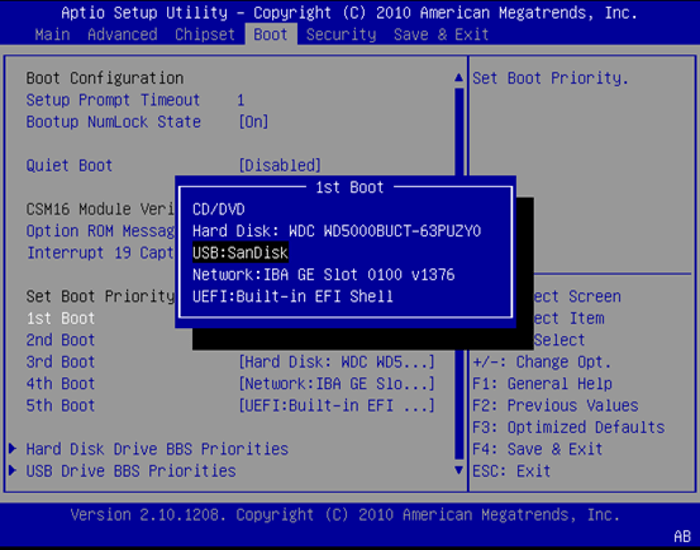
If you're experiencing issues with your SSD not being recognized, try the initial steps first. These may hold the key to resolving your problem, so it's worth giving them a shot before moving on to more advanced troubleshooting.
Fix 2: Formatting and Assigning a Drive Letter to SSD
Utilizing partition manager software like Qiling Disk Master can facilitate Steam's second SSD recognition issue. This software simplifies the formatting process, ensuring the SSD is adequately prepared for use, and assists in assigning a drive letter, a fundamental step for the system to recognize the SSD effectively.
By following these steps, users can prepare their devices for a smooth gaming experience and effective storage management, ensuring that their favorite games run smoothly and their storage is utilized optimally.
Before proceeding with the next fixes, it's crucial to take two essential steps.
#1. Format SSD for Steam
Step 1. Right-click the hard drive partition and choose the "Format" option.
Step 2. In the new window, set the Partition label, File system, and Cluster size for the partition.
Step 3. Click the "Proceed" button to start formatting the hard drive partition.
Step 4. You can see a warning window, click "Yes" to continue.
#2. Assign a Drive Letter to SSD
Step 1. Run Qiling Disk Master, right-click the target partition and choose "Change Drive Letter" to change the drive letter.
Step 2. Click the sub-menu arrow and select a drive letter for the partition from the drop-down menu.
Step 3. Waiting for changing the drive letter of the selected partition.
To resolve the issue where Steam is unable to detect the second SSD, start by checking the Steam client for any updates. Ensure that the Steam client is running on the latest version. Next, restart the Steam client to refresh its connection.
Feel free to share this method to help more of your friends who have the same demand to make Steam detect SSD on their own:
Fix 3: Configuring BIOS Settings
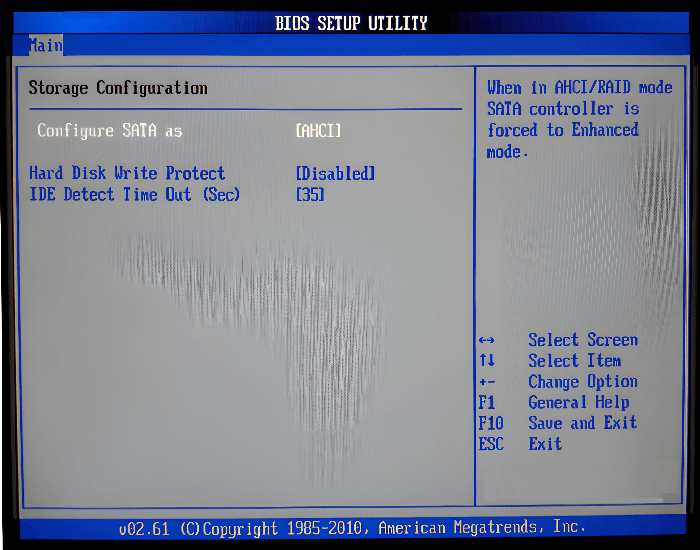
To configure your BIOS settings for optimal SSD recognition, follow these steps: First, reboot your computer and enter the BIOS settings by pressing the designated key (usually F2, F12, or Del). Next, navigate to the "Advanced" or "Save & Exit" tab and look for the "SATA Mode" or "AHCI" setting. Ensure it's set to "AHCI" (if available) or "IDE" with the SSD as a secondary drive.
- Enter the BIOS settings menu on your computer.
- Navigate to the storage devices section.
- Check for AHCI (Advanced Host Controller Interface) and enable it.
- Verify RAID settings and adjust them if necessary.
- Save your changes and exit the BIOS settings.
To ensure your solid-state drive (SSD) is recognized by both your system and Steam, make adjustments to the disk configuration and Steam settings. First, ensure the SSD is properly connected to your system, either via a SATA cable or a USB adapter.
Fix 4: Updating Drivers and Firmware
Up-to-The steps to ensure SSD recognition involve installing the correct date drivers and firmware. This ensures that the operating system can identify and communicate with the SSD properly, allowing it to be recognized and utilized as a storage device.
Step 1: Check for Driver Updates for Your Storage Controller
- Identify your storage controller in Device Manager (Windows) or System Information (macOS).
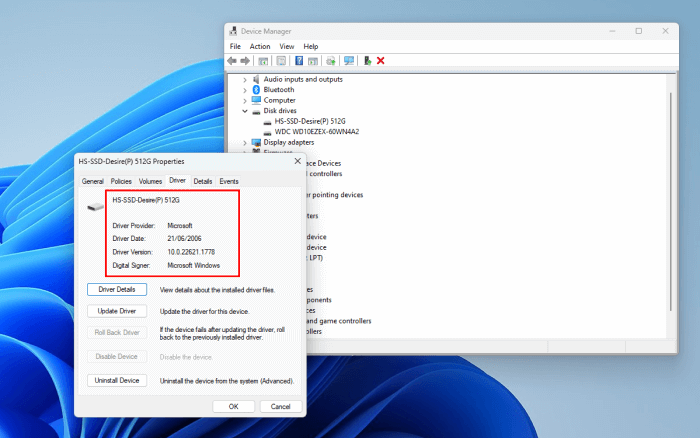
- Visit the manufacturer's website, find your model, and download the latest driver compatible with your OS.
- Install the updated driver following the on-screen instructions.
Step 2: Update Your SSD Firmware
- To locate your SSD, navigate to Device Manager on Windows or System Information on Mac. In Device Manager, look for the "Disk drives" or "Storage" section, where your SSD should be listed.
- To update your SSD's firmware, start by visiting the website of the SSD's manufacturer. Search for your specific SSD model and look for the "Support" or "Downloads" section.
- Follow the on-screen directions to install the firmware upgrade.
To ensure Steam recognizes your SSD, update your Steam client, check for any pending updates, and restart your Steam client. Next, verify the integrity of your game files by right-clicking on the game in your Steam library, selecting "Properties," and then clicking on the "Local Files" tab.
Updating these software components is vital for optimal SSD performance.
Fix 5: Verifying Steam Library Settings
To ensure Steam's library settings are configured correctly, follow these steps:
- Open Steam and navigate to "Settings."
- Under the "Downloads" section, click on "Steam Library Folders."
- Check your library folder settings for any discrepancies.
- To add the second SSD as a library folder if necessary, click on "Add Library Folder."
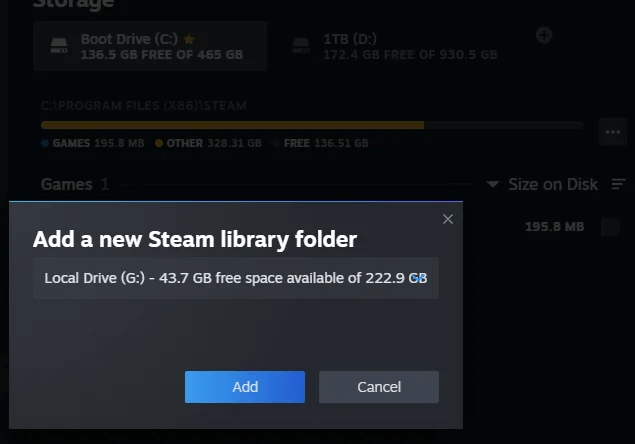
To ensure seamless recognition on Steam, make sure the settings are aligned with your SSD configuration. This involves adjusting the Steam settings to match the drive configuration of your solid-state drive, thereby improving the chances of smooth and efficient operation.
Error: Steam Is Not Recognizing SSD
The performance-Gamers are particularly frustrated with Steam's failure to recognize their second SSD, a problem exacerbated by the enhanced capabilities of SSDs. This issue is not just a minor annoyance, but a significant concern that we'll address in this article. We'll not only explore the specific problem faced by users but also investigate the potential reasons behind Steam's inability to detect the second SSD, providing a comprehensive understanding of the issue.
Gamers experience issues with Steam not detecting their second SSD, leading to problems with installation and storage allocation, causing frustration and inefficiency in utilizing the SSD's speed.
- Outdated drivers
- Improper connections
- Software conflicts
- Steam settings or configurations
This issue significantly impacts gaming experiences, causing load times to slow down and gameplay to become less smooth, ultimately detracting from the overall enjoyment of games.
The issue of fragmented files on a solid-state drive (SSD) can cause problems with game loading and performance. This fragmentation can lead to slower loading times, crashes, and difficulties in maintaining an organized game library. Understanding this issue can help ensure a seamless gaming experience and maximize the capabilities of an SSD.
Additional Tips to Avoid Steam From Not Recognizing SSD
Implementing these troubleshooting steps and considering additional tips can enhance your gaming experience by ensuring Steam consistently recognizes your SSD, resolving immediate recognition issues and contributing to smoother game load times and overall performance.
A. Potential conflicts with antivirus or security software
Antivirus software may mistakenly flag Steam's operations as suspicious, causing SSD recognition issues. To resolve this, consider temporarily disabling or adjusting the security software settings, and ensure that Steam is marked as a trusted application.
B. Updating Steam client to the latest version
Updating your Steam client is crucial as it ensures compatibility with the latest hardware and resolves known issues, such as SSD recognition problems, making it a vital step in troubleshooting.
C. Seeking assistance from Steam support or community forums
When experiencing issues with Steam, don't hesitate to reach out to Steam's support team or the gaming community for help. They have likely encountered and resolved similar problems, such as SSD recognition issues, and can offer personalized advice to address your specific situation.
To troubleshoot and prevent Steam from failing to recognize your SSD, consider the additional tips. Make sure the drive is properly connected and recognized by your system, and check for any issues with your Steam library.
Conclusion
Troubleshooting Steam not recognizing SSDs can be a frustrating issue, but it's often resolvable with the right approach. Various steps and tips can be taken to address the problem, allowing users to effectively tackle the issue and get their Steam games running smoothly on their SSDs.
To resolve SSD recognition issues, start by thoroughly understanding the specific problem and examining potential reasons behind it. Then, check hardware connections, configure BIOS settings, and update drivers and firmware. Finally, configure Steam's library settings to ensure a well-functioning storage setup for an optimal gaming experience. This can result in swift game load times and smooth performance.
As you explore the world of SSD recognition, keep in mind that the gaming and hardware configurations landscape is constantly evolving. If you encounter any challenges or persistent issues, don't hesitate to reach out to manufacturer support, online communities, or forums for guidance and assistance.
Follow the troubleshooting methods and stay updated on the latest storage tech improvements to improve your gaming experience and ensure Steam recognizes your SSD consistently, allowing you to fully immerse yourself in gaming.
FAQs About Steam Not Recognizing SSD
If you're still unsure about how to handle this issue, you can find answers to your questions in the FAQs provided below. They offer assistance and guidance on the matter at hand.
1. Why can't Steam detect my second SSD?
Steam's failure to identify your second SSD could be due to various factors such as configuration errors, outdated drivers, or incorrect settings, but it can be resolved by ensuring your SSD is properly connected and set up, following the troubleshooting procedures mentioned in this article.
2. How come Steam only detects my HDD?
If Steam is recognizing your HDD but not your SSD, it might be prioritizing the HDD as the default storage location for games. You can change this by configuring your Steam library settings to include the SSD as a library folder, as explained in the article.
3. Can I make Steam recognize my second SSD?
Steam can recognize your second SSD, and we've provided a comprehensive guide to help you achieve this. By following the troubleshooting steps and tips outlined in this article, you can ensure that Steam seamlessly recognizes and utilizes your SSD for an enhanced gaming experience.
If the disk is visible in Windows but Steam does not list a second hard drive, use the Steam second-drive checklist to check the library path and disk connection.
Related Articles
- How to Fix ASUS Stuck on Logo | 7 Efficien Solutions💡
- How to Free Up Disk Space on Windows 8 [100% Works]
- Should I Partition an SSD into Multiple Drives?
Is it good to partition an SSD? Given the fact that the capacity of SSDs are getting larger, more and more people are asking a same question if it's necessary to partition an SSD. You may find the answer in the article. - Migrating OS to SSD with 4k Alignment for Higher Performance
Learn how to check SSD 4K alignment and how to migrate Windows 7/10/8 OS to SSD with 4K alignment to get better performance for computer with Qiling Disk Master. - How to Fix Raspberry Pi SD Card 'Write-Protected', Help
If you find that your Raspberry Pi 4 SD card is write-protected. This short article will provide an efficient solution to help you remove the write protection from your Raspberry Pi 4 SD card. - Has Someone Used Reliable Windows 10 Software That Can Extend the System Partition to Unallocated Space?
Are you looking for reliable Windows 10 software that can extend the system partition to unallocated space? This page contains trustworthy software that can extend the system to unallocated space.
Products
Articles & Tutorials
- Data Recovery
- Data Backup
- File Recovery
- File Backup
- System Backup and Restore
- Disk and Partition Clone
- Technical articles
- Mobile articles
- Disk Master Help
- Windows Data Recovery Tutorials
- Windows Secure Delete Tutorials
- Windows Partition Management Tutorials
- Windows File Backup and Restore Tutorials
- Windows System Backup and Restore Tutorials
- Windows Disk Backup and Restore Tutorials
- Windows Clone Tutorials