MBR Error 1 on Windows? Reason & Fixes
The computer finds the operating system through the Master Boot Record (MBR), but if there's an MBR error, you can't enter the operating system. MBR error 1 occurs during boot, indicating the master boot record is corrupted. This guide will help you identify the cause of MBR error 1 and provide effective solutions.
View the Necessary Tools for MBR Error 1:
| ⏱️Duration | 3-5 minutes (depending on your method) |
| ⛏️Tools | Windows installation media or bootable USB/DVD |
| 🧑💻Supported Systems | Windows 11/10 |
| ⛏️Required Software |
|
| ✍️Specific Steps |
|
Repairing MBR error 1 involves addressing the issue that prevents your computer from booting properly. This error occurs when the Master Boot Record (MBR) is damaged or corrupted, making it impossible for the operating system to load. To fix this issue, you can try using a bootable USB drive or CD/DVD to access a command prompt, then run the built-in command-line tool "bootrec" to repair the MBR.
What Caused MBR Error 1?
MBR error 1 usually occurs during Windows startup, and if the boot fails, you may receive an error message like "MBR Error 1", "MBR Error 2", or "MBR Error 3", or you may not receive any error message at all. There are three possible reasons for Windows boot failure: the Master Boot Record (MBR) is damaged, the boot sector is corrupted, or the boot configuration data is invalid.
- Incorrect BIOS boot order: If you set the wrong hard drive as the priority boot device, your computer won't be able to boot.
- Corrupt master boot record: If the MBR is corrupt, you cannot boot Windows.
- Loading OS from an external device: If you're unable to boot from an external drive or USB, it's possible that the bootable drive you created failed. This could mean that the drive itself is not bootable or that the bootable drive was not properly set up. In this case, you may want to try creating a new bootable drive or checking the original drive for any issues.
If you're experiencing MBR errors 1, 2, or 3, don't worry - the effective methods outlined in this article can help you fix the issue quickly.
How to Fix MBR Error 1?
If you're experiencing an MBR error, there are several potential causes, including issues with the Master Boot Record itself, problems with the boot process, or interference from external devices. To resolve the issue, try disconnecting any external devices and restarting your computer. If this doesn't work, you can try additional troubleshooting steps to fix the problem.
To resolve the error, try checking the system logs for any relevant information, and also check the permissions and ownership of the affected files and directories. You can also try reinstalling the software or updating the system to the latest version.
Fix 1. Change the BIOS Boot Order
The most common cause of MBR error 1 is a change in the default boot order, which can be easily checked by verifying the BIOS boot order. To do this, you can follow a step-by-step guide below. If the BIOS boot order is correct, proceed with other fixes to resolve the MBR error 1 issue.
Step 1. To resolve the issue, reboot your computer and press F2/F12/Del to enter the BIOS. If your computer doesn't boot, you may need Windows installation media or a bootable USB.
- Notice:
- Different computers require different Fn keys to access the BIOS.
Step 2. Select Boot options in the BIOS Setup Utility screen.
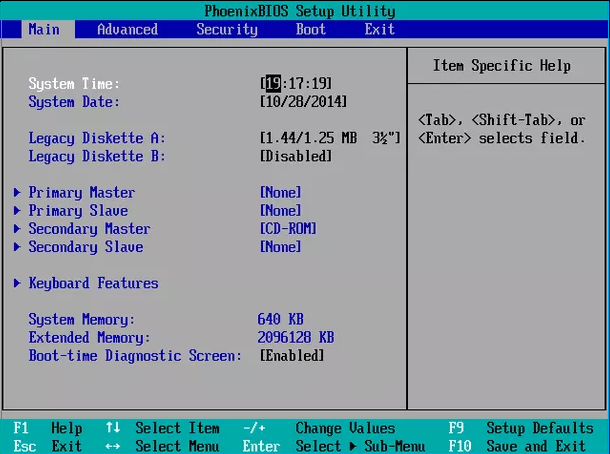
- Notice:
- BIOS utility may vary, but typically, menu options are at the top and BIOS changes are at the bottom of the screen.
Step 3. If the first boot sequence isn't set to Hard Drive, press + or - to move the gadget up or down and find the drive.
Step 4. Save and confirm the boot order change.
If you're experiencing MBR Error 1, try running a disk check and a System File Checker to identify and repair corrupted system files. If that doesn't work, you can try running a boot repair or a System Restore to a point before the error occurred. If none of these solutions work, it may be a Master Boot Record (MBR) corruption issue, which can be resolved by running a MBR repair tool or by reinstalling Windows.
Fix 2. Use MBR Repair Tool
If your computer won't boot, try restarting with Windows installation media and repairing the corrupted Master Boot Record (MBR) using a professional tool like Qiling Disk Master, which can rebuild MBR and help you boot your computer without losing data.
Download this powerful tool and follow these steps to repair MBR:
Step 1. Create a WinPE bootable disk
- Launch Qiling Disk Master, click "Bootable Media" on the toolbar, and select "Create bootable media".
- Click "Next" to finish the process.

Step 2. Boot Qiling Disk Master Bootable USB
- Connect the bootable USB or CD/DVD to your PC.
- To access the BIOS screen, press F2 or Del when restarting your computer. Once in the BIOS, set your computer to boot from the "Removable Devices" or "CD-ROM Drive". After doing so, Qiling Disk Master will automatically run.
Step 3. Rebuild MBR
- Right-click the disk and the type of MBR, and choose "Advanced" -> "Rebuild MBR".

- Select the type of MBR. Then, click "Proceed".

- The message "MBR has been successfully rebuilt on Disk X" indicates that the Master Boot Record (MBR) of Disk X has been successfully rebuilt or restored to its original state. This means that any issues with the disk's boot process have been resolved, and it should now be able to boot normally.
This tool supports repairing more disk or partition errors, allowing you to fix any issues that may arise with your disk or partition. If you need further assistance, you can click the link below to repair it.
Fix 3. Use CMD to repair MBR
If you're familiar with computer command line tools, you can create Windows boot media using the Windows Media Creation Tool, set the installation media to the first boot sequence, and then follow these steps to rebuild the Master Boot Record (MBR):
Note: This method requires a high level of computer skills, so please beware of parameter errors when entering parameters. The process involves a series of steps, including selecting the appropriate software, creating a new project, and configuring settings according to the specific requirements of the task.
Step 1. Boot the computer from the Windows installation media.
Step 2. Select Troubleshoot>Advanced options>Command Prompt in Choose an option.
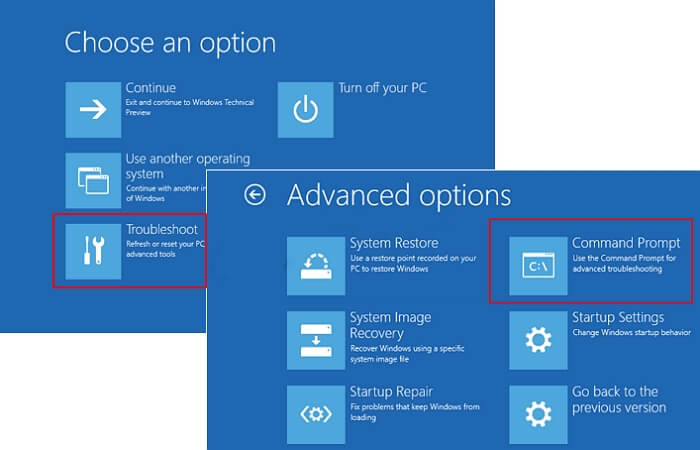
Step 3. Enter the following commands and press Enter after each command:
- bootrec /fixmbr
- bootrec /fixboot
- bootrec /scanos
- bootrec /rebuildbcd
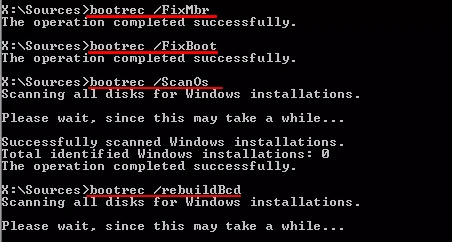
Step 4. Exit the installation media and restart your computer.
Note: The steps for rebuilding the Master Boot Record (MBR) are not applicable for Windows 7. If you need to rebuild the MBR in Windows 7, you should access the Windows Recovery Environment (WinRE). For more detailed instructions, please visit the link: Rebuild MBR.
You May Also Like:
Conclusion
The causes and methods of MBR error are discussed in this article, with three effective ways to fix it. This method is also applicable to MBR error 2 and MBR error 3. The most likely cause of all MBR errors is MBR corruption, which can be quickly and safely fixed using Qiling Disk Master.
FAQs About MBR Error 1
This section has some other questions related to MBR error 1. If you are interested, read on.
1. What is MBR error 2?
MBR error 2 occurs after deleting or adding something, indicating a corrupted master boot record table. This results in an error when loading the operating system and an inability to find a device to boot from.
2. What is MBR error 3?
MBR error 3 occurs at boot time, possibly due to multiple drives or dual-booting, and refers to a master boot record failure, which is likely the same as MBR error 1 and 2 in terms of causes and fixes.
3. How to fix MBR with CMD?
To fix the Master Boot Record (MBR) using the Command Prompt (CMD), you'll need to have a good understanding of command line codes and create a bootable media to boot your PC. Once you've done that, you can follow these steps to repair the MBR using CMD:
Step 1. Navigate to Choose an option> Advanced options>command prompt.
Step 2. Enter the following command and press enter:
- bootrec /fixmbr
- bootrec /fixboot
- bootrec /scanos
- bootrec /rebuildbcd
Related Articles
- External Hard Drive Temperature Range [Full Guide in 2023]
- Solved: PS3 System Storage Not Enough, Not Found or Corrupted
- How to Fix PS4 Cannot Access System Storage Error Code CE-34335-8
- macOS Monterey Update Not Found | How to Solve Monterey Update Issue
- What Is SMB? Server Message Block Protocol Explained
SMB (Server Message Block) is a protocol that allows devices to communicate and share resources over a network. It enables file and printer sharing, as well as other services, and has been widely used for decades. - What Is SMTP? Everything You Need to Know about Simple Mail Transfer Protocol
SMTP is one of the key protocls in emailing systems today. So, what exactly is it and how does it work? This article will help you answer these questions and explore the key traits of SMTP.
Products
Articles & Tutorials
- Data Recovery
- Data Backup
- File Recovery
- File Backup
- System Backup and Restore
- Disk and Partition Clone
- Technical articles
- Mobile articles
- Disk Master Help
- Windows Data Recovery Tutorials
- Windows Secure Delete Tutorials
- Windows Partition Management Tutorials
- Windows File Backup and Restore Tutorials
- Windows System Backup and Restore Tutorials
- Windows Disk Backup and Restore Tutorials
- Windows Clone Tutorials