How to Fix Active Partition Not Found in Windows [Full Guide]
If you're experiencing the "Active Partition Not Found in Windows" issue when opening the Disk Management tool in Windows, don't worry, we're here to help you resolve this problem effectively.
An active partition is a partition on the boot drive that contains information for BIOS or UEFI to boot into Windows, and only one partition can be active per Windows installation. The "active partition not found" error may occur due to corrupted or missing system files, which can be resolved via Startup Repair.
This guide will provide a comprehensive overview of the issues you may encounter with your device, including the reasons why they occur and the fixes to resolve them.
How to Fix the "Active Partition Not Found" Error
We offer solutions that work seamlessly on all computer systems and Windows platforms, ensuring effective results regardless of your current operating system.
- Fix 1. Set System Partition Active
- Fix 2. Rebuild MBR
- Fix 3. Force Detect IDE
- Fix 4. Reset BIOS Settings
- Fix 5. Repair System Files
The fixes mentioned above are efficient and ensure users have perfect and smooth access to their devices effortlessly.
Fix 1. Set System Partition Active
The process of setting the system partition active is now easily manageable. The primary tool used for this task is the Qiling Disk Master, which offers a Set Active function to quickly change the active partition.
It is an all-A free partition manager tool is designed to meet individual users' needs effectively, and is also easy to use.
- Notice:
- To resolve the issue where the "Mark Partition as Active" option is greyed out, you can use the Windows built-in tool, but if that fails, consider using Qiling Disk Master as an alternative solution.
Fix 2. Rebuild MBR
The Master Boot Record (MBR) plays a crucial role in the booting process, helping the BIOS or UEFI determine the location of a Windows installation. If the MBR becomes corrupt, the UEFI will be unable to locate the operating system. Fortunately, Qiling Disk Master offers a tool to rebuild the MBR without losing any data, allowing users to select the drive and OS type and rebuild it.
Step 1. Create a WinPE bootable disk
- Launch Qiling Disk Master, click "Bootable Media" on the toolbar, and select "Create bootable media".
- Click "Next" to finish the process.

Step 2. Boot Qiling Disk Master Bootable USB
- Connect the bootable USB or CD/DVD to your PC.
- To enter the BIOS screen, press F2 or Del when restarting the computer. Once in the BIOS, set your computer to boot from the "Removable Devices" or "CD-ROM Drive". This will allow Qiling Disk Master to run automatically.
Step 3. Rebuild MBR
- To fix a disk, go to the "Disk management" tab, right-click on the disk you want to repair, and select "Rebuild MBR" from the context menu.

- To Rebuild the MBR of a disk, select the disk you want to modify and choose the type of MBR you want to install. After that, click "Proceed" to initiate the process.

- The message "MBR has been successfully rebuilt on Disk X" indicates that the Master Boot Record (MBR) of Disk X has been successfully rebuilt or restored to its original state. This is often done to fix issues related to the boot process or to recover from a corrupted MBR.
Qiling Disk Master can save time and energy by finding bad sectors and fixing corrupted file systems through disk surface tests, helping with partition and disk errors.
Fix 3. Force Detect IDE
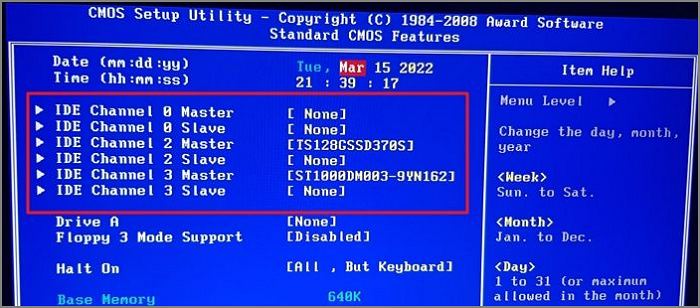
IDE interface is an industry-The IDE cable is a standard adapter that connects IDE devices and helps them communicate with the BIOS or UEFI. It was once an industry standard, but is no longer commonly used. The IDE HDD is a storage device connected to the BIOS using the IDE cable. If the PC detects all devices except the IDE HDD, which contains the Active Partition, it will display the "Active Partition Not Found" error. To resolve this, follow these steps.
Step 1. To access the BIOS settings, restart your computer and press the designated key (usually F2, F8, or F10) as the computer boots up, allowing you to enter the BIOS settings.
Step 2. To fix the issue, go to the Advanced tab and change the status of the four IDEs (Integrated Development Environments) to Auto from the Not Detected options. This will ensure that they are recognized and functioning properly.
- Primary IDE Master
- Primary IDE Slave.
- Secondary IDE Master
- Secondary IDE Slave
Share these fixes to let more users know how to fix the Windows active partition not found error.
Fix 4. Reset BIOS Settings
To reset your BIOS settings, you can press the "F2" or "Del" key on your keyboard during boot-up, which will take you to the BIOS settings page. From there, you can look for an option that says "Load Optimized Defaults" or "Reset to Factory Settings." Selecting this option will restore your BIOS settings to their default values, which were set by the manufacturer. This will erase any changes you may have made to the settings, so be sure to save your changes before resetting.
Step 1. Restart your computer system and then enter BIOS successfully.
Step 2. To proceed, locate the "Load Optional Defaults" option under the Exit option.
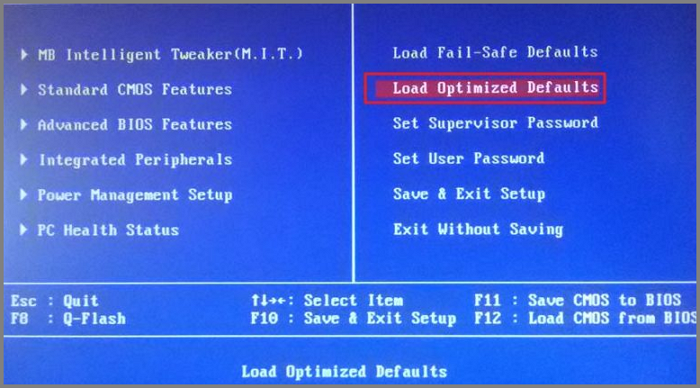
Step 3. After completing the previous steps, press the F10 key to save and exit the BIOS settings. This will finalize the changes and take you out of the BIOS setup.
Fix 5. Repair System Files
If you've tried the previous solutions but still haven't found a solution to your issue, you can try repairing system files to ensure smooth Windows functioning. To do this, you'll need to follow the steps to repair system files, which can help resolve any issues and get your system up and running smoothly.
Step 1. Insert the Windows 10 installation disc into your computer's CD or DVD drive, then restart your computer. During the boot process, press the key to access the boot menu (usually F2, F12, or Del), and select the disc as the boot device.
Step 2. To select the correct time and keyboard type on your device, tap the "Time" option and choose the correct time zone. Then, tap the "Keyboard" option and select the desired keyboard type.
Step 3. Once you've completed the above steps, select "Repair your computer" to proceed further.
Step 4. Go to the Troubleshoot option, followed by tapping on the Advanced options.
Step 5. Once you've selected the appropriate Windows version, tap the Startup Repair option to proceed with the process.

Once the repair process is complete, you can enjoy seamless access over your Windows.
Why Active Partition Not Found Error Occurs
Active Partition Not Found is one of Windows's most annoying error issues that prevents you from accessing Windows. If you are eager to know the main reasons behind this, we are enlisting the leading ones for you.
1. Inactive Partitions
To avoid the "Active Partition Not Found" error, the partition containing the operating system must be set as active. This ensures the computer can boot up properly. Inactive partitions in the boot files can cause this issue.
2. Damaged MBR Disk
A damaged Master Boot Record (MBR) disk can lead to the "Active Partition Not Found" error, causing issues with booting the system. The MBR is a critical boot sector located at the start of the disk.
3. BIOS does not recognize the system disk
If your system disk fails to be recognized by the BIOS, it may cause an error issue known as Active Partition Not Found.
4. Improper BIOS Settings
Improper BIOS settings can lead to annoying error issues, causing various problems in Windows. To resolve this, it's essential to reset the BIOS to its default settings. This can be done by accessing the BIOS settings and selecting the option to restore to default values.
5. Corrupted system files
Corrupted system files can also cause the Active Partition Not Found issue. This can occur due to abrupt shutdowns, malware that affects system files, or other system file corruption issues. Ensuring that your Windows system files are valid and intact can help prevent boot issues, including the Active Partition Not Found error.
You can quickly and ideally search for related solutions now that you know the possible reasons behind the same.
Conclusion
I hope you have fixed the active partition not found issue now. It is one of the most annoying issues that Windows users face and doesn't allow the users to get access to Windows. We have provided you with different methods to resolve this issue efficiently.
If you find it challenging to navigate through the complex processes, Qiling Disk Master is a great alternative that can simplify things for you. This feature-rich option makes it easy to manage Windows and can save you time and effort. With a simple and user-friendly interface, it's quick to download and install, and just a few clicks can get you started with its various features.
FAQs About "Active Partition Not Found" Error
If you have gone through the different detailed processes very carefully and still have left with some queries, here we are with the top FAQs that will ease things up for you.
1. How do I make a partition active in BIOS?
Making partitions active in BIOS is a minor deal. All you have to do here is:
Step 1. Launch the Command Prompt on your device
Step 2. 1. Open the Settings app.
- diskpart
- list disk
- select disk 0
- list partition
- select partition 1
- active
2. Why is the partition not active?
If your Windows partition isn't active, it's likely that it doesn't have a primary partition or you accidentally marked another section active. The "mark partition as active" option is probably grayed out.
3. What does active partition mean?
The active partition is the partition that allows the computer to startup, and it's recommended to keep the system partition or volume partition as a primary partition and mark it active for smooth startup processes.
Related Articles
- Low Level Format VS Standard Format, What's the Differences and Which to Use?
- How to Install Windows 10 on New PC [Step-by-Step Guide]
- Hogwarts Legacy Cloud Save on Steam/Xbox/PS5
Learn how Hogwarts Legacy cloud saves work on Steam, Xbox, and PS5, including how to access, sync, download, and protect saves. - How to Clear Windows Update Cache | Top Answers
Learn how to clear the Windows Update cache and troubleshoot common update issues with our top answers and step-by-step guides. By following these tips, you can keep your Windows system running smoothly and up to date. - Don't Pass: Is It Safe to Update BIOS?🔥
Is it safe to update BIOS? That's the question on a lot of users' minds, and this article answers that question thoroughly. It'll also tell users what to do to avoid data loss and important things about updating BIOS. - Is Primary and Active Partition the Same [Beginner's Guide]
Learn whether primary and active partitions are the same. Compare their meanings, roles in booting Windows, and how to manage partitions.
Products
Articles & Tutorials
- Data Recovery
- Data Backup
- File Recovery
- File Backup
- System Backup and Restore
- Disk and Partition Clone
- Technical articles
- Mobile articles
- Disk Master Help
- Windows Data Recovery Tutorials
- Windows Secure Delete Tutorials
- Windows Partition Management Tutorials
- Windows File Backup and Restore Tutorials
- Windows System Backup and Restore Tutorials
- Windows Disk Backup and Restore Tutorials
- Windows Clone Tutorials