ASUS Laptop Won't Turn On: 6 Easy Fixes with Guide🔥
ASUS is one of the most popular computer brands, known for its rugged and high-quality products, wide range of offerings, and affordable prices, but some users have reported issues with their laptops not turning on.
ASUS computer users may be experiencing a common issue where their computer won't turn on. If you're facing this problem, don't worry - it's not unique to you. The issue can be due to various reasons, but the good news is that it's fixable. To resolve this, you'll need to understand the underlying causes, which we'll explore further in the explanation.
🚩Read Also: Surface Won't Turn On, Computer Won't Boot
Why Your ASUS Laptop Won't Turn On
If your ASUS laptop won't turn on, it could be due to a dead battery, a faulty power adapter, a loose connection between the power adapter and the laptop, a malfunctioning power button, a short circuit, or a hardware issue such as a faulty motherboard or GPU. If the laptop was dropped or exposed to water, it could be due to a liquid damage. If the laptop was recently upgraded with new hardware, it could be due to a compatibility issue. If the laptop is old, it could be due to a worn-out battery or other aging components.
Situation 1: The ASUS Laptop Cannot Be Turned on and The Power Light Is Off
Here are the possible reasons and quick fixes for you:
- 🔎Battery problems: The most common sign of a dead battery is when the laptop won't turn on even when charging.
🚩Quick Fix: To determine if the battery is the issue, simply remove it and plug the laptop directly into the adapter cable. If it turns on, the battery needs to be replaced.
- 🔎AC adapter failure: Your laptop's battery may be fine, but the AC adapter is dead, so it won't charge.
🚩Quick Fix: To fix the issue, replace the AC adapter with a genuine one, as a cheap alternative may harm the laptop battery. Alternatively, consult a service center for assistance.
- 🔎Loose connection: That's correct. A loose power supply can prevent the laptop from turning on. It's usually a simple fix that involves tightening the screws that hold the power supply in place.
🚩Quick Fix: Check that the power cord plug, socket side plug, and NB side plug are securely inserted into the correct position.
- 🔎Power IC failure: If the power IC is broken, it will prevent the laptop from turning on, rendering the ASUS computer unusable.
🚩Quick Fix: A power IC can be replaced by a technician, making it a cost-effective solution.
You May Also Like:
Situation 2. ASUS Laptop Won't Turn On But the Power Light is On:
This situation is a little complicated, so we'll focus on it. The reasons for this are below:
- 1. Laptop screen problems: If the power button lights up but the laptop won't turn on, it could be due to a faulty laptop screen, which can be caused by extreme temperatures, physical damage, or manufacturing defects.
- 2. Graphics card issues: If your laptop's graphics card is faulty, not properly connected to the main motherboard, or loose, it will not work properly.
- 3. BIOS issues: If your laptop's BIOS is set incorrectly, your computer may not be able to run the operating system, which can prevent it from functioning properly.
- 4. Hardware issues: A laptop that won't turn on can also be caused by a hard drive or GPU failure.
We identified possible reasons why an ASUS laptop won't turn on but the power light is on, and tested solutions to resolve the issue. The solutions are listed below.
One-Click Fix ASUS Laptop Won't Turn On Error
When your ASUS laptop won't turn on, don't worry, Qiling Disk Master's "Boot Repair" feature can fix the issue with one click, even if it's caused by drivers or BIOS settings. This tool is great for beginners as it can repair startup errors without needing to understand the complex reasons behind them.
The Qiling team has improved the product algorithm of the "Startup Repair" function, enhancing its ability to solve startup problems after analyzing various startup issues.
Step 1. To create a bootable media using Qiling Disk Master, connect the external drive/USB to your computer, access the "Tools and utilities" tab page, and click on "Create bootable media".

Step 2. Insert a USB drive or CD/DVD, then click "Proceed" to continue the installation process. Alternatively, you can burn the Windows ISO file onto the chosen storage media.

Step 3. Connect a bootable drive to a new computer, reboot it by pressing F2/Del, set the drive as the boot disk, and exit the BIOS by pressing F10.
Step 4. Boot the computer again and enter the WinPE interface, then open Qiling Disk Master, and click "Fix Boot" under the "Tools and utilities" tab.

Step 5: Select the system you want to repair and click "Proceed".

Step 6. A system repair process will start, and you will receive an alert once it's done. Just click "OK" to complete the boot repair.
Qiling Disk Master has a user-friendly interface that makes it easy to use, and it can instantly resolve any issues on any computer. Try downloading it to experience its functionality.
How to Fix ASUS Laptop Won't Turn On
If the power light is on but your ASUS laptop still won't turn on, try the following methods to fix this error: Check the power cord and charger for any damage, ensure the laptop is properly plugged in and the power button is functioning correctly, and if still not working, try a hard reset by pressing the power button for 30 seconds, then release it and press it again to turn it on. If none of these methods work, it may be a hardware issue and you should consider contacting ASUS support or a professional repair service.
Fix 1. Check ASUS Laptop Display Settings to Fix ASUS Won't Turn on Issue
You can check for ASUS laptop screen problems by turning the display on and off.
To check your display settings, try the following steps:
- To turn on/off the display, press Fn + F7
- To check screen brightness, press Fn + F6
Different ASUS computer models may require different keys to perform these steps. Check the instruction manual if you're not sure.
To check your computer's display, you need to follow the instructions:
- Connect an external monitor to the Asus laptop.
- Press Fn + F8
If there's a display on the external monitor, it could be due to an issue with your laptop's graphics driver.
Fix 2. Hard Reset to Fix ASUS Won't Turn on Issue
A hard reset can often resolve laptop glitches and software issues, and should be tried before more complex solutions, such as replacing the battery.
To hard reset your Asus laptop, complete the following steps:
- First, disconnect any external devices that have been connected to your ASUS laptop.
- Charge your computer directly by plugging in the AC adapter.
- Remove the ASUS laptop battery.
- Turn off your device by holding the power button for 30 seconds until the light turns off. This is known as a forced shutdown.
- Unplug the AC adapter.
- To reset an Asus laptop, press and hold the power button for 40 seconds. This will discharge any residual power and allow you to safely shut down the laptop.
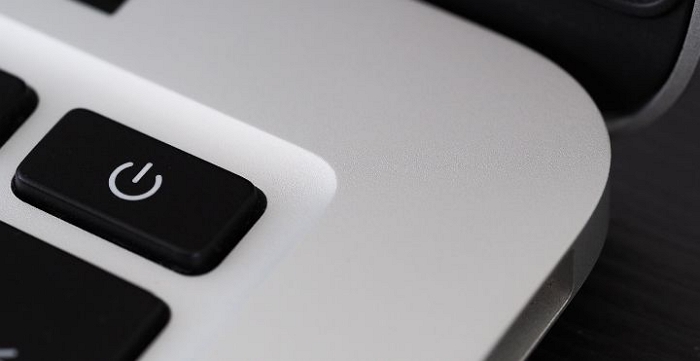
- Reinstall the battery after completing this step.
- Plug in the AC adapter.
- Restart your Asus laptop.
Fix 3. Unplug All External Devices to Fix ASUS Won't Turn on Issue
Connecting too many devices to your ASUS laptop can cause it to fail to boot. Try unplugging all external accessories like keyboards, mice, and hard drives, then turn on the laptop to see if it boots normally. If it does, the issue is likely with one of the external devices.
Fix 4. Update BIOS to Fix ASUS Won't Turn on Issue
To resolve the issue, find a working computer or laptop and download the correct BIOS file from the ASUS support website, ensuring you have the correct model number of the ASUS computer that won't boot normally.
ASUS provides detailed instructions on searching and downloading drivers, utilities, BIOS, and user manuals for their products.
- Once the download process is complete, rename the file extension to ".bin".
- Connect a USB drive and copy the files to it.
💡The USB drive file system should be FAT32.
- Connect the USB flash drive to the problematic ASUS laptop.
- To restart the computer and enter BIOS Safe Mode, press the power button to shut down the computer, then press the power button again to turn it back on. While the computer is booting up, hold the Ctrl key and the R key at the same time to access the BIOS Safe Mode.
The ASUS Laptop Boot Menu Key is a crucial function that allows users to access and configure various boot settings on their ASUS laptop. By pressing a specific key during boot-up, users can enter the Boot Menu and select from a range of options, including boot order, USB device selection, and other advanced settings.
- Wait for the computer to restart automatically, and you will enter the EZ Flash utility.
- To update the BIOS, select the ".bin" file of the USB drive and click "Yes" to confirm the update.
- Once the update process is finished, the laptop will automatically restart.
If your ASUS laptop won't turn on due to a Secure Boot Violation, you can try resolving the issue by checking the BIOS settings, ensuring the boot order is set to UEFI, and verifying the Secure Boot is enabled. Additionally, you can try resetting the BIOS to its default settings or updating the BIOS to the latest version.
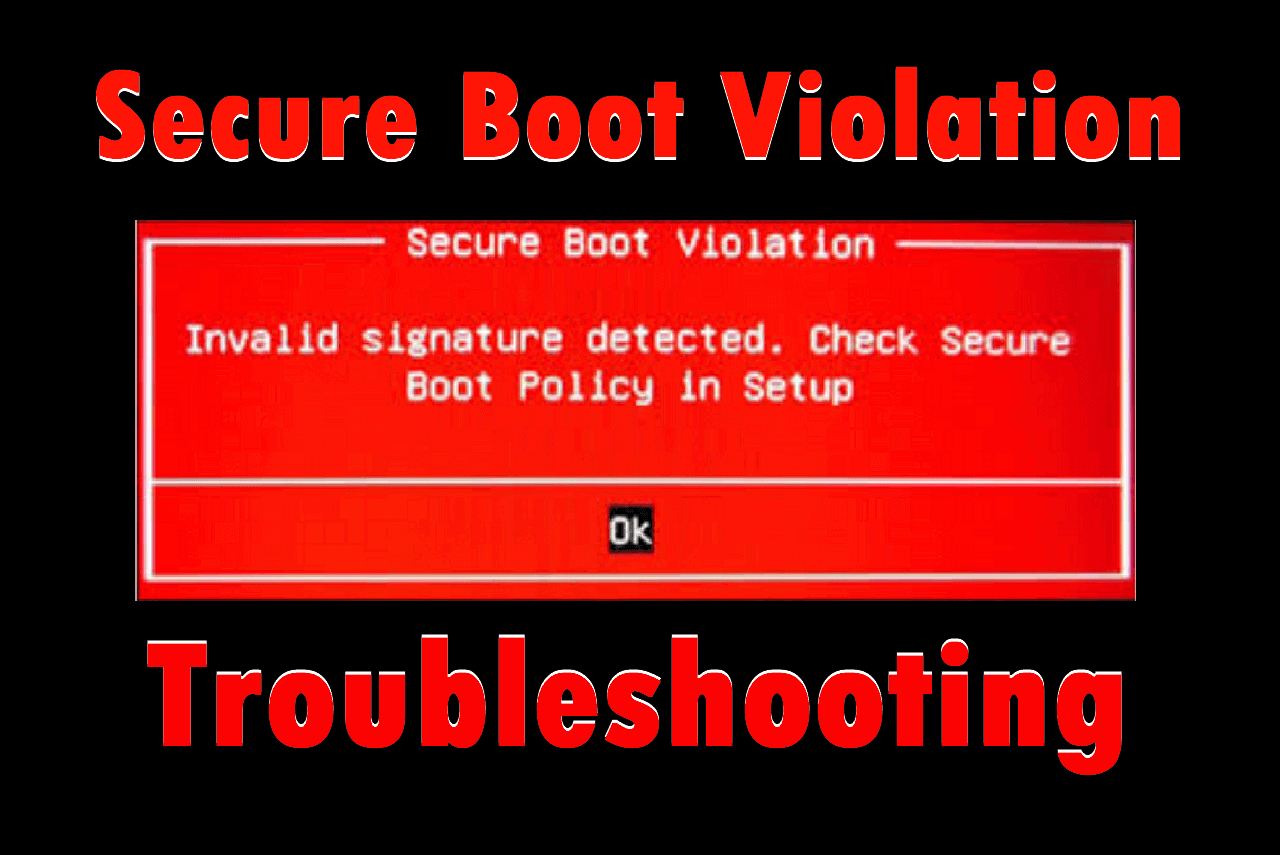
Secure Boot Violation | Quick Troubleshooting
Secure boot violation is a frustrating issue that prevents your PC from booting into Windows. If you're experiencing the Secure Boot Violation invalid signature detected error, this article can help you resolve the problem.
Conclusion
ASUS laptop users often face the issue of their device not turning on. This article aims to provide assistance in resolving this problem, and its contents can also be shared with others to help more users.
ASUS Laptop Won't Turn On FAQs
If your ASUS laptop won't turn on, it could be due to a dead battery, software, or hardware issue. A dead battery might be the culprit, or it could be a problem with the laptop's internal components, such as the motherboard or power supply. In some cases, it might be a software issue, like a corrupted BIOS or operating system. If you're experiencing this issue, it's worth checking the power cord, battery, and any other connections to ensure they're secure.
1. How do I turn on my ASUS laptop if it won't turn on?
You can try the following fixes to remove this error:
- Update BIOS
- Check laptop Display Settings
- Unplug external devices
- Hard reset ASUS laptop
- Reinstall graphics drivers or reinstall RAM
2. How do I reset an unresponsive ASUS laptop?
- Remove all external devices connected to the ASUS laptop.
- Directly charge the laptop by plugging in the AC adapter.
- Remove the laptop battery.
- To turn off your phone, press and hold the power button until the indicator light turns off. This will shut down your phone completely.
- Unplug the AC adapter.
- Press and hold the power button for 40 seconds.
- Reinstall the laptop battery, plug in the AC adapter, and restart the laptop.
3. Why did my ASUS screen turn on?
Your ASUS laptop won't turn on due to various reasons like a dead battery, bad charger, software conflict issues, or hardware problems.
Related Articles
- Toshiba External Hard Drive Repair Tool | Fix Corrupted Drives Efficiently
- How to Partition Hard Drive (including C drive) in Windows 11/10 Without Formatting
- Two Easy Ways to Wipe Data from Hard Drive in Windows 11/10
- How to Transfer OS to New SSD? Beginners' Guide 2023
- HP USB Disk Storage Format Tool Portable Free Download 🔎
The HP USB Format Tool Portable is a utility that allows users to format USB drives, and this article provides information on the tool, including how to download it for free. - Tutorial: Install a New Hard Drive on Windows 11 Safely
Upgrading your Windows 11/10 PC with a new hard drive can significantly expand your storage capacity, but it's essential to do so safely to avoid losing data or compromising system stability. By doing so, you can enjoy the benefits of increased storage without any issues.
Products
Articles & Tutorials
- Data Recovery
- Data Backup
- File Recovery
- File Backup
- System Backup and Restore
- Disk and Partition Clone
- Technical articles
- Mobile articles
- Disk Master Help
- Windows Data Recovery Tutorials
- Windows Secure Delete Tutorials
- Windows Partition Management Tutorials
- Windows File Backup and Restore Tutorials
- Windows System Backup and Restore Tutorials
- Windows Disk Backup and Restore Tutorials
- Windows Clone Tutorials