HP USB Disk Storage Format Tool Portable Free Download 🔎
- HP USB Disk Storage Format Tool Portable Free Download
- How to Use HP USB Format Tool Portable
- Download the Alternative to HP USB Format Tool Portable
The HP USB Disk Storage Format Tool Portable is a software that allows users to format USB drives, but sometimes it may not work. Fortunately, there is an alternative portable disk formatting tool available that can be used as a substitute when the HP tool fails.
HP USB Disk Storage Format Tool Portable Free Download
HP USB Disk Storage Format Tool Portable is a portable, free utility for Windows that allows users to format any USB drive on any Windows PC.
- Latest update: July 29, 2021
- Release date: October 6, 2013
Here are the pros and cons of the product:
| 👍Pros | 👎Cons |
|---|---|
|
|
The HP USB Disk Storage Format Tool portable makes it easy to format a drive anywhere, but it's limited in that it's incompatible with Windows 11 and doesn't support exFAT, EXT2/3/4 formats.
You can use the free portable disk formatter Qiling Disk Master Free Portable, which is completely free and supports all Windows versions, including NTFS, FAT32, exFAT, and ext2/3/4 file systems, making it a useful tool for creating a bootable disk for recovery and fixing.
If you're still interested in trying the HP USB Disk Storage Format Tool Portable, you can download it from the provided site.
- Download from Softonic: https://hp-usb-disk-storage-format-tool.en.softonic.com/download
- Download from CNET: https://download.cnet.com/hp-usb-disk-storage-format-tool/3000-2094_4-10974082.html
How to Use HP USB Format Tool Portable
When you launch the HP USB Format Tool Portable, you may need to run it as an administrator to avoid any issues with launching. To do this, right-click on the tool and select "Run as administrator" from the context menu. This will allow you to use the tool without any problems.
Step 1. To get started, connect a properly formatted USB drive (formatted with NTFS, FAT32, or exFAT) to your PC, and then download the HP USB Disk Storage Tool.
Step 2. Once downloaded, right-click on the application and select "Run as Administrator" from the drop-down menu.
Step 3. Select the drive you want to format from the list of removable disks connected to your PC.
Step 4. Select the desired file format and volume label, then proceed with the quick format process by checking the box and clicking the Start button.
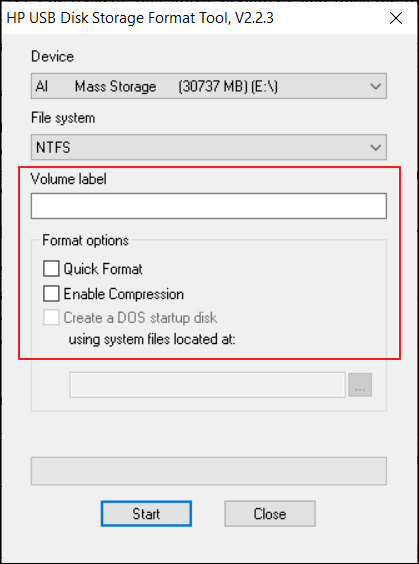
If you need to format the drive as exFAT or ext2/3/4, you can use Qiling Disk Master Portable.
HP USB Format Tool Portable can also create a bootable DOS drive for repair and recovery, and here is a simple guide on how to make it bootable.
Step 1. To use the HP USB Format Tool Portable, right-click on it and select "Run as Administrator". A dialog box will then appear, prompting you to click "Yes" to proceed.
Step 2. This process requires selecting the option to create a DOS boot disk using system files located at a specific directory, which will also format the USB drive. Important files should be backed up beforehand.
HP USB Disk Storage format portable tool is a free software that helps users create a bootable USB drive with a HP USB disk storage format. This tool is designed to work with HP computers and allows users to create a portable version of their operating system on a USB drive.
HP USB storage tools are reliable, but some users encounter the "Device media is write-protected" error when trying to format data. To resolve this, users can remove the write protection from the USB before formatting.
There is an alternative to HP USB Format Tool Portable called Qiling Disk Master, which can directly format a write-protected USB.
Download the Alternative to HP USB Format Tool Portable
Qiling Disk Master Portable is a free partition formatting tool that offers advanced formatting features and is portable, unlike HP USB Format Tool. It also allows changing cluster size independently and supports creating bootable media based on the current operating system, eliminating the need to prepare system files in advance. This enables booting any other PC with bootable media to start formatting.
Here are some features of it:
- File system: exFAT, ext2/3/4, NTFS, FAT32, etc.
- Portable: Launch it from USB anywhere
- Compatibility: Support all Windows versions
To format using Qiling Disk Master Portable, follow these steps: First, run the software and select the disk you want to format from the list of available drives. Then, click on the "Format" button and choose the desired file system and allocation unit size.
Step 1. Select the USB drive to format.
To format a USB drive, connect it to your computer, download and launch Qiling partition software, and right-click the drive to select "Format".
Step 2. Set the drive letter and file system on USB.
Assign a new partition label, file system (NTFS/FAT32/EXT2/EXT3/EXT4/exFAT), and cluster size to the selected partition.
Step 3. Proceed with the format.
Click the "Proceed" button to format the USB drive.
Step 5. Check "Yes" to confirm formatting USB.
Click "Yes" to proceed with the update, and if you have important data on the device, back up the data in advance to avoid any potential loss.
Qiling Disk Master Portable can also create a bootable media.
Conclusion
HP USB Storage Format Tool is a portable program that allows users to format USB drives and make them bootable with just a few clicks. However, some users may encounter errors when using it, in which case Qiling Disk Master Portable can be a suitable alternative.
FAQs About Downloading HP USB Format Tool Portable
The HP USB Format Tool Portable is a software that allows users to format USB drives, and there are several FAQs available that provide more information on its usage, including how to format a write-protected USB drive, its compatibility with Windows 11, and other topics.
1. How to fix the HP USB format tool write-protected error?
Here are a few ways to fix the "write protected" error when using the HP USB Disk Storage Format Tool: You can try to remove the write protection from the disk drive itself, or you can try to run the tool as an administrator, or you can try to format the drive using a different tool. You can also try to check the drive for errors and bad sectors, or try to update the tool to the latest version.
- Check for a physical write-Insert the USB drive or SD card into the reader. The system will automatically detect the presence of the USB drive or SD card and prompt you to unlock it. If the USB drive or SD card is locked with a password, enter the password to unlock it.
- Run the HP USB Disk Storage Format Tool with administrative privileges by right-clicking on it and selecting "Run as administrator."
- Remove the read-To disable the read-only attribute on a USB drive, open the Disk Management console by typing "disk mgmt.msc" in the Run dialog box or searching for it in the Start menu. Right-click on the USB drive and select "Properties".
2. Is the HP USB disk storage format tool compatible with Windows 11?
The HP USB Disk Storage Format Tool is a portable formatting utility that is currently not compatible with Windows 11, but works on Windows 10, 8, and 7.
3. Can I use the HP USB disk storage format tool on Android?
The HP USB disk storage format tool is only compatible with Windows, specifically excluding Windows 11, and can be used to format an Android device's SD card when it's connected to a PC.
Related Articles
- How to Allocate a Hard Drive to Add Space to Another Partition in Windows 11/10/8/7
- [Fixed] Windows Media Creation Tool Can't Find USB Error: We Can't Find a USB Flash Drive
- 6 Tips to Fix SD Card Slow Transfer Speed on Windows
- How to Format SD Card on Windows 11? Here Are 4 Ways for You in 2024
- Quick Ways On How To Extend C Drive In Windows 11 Without Formatting
Can anyone assist me? I received a low space warning and want to extend partition Windows 11 to resolve it. Fortunately, this guide can help. We'll show you how to expand the C drive in Windows 11 without formatting or losing data. - How to Find and Recover Missing Space on Hard Drive in Windows
Missing storage space on an internal or external hard drive, or SSD? Is the hard drive not showing correct capacity? Read this page to find and recover the missing space on your hard drive in Windows 7/8/10!
Products
Articles & Tutorials
- Data Recovery
- Data Backup
- File Recovery
- File Backup
- System Backup and Restore
- Disk and Partition Clone
- Technical articles
- Mobile articles
- Disk Master Help
- Windows Data Recovery Tutorials
- Windows Secure Delete Tutorials
- Windows Partition Management Tutorials
- Windows File Backup and Restore Tutorials
- Windows System Backup and Restore Tutorials
- Windows Disk Backup and Restore Tutorials
- Windows Clone Tutorials