PC Won't Turn on, But Motherboard Light Is on/It's Plugged In
| Workable Solutions | Step-by-step Troubleshooting |
|---|---|
| If your PC won't turn on, but the motherboard light is on, it's likely due to a power supply issue. Check the power cord and PSU for any issues, and verify the CPU, RAM, and other components for physical damage or wear. |
Method 1. Check the Power Button...Full steps Method 5. Check the IC Fuse...Full steps |
| Fix 2: PC Won't Turn on, But It's Plugged In | Method 1. Check the Cable...Full steps Method 2. Check the Power Source...Full steps Method 3. Check Your Monitor...Full steps Method 4. Listen to the Beeps...Full steps Method 5. Check the Inner Problems...Full steps |
| Bonus Tip: Check the System after Turning on the PC | Step 1. Right-click the target partition that has a problem. Step 2. Choose "Advanced" > "Check File System"...Full steps |
Why My PC Won't Turn on But Motherboard Light Is on/It's Plugged In
A frustrating PC issue is when it won't turn on, but it's plugged in and the motherboard light is on, suggesting a power supply problem that can be difficult to fix.
There are a few potential causes of this problem, but some possible fixes can be tried. The following methods can be attempted to resolve the issue.
If none of these troubleshooting steps resolve the issue, you may need to consult a professional technician for further evaluation and repair of the problem.
Related articles about computer won't turn on:
Fix 1: PC Won't Turn on, But Motherboard Light Is on
If your PC won't turn on, but the motherboard light is on, it could be due to a power supply issue, a motherboard problem, a faulty component, or a blown fuse. To troubleshoot, check the power supply, inspect the motherboard for any signs of damage, and test individual components to identify the faulty one. Replace the faulty component or fuse to resolve the issue.
If you're unsure what's wrong with your PC after reading, it's best to consult a professional for help. They'll be able to diagnose the issue and get your computer up and running again quickly with their expertise.
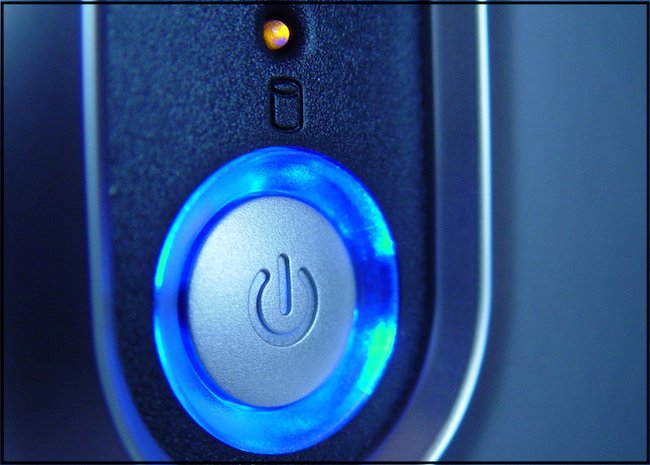
Method 1. Check the Power Button
The power button on the case may be faulty, preventing the PC from turning on despite the motherboard light being on. This could be due to a worn-out or damaged button, or a loose connection within the button.
If the power button is faulty, it may need to be replaced. This can be a DIY project, but it's recommended to consult with a professional to ensure safety. If the issue persists after replacing the power button, further troubleshooting may be necessary to identify the root cause.
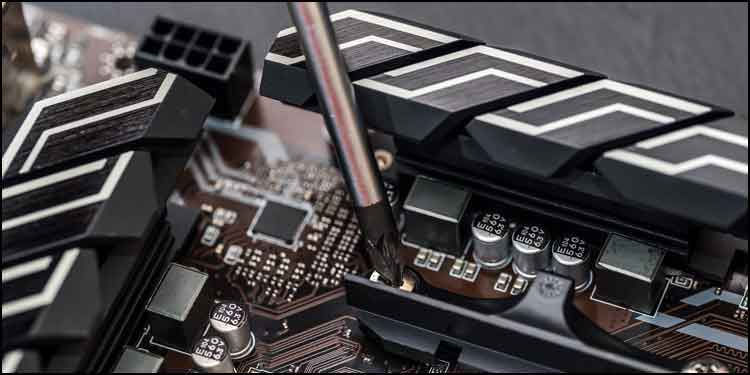
Method 2. Check the Screws on the Motherboard
If your PC won't turn on, but the motherboard light is on, it might be due to using the wrong screws for the motherboard standoffs. To troubleshoot, remove the motherboard from the case and try turning it on with a screwdriver. If it works, reassemble the PC using the correct screws, and it should function normally.
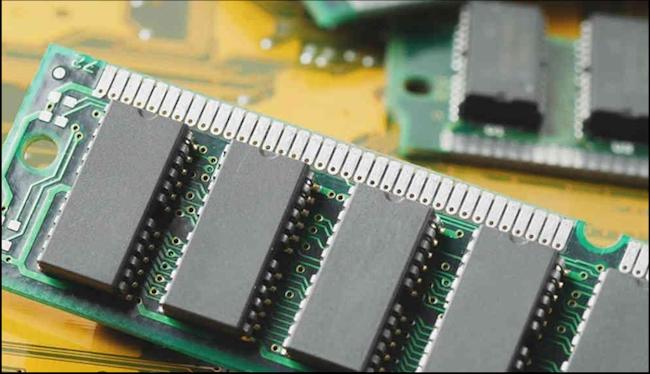
Method 3. Check the Memories
If your PC won't turn on but the motherboard light is on, it could be due to incompatible or faulty memory. Try removing any recently installed memory, or try using one memory module at a time to see if that resolves the issue. If not, the problem may lie with the power supply, motherboard, or another component, and further troubleshooting or professional assistance may be needed.
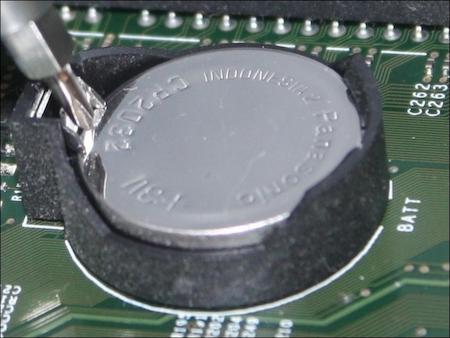
Method 4. Check the CMOS Battery
The CMOS battery may be faulty, preventing the PC from turning on, but the motherboard light is on. This is because the battery powers the BIOS chip, which boots the PC. Try removing and reseating the battery, or replacing it with a new one, to resolve the issue.
Method 5. Check the IC Fuse
A blown fuse can prevent your computer from turning on properly. Check the power supply unit (PSU) for any burning smells, as this can indicate that internal components have blown. If you notice a burning smell, you'll need to locate and replace the blown components. Additionally, consider removing any unnecessary cables, such as those from an unused CDROM drive, to prevent further issues. If you're not comfortable with this process, it's recommended to bring your computer to a specialized repair center for testing.

Fix 2: My Computer Won't Turn on, But It's Plugged In
A PC won't turn on even when plugged in due to various reasons. It could be that the power cord is not properly connected to the PC or the outlet, or the power supply has failed. In some cases, a virus or malware infection can prevent the PC from turning on, requiring a virus scan and removal of malicious software. If unsure of the issue, consulting a computer technician for diagnosis and repair is recommended.
Method 1. Check the Cable
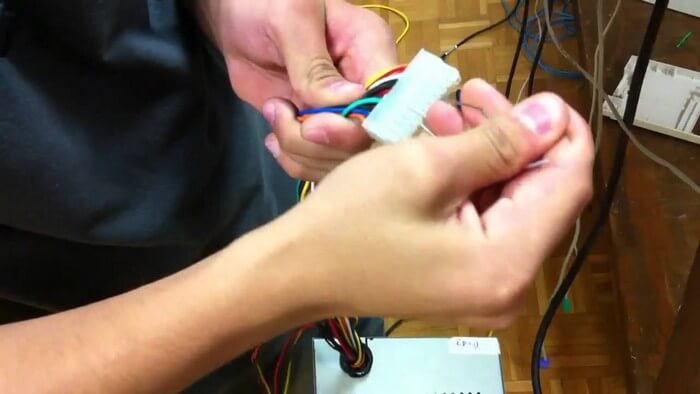
Check the power cable first - The power cord may be loose or disconnected, so ensure it's firmly plugged into the PC and the outlet. If that doesn't work, try unplugging and replugging the cord, or swap it out with a spare cable. If the issue persists, check the power cord for a switch that may have been accidentally turned off. If the power cord seems to be working, check the PC's power source, following the method provided.
Method 2. Check the Power Source
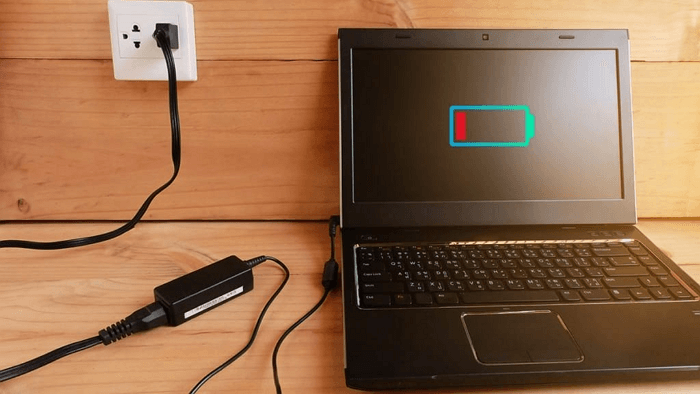
Try plugging your computer directly into a working wall outlet, flipping on the power switch on the back of the power supply, and ensuring any connected light switches are turned on. If that doesn't work, try a different outlet, check if the power cord is loose or defective, and if all else fails, consider replacing the power supply.
Method 3. Check Your Monitor
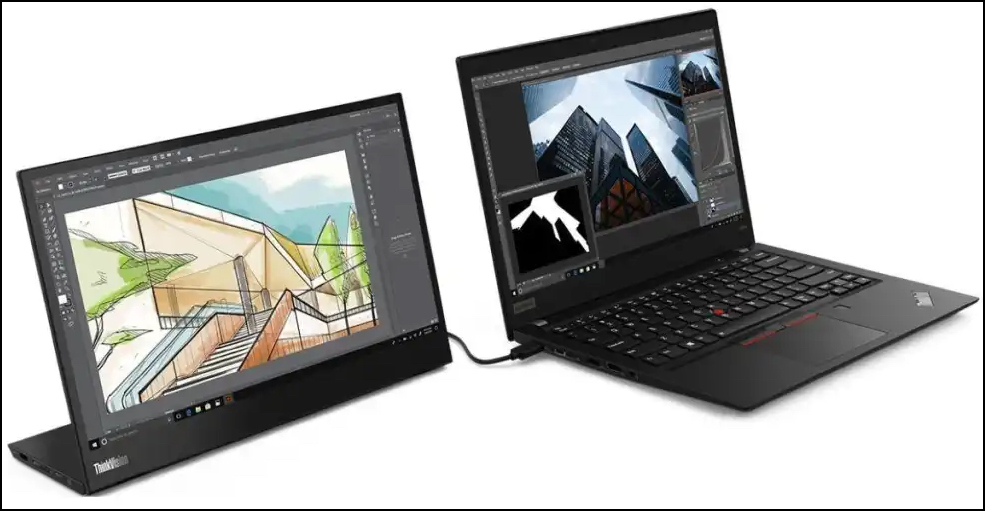
If your computer seems to be turning on but you don't see anything on the screen, check your monitor and the cable connecting it to your PC. If connecting another computer to the monitor works, the issue might be with the cable. If not, the problem could be with the computer itself.
Method 4. Listen to the Beeps
You may hear a single beep when turning on your PC, indicating it's working properly. However, multiple beeps or a long tone may signal an issue, and consulting the manual or manufacturer's website can help identify the problem. In some cases, the PC may still function normally, but if not, it's best to seek professional help to avoid further damage.
Method 5. Check the Inner Problems
The problem may be caused by faulty internal components, such as a broken motherboard, damaged charging circuits, or a defective video card, or it could be due to software issues. Alternatively, static electricity from recently handling components may be the culprit. If you suspect an internal component is the issue, consider taking the computer in for repairs or contacting the manufacturer for warranty and replacement details. In some cases, troubleshooting and fixing the problem yourself may be possible, such as by unplugging and replugging components, reseating the RAM, or replacing the battery. However, if you're not comfortable working with PC components, it's best to leave it to the professionals.
Bonus Tip: Check the System after Turning on the PC
After resolving the issue where the PC won't turn on but the motherboard light is on, it's a good idea to check the system after booting it up to be prepared in case a similar situation occurs again in the future.
Qiling Partition Master is a versatile tool that allows you to check your system and can be particularly helpful if you're experiencing issues with your computer or simply want to ensure everything is running smoothly.
Step 1. Right-click the target partition that has a problem.
Step 2. Choose "Advanced" > "Check File System".
Step 3. In the Check File System window, select the option to "Fix the error on the disk".
Step 4. Click "Proceed" to check errors on your partition.
Qiling Partition Master is a handy tool that not only checks the file system but also allows you to resize, create, format, and delete partitions, making it a valuable asset for any computer user.
Conclusion
If your PC won't turn on, despite the motherboard light being on or it being plugged in, there are several potential causes and solutions. Try checking the power cord, power supply, and battery (if applicable), as well as the BIOS settings. If none of these solutions work, it may be necessary to take your computer to a qualified technician for further diagnosis.
Related Articles
- How Do You Create Partitions in Windows with Infographics 2022
- Can't Extend C Drive in Windows 11? Here Is Why and How-to Fix
- Fix 'System C Drive Full' Error in Windows Server 2019/2016/2012
- How to Create and Format exFAT Partitions in Windows 11/10/8/7 (Free Methods)
- How to Create Bootable USB to Wipe Hard Drive
Want to securely erase your hard drive before selling a computer or reinstalling Windows? Follow this guide to create a bootable USB drive that will wipe your hard drive clean, giving you peace of mind as you prepare to let go of your old device or start fresh with a new OS. - How to Create Partition from Unallocated Space in Windows 10
To create a partition from unallocated space in Windows 10, you have three methods to choose from. You can use the built-in Disk Management tool to create a partition, or use third-party software like Qiling Partition Master or MiniTool Partition Wizard.
Products
Articles & Tutorials
- Data Recovery
- Data Backup
- File Recovery
- File Backup
- System Backup and Restore
- Disk and Partition Clone
- Technical articles
- Mobile articles
- Disk Master Help
- Windows Data Recovery Tutorials
- Windows Secure Delete Tutorials
- Windows Partition Management Tutorials
- Windows File Backup and Restore Tutorials
- Windows System Backup and Restore Tutorials
- Windows Disk Backup and Restore Tutorials
- Windows Clone Tutorials