Fix SFC SCANNOW Stuck at 4/30/69/93 |6 Efficient Ways
Key Takeaways
- SFC SCANNOW is a built-in Windows utility that scans and fixes corrupted system files. It usually completes its task in a few minutes, but if it takes too long, it may be stuck due to a corrupted system file.
- The error may get stuck at certain data, such as being stuck at 4/30/69/93 verification or when starting a system scan.
- This article recommends Qiling Disk Master as the best SFC alternative for resolving more errors, and also provides five additional efficient solutions to fix issues.
SFC /scannow is a Windows utility that scans and repairs corrupted system files, but it may not always be successful in its task.
Qiling will analyze the situations and why SFC/SCANNOW does not work. This guide will provide 6 effective programs to fix SFC /scannow stuck situations.
How Long Does It Take to Complete SFC SCANNOW?
The SFC process usually takes 5-10 minutes, but can take longer if the task is heavy. If it takes more than an hour, it may indicate that SFC is stuck.
SFC /scannow may get stuck at the beginning of a system scan or during validation, showing numbers like 4/30/73/100, indicating an issue with the System File Checker.
If you're experiencing issues with the System File Checker (SFC) scan, don't worry - there are several effective options to fix the problem. One solution is to run the SFC scan in a Command Prompt with elevated privileges, which can be done by right-clicking on the Start menu, selecting "Command Prompt (Admin)," and then typing "sfc /scannow" and pressing Enter. If this doesn't work, you can try running the DISM (Deployment Image Servicing and Management) tool, which can be accessed by typing "dism /online /cleanup-image /restorehealth" in the Command Prompt with elevated privileges.
How to Fix SFC SCANNOW Stuck?
Here are 6 fixes:
Fix 1: Quick Solution - Run SFC Alternative to Repair Hard Disk
Finding an alternative to the System File Checker (SFC) can save time repairing corrupted files on Windows. Qiling Disk Master is a versatile disk management tool that offers a "Check file system" feature, allowing users to thoroughly scan, find, and repair corrupted system files on Windows in just three simple steps.
The tool allows you to easily repair damaged or corrupted files, even if you're new to the process, thanks to its user-friendly interface.
Step 1. Right-click the target partition that has a problem.
Step 2. Choose "Advanced" > "Check File System".
Step 3. Confirm if you want to hide the partition or not.
Step 4. In the Check File System window, select the option to "Fix the error on the disk".
Step 5. Click "Proceed" to check errors on your partition.
Qiling Disk Master is a powerful tool that can also repair Windows 10 from a USB drive by creating a bootable USB. Furthermore, it can assist with various other issues, such as fixing problems with the system, allowing users to troubleshoot and resolve common Windows 10 issues.
- Can't delete files from SD card
- Default Boot Device Missing or Boot Failed
- The computer has rebooted from a bugcheck
There is no text to summarize. Please provide the text you would like me to summarize.
Fix 2: Run a DISM Scan
When SFC (System File Checker) SCANNOW doesn't work in Windows, you can try using the DISM (Deployment Image Servicing and Management) command line tool instead. DISM provides user services and prepares Windows images, which can help resolve issues when SFC SCANNOW fails.
If the System File Checker (SFC) is stuck, you can try running a DISM scan to resolve the issue. To do this, open Command Prompt as an administrator, type the command "DISM /Online /Cleanup-Image /RestoreHealth", and press Enter.
Step 1. To run the Command Prompt (CMD) on your Windows computer, first search for "CMD" in the Start menu or type it in the Windows search bar. Once you find the result, right-click on it and select "Run as administrator".
Step 2. Type the following commands in sequence and press Enter:
- To check the health: Dism /Online /Cleanup-Image /CheckHealth
- To scan the health: Dism /Online /Cleanup-Image /ScanHealth
- To restore health: Dism /Online /Cleanup-Image /RestoreHealth
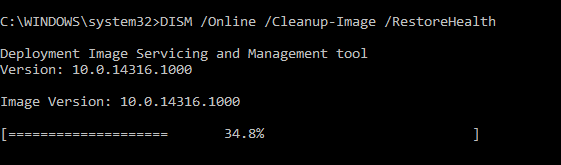
Step 3. Reboot your computer and see if SFC is working properly.
The error "SFC /SCANNOW finds corrupted files but unable to fix" typically occurs when the System File Checker (SFC) tool identifies corrupted system files but is unable to replace them due to insufficient permissions or other system issues. This can be caused by a variety of factors, including corrupted system files, malware, or incomplete Windows installation.
Fix 3: Run SFC Scan in Safe Mode
If Window Resource Protection finds corrupted files but cannot repair some files, which may also cause SFC/scannow to get stuck, you can try using SFC in safe mode. To do this, restart your computer and press the F8 key repeatedly until the Advanced Boot Options menu appears. Select Safe Mode with Networking from the menu, then run the command prompt as administrator and type sfc /scannow.
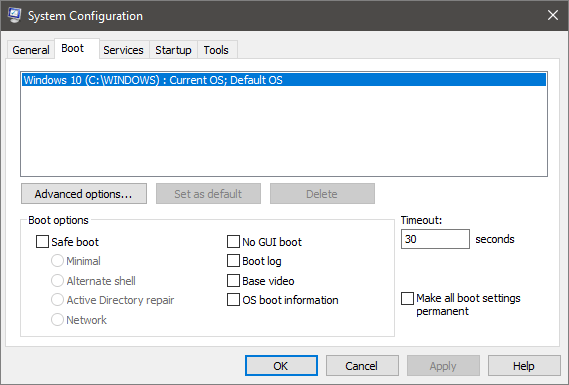
Step 1. To open the System Configuration window, press and hold Windows+R simultaneously to open the Run window and type msconfig.
Step 2. To enable Safe Boot, go to System Configuration, click on Boot, and select Safe Boot.
Step 3. Reboot your computer and apply the change.
The computer will boot in Safe Mode, and you can try using the System File Checker (SFC) to see if the problem has been resolved.
Fix 4: Repair SFC Stuck with CHKDSK Command
If data corruption on the disk is causing the SFC/scannow stuck issue, you can try running CHKDSK to scan the hard disk. This may resolve the problem.
Step 1. Run CMD as administrator.
Step 2. Type chkdsk/f and press Enter.
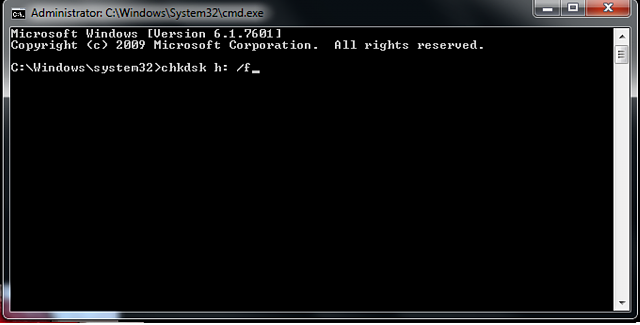
Step 3. When Windows asks if you want to check this partition, type Y and get started the next time you reboot your computer.
Step 4. Run the System File Checker (SFC) command to scan and replace corrupted system files, then restart your computer to see if the issue has been resolved.
Fix 5: Perform A System Restore
A system restore point undoes system changes and restores the computer to its previous state. If you have previously created a restore point, then you can follow the steps below when SFC/scannow validation fails:
Step 1. Search for System Restore on your computer and open it.
Step 2. Select the desired restore point and click Next to proceed with the system restore process.
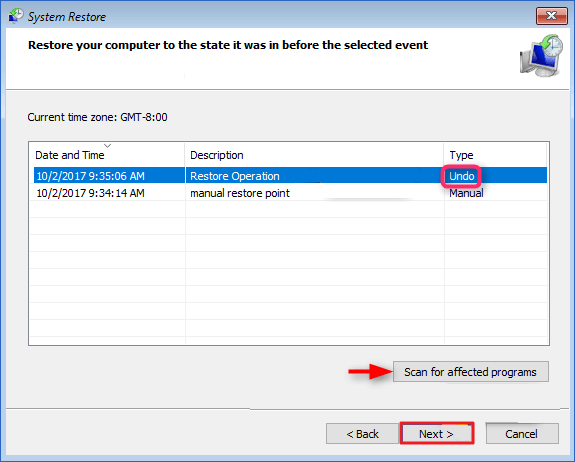
Step 3. Follow the wizard to confirm the other operations.
Step 4. To resolve the issue, you can try running the SFC /SCANNOW command in the Command Prompt as an administrator. This command scans and repairs corrupted system files.
Fix 6: Reset Your Computer
If all the other options don't work, try the last option: reset the computer or fresh Boot. This can fix most system problems.
Step 1. Open Windows Settings and go to Security and Update.
Step 2. Select "Recovery" and click Start under "Reset this PC."
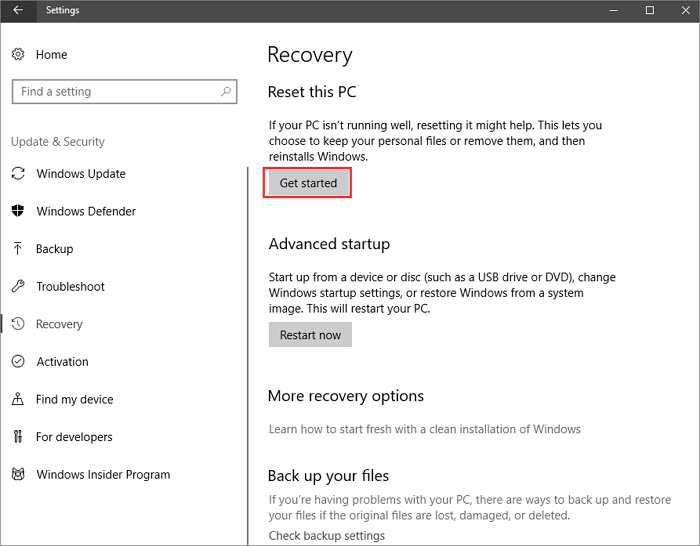
Step 3. You can either keep the files or delete everything, depending on your needs.
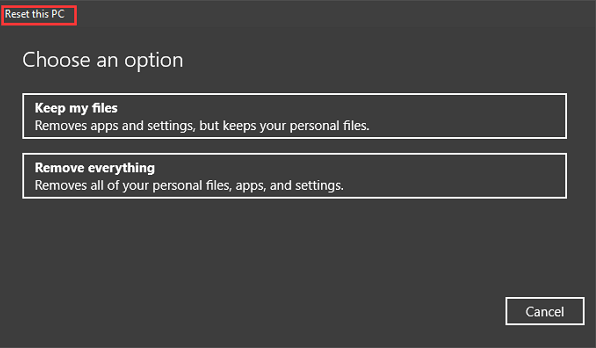
Step 4. Click Next in the prompt window to continue.
If the reset process doesn't work, you can try resetting again, select "Delete everything," and then "Only install Windows on the drive."
If the SFC scannow process is stuck, you can try restarting the Windows Update service, running the SFC command with administrator privileges, and running the DISM command to repair corrupted system files. Additionally, you can try running the SFC command in a Command Prompt window with elevated privileges, and if the issue persists, you can try running the DISM command to repair corrupted system files. If none of these solutions work, you can try resetting Windows Update components or performing a System Restore to a previous point when the SFC scannow process was working properly. If you found this guide helpful, you can share it with others in need.
Why SFC SCANNOW Stuck?
Sfc /scannow solves many problems, but the user cannot use it if it gets stuck at a certain number. We have found users on the forums with the same problem:
The SFC Scannow command often gets stuck due to corrupted system files or hard disk data, which can prevent it from performing its tasks. This issue can be resolved by running the SFC/scannow command in the Command Prompt with administrator privileges, or by using the DISM command to repair corrupted system files. Additionally, running a full disk check and scanning for disk errors can also help resolve the issue.
The SFC (System File Checker) tool is a built-in Windows utility that scans and repairs corrupted system files. However, there are some common errors related to SFC that users may encounter, such as the "Windows Resource Protection" error, which occurs when the SFC scan detects corrupted system files.
- The command `sfc /scannow` gets stuck at validation when starting a system scan, which can be resolved by replacing the corrupted files.
- If your Windows computer freezes during the "sfc /scannow" process, try to restore your computer to a previous state using a system restore point. This can help resolve the issue and get your computer running smoothly again.
- Sfc scannow is not responding - Use DISM scan instead.
- Sfc scannow stopped scanning - Disable the Turbo Memory feature.
Regardless of your SFC-If SFC /SCANNOW gets stuck, the best solution is to use Qiling Disk Master for a one-stop solution, which can resolve any issues that SFC /SCANNOW encounters.
Conclusion
If SFC /SCANNOW gets stuck at 4/23/73/80/100 when repairing system files, don't worry, as this issue can be resolved with the help of 6 effective fixes. These fixes can help you resolve the trouble and get back to using your computer normally, whether you're verifying or starting a system scan. With the right approach, you can easily get rid of the issue and continue using your computer as usual.
The most effective solution for long-lasting computer maintenance is Qiling Disk Master, a SFC alternative that not only fixes system file-related errors but also offers additional features such as checking hard drive health and improving read/write speeds to boost your computer's overall performance.
FAQs About SFC SCANNOW Stuck
If you're experiencing issues with the System File Checker (SFC) and DISM tools, such as sfc/scannow errors, you're not alone. Many users have reported encountering problems with these built-in Windows tools. If you're facing similar issues, you might want to explore further troubleshooting steps or seek assistance from Microsoft support.
1. How to stop sfc/scannow on Windows 10?
Stopping a scan in Windows 10 is simple, as you can end the command prompt readout with Ctrl+C. Alternatively, if you want to end the process, the easiest way is to restart your computer to clear the running background commands.
2. Is it safe to stop SFC scan?
Stopping the SFC scanning process won't cause any issues as it's designed to scan and fix Windows errors, so you can let it complete its task.
3. How to fix sfc scannow not working?
SFC Scannow not working can be caused by file system corruption, missing files, or a disconnected network. To fix it, try running the Command Prompt as an administrator, checking your internet connection, and ensuring the Windows Update service is running. If the issue persists, you can try booting in Safe Mode and running SFC Scannow again, or running the System File Checker tool from a Windows installation media.
- Change the administrator account
- Change to DISM scanning
- Disable or remove the domain application/VPN
- To perform a clean boot, press the Windows key + X and select "Task Manager" from the menu. In the Task Manager, click on the "Startup" tab and click on the "Disable all" button.
To fix the Windows Update issue, you can try running the System File Checker (SFC) tool. This tool scans and replaces corrupted system files with a cached copy of the correct files.
Related Articles
- How to Use Driver Easy | Is It Safe to Use Driver Easy
- How to Upgrade PS5 SSD [Step-by-step Guide]
- Top 9 Tips | How to Fix Steam Disk Write Read Error
- Why and How to Merge Partitions to Solve Disk Space Issues?
- How to Convert Simple Volume to Primary Partition
Qiling Partition Master can convert and change simple volume to primary partition without data loss, compatible with Windows 10/8/7, 2000/XP/2003/Vista/2008 32-bit and 64-bit systems. - SmartDisk FAT32 Format Utility Free Download [2026 Updated]
Format USB drives, SD cards, and external drives to FAT32 or other file systems with SmartDisk FAT32 utility alternatives.
Products
Articles & Tutorials
- Data Recovery
- Data Backup
- File Recovery
- File Backup
- System Backup and Restore
- Disk and Partition Clone
- Technical articles
- Mobile articles
- Disk Master Help
- Windows Data Recovery Tutorials
- Windows Secure Delete Tutorials
- Windows Partition Management Tutorials
- Windows File Backup and Restore Tutorials
- Windows System Backup and Restore Tutorials
- Windows Disk Backup and Restore Tutorials
- Windows Clone Tutorials