Can't Delete Files from SD Card? Try 2024 Best Solution
If you're having trouble deleting files from your SD card, don't worry - this guide is here to help. We'll explore the solutions and reasons behind this issue, and provide you with different fixes to get the job done quickly. From there, you'll learn various methods to delete files from your SD card, and be back to normal in no time.
How to Fix Can't Delete Files from SD Card
In the following sections, we'll introduce six effective solutions to help you resolve the unable to delete files from SD card issue and regain write access to your SD card files.
| Method | Efficiency | Difficulty |
|---|---|---|
| Check and Unlock the Write-Protect Tab | High - Problems caused by physical switches can be solved directly. | ⭐ |
| Use the Write-Protection Removal Tool | High - Ability to quickly resolve write-protection issues. | ⭐ |
| Use CMD to Remove Read-Only Attributes | Medium - This process may result in loss of data. | ⭐⭐⭐⭐ |
| Change Value Data in the Registry | Medium The registry is primarily used for troubleshooting and making modifications. | ⭐⭐⭐ |
| Check SD Card for Errors | Medium The program primarily examines the SD card for logical errors. | ⭐⭐ |
| Format the SD Card | High - Formatting the SD card erases all its contents. | ⭐ |
To get your SD card to delete files on Windows 10/11, let's explore each solution step-by-step. First, ensure your SD card is properly connected to your computer and recognized by Windows.
Solution 1. Check and Unlock the Write-Protect Tab
If you're unable to delete files from an SD card on your computer, it's possible that the write-protect tab hasn't been checked. This small switch, located on the left-hand side of the SD card, activates the write-protected mode when flipped to the "on" position. Many users are unaware of the tab's function and may overlook it, leading to the inability to delete files. To resolve this, simply flip the write-protect tab to the "off" position, which will unlock the card and allow you to delete files as needed.
Step 1: If the small sliding switch is in the "locked" position, it may be preventing the computer from reading the SD card. Try sliding the switch to the "unlocked" position and see if the computer can read the SD card then. If it still doesn't work, try removing the SD card and reinserting it to see if that resolves the issue.
Step 2: If the switch is down, the card is locked, preventing deletion or content modification.
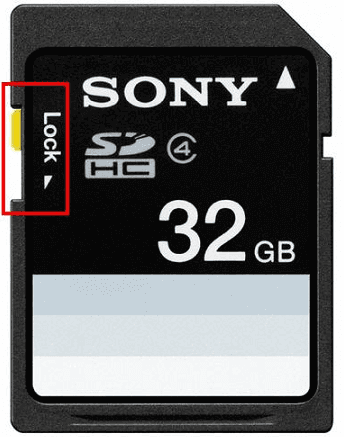
Step 3: Turn the switch upside to unlock the card and disable the read-only mode. Then, insert the card and verify if the files can be deleted.
Pro Tip* If your SD card doesn't have a write-protected tab, check if the adapter is unlocked. Then, try deleting the files again.
Solution 2. Use the Write-Protection Removal Tool
If you can't move or delete files on your SD card due to write protection, you can use Qiling Disk Master, a trusted tool that removes write protection in one click, allowing the device to become writable again.
Step 1. To resolve the issue, download and install Qiling Disk Master, then go to the Disk management section.
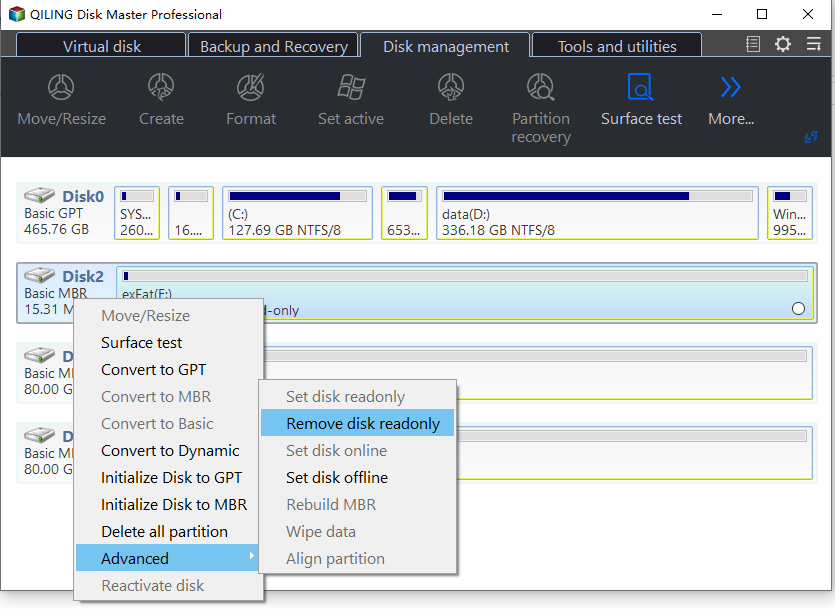
Step 2. To remove the read-only protection from a USB drive, external disk, or SD card, right-click on it, select "Properties," and then click on the "Tools" tab. From there, click on "Check" and then "Fix issues" to ensure the drive is not corrupted.
Other Features of Qiling Disk Master:
Solution 3. Use CMD to Remove Read-Only Attributes
Due to read-Here are the steps to remove read-only attributes using CMD:
Step 1: Insert the SD card into the card reader connected to your computer.
Step 2: To open the Command Prompt in Windows, press the Windows key + R to open the Run dialog box, type "cmd" and press Enter. Alternatively, you can search for "cmd" in the Start menu or type "cmd" in the search bar. Pressing the Windows key + R will open the Run dialog box, where you can type "cmd" to open the Command Prompt.
Step 3: Right-click "Command Prompt" and select "Run as administrator" from the list.
Step 4: Type the following commands in the CMD window and hit "Enter" after each command.
- list disk
- select disk * (The * in the command stands for the disk number of your SD card. Check "This PC.")
- attributes disk clear readonly

After clearing the disk attributes, the command prompt will show a message saying "Disk attributes cleared successfully." Then, close the command prompt window and try to delete the files on the SD card again.
Solution 4. Change Value Data in the Registry
To troubleshoot the issue, you can check the Registry for any potential problems. If running CMD commands doesn't resolve the issue, examining the Registry values may reveal the cause and require necessary adjustments.
Step 1: Press the "Windows + R" keys to open the "Run" dialog box.
Step 2: To open Registry, enter "regedit" and press Enter.
Step 3: Navigate the following path:
HKEY_LOCAL_MACHINE\SYSTEM\CurrentControlSet\Control
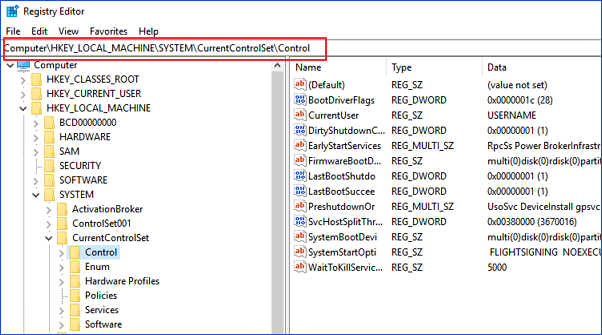
Step 4: To prevent a storage device from being written to, click on the "StorageDevicePolicies" category in the right plane, then double-click on "WriteProtect", and change the "Value data" to 0.
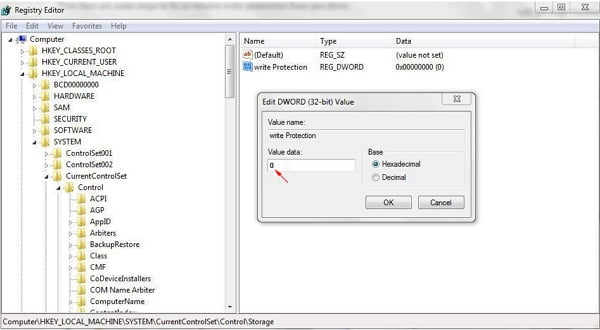
Step 5: Save changes and close the Registry window.
Step 6: Reboot your computer to apply changes.
Solution 5. Check SD Card for Errors
SD cards used in devices like cameras, laptops, and mobiles can become corrupted and cause errors. A tool like Qiling Disk Master can help users check SD cards for errors and potentially repair them.
The tool provides a detailed check of an SD card, including file system issues, bad sectors, corruption, and other logical errors, and offers a detailed report about the errors discovered after the scan. It also attempts to fix these errors, if possible. Download Qiling Disk Master for free and follow the steps to check an SD card for errors.
Step 1. Right-click the target partition that has a problem.
Step 2. Choose "Advanced" > "Check File System".
Step 3. Confirm if you want to hide the partition or not.
Step 4. In the Check File System window, select the "Fix the error on the disk" option.
Step 5. Click "Proceed" to check errors on your partition.
Solution 6. Format the SD Card
If none of the previous fixes work, formatting the SD card should be your last option as it will erase all data on the card, however, it may be necessary if other methods fail. Windows' built-in utilities may not work on write-protected or read-only attributes, making formatting a last resort.
We recommend using Qiling Disk Master to format your SD card in one click, as it supports all file systems and has a powerful "Format" feature to make the card ready to use.
To format your SD card, download Qiling Disk Master for free and follow the steps.
Step 1. To format your SD card, locate the device and right-click on the partition you wish to format, then select "Format" from the menu.
Step 2. Set a new partition label, file system, and cluster size to the selected partition.
Step 3. Click the "Proceed" button to start formatting your SD card.
Step 4. Click "Yes" on the pop-up window to continue.
Why Can't Delete Files from SD Card
You're unable to delete files from an SD card, possibly due to write protection, files being used, a faulty adapter, or file system corruption. This prevents you from completing the standard file deletion process.
- SD Card Write Protect or physically locked
- The SD card is damaged or corrupted
- The file you need to delete is opening
- The file is located in a directory that is not accessible to the current user, likely due to security restrictions or system settings. This could be a system directory, a hidden directory, or a directory with restricted permissions.
- The SD card is infected with malware or viruses
- Poor contact with the adapter
- File system corruption
Understanding the reason behind a problem is crucial in selecting the right solution. If this article provides been helpful in addressing your issue, please consider sharing it with others who may benefit from it.
Conclusion
If you're experiencing issues deleting files from your SD card, there are six potential solutions to try. However, if you're unsure of the cause, Qiling Disk Master is a universal solution that offers multiple features to delete files and format the SD card, making it a reliable option in various circumstances. Each solution is tailored to specific situations, but this tool provides a comprehensive fix for any deletion issue.
FAQs About Can't Delete Files from SD Card
If you have further questions about deleting files from your micro SD card or formatting it, find answers here. This section addresses common FAQs about the topic, covering any concerns you may have.
1. How to force delete files from a micro SD card?
As a Windows user, deleting files from a micro SD card can be a straightforward process. Simply connect the card to your computer, select the files you want to delete, and press the "Shift + Del" keys to force delete them without being prompted for confirmation. This method allows you to quickly remove unwanted files from the card.
2. Why can I not format an SD card?
If you're unable to format an SD card, it might be due to read-only file attributes, a physical write-protect switch, corruption, malware, or bad sectors. In such cases, consider using a third-party tool to format the card.
3. How to permanently delete files on my SD card Android?
Follow these steps to delete files from an SD card:
- To access files on your SD card, open the File Manager, navigate to the files you want to access, and long-press on the file until a checkbox appears.
- Select the files you want to delete and click the "Delete" button.
Related Articles
- Steam Deck Disk Speed Test Tutorial 2024 [Your Guide Is Here]
- More Windows Guides: How Long Does a Windows Update Take? 🔥
- How to Solve Windows 10/7 C Drive Red Bar (Low Disk Space) Problem
- How to Fix Broken Registry Items on Windows 11 (5 Quick Ways)
- How to Clone and Move System Reserved Partition to Another Drive or Another Disk Windows 11/10
It is possible to move the system reserved partition, and this tutorial will guide you through the process of copying and cloning it to another drive or disk without causing any boot problems, making it compatible with Windows 11/10/8/7. - How Do I Clone Disk in Windows Server? 2022 Full Guide
Upgrading and cloning disks in Windows Server computers is a straightforward process that can be completed in a few simple steps.
Products
Articles & Tutorials
- Data Recovery
- Data Backup
- File Recovery
- File Backup
- System Backup and Restore
- Disk and Partition Clone
- Technical articles
- Mobile articles
- Disk Master Help
- Windows Data Recovery Tutorials
- Windows Secure Delete Tutorials
- Windows Partition Management Tutorials
- Windows File Backup and Restore Tutorials
- Windows System Backup and Restore Tutorials
- Windows Disk Backup and Restore Tutorials
- Windows Clone Tutorials