Steam Deck Disk Speed Test Tutorial 2024 [Your Guide Is Here]
This article guides you on when and how to run the Steam Deck disk speed test, and provides tips for keeping your Steam Deck optimized.
The Steam Deck has been a hit among gamers since its release, offering the flexibility to play favorite computer games anywhere, anytime. However, like any gaming device, it's not immune to issues, with slow speed being a common problem. To address this, running a Steam Deck disk speed test can be a useful tool to ensure optimal performance and prevent slowdowns.
| 🎯Goal: | Run Steam Deck Disk Speed Test |
| ⏱️Duration: | 4-6 Minutes |
| 💵Fees: | $0 |
| 🎉Practical Methods: |
Guide on How to Run Steam Deck Disk Speed Test
To run a reliable and accurate Steam Deck disk speed test, follow this guide. The test is crucial in highlighting the importance of disk speed, and you can follow these steps to get an accurate result. By doing so, you can ensure that your Steam Deck is running at its best, and you can identify any potential issues with your disk speed.
#1. Run Steam Deck Disk Speed Test for SD Card with Disk Speed Test Software
- ⏲️Estimated Time: 3-5 munites
- 👩🏼💻Supported OS: All Windows operating systems
- 🧰Tools: To transfer data from the Steam Deck SD card to a Windows PC, you can use a Qiling Disk Master with an SD card adapter/reader. This will allow you to access the SD card on your Windows PC and transfer files directly.
To check the speed of the external SD card on your Steam Deck, use Qiling Disk Master's DiskMark feature, a dedicated tool for accurately measuring disk speed.
The DiskMark feature offers a precise and trustworthy speed measurement for hard disks. It assesses three key parameters: read/write speed, I/O speed, and delay speed. This software is available for free download, allowing users to run the Steam Deck disk speed test.
Steps to Run Steam Deck Disk Speed Test via Qiling Disk Master
The Steam Deck disk speed test using this tool is a simple and quick process that takes only a couple of minutes to complete.
To run a disk speed test for your Steam Deck via Qiling Disk Master, first connect the Steam Deck's SD card to your PC using an SD card adapter. Then, open Qiling Disk Master, select the Steam Deck's SD card, and run a disk speed test to determine its read and write speeds. This will help you understand the performance of your Steam Deck's storage.
Step 1. Launch Qiling Disk Master. Click the download button to activate the "Surface test" feature in the "Disk management" section.

Step 2. Select the target drive, test data, and block size using the drop-down boxes provided.

Step 3. Once everything is configured, click "Start" to begin the disk test, and then view the Sequential read speed, I/O, and Delay data.
#2. Run Steam Deck Speed Test for Internal SSD on Linux via KDiskMark
- ⏲️Estimated Time: 3-5 munites
- 👩🏼💻Supported OS: Linux
- 🧰Tools: Steam Deck, Linux Computer, KDiskMark
To test the speed of your Steam Deck's internal SSD, use a third-party tool like KDiskMark, which can be accessed through a link on GitHub. This tool has a user-friendly interface and can be run with just a few clicks, providing a simple way to test the disk speed of your Steam Deck.
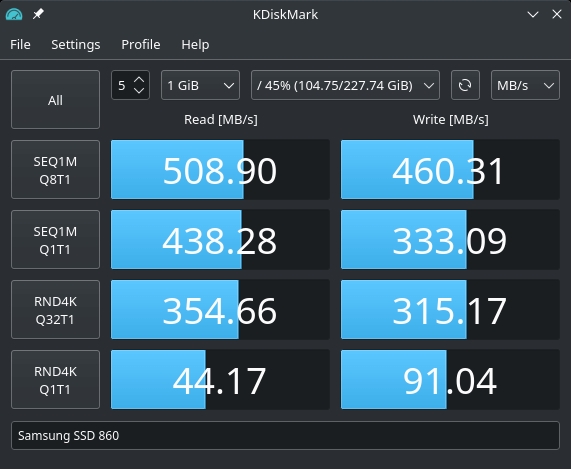
Note: Running the speed test for the internal SSD of Steam Deck can be risky and is not recommended for beginners, as it may corrupt or damage the internal SSD, making it a task for those who are confident in their skills.
When Should I Run Steam Deck Disk Speed Test
If you're experiencing issues with your Steam Deck, running a disk speed test can be helpful in resolving the problems. This test allows you to check the current condition of your hard disk, and there are several scenarios where it's recommended. These include situations where you need to troubleshoot disk-related issues, want to check the disk's performance, or are experiencing slow loading times or freezes. By running the test, you can get an idea of your disk's speed and identify any potential problems that may be causing the issues you're experiencing.
- Slow Game Loading: If you're experiencing slow loading times when launching games on your Steam Deck, it could be due to a slow disk speed, which can be identified by running a disk speed test.
- Inconsistent Performance: If your Steam Deck's gameplay suddenly starts to lag or slows down, it may be due to inconsistent disk speed, which can be identified through a disk speed test.
- Slow Bootup: If the Steam Deck takes too long to boot up, it may be due to a problem with the device's disk, which can be diagnosed using a disk speed test to identify the likely causes.
- New SD Card: Running a disk speed test is recommended when adding a new SD card to your Steam Deck, allowing you to compare the performance before and after the upgrade. This helps you assess the improvement in speed and performance.
Keeping a tap on your Steam Deck disk's performance is crucial, and disk speed tests can help you monitor its activity. By running these tests, you can stay informed about what's happening with your Steam Deck disk and compare its performance to average and optimal speeds. This allows you to determine if your disk is functioning well, making it easier to identify any potential issues.
Further Reading: Install Windows on Steam Deck
Bonus Tips on Optimizing Steam Deck Disk Speed
To optimize your Steam Deck disk speed, consider taking the following steps: while there are no exact answers, certain measures can be taken to improve performance. By running the Steam Deck disk speed test, you can identify areas for improvement, and then take action to optimize your Steam Deck speed. This may involve using tips and tricks to get the most out of your device.
- Upgrade the Steam Deck: The top-end Steam Deck model, with 512GB storage, is recommended for users who enjoy playing heavy, graphically demanding games on Steam Deck.
- High-Speed MicroSD Card: If you need more storage for your Steam Deck games, you can add an SD card. To get the most out of it, choose a card with high speed, specifically UHS-I or UHS-II. This will ensure a smooth gaming experience.
- Games on the Internal Storage: It's best to keep the most played games on the internal storage of the Steam Deck, as loading times are slower on SD cards compared to the device's internal storage. This allows for a smoother gaming experience.
- Check for Software Updates: Keeping your Steam Deck's OS updated to the latest version is also important for optimal performance, as the SteamOS is updated continuously and updating with it ensures your device performs at its best.
- Turn Off Adaptive Brightness: Users have found the Steam Deck's emulation feature to be the most frustrating aspect. Despite its promising concept, it has failed to meet expectations, causing battery drain and performance degradation, resulting in slower speeds.
Conclusion
The Steam Deck allows you to enjoy your favorite games at any time, but like gaming systems, it can also experience slow speed issues, leading to lagged gameplay and slow loading times. To keep your Steam Deck in optimal condition, running a disk speed test using Qiling Disk Master can help resolve any issues that may be degrading its performance.
FAQs About Steam Deck Disk Speed Test
Do you have more questions regarding the Steam Deck disk speed test? If yes, we have answered some of the most commonly asked questions regarding this topic below:
1. What is the average Steam Deck disk speed?
The Steam Deck's SSD speed depends on the generation used, with the third-gen model reaching 3000Mb/s and the 4th gen model reaching up to 5000Mb/s read and write speed.
2. Which is faster, Steam Deck SSD vs. SD card?
The Steam Deck SSD card is faster than a regular SD card due to its use of faster NAND flash memory and a more sophisticated controller, which allows it to manage data more efficiently.
3. Should I use EMMC or NVMe SSD on Steam Deck?
NVMe SSD is the preferred choice for Steam Deck due to its faster speed compared to eMMC, which is more suited for devices like digital cameras. NVMe SSD also offers superior read and write speeds, making it better equipped to handle large files.
Related Articles
- FREE MBR Repair Tool: How to Fix MBR on Internal and External Hard Disk
- How to Partition SSD From BIOS [2024 New Guide]
- Can't Delete Recovery Partition? Fix It Now!
- How to Remove Partition on External Hard Drive in Windows 11/10
- The Media Is Write-Protected? How to Fix It in Windows
This article provides clear, professional instructions on how to remove write protection from the media. It explains why the media is write-protected and offers detailed instructions on how to remove the write protection. Overall, this article is very helpful and easy to follow. - There Is Not Enough Space on C Drive to Extract This Package [Solved]
If you're trying to install software but getting an error message saying there's not enough space on drive C to extract the package, ! This tutorial will show you how to solve the problem and increase space in your C drive, regardless of whether you're using Windows 7, 8, or 10.
Products
Articles & Tutorials
- Data Recovery
- Data Backup
- File Recovery
- File Backup
- System Backup and Restore
- Disk and Partition Clone
- Technical articles
- Mobile articles
- Disk Master Help
- Windows Data Recovery Tutorials
- Windows Secure Delete Tutorials
- Windows Partition Management Tutorials
- Windows File Backup and Restore Tutorials
- Windows System Backup and Restore Tutorials
- Windows Disk Backup and Restore Tutorials
- Windows Clone Tutorials