Can't Delete Recovery Partition? Fix It Now!
Many Windows users encounter difficulties when trying to delete the recovery partition using the native Disk Management tool, as Windows often protects it for system restoration purposes. This partition contains critical system files that allow users to restore their computer to its original factory settings.
If you're looking to free up valuable storage space by deleting the recovery partition, there's a solution. The recovery partition can't be deleted directly, but Qiling will explain why and provide two simple ways to delete it successfully.
How to Solve Can't Delete Recovery Partition?
We will discuss and learn how to fix the issue of not deleting the recovery partition. Before the operation, please prepare the necessary steps and information.
- A computer
- A third-party partition manager (such as Qiling Disk Master)
- A backup of your recovery partition.
"Before performing the following methods, you can share this page on social media: "
Way 1. Qiling Disk Master - Best Partition Manager
Qiling Disk Master Professional is a powerful partition manager that makes it easy to delete the recovery partition without any hassle. This user-friendly software allows you to effortlessly manage, resize, and delete partitions, including the Windows recovery partition, and operates efficiently and safely, making it a reliable solution for your needs.
Here's how to do it:
Step 1. Open Qiling Disk Master, click on the "Disk Manager" tab page. Right-click on the recovery partition and select "Delete".
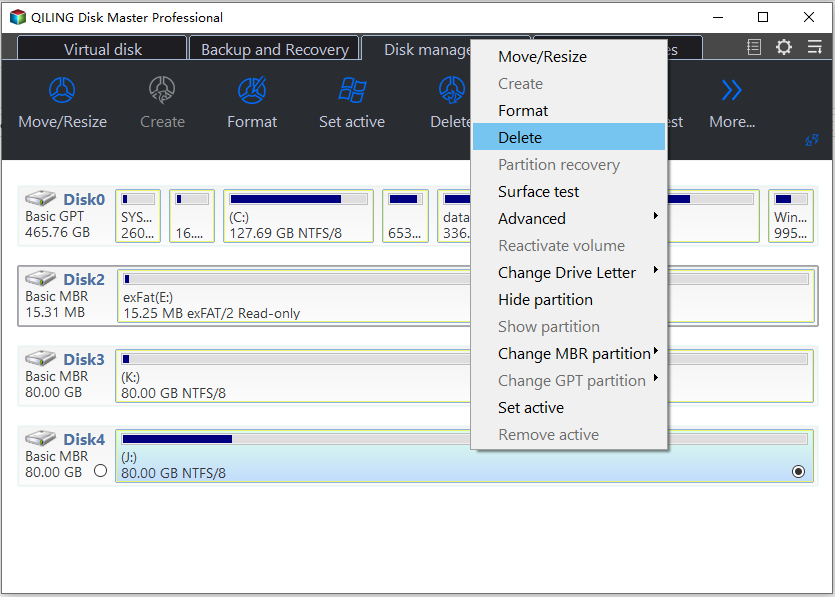
Step 2. Click "Yes" to confirm the message "Do you want to delete the selected partition?".
Other key features of Qiling Disk Master:
- Solve delete partition override not working
- Merge two recovery partitions
- Clone OEM partition in Windows
Qiling Disk Master is the best tool to delete the recovery partition, offering a safe, reliable, and easy-to-use solution. We highly recommend giving it a try.
Way 2. Run Diskpart to Remove the Recovery Partition
DiskPart is a command-The tool you're referring to is likely the "Disk Management" tool, which is a built-in feature of Windows. It allows users to manage disk partitions, including creating, deleting, resizing, and formatting partitions on their computer's hard drive or solid-state drive.
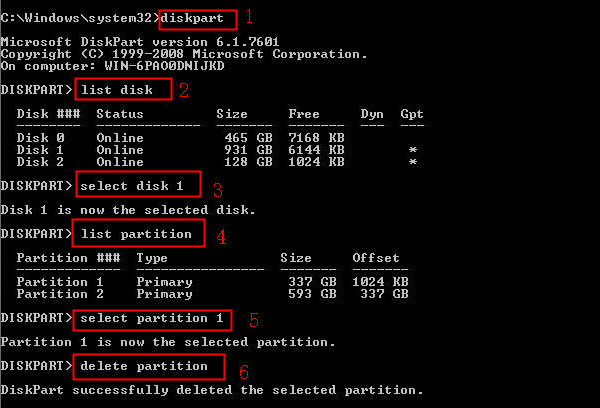
To delete the recovery partition using DiskPart, follow these steps:
Step 1. To run Command Prompt as administrator, you can search for the "Command Prompt" utility in the search box next to the Start icon on your Windows computer. This will allow you to open Command Prompt with elevated privileges, giving you the ability to perform administrative tasks and run commands that require higher permissions.
Step 2. Type the "diskpart" command and press Enter.
Step 3. The user types the "list disk" command and presses Enter, which lists all disk partitions.
Step 4. Identify the recovery partition.
Step 5. To select the recovery partition, type the "select disk #" command and press Enter, replacing # with the number of the recovery partition.
Step 6. To list all partitions under the USB, type "list partition" and hit Enter.
Step 7. To select a partition, type "select partition #" and press Enter, replacing # with the number of your partition. Double-check your disk number beforehand to ensure accuracy.
Step 8. `dban /w`
Step 9. Type the "exit" command to exit DiskPart.
Why Can't Delete Recovery Partition?
The recovery partition is a reserved area on a computer's hard drive that contains a copy of the operating system and other necessary files to restore the system to a working state in case of a system failure or crash. This partition is not meant to be deleted, as it serves as a safety net for the operating system. Attempting to delete the recovery partition can cause system instability, data loss, or even render the system unbootable.
The recovery partition, which contains essential boot files and system restore data, is protected by Windows to prevent accidental deletion, as it serves as a vital lifeline to restore the operating system in case of corruption or system failure.
If you've accidentally deleted the recovery partition on your Windows server, don't worry - there are steps you can take to recover. You can try running the built-in Windows Recovery Environment (WinRE) to see if it can fix the issue.

Get Solutions to Delete Server Recovery Partition
To delete the Windows server's recovery partition efficiently, you can try the following methods. Firstly, you can boot from the Windows Server installation media and use the built-in Disk Cleanup tool to remove the recovery partition.
Conclusion
Windows protects the recovery partition, making it inaccessible through Disk Management, but can be deleted using alternative tools like Qiling Disk Master or DiskPart.
To safely delete the recovery partition, it's recommended to have a computer backup or be prepared to reinstall Windows. Qiling Disk Master is a user-friendly solution that simplifies the process and ensures secure removal of the recovery partition, allowing you to reclaim valuable storage space on your hard drive.
FAQs About Can't Delete Recovery Partition
Performing brutal drive data destruction, also known as physical destruction, involves completely erasing data from a storage device, such as a hard drive, by physically damaging it. This can be done through various methods, including drilling into the drive, crushing it, or using a magnet to demagnetize the data.
1. Why do I have two recovery partitions?
If you have two recovery partitions, it's probably because you've upgraded your Windows operating system at least once, creating a new recovery partition each time. This new partition contains the files needed to restore your computer to the latest version of Windows.
💡For More Details: Why Do I Have 2 Recovery Partitions, How to Fix
2. How do I repair a corrupted recovery partition?
If your recovery partition becomes corrupted, it can cause issues with restoring your system. To repair it, you can follow these steps to ensure your recovery partition is functional again.
Step 1. Launch Command Prompt as an administrator.
Step 2. Run the Check Disk utility on the specified partition (* is the drive letter) with the following options: Fix errors (F), Recover bad sectors (R), and Force a dismount of the volume before scanning (X).
3. How can I merge recovery partitions?
To merge recovery partitions, you can use a third-party partition manager like Qiling Disk Master. With Qiling Disk Master, you can merge recovery partitions by following these steps:
Step 1. Launch Qiling Disk Master and right-click on one of the recovery partitions.
Step 2. Select "Merge Partitions".
Step 3. Select the other recovery partition from the list of partitions and click "Merge."
Step 4. Click "OK" to confirm the operation.
Related Articles
- Master Boot Record of This Hard Drive Is Damaged | Fix MBR Windows 10/8/7/Vista/XP
- Guide to Test Seagate Expansion Speed with Pictures in 2024
- How to Use Disk Management in Windows 10 | 2024 Tutorial
- Can I Format a 64GB USB Flash Drive to FAT32 and How?
You can only format a USB flash drive of at most 32GB to FAT32 in Windows. However, this article will show you how to format a 64GB USB flash drive to FAT32 in an effective and easy way. - How to Clone Hard Drive to Samsung SSD | Get Your Answer
With the rise in popularity of SSDs, many users are upgrading or replacing their HDD/SSD with Samsung SSDs to improve drive performance, gain more storage space, and resolve failing hard drive issues. - 2 Ways to Clone Seagate HDD to SSD | Try Seagate Disk Clone Software
You can clone a Seagate HDD to an SSD using the Seagate DiscWizard software that comes with the drive, which features cloning the entire disk to another. However, there are also some drawbacks to using this software, so another option is also available, Qiling Partition Wizard.
Products
Articles & Tutorials
- Data Recovery
- Data Backup
- File Recovery
- File Backup
- System Backup and Restore
- Disk and Partition Clone
- Technical articles
- Mobile articles
- Disk Master Help
- Windows Data Recovery Tutorials
- Windows Secure Delete Tutorials
- Windows Partition Management Tutorials
- Windows File Backup and Restore Tutorials
- Windows System Backup and Restore Tutorials
- Windows Disk Backup and Restore Tutorials
- Windows Clone Tutorials