How Long Does Windows 11/10 Update Take? Windows 10 Update Taking Forever Fixes
| Workable Solutions | Step-by-step Troubleshooting |
|---|---|
| How Long Does Windows 10 Update Take 2018/2019/2020/2021/2022 | It may take between 10 and 20 minutes to update Windows 10 on a modern PC with solid-state storage...Full steps |
| Why Does Windows 10 Update Take So Long |
A low-speed internet connection or simultaneous downloads; Microsoft is constantly adding...Full steps |
| 6 Useful Fixes for Windows 10 Update Taking Forever Issue | Optimize network, free up space, run Windows Update troubleshooter, disable startup programs...Full steps |
Windows 11/10 Update Taking Too Long
Windows 10 updates are frequent and can take hours to download and install, causing frustration. They typically occur twice a month and focus on stability, performance, and bug fixes, as well as new features. Users often experience long wait times for updates to complete, which can be annoying.
How Long Does Windows 11/10 Update Take
Between 10 and 20 minutes
Updating Windows 10 can take anywhere from 10 to 20 minutes on a modern PC with solid-state storage, or longer on a conventional hard drive, depending on the size of the update. The installation time can vary significantly, with smaller updates going unnoticed and larger ones taking a substantial amount of time to install.
Why Does Windows 11/10 Update Take So Long
The time it takes for Windows updates to install can be influenced by various factors, including the speed of the user's internet connection, the size of the updates themselves, and the overall performance of their computer hardware.
- A low-speed internet connection or simultaneous downloads
- The old hard disk drive on your computer is bursting with data, making it increasingly difficult to manage and access the information stored on it. The drive is struggling to keep up with the demands of your digital life, leading to slow performance, frequent crashes, and a general feeling of frustration.
- Too many fragments cause Windows 10 update slow
- Microsoft's servers are experiencing a high volume of traffic due to a large number of users attempting to download content simultaneously.
- Windows update components might be broken
- The software might be conflicting with Windows update
5 Effective Fixes for Windows 11/10 Update Taking Forever Problem
If you're experiencing slow Windows 10 updates, you're not alone. The 2018 updates, in particular, have been known to cause frustration with their lengthy processing times and blue screen loops. If you're stuck with a frozen computer, - there are methods to help you fix the issue. Let's try them out.
Method 1. Optimize Your Network
Upgrading to a faster internet connection, such as fiber-optic, or purchasing more bandwidth from your internet service provider may help solve the issue. Alternatively, using a bandwidth management tool to reserve sufficient network resources for Windows 10 updates could also be a solution.
Method 2. Free Up Hard Drive Space by Cleaning Large and Junk Files
Windows 10 updates require sufficient hard drive space, so it's essential to free up space by deleting junk and large files. When there are many files to delete, manual removal can be tedious, but using cleanup software can automatically delete large amounts of files quickly.
To fix the slow Windows 10 update issue, download a powerful disk management tool to optimize your system's performance and ensure a seamless update process.
Step 1. To resize or move partitions on your Windows PC, download and install the Qiling Partition Master Suite for free and launch it on your computer.
To install Qiling CleanGenius, hover your mouse on the "PC Cleaner" option on the suite, click the download icon to initiate the installation process, and then launch the application once it's installed.
Step 2. On Qiling CleanGenius, select "Cleanup" on the main screen, click "Scan" to start scanning, and then follow the on-screen instructions to complete the cleaning process.
Step 3.After the scanning process is complete, select the large files you no longer need and click "Clean" to remove them.
Step 4. When Qiling CleanGenius finishes cleaning the files you selected, click "Done" to complete the process.
Method 3. Fix Windows Update Errors with Windows Update Troubleshooter
Excluding internal hardware issues, it's likely just system bugs that cause your computer to crash into a blue screen, where Windows 10 gets stuck in an infinite update loop.
Windows has a built-in tool called the Windows Update Troubleshooter that can resolve issues preventing updates from installing by fixing any broken components.
Method 4. Disable Startup Programs That Conflict with the Update
You never know that third-If you're experiencing issues with Windows 10 updates due to conflicting applications, services, or drivers, try a clean boot of Windows 10 before attempting to install the new update. This can help resolve the problem by preventing these programs from running simultaneously with the update, which can cause conflicts.
Step 1. Press Windows + R keys to open Run.
Step 2. Type msconfig in the Run box and click OK.
Step 3. In the System Configuration, click the "Services" tab.
Step 4. Check the box Hide all Microsoft services.
Step 5. Click "Disable all".
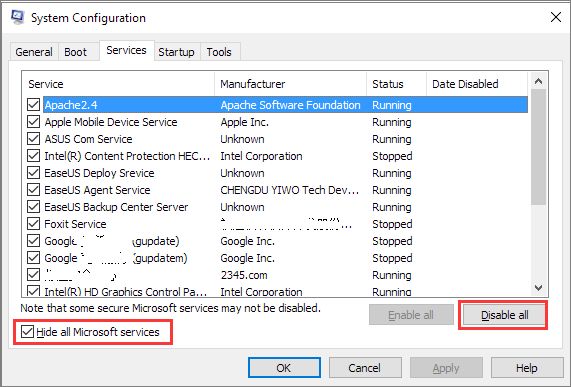
Step 6. Next, return and go on with the Startup tab.
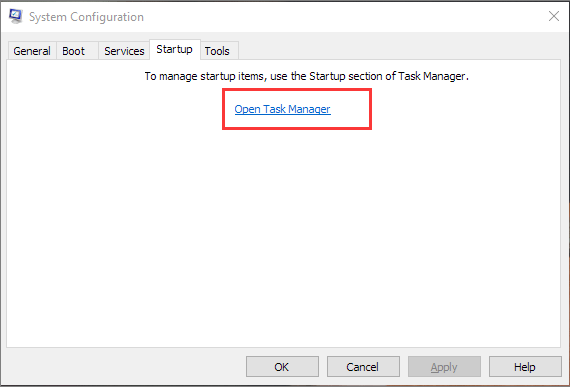
Step 7. Click Open Task Manager.
Step 8. Click on any suspicious startup program that may be conflicting with the update and click "Disable" to resolve the issue.
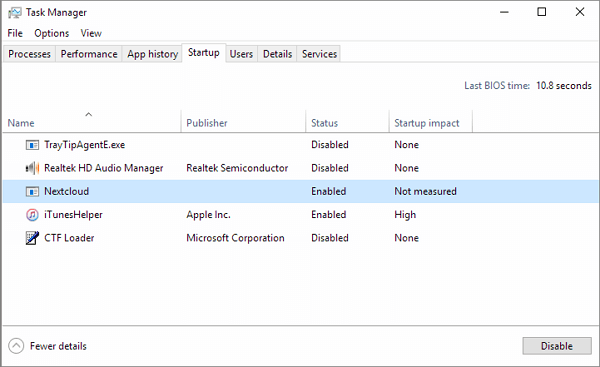
Repeat the previous step until all the startup programs in question were disabled.
Step 9. Close the Task Manager and click "OK" in the System Configuration window.
Step 10. Restart your PC and get the new update for the second time.
Method 5. Schedule Updates for Low-Traffic Periods
To avoid interruptions from Windows 10 updates, you can disable auto-updates and schedule them to run during off-peak hours when your computers and office network are not in use. This can be done by opening the Windows Update window and specifying a preferred installation time. This way, you can ensure that updates are installed efficiently without disrupting your work or internet connection.
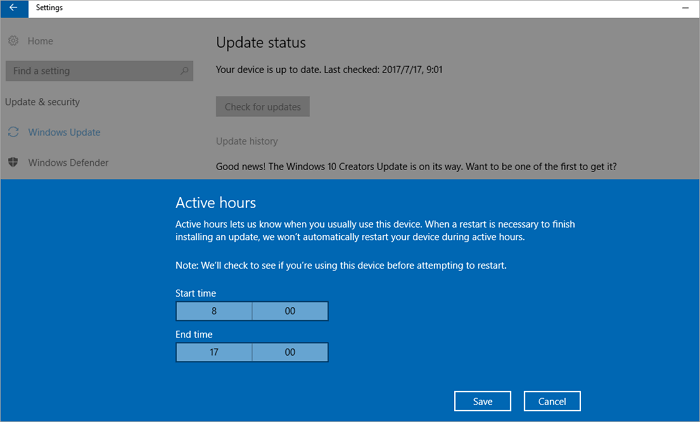
To avoid receiving any problematic Windows 10 update, you can disable the automatic update feature on your computer, which is enabled by default. This will prevent any unwanted updates from being installed in the future.
Whenever you experience a slow boot or startup issue after a Windows 10 update, you can find solutions on this page.
To Sum Up
This tutorial explores why Windows 10 updates are taking so long and provides six useful solutions to fix the issue. The most effective methods include freeing up storage space and defragmenting your hard drive, which can be easily achieved with the help of Qiling Partition Master Free.
This free disk management program simplifies complex hard drive organization, allowing tasks such as converting MBR to GPT, FAT to NTFS, and logical to primary or primary to logical partitions.
Windows 11/10 Update Taking Forever FAQs
1. How long does Windows 10 update take 2019?
Major updates to the Windows OS, which occur every six months, may take a little longer than the regular version, while the latter only takes 7 to 17 minutes to install. The most recent major update was in November 2019.
2. Why do Windows 10 updates take so long?
Windows 10 updates take a long time to complete due to the large size of the updates and additional factors such as small available space, hard drive fragments, software conflicts, and others.
3. Can I stop a Windows 10 update in progress?
You can stop Windows 10 updates in progress in the services.
Step 1. Open the Search windows box and type Services in Windows 10. Right-click Services and select "Run as Administrator".
Step 2. In the Services window, find the Windows Update service among the list of services running in the background.
Step 3. To stop Windows Update, right-click on the "Windows Update" icon in the system tray and select "Stop" from the context menu, or click on the "Stop" link available under the Windows update option on the top left side of the window.
4. How long does it take to update Windows 10 1903?
Upgrading to Windows 10 1903 can take around 30 minutes to install, plus a few minutes for configuring and restarting, totaling around 1 hour.
Related Articles
- Free Download Partition Magic for Windows 11/10 64 Bit
- SD Card Repair Tool - 10 Ways to Fix Corrupted Memory Card
- [Guide] How to Permanently Delete Files from Recycle Bin in Windows 11/10/8/7
- Easy and Step-by-Step Guide to Use SSD for OS Only
- How to: Extend System Partition on Windows 10 [Safely and Quickly]
Learn how to extend system partition on Windows 10 easily and safely, thus you can fix Low Disk Space warning or app responding slow issue effectively. - Extend Volume Is Greyed Out in Windows 10 – Fix it Effectively
Extend Volume is greyed out and can't extend partition even with unallocated space? Refer to this post to get know why the issue occurs and how to fix it.
Products
Articles & Tutorials
- Data Recovery
- Data Backup
- File Recovery
- File Backup
- System Backup and Restore
- Disk and Partition Clone
- Technical articles
- Mobile articles
- Disk Master Help
- Windows Data Recovery Tutorials
- Windows Secure Delete Tutorials
- Windows Partition Management Tutorials
- Windows File Backup and Restore Tutorials
- Windows System Backup and Restore Tutorials
- Windows Disk Backup and Restore Tutorials
- Windows Clone Tutorials