[PS4 USB Format] How to Format USB for PS4
What Format for PS4 USB?
Choosing the right file system for your device can be overwhelming with the numerous options available, including NTFS, FAT32, exFAT, and GFS, among others. Each file system has its own strengths and weaknesses, and the selection ultimately depends on the specific needs and requirements of the device, such as compatibility, security, and performance.
When formatting a USB for use with your PS4, it's essential to choose the right file system. Among the options, FAT32 and exFAT are the two file systems that are compatible with the PS4, so select one of these accordingly.
What is a File System?
A file system helps computers organize data on any drive, making it easier to find and access files; however, there are various types of file systems available.
On a Mac, the APFS file system is used, which is proprietary and can only be read by a Mac unless special software is used. However, universal file systems like NTFS can be read by both Mac and Windows computers.
Now that you know what a file system is and its importance, let's consider the best option for formatting your USB drive for your PS4 - FAT32 or exFAT.

File System, File System Format, Types of File System
This page compares four common file system formats - NTFS, FAT32, exFAT, and EXT2/3/4 - to help you choose the right one for your storage devices. Whether you're looking to store files on a hard drive, USB drive, or other device, understanding the differences between these file systems can ensure you select the one that best suits your needs.
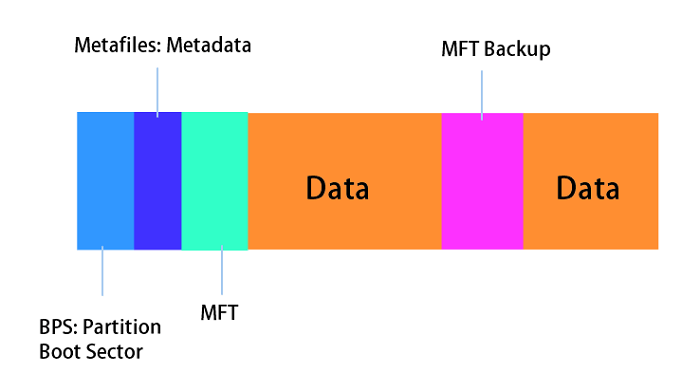
FAT32
The FAT32 file system, introduced in 1996, is a successor to FAT16 and is still widely used today, especially by Windows operating systems.
The FAT32 file system, over two decades old, has significant drawbacks for modern file sizes, limiting individual files to 4 GB, which is a major disadvantage for contemporary uses.
exFAT
exFAT is a file system introduced by Windows in 2006 that supports large individual file sizes, making it a popular choice for modern PC storage drives, such as hard drives and SSDs.
Is exFAT the same as FAT32 PS4?
exFAT is a file system that is used for USB drives that are connected to a PS4, and it has some benefits over FAT32, such as being able to handle larger file sizes and being more efficient with file allocation. Selecting FAT32 over exFAT for a PS4 USB drive is not recommended, as it may cause issues with file transfer and storage.
Although FAT32 has been around for 20 years, it's not the best choice due to its 4GB file size limit, making exFAT a better option for larger game files.
How to Format USB for PS4?
To format a USB for PS4, insert the USB drive into your computer and open the Disk Management tool. Select the USB drive and click on the "Format" option.
Formatting a USB Drive on PS4
Formatting an external drive to save backups on the PS4 is a bit more complicated than formatting it for general use. To do this, you need to format the drive in a way that the PS4 can read, which is typically in the FAT32 format.
To create backups without an external drive, you can use cloud storage services like Google Drive, Dropbox, or OneDrive. These services allow you to upload your files to the cloud, where they can be accessed from anywhere.
Step 1: Connect the external drive to your PS4 and open "Settings."
Step 2: Now, select "Devices" and open "USB Storage Devices."
Step 3: Format the external drive as an external storage device by selecting the option "Format as Extended Storage".
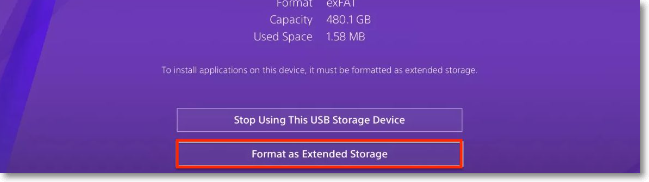
Step 4: The PS4 will automatically format using its own file system and encryption, making it difficult to access data from an external drive.
To use your external drive for saving backups, simply connect it to your computer, select the drive in the backup software, and choose the files or folders you want to back up. You can also set up automatic backups to run at regular intervals, ensuring that your important files are always up-to-date and safe.
Step 1: First, plug in your external drive and format it to exFAT. Then, go to Settings, open Devices and USB Storage Devices, and select your external drive from the list.
Step 2: To format your drive, click on the "Options" button and select "exFAT" from the menu.
Step 3: Once formatted, or if the drive was already formatted to exFAT, you should open the "Systems" menu.
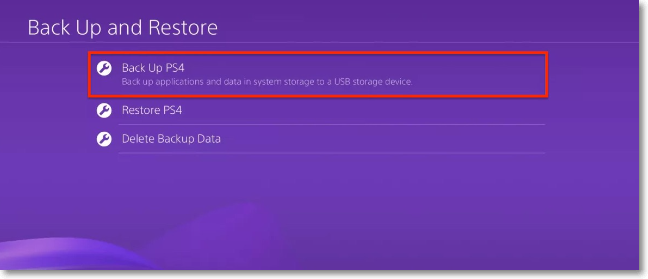
Step 4: To save your PS4 data on an external drive, go to the "Backup and Restore" menu and select the type of backup you want to save on the external drive by choosing "Back Up PS4".
Formatting a USB Drive on a PC
Here's how to format a USB drive to exFAT using a PC in one paragraph:
Step 1: Insert your USB drive into your PC and open File Explorer.
Step 2: Right-click on your USB drive, and click on "Format."
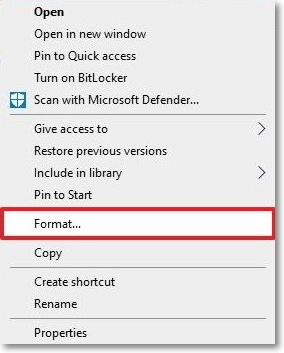
Step 3: Now select "exFAT" under the "File System" section.
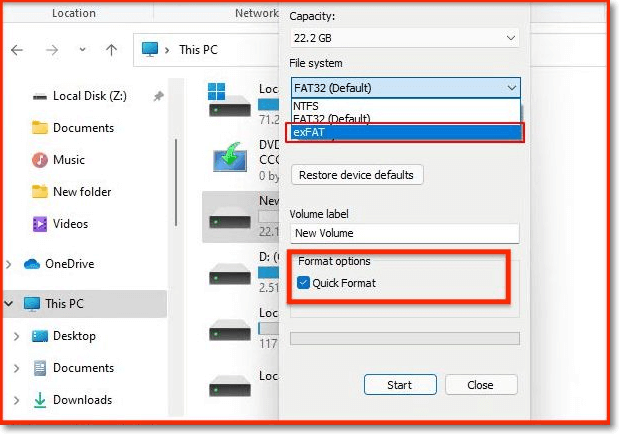
Step 4: To quickly format a drive, select the "Quick Format" checkbox and click the "Start" button.
Step 5: If you didn't see the USB drive in the "File Explorer" in the first place, you can try checking the "This PC" or "Computer" section instead. If it's still not showing up, try unplugging the USB drive and plugging it back in to see if that resolves the issue.
Step 6: After you plug in the USB drive to your computer, click on the magnifying glass icon on the taskbar.
Step 7: Search for "Create and format hard disk partitions" and open it from the results.
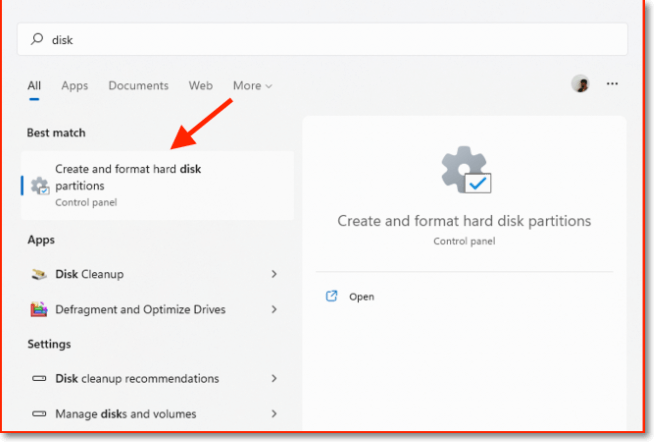
Step 8: To initialize a drive, right-click on it and select the Initialize drive option. Follow the subsequent prompts to complete the process.
Step 9: Once the process is finished, choose "New Simple Volume" in the striped region.
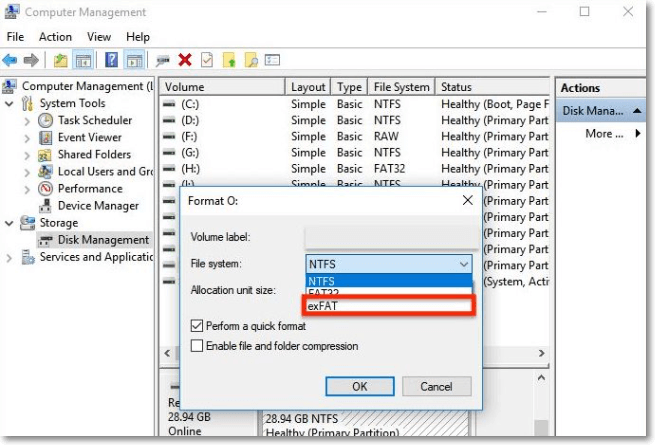
Step 10: Follow the prompts until you are prompted with the selection "File System."
Step 11: Choose "exFAT," and then click on "Next," followed by "Finish."
How to Format a Drive on a Mac
Unfortunately, Macs do not natively support formatting a USB drive to exFAT. However, you can format your USB drive to exFAT using the Terminal on your Mac.
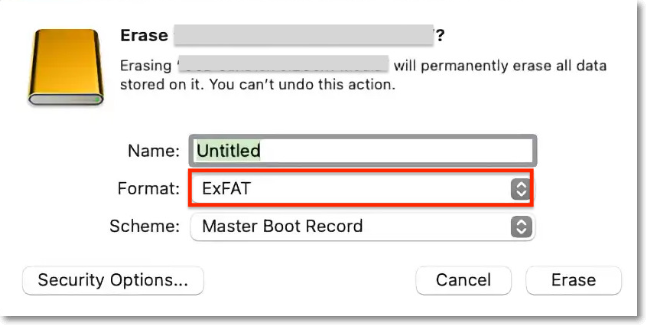
Step 1: To open Disk Utility, press the F4 button on your keyboard and search for "Disk Utility" in Spotlight.
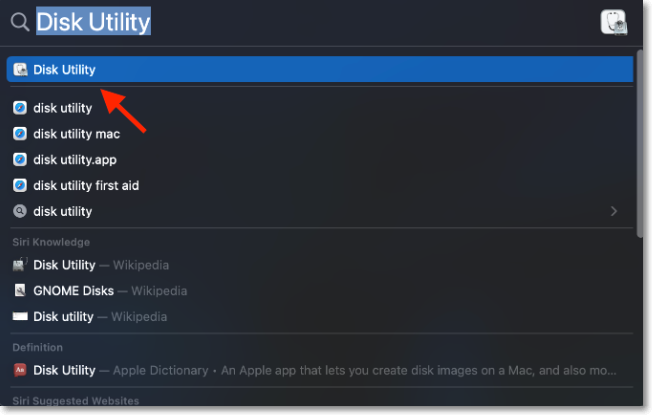
Step 2: Select the USB drive on the left section of the Disk Utility window, and right-click on it. A context menu will appear.
Step 3: Name the USB drive, select "ExFAT" as the format, and click on "Erase" to format it.
More Fix: PS4 Does Not Recognize USB?
If your PS4 won't recognize your USB device, it might be because the USB drive is formatted to NTFS or another file system that's not compatible with the PS4, which only accepts FAT32 and exFAT.
Here's what you need to do to fix this:
- Formatting your USB Drive to exFAT
- Check if the USB drive is compatible with the PS4
Formatting USB Drive to exFAT
Although the FAT32 file system is accepted by PS4, it's not ideal, and formatting a USB drive to FAT32 isn't recommended. Instead, formatting it to exFAT is suggested. By following the methods outlined, you can learn how to format your USB flash drive using PS4, PC, and Mac, and change it from NTFS to exFAT or FAT32 to exFAT.
Is your USB drive compatible?
If you're using an old USB drive with USB 2.0 architecture, it might not work properly with your PS4. This is because, although USB 3.0 is backward compatible with USB 2.0, the PS4 might still struggle to communicate with it.
It's generally recommended to buy a new USB flash drive from a well-known manufacturer like Samsung, Sony, or SanDisk for a more reliable and efficient experience.
In the End
The exFAT file system is widely used and considered superior, and formatting a USB drive with it is necessary for using it with a PS4.
If your PS4 doesn't recognize the USB drive, it's likely because it's not connected properly or not formatted to exFAT.
Related Articles
- How to Upgrade Switch SD Card and Transfer Switch Games to A New SD Card
- (Solved!) How to Backup Gmail Emails with Attachments for Windows 11/10/8/7
- Windows 10 Creators Green Screen of Death Fix
- Windows Update Troubleshooter Download Full Version [2022 Tips]
- What Is Dynamic Routing and What are the Dynamic Routing Protocols
Dynamic routing automatically finds the best data path across networks. Learn about RIP, OSPF, EIGRP, and BGP protocols, along with their pros and cons. - What Is File Compression and How Does File Compression Work
You can backup your Gmail emails with attachments using various methods. This article provides four practical ways to do so, allowing you to choose the one that suits your needs and back up your emails with attachments on your own.
Products
Articles & Tutorials
- Data Recovery
- Data Backup
- File Recovery
- File Backup
- System Backup and Restore
- Disk and Partition Clone
- Technical articles
- Mobile articles
- Disk Master Help
- Windows Data Recovery Tutorials
- Windows Secure Delete Tutorials
- Windows Partition Management Tutorials
- Windows File Backup and Restore Tutorials
- Windows System Backup and Restore Tutorials
- Windows Disk Backup and Restore Tutorials
- Windows Clone Tutorials