PS5 Can't Start Game or App, Everything You Want to Know in 2023
The PS5 may display an error message stating it cannot start a game or app, accompanied by error codes such as CE-100095-5, CE-107891-6, CE-107885-9, etc. To resolve this issue, users can try nine detailed fixes, which include restarting the console, checking for corrupted data, re-downloading the game or app, checking for conflicts with other devices, resetting the console's settings, and more.
The PS5 is unable to launch games or apps, and this issue can be frustrating. To efficiently solve this problem, it's essential to identify the possible causes, which may include various reasons. Fortunately, there are troubleshooting methods that can be employed to resolve the issue, and this article will summarize all possible causes and provide some effective solutions based on these causes.
Why PS5 Can't Start Game or App
The "PS5 was unable to launch the game or application" error can be caused by various factors, including PS5 system software version issues, storage device problems, system software or game incompatibility, and more.
- Error/bug in code
- Overheated hardware
- Unstable power supply
- Storage device failure
- Corrupted or missing system files
- Not enough storage space on the device
We will discuss the reasons for this issue in the next part. If you are facing this issue, don't miss the solutions below, which we will list in the next part.
You may also like:
9 Fixes for PS5 Can't Start Game or App [Step-by-Step Guide]
If your PS5 won't start games or apps, there are several possible reasons and fixes. These include checking for software updates, verifying the disc or game card, troubleshooting the controller, restarting the console, checking for conflicts with other devices, cleaning the console, checking for overheating, and performing a system restore. Additionally, you can try resetting the console to its factory settings, checking for corrupted data, and checking for issues with the PS5's storage.
- Fix 1. Reinstall the Faulty Game or App
- Fix 2. Restart the PS5 Console
- Fix 3. Check the Disk for Errors
- Fix 4. Check PS4 to PS5 Compatibility
- Fix 5. Change Saved Data and Game/App Settings
- Fix 6. Update the System Software
- Fix 7. Rebuild PS5 Database
- Fix 8. Factory Reset PS5
- Fix 9. Replace the Old Hard Drive
Now, This guide shows you all the guides on the nine fixes one by one. Let's start!
Fix 1. Reinstall the Faulty Game/App
The "PS5 can't open game or app" issue may occur when a game or application is not installed correctly or some of its core files are missing or corrupted. Reinstalling the game or app may resolve the issue, and can be done by following the steps to reinstall and try again.
Step 1. Open the PS5 console and navigate to its settings menu by clicking the gear icon.
Step 2. Scroll down the pop-up Settings menu to find and select "Storage".
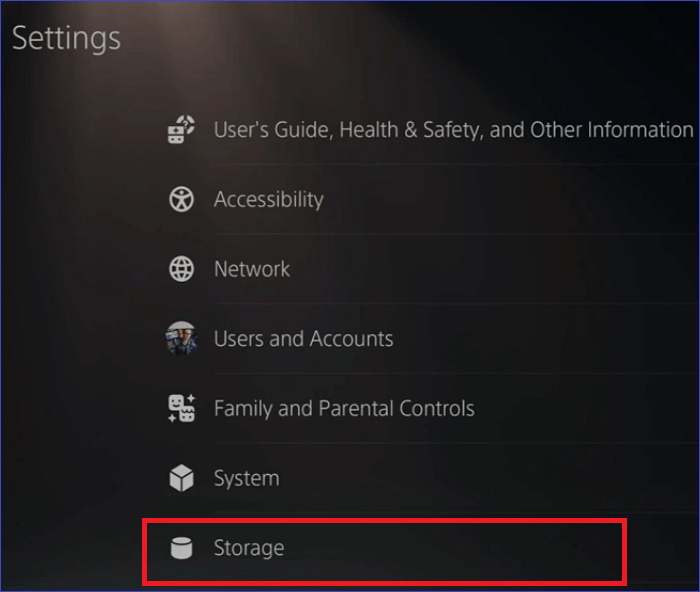
Step 3. To view a list of all PS5 games installed on your console, select the "Games & Apps" option. This will display a list of games, sorted by the time you've played them, with the game you've spent the most time playing at the top.
Step 4. To delete an app, scroll down the menu and select the target app or game. Then, choose "Delete" in the bottom right corner.
Step 5. To resolve the issue of a game or app not launching on your PS5, try restarting your console. After restarting, download and install the game or app again to see if the problem has been resolved. This simple troubleshooting step can often resolve issues related to corrupted data or temporary glitches that may have caused the game or app to malfunction.
PS5 No Sound? 8 Fixes Here! [Reasons Explained]
The error "HDMI cable not supported" is likely due to a faulty HDMI cable, system errors, or incorrect settings. To resolve this issue, you can try using a different HDMI cable, checking your system's settings for any conflicts, or resetting your system to its default settings. This should help resolve the problem and allow your device to recognize the HDMI connection.
Fix 2. Restart the PS5 Console
To fix the error, simply restart your PS5 console. This is a simple and easy solution that can resolve the issue. To do this, follow these steps below.
Step 1. First, turn off the PS5 console.
Step 2. Unplug the PS5 cable from the wall outlet and disconnect any peripherals, including the DualSense controller.
Step 3. Leave the PS5 console in this state for about 3 minutes, then plug the PS5 power cable back into the wall outlet.
Step 4. To set up your PS5, connect the DualSense controller to the console and turn it on. Let the PS5 system software load fully before proceeding.
2022 was a record-breaking year for the number of people who died from overdoses in the United States. According to the Centers for Disease Control and Prevention (CDC), there were over 107,000 overdose deaths in the country in 2022.
Fix 3. Check the Disk for Errors
If you're experiencing issues with your PS5, it's possible that the problem lies with the internal or external hard drive. To troubleshoot, it's recommended to check the hard drive for errors. The PS5 uses a PCIe Gen 4 M.2 NVMe SSD, making it essential to perform an SSD Health Check on the hard disk, and a great tool for this task is Qiling Disk Master.
The disk surface test and disk health features can help check the condition of your hard drive and maintain its health.
Step 1. Open Qiling Disk Master, right-click the disk you want to check and select "Surface Test".
Step 2. The operation will be immediately performed and all bad sectors will be marked as red.
After completing the disk surface test using Qiling Disk Master, you can now manage your disk with the software's various features, including managing disk space, checking disk usage, and more.
- Free up hard drive space
- Check HDD/SSD temperature
- Check SSD health on Windows
- Format external/internal hard drive for PS5/4
- Repair bad sectors on SD card/external hard drives
- Clone all game data before changing the hard drive
As a professional disk manager, you can use this tool to do a lot for your PS5. Download it to try.
Fix 4. Check PS4 to PS5 Compatibility
If you're experiencing the "PS5 cannot launch a game or application" error, specifically the error code CE-107885-9, it's likely due to incompatibilities with your current PS5 system software. To resolve this, ensure the game you're trying to launch is compatible with your PS5 console. This can be done by checking the game's system requirements or looking for any updates to your PS5's system software.
Fix 5. Change Saved Data and Game/App Settings
This is a possible solution for this error. Here are the steps on how to change the saved data and game/app settings:
Step 1. To access the saved data and game/app settings on your PS5 console, open the "Settings" menu and navigate to the "Saved Data" and "Game/App Settings" sections.
Step 2. Click on the "Game Presets" tab in the left pane, and navigate to the "Performance Mode" or "Resolution Mode" section.
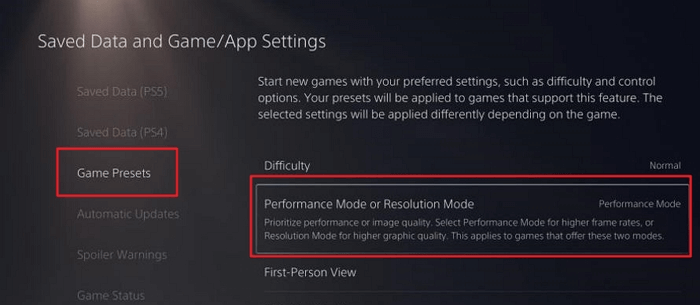
Step 3. Change it from Game Default to Performance Mode.
Step 4. Restart your PS5 and launch the app/game to try again.
Fix 6. Update the System Software
Updating the PS5 system software to the latest version can resolve various problems and malfunctions caused by outdated software. To do this, follow these steps: you can update the system software automatically by going to Settings > System > System Software, or you can manually download and install the latest version from the PS5's built-in browser. Alternatively, you can also update the system software from the PS5's home screen by navigating to Settings > System > System Software and selecting the "Update" option. It's essential to keep your PS5 system software up-to-date to ensure a smooth gaming experience and to fix any bugs or issues that may be affecting your console.
- Notice:
- Before we start, please ensure your console has a stable internet connection. It is recommended that you use an optical connection instead of Wi-Fi when updating system software.
Step 1. Go to Settings > System > System Software > System Software Update and Settings.
Step 2. Select the "Update System Software" option and follow the instructions to download and install any available update version.
Fix 7.Rebuild PS5 Database
This technique can help prevent the PS5 console from freezing or running slowly. To do this, you can try closing all background apps and games, and then restart the console. This will help clear out any unnecessary processes and free up system resources.
Step 1. To resolve the issue, download and use the PS5 Database Manager to rebuild the PS5 database. This tool can help restore the console's database to a clean state, potentially resolving the problem.
Step 2. Next, select Open Backup File by clicking "File."
Step 3. To rebuild your PS5 database, follow these steps: Press the PS button on your controller. Go to Settings > System > Storage. Select Rebuild Database.
Fix 8. Factory Reset PS5
If your PS4/PS5 is having trouble running a game or app, you can try factory resetting it to resolve the issue. To do this, follow the steps below: the steps below.
Step 1. To access the settings on your PS5, click the "Settings" option from the home menu. This will allow you to navigate to various settings options on your console.
Step 2. To reset your console, go to System Software, then select Reset Options, and finally choose Reset your console.
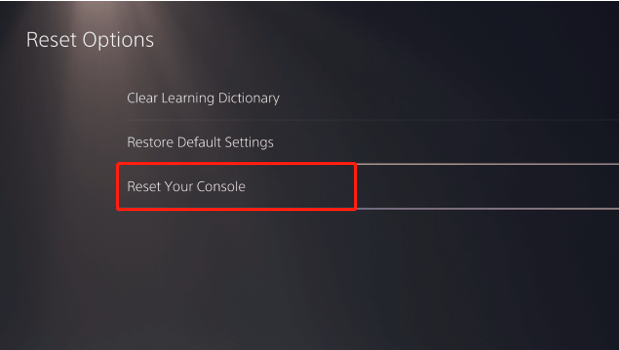
Step 3. To fix the issue with your PlayStation 5, try restarting the system and reinstalling the app or game, and see if the problem has been resolved.
- Notice:
- Sign back into your account if prompted.
Fix 9. Replace the Old Hard Drive
If your old hard drive is full or has reached the end of its lifespan, you can replace it with a new one and reinstall your apps and games. To avoid losing game data, clone all your data to the new drive by following the provided link. This will allow you to transfer your files and settings to the new drive.
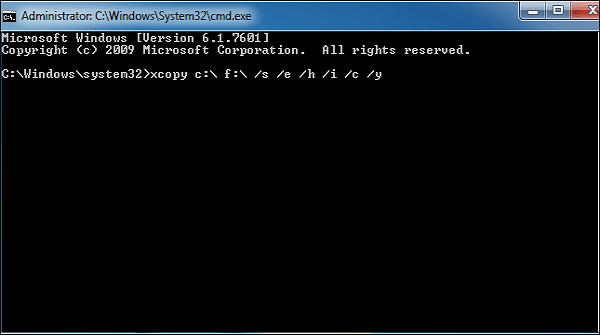
To copy a partition to another hard drive, you can use the built-in tool in Windows, called the "Disk Management" feature, or a third-party software like Qiling Disk Master. The process involves selecting the source and destination drives, choosing the partition to copy, and initiating the transfer.
On this page, you can learn about the importance of copying a partition to another hard drive and discover two methods to achieve this.
Conclusion
If your PS5 game or app won't start, you're likely seeing the "can't start the game or app" error message. This guide can help to fix this issue, follow these specific steps for each solution. By adhering to them, you can troubleshoot and resolve the problem.
You may also like:
The PS5 is a highly advanced gaming console, but like any electronic device, it can sometimes encounter issues. Some common problems include overheating, controller issues, and connectivity problems.
PS5 Can't Start Game or App FAQs
This issue may ruin your game experience. If you're experiencing problems with your PS5 not starting games or apps, there are other questions you can ask to help you learn more about the issue. You can check them out if you need further assistance.
1. What do you do when your PS5 says cannot start game?
To resolve the issue, you can try restarting your device, checking for software updates, and ensuring that your device's storage is not full. Additionally, you can try clearing the cache and data of the app that's causing the issue, or uninstalling and reinstalling it.
- Reinstall the faulty game or app
- Restart the PS5 console
- Check the disk for errors
- Check PS4 to PS5 compatibility
- Change saved data and game/app settings
- Update the system software
- Rebuild PS5 database
- Factory reset PS5
- Replace the old hard drive
2. Why is my PS5 not loading anything?
The possible reasons are as follows:
- Error/bug in code
- Overheated hardware
- Unstable power supply
- Storage device failure
- Corrupted or missing system files
- Not enough storage space on the device
3. Why is my PS5 stuck on closing this game or app?
If you're experiencing technical issues on your PS5, such as bugs and glitches, a simple solution is to restart your console. If the problem persists, you can contact PlayStation Support for assistance. This can help resolve the issue and get you back to gaming.
Related Articles
- Fix There Are No Free MBR Slots on the Disk [2023 Best Solution]
- How to Empty Trash on Mac [macOS Ventura Applicable]
- Windows 11 Keeps Crashing - All Methods to Fix
- What Are the Best External SSDs for Backup [5 Recommendations]
- Computer Keeps Crashing When Playing Games - How to Fix?
Have you encountered the computer keeps crashing when playing games error? What to do if the PC continues crashing while gaming? Please read about the best solutions, their steps, and additional safety benefits. - What to Do If Computer Restarts After Shutdown (for Windows 11/10/8/7)
If your computer is constantly restarting after shutdown. To troubleshoot this issue, it's essential to understand why it happens. You can identify and potentially resolve the underlying cause of the issue.
Products
Articles & Tutorials
- Data Recovery
- Data Backup
- File Recovery
- File Backup
- System Backup and Restore
- Disk and Partition Clone
- Technical articles
- Mobile articles
- Disk Master Help
- Windows Data Recovery Tutorials
- Windows Secure Delete Tutorials
- Windows Partition Management Tutorials
- Windows File Backup and Restore Tutorials
- Windows System Backup and Restore Tutorials
- Windows Disk Backup and Restore Tutorials
- Windows Clone Tutorials