How to Check SSD Health on Windows 10 [Safe & Efficient Guide]
Knowing how to check SSD health is crucial to protecting your data, especially since SSDs are increasingly replacing traditional hard drives. While SSDs have improved in speed and reliability, they are not invincible and can still be damaged or corrupted. To safeguard your SSD and the data stored on it, it's essential to learn how to check SSD health on Windows 10.
How to Check SSD Health on Windows 10 - 5 Safe and Efficient Ways
To check SSD health on Windows 10, you can use either third-party software or built-in tools, depending on your needs. One option is to use Qiling Disk Master Professional, a user-friendly utility that's great for those new to computing. With this tool, you can easily monitor and maintain your SSD's health, and it's a good starting point for learning how to check SSD health on Windows 10.
Way 1. Check SSD Health on Windows 10 via Qiling Disk Master
Qiling Disk Master is easy to use with its clear interface, allowing users to check SSD health with simple steps. It supports all Windows versions and is widely compatible. The tool provides a detailed health report, including the SSD's status, temperature, total host write, total host read, and more, giving users a clear understanding of their SSD's condition. To try it, simply download the tool and follow the guide.
- System supported: Windows 11/10, Windows 8.1/7, Windows XP/Vista
- Interface: Clear
- Operation difficulty: Low
- Targeted users: Beginners and experienced users
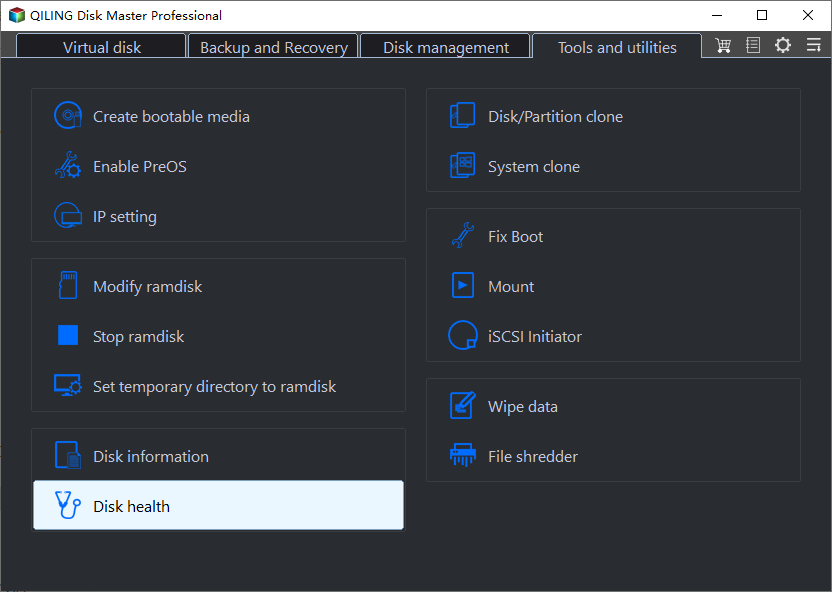
Step 1. Launch Qiling Disk Master, click the blue arrow to activate the "Disk Health" feature under the "Tools and utilities" tab.
Step 2. Select the target disk and click the "Refresh" button to see the health condition of your disk.
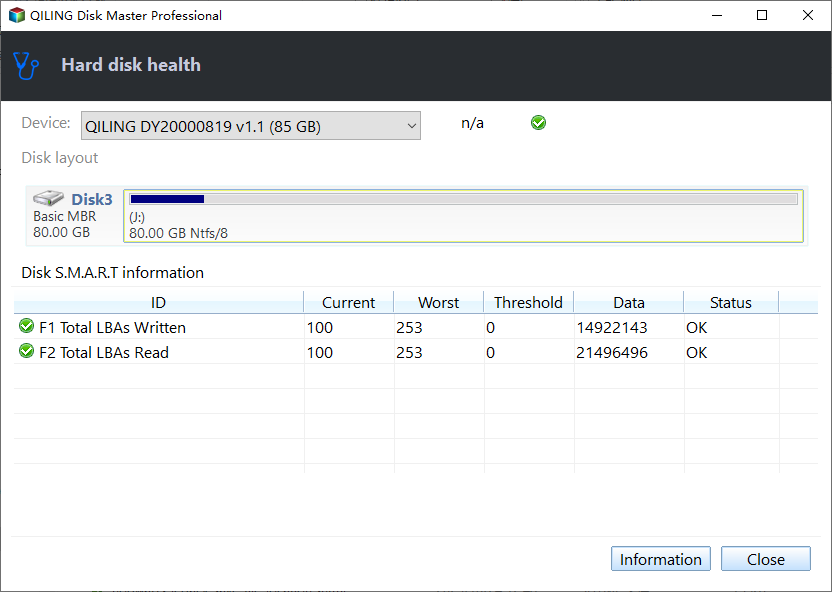
Qiling Disk Master is a powerful tool that allows you to scan, check, and manage your disk drives. It provides a detailed report of your disk's condition, including disk space usage, file system errors, and other issues.
Key features of Qiling Disk Master:
- Check SD card health
- Perform USB health check
- Check the health of HDD/SSD
- Split or merge partitions on SSD
- Check SSD temperature on Windows 10
- Check hard drive health on Windows 7
- Resize/delete/create/format partitions on SSD
If you are facing issues related to the disk partition, download it to help.
Way 2. Check SSD Health on Windows 10 via CMD
To check your SSD health on Windows 10 via Command Prompt, you can use the built-in tool called `chkdsk`. Here's how: Open Command Prompt as an administrator, type `chkdsk /x C:`, and press Enter. Replace `C:` with the drive letter of your SSD.
Step 1. To open a Command Prompt window, press the Windows icon + R, type "cmd," and press Enter.
Step 2. Type "wmic" and press "Enter" in the new window.
Step 3. Type "diskdrive get status" and press the Enter key.
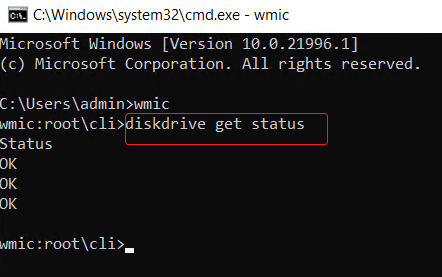
Step 4. Then, the CMD will display every drive, followed by one of two statuses:
OK - Your SSD has a healthy performance.
Pred Fail - Your drive may crash anytime soon.
If the status is Pred Fail, back up your data or clone SSD immediately to prevent data loss.
If you have little experience in computing, it's recommended to use Qiling Disk Master instead of CMD, as it requires basic computing knowledge.
You can click the link below to check the health condition of your external hard drive.
To check the health of an external hard drive on Windows 10/11, follow these steps: Open the File Explorer and locate the external hard drive. Right-click on it and select "Properties" from the context menu.
To reduce data loss, regularly check the health of your external hard drive by running a disk check or using software like CrystalDiskInfo to scan for errors and potential issues. This can help identify any problems before they cause data loss.
Way 3. Check SSD Health on Windows 10 via PowerShell
PowerShell can be used to retrieve all physical disks visible to any storage management provider and display the details of your Solid-State Drive (SSD). To check SSD health using PowerShell, follow the steps:
Step 1. Type PowerShell in the Windows 10 search box and open it as the administrator.
Step 2. Then type the following command: Get-PhysicalDisk

Step 3. The status of your SSD will appear.
PowerShell is a built-in tool in Windows with a wide range of features. If you're interested in learning more about using PowerShell to format a disk, you can click here to explore that topic further.
Way 4. Check SSD Health on Windows 10 via Windows Setting
You can check the health of your SSD through Windows settings, but this method will only allow you to track the estimated remaining life, available spares, and temperatures, not a detailed report.
Step 1. To open the Windows Settings, press the Windows icon + I on your keyboard. This will open the Settings window, where you can customize various aspects of your Windows experience.
Step 2. Choose Storage > Advanced storage setting > Disks & Volumes.
Step 3. The estimated remaining life, available spare, and temperature details can be viewed under Drive health by clicking Properties.

Which way do you like to check SSD health on Windows 10? We will continue to provide more ways to check SSD status. You can click the social buttons to share and discuss with your friends!
Way 5. Check SSD Health on Windows 10 via Defragment and Optimize Drives
This feature, Defragment and Optimize Drives, can display the status of your SSD, organizing the data on your SSD to help with the SSD speed, making it run more efficiently.
Step 1. Navigate to Instant Search from the Windows taskbar.
Step 2. Search for Defragment and Optimize Drives and launch the tool.
Step 3. The current status of the SSD can be checked in the status section, specifically in the Current Status column.
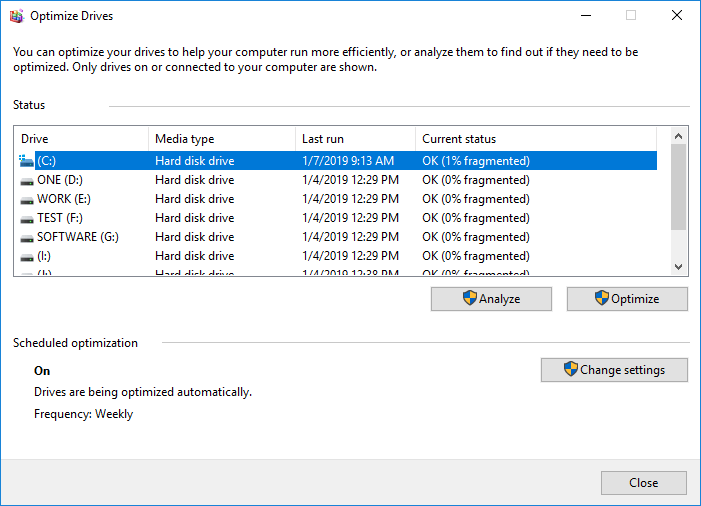
Step 4. If the status is "OK", that's good. If not, click the "Optimize" button to fix it.
- Notice:
- Defragmenting and optimizing drives can indeed be detrimental to SSDs, as they can cause wear and tear on the drive. This is because SSDs have a limited number of write cycles, and the process of defragmenting and optimizing can lead to excessive writing.
Now that we've finished learning the five ways to check SSD health, we can explore more ways to check hard drive health. To continue learning, you can click on the video below for additional details.
Here are some other links related to SSD. Click them if you are facing similar problems:
Why Check SSD Health on Windows 10
SSDs are replacing HDDs due to their silence, speed, and durability, but they have a limited lifespan that depends on usage. To ensure their optimal performance, it's essential to regularly check their health. This is because SSDs have a limited lifespan, and checking their health can help identify potential issues before they become major problems.
- Check SSD health status: Checking SSD health helps to identify any issues with the solid-state drive, including bad sectors, and provides an overall condition report, allowing you to take necessary actions to maintain its performance and longevity.
- Protecting against SSD failure: Performing a health check on your SSD on Windows 10 can help identify the cause of any failure, allowing you to take corrective action and potentially fix the issue.
- Optimizing SSD performance: To enhance SSD performance, you can perform tasks like garbage collection and adjust other parameters.
- Test SSD speed (transfer speed): An SSD health check may reveal a slow SSD write speed, which can be identified as an "SSD slow write speed" error.
You should check SSD health regularly, but there are some specific situations where you need to check the status of your SSD, such as when you notice your computer is running slower than usual, or if you've recently installed a new operating system or software that may have affected your SSD's performance. Additionally, if you've been experiencing issues with your SSD, such as errors or crashes, it's a good idea to check its status to identify the problem and potentially resolve it.
- Saving files takes a long time
- Your PC crashes for no reason
- Your SSD is becoming sluggish
- Most file systems are not functioning properly
- You dropped your SSD, or you spilled water on it
- Get unexpected bad blocks and read-only errors
You May Also Like:
To perform an SSD health check on Windows 10, there are several methods available. You can use built-in tools like the Disk Management console or the Disk Cleanup tool, or opt for third-party software such as CrystalDiskInfo or HDDScan. Additionally, you can check the SSD's firmware version and update it if necessary, or use the built-in Windows tool, Check Disk, to scan the SSD for errors. Furthermore, you can also use the Event Viewer to monitor the SSD's performance and detect any potential issues.
Conclusion
Checking your SSD's health regularly can help prevent data loss and economic loss by identifying potential issues before they become major problems. This can be done by following the steps mentioned, which provide a detailed guide on how to check your SSD's health.
Qiling Disk Master can be helpful for those who are new to computing, as it provides a user-friendly interface to display the health condition of an SSD without requiring any command-line input. It can be downloaded to assist.
Check SSD Health on Windows 10 FAQs
Checking SSD health on Windows 10 is crucial for daily use. In addition to the questions mentioned, there are other frequently asked questions related to SSD health that users often wonder about. To address these concerns, here are some answers to help users better understand and maintain their SSD's health.
1. How do I know if my SSD is failing Windows 10?
The common signs of SSD failure are below:
- Slow running speed.
- SSD becomes read-only.
- Frequent blue/black freeze errors.
- The app freezes or crashes frequently.
- Your machine won't boot due to a "No bootable device" or "No bootable medium" error on Windows or a blinking question mark on Mac.
2. How do I check my SSD speed and health?
To check SSD speed and health, follow the guide below:
Step 1. Download and open Qiling Disk Master.
Step 2. Find "Disk Health" under the "Discovery" section.
Step 3. Choose the target disk you want to check.
Step 4. The check result will show immediately.
3. How do I run an SSD test on Windows 10?
Testing an SSD can be done in various ways. To do so, follow these steps:
Step 1. To open the Windows Settings, press the Windows icon + I on your keyboard.
Step 2. Click Storage > Advanced storage setting > Disks & Volumes.
Step 3. Click Properties, and you can see its estimated remaining life, available spare, and temperature details, all in one place.
Related Articles
- How to Format Hard Drive from BIOS Windows 10
- Full Guide to Check How Much Disk Space Do I Have in 2026
- Fix: Boot Configuration Data File Doesn't Contain Valid Information for an Operating System
- How to Format USB Flash Drive to FAT32 (Applies to 32GB/64GB/128GB...)
- How to Check Disk Space in Windows 7 [Step-By-Step Guide]
If you're still using Windows 7, this post can help. It provides two simple methods to check disk space on Windows 7. - Guide on Checking Disk Speed in Windows 10 Using CMD [2024 Tutorial]
Protecting your data requires that you keep tabs on your SSD's performance. This article explains how to check disk speed Windows 10 cmd.
Products
Articles & Tutorials
- Data Recovery
- Data Backup
- File Recovery
- File Backup
- System Backup and Restore
- Disk and Partition Clone
- Technical articles
- Mobile articles
- Disk Master Help
- Windows Data Recovery Tutorials
- Windows Secure Delete Tutorials
- Windows Partition Management Tutorials
- Windows File Backup and Restore Tutorials
- Windows System Backup and Restore Tutorials
- Windows Disk Backup and Restore Tutorials
- Windows Clone Tutorials