How to Check Disk Space in Windows 7 [Step-By-Step Guide]
To check Windows 7 disk space, follow these simple steps: open the Start menu, click on "Computer" (or "My Computer" in some versions), and then select the drive you want to check (usually C:). In the window that opens, look for the "Properties" option and click on it.
| 🎯Goal: | Check disk space in Windows 7, learning well what is taking up space on hard drive. |
| ⏳Duration: | 3-5 minutes |
| 🧰Tools: | 1️⃣Hard drive; 2️⃣Windows 7 computer; 3️⃣Disk space checking methods -Qiling Disk Master & CMD |
| 💽Supported Disk Drives: | HDD (Hard Disk Drive) (PATA hard drive, SATA hard drive, SCSI disk), SSD (Solid State Drive), NVMe/M.2 SSD, external hard drives, etc. |
Key Takeaways to Check Disk Space Windows 7
- Your computer may become sluggish or programs may "hang" when checking specific files due to low disk space on your hard drive.
- If your system has low disk space, it may experience performance issues, making it difficult to install new software or save files, potentially leading to errors.
It's crucial to regularly check and free up disk space to ensure you have room for new files by deleting unnecessary ones.
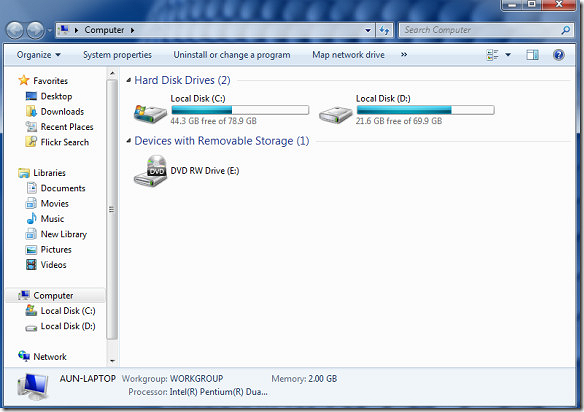
To check disk space in Windows 7, you can follow these steps: open the Start menu, type "Computer" in the search bar, and press Enter. This will open a window showing the available disk space for each drive connected to your computer. You can also right-click on the "Computer" icon on the desktop and select "Properties" to view the disk space information. Alternatively, you can open the Disk Management console by typing "diskmgmt.msc" in the Run dialog (Windows key + R) and view the disk space usage for each drive. This provides you an idea of how much space is available on each drive and help you identify which drive is running low on space.
If you have the same need to check disk drive space on newer systems, you may refer to this tutorial page for help:

How Can I Check Disk Space in Windows 10
Discover how to check disk space in Windows 10 with our step-by-step guide. We'll show you two methods to easily check your available disk space, and provide bonus tips for efficient storage management, helping you make the most of your computer's storage capacity.
What Is Taking Up Space on My Hard Drive Windows 7
Here are some types of data and programs that could take up the most disk space in Windows 7:
📄System files: Windows 7 uses a significant amount of disk space for its operating system and system files, including the pagefile.sys, Windows registry, and hibernation data.
📌Applications and Programs: Installed applications and programs, especially large ones with multiple files, can consume a significant amount of disk space, contributing to a lack of available space. Examples of space-hogging applications include Microsoft Office, Adobe Creative Suite, and video editing programs.
🎬Media Files: Large files such as photos, videos, and music can take up a lot of space, especially if they are high quality, and can quickly add up if you have many of them. Examples include RAW format photos, High Definition videos, and high-quality audio files.
📑Temporary Files: Temporary files can quickly consume disk space as the system and apps generate them, including browser caches, download directories, and temporary installation files.
🗂️Personal Files: Personal items like documents, spreadsheets, and presentations can take up a substantial amount of space on your hard disk.
🔍Further Reading: How to Find Large Files on Windows 10
To keep your system running smoothly and free up disk space, regularly check and delete unnecessary files, such as system logs, temporary files, and other data that can be removed.
Guide on Checking Disk Space in Windows 7
This section introduces two methods to check disk space: using Qiling Disk Master, a third-party tool, and the Command Prompt. Both methods will be discussed, along with their pros and cons.
| Comparison | Qiling Disk Master🏆 | Command Prompt |
| ✅Pros |
|
|
| ❎Cons |
|
|
| 🧑🏻💻Best For (who/what types of users) | Data protection is a top pick for users who want to keep their hard drives in good condition, making it a top choice for those who want to preserve their storage. | It is best for writing scripts for automating tasks |
| 🎈Why Use It | Qiling Disk Master is a software tool that helps users analyze and manage their hard drives, optimizing disk space usage to keep their storage organized and efficient. | Users can use some built-To analyze disk space usage in Command Prompt, you can use the following commands: |
The Command Prompt may have limitations in providing information and may not be suitable for complex disk management tasks, requiring a more suitable tool.
For Windows beginners, we recommend using Qiling Disk Master to check disk space in Windows 7.
Method 1. Check Disk Space in Windows 7 with Qiling Disk Master
With the "Disk Space Analyzer" tool in Qiling Disk Master, analyzing disk space becomes a straightforward process.
Users can quickly and easily analyze their disk usage with one click, getting information such as overall file and folder sizes, disk space usage percentage, and number of files.
Qiling Disk Master's Disk Space Analyzer is a useful tool for Windows users to quickly and easily analyze their disk space consumption, identify and manage large files and folders, and optimize disk space utilization.
Download Qiling Disk Master to experience its impressive features, which will surely amaze you!
If you're struggling to identify what's consuming your disk space in Windows 7, this method can be a lifesaver. By using the Disk Cleanup tool, you can quickly scan your hard drive and see which files and folders are taking up the most space.
Method 2. Check Hard Disk Size/Space in Windows 7 Using Command Prompt
Windows 7 and recent versions of Windows include a command-line-based interpreter called Command Prompt (CMD). This allows users to type commands to perform administrative tasks and troubleshoot specific Windows problems, including determining the total storage space of all hard drives in a computer.
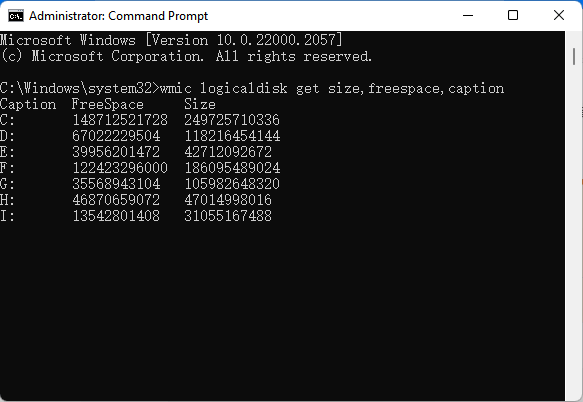
Step 1. To launch Command Prompt with administrative privileges, type "cmd" into the "Type here to search" box at the bottom left of the screen, then select "Run as administrator" from the search results. This will open Command Prompt with elevated permissions.
Step 2. The command `wmic logicaldisk get size, freespace, caption` is run, and after a brief pause, the output appears, displaying the numeric representation of the hard drive space.
Bonus Tips on Mastering and Managing Disk Space Properly in Windows 7
To manage your disk space more efficiently, use the Disk Cleanup tool to delete temporary files and system files you no longer need, and compress files to save space using the built-in Windows 7 utility. Regularly cleaning up your computer's temporary files and system files can also help free up space on your computer.
- Deleting unnecessary files Remove unnecessary files to maintain your computer's performance and functionality by getting rid of irrelevant files on a regular basis.
- Uninstalling unused programs Unused programs can significantly impact your computer's performance and security, as they can consume system resources, create clutter, and potentially leave security vulnerabilities.
- Using disk cleanup tools Using a disk cleanup tool can help remove unnecessary files and free up space, which can improve your PC's performance by making it run more smoothly and efficiently.
- Upgrade Windows 7 OS disk to a newer hard drive Installing a solid-state drive (SSD) can help improve your computer's performance, and free up space on your hard drive.
- Turn off hibernation When hibernation is enabled, it can consume a significant amount of disk space due to the large hiberfil.sys file it creates. If you don't use hibernation, you can disable it to free up disk space.
- Turn off system restore If you don't use Windows' system restore feature, you can save some disk space by turning it off. This is because Windows automatically backs up your data at regular intervals, which can take up some space on your computer. By disabling system restore, you can free up some of that space.
- Use Cloud Storage Use cloud storage services like Dropbox, Google Drive, or OneDrive for files you don't need immediate access to, freeing up local storage space.
- Compressed Files You can save space on your hard drive by compressing large files using a built-in Windows utility.
- Remove Backups You should remove backups that are no longer needed after using a backup program, as they can accumulate and take up a lot of space over time.
Here are some bonus tutorial guides and you may follow the provided links here for help:
Conclusion
Having some disk space available on your computer is preferable, and there are two easy to complete methods to check disk space in Windows 7. By using the built-in Disk Cleanup tool, you can easily identify and delete temporary files, system files, and other items that are no longer needed, freeing up disk space. Alternatively, you can use the Windows Task Manager to check the disk space usage, which can help you identify which programs or processes are consuming the most disk space, allowing you to take action to free up space.
To maintain optimal system performance and prevent data loss, it's essential to regularly check and manage your disk space. Qiling Disk Master, a third-party software, can help optimize and free up space by easily removing unnecessary files. By downloading Qiling Disk Master and following the provided guidelines, you can take advantage of its features and ensure your system runs smoothly.
FAQs About Checking Disk Space Windows 7
To check disk space in Windows 7, simply click on the Start button, then select Computer. In the window that opens, you'll see a list of all the drives connected to your computer, including your hard drive.
1. How to free up disk space in Windows 7?
Here are a few simple methods to free up disk space on your system: Delete unnecessary files and folders, empty the recycle bin, and check for duplicate files. You can also use the built-in storage sense tool to identify and delete temporary files, system logs, and other unnecessary data.
- Uninstall unused applications and programs
- Clean your desktop
- Delete all huge files
- Utilize Disk Cleaning Tools
- Take care of downloads
- Save data in the cloud.
2. How to check total disk space in Windows 10 using CMD?
- To open the Command Prompt with administrator privileges in Windows 10, search for "Command Prompt" in the Start menu, right-click on the result, and select "Run as administrator." This will open the Command Prompt with elevated privileges, allowing you to run commands that require administrative access.
- Running the command `wmic disk drive get size` will display the total size of all disk drives on the system, providing a figure that represents the total amount of disk space.
3. Is there a free Windows 7 disk space analyzer?
Yes, CMD is a built-The Qiling Disk Master tool offers a range of features that can be used to manage disk space and partition hard drives. With its user-friendly interface, you can easily create, delete, and resize partitions, as well as move or merge them. Additionally, the tool allows you to allocate disk space to specific partitions, making it easier to organize your files and data. You can also download Qiling Disk Master and take advantage of its free features, which provide a flexible and convenient way to manage your disk space and partitions.
Related Articles
- PC Reset Stuck At 99%, What Should I Do? Your Answer Here
- How to Move Unallocated Space to C Drive in Windows 10/11
- How to Check Seagate SSD Temperature on Windows 10/11
- Fix 'The Selected Disk Has an MBR Partition Table' Error Efficiently
- 6 Ways to Fix Winload.efi Missing on Windows 11/10
This guide provides essential information about the common Windows 11/10 error 'Winload.efi Missing.' It offers solutions and insights into the causes of this issue, helping you resolve it effectively. - How to Perform Xbox Series S Internal SSD Upgrade💡
Upgrading the internal SSD of the Xbox Series S is a process that can be completed with some guidance.
Products
Articles & Tutorials
- Data Recovery
- Data Backup
- File Recovery
- File Backup
- System Backup and Restore
- Disk and Partition Clone
- Technical articles
- Mobile articles
- Disk Master Help
- Windows Data Recovery Tutorials
- Windows Secure Delete Tutorials
- Windows Partition Management Tutorials
- Windows File Backup and Restore Tutorials
- Windows System Backup and Restore Tutorials
- Windows Disk Backup and Restore Tutorials
- Windows Clone Tutorials