PC Reset Stuck At 99%, What Should I Do? Your Answer Here
If your PC reset is stuck at 99%, you're not alone. The reset process can sometimes get stuck at any percentage for a few minutes, but if it takes longer than 5 hours, there might be an underlying issue that needs to be addressed before attempting fixes. Understanding why the reset is stuck is crucial before proceeding with solutions.
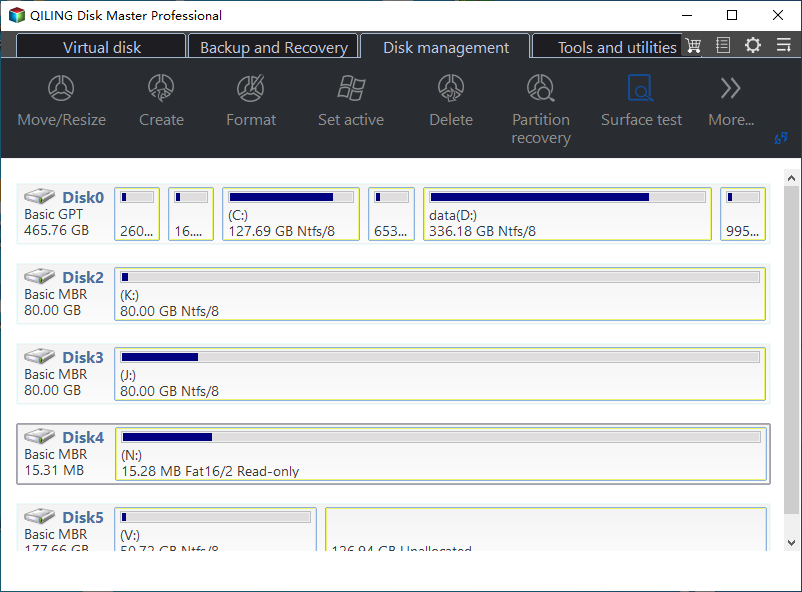
This error occurs due to corrupted system files, file permission issues, or a glitch in the reset process, causing the reset options to get stuck. Users are advised to remain calm and follow the solutions provided in this post to resolve the issue.
- #1. Wait for the PC to Complete the Reset Procedure
- #2. Check and Fix Disk Error
- #3. Run SFC
- #4. Run Startup Repair
- #5. Reinstall Windows OS Instead of Resetting
Workarounds for PC Reset Stuck At 99% on Windows PC
If your Windows PC is stuck at 99% during the reset process, don't worry! We've got five effective solutions to help you resolve the issue. Follow each step carefully to get your PC up and running smoothly again.
1. Wait for the PC to Complete the Reset Procedure
The PC reset procedure can take anywhere from 40 minutes to 5 hours to complete, so be patient and let it run its course. If it's stuck at 99% for an extended period, it's likely time to move on and try alternative methods to resolve the issue.
2. Check and Fix Disk Error
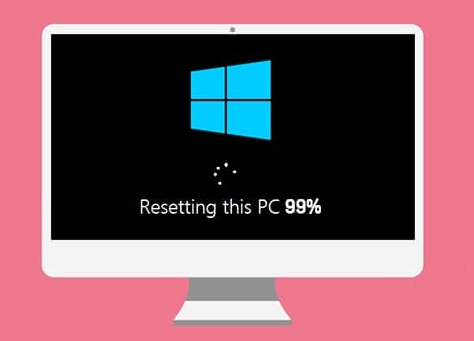
If your PC is stuck at 99% during the reset process, you can try fixing the disk error using a reliable third-party tool like Qiling Disk Master Professional. This can help resolve the issue and allow the reset process to complete successfully.
This tool's check file system feature allows users to identify and fix disk errors, including corrupted or problematic disks. To utilize this feature, follow the guide below.
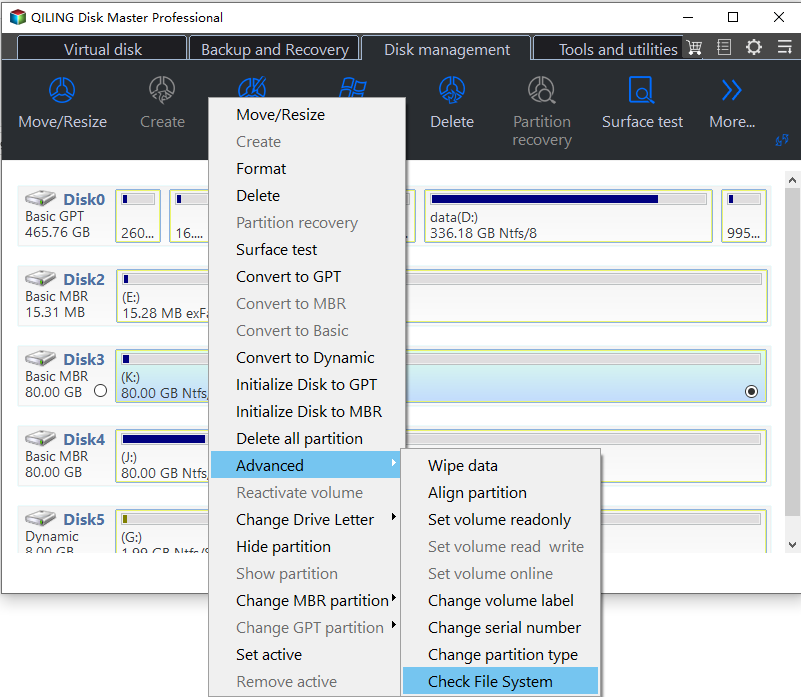
Step 1. Open Qiling Disk Master on your computer, locate the disk, right-click the partition you want to check, and select "Advanced" > "Check File System".
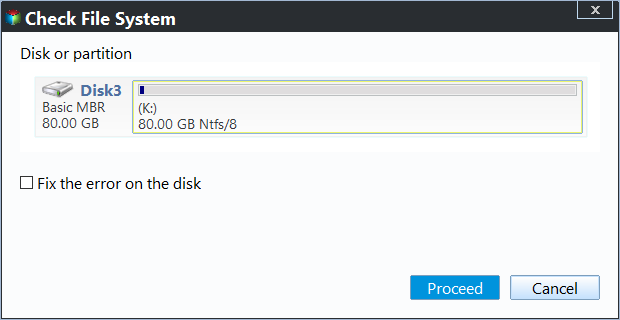
Step 2. In the Check File System window, select the "Fix the error on the disk" option and click "Proceed".
Step 3. The software will start scanning your disk partition file system. Once it's done, click the "Finish" button.
When the process is complete, you can restart your PC and reset your computer. Don't forget to share this tutorial solution with friends who may also need to reset their PCs online.
3. Run SFC
If your PC reset is stuck at 99%, it's likely due to corrupted system files. To resolve this issue, you can run the SFC command on your PC, which can help fix the problem. To do this, follow the steps below.
Step 1. To create a bootable USB drive, download the Windows 11 installation media from the provided link, then run the media tool creation tool and follow the prompts to select a USB flash drive to create the bootable drive.
Step 2. Plug a bootable USB drive into your PC, restart it, and enter the BIOS/UEFI settings by pressing a key like F2, F12, Del, or Esc during startup.
Step 3. To change the boot order, go into your computer's BIOS/UEFI settings, select the USB drive as the first boot option, save the changes, and exit the settings. This will allow your computer to boot from the USB drive instead of the hard drive.
Step 4. On the Windows Setup screen, click Next, then click on Repair your computer.
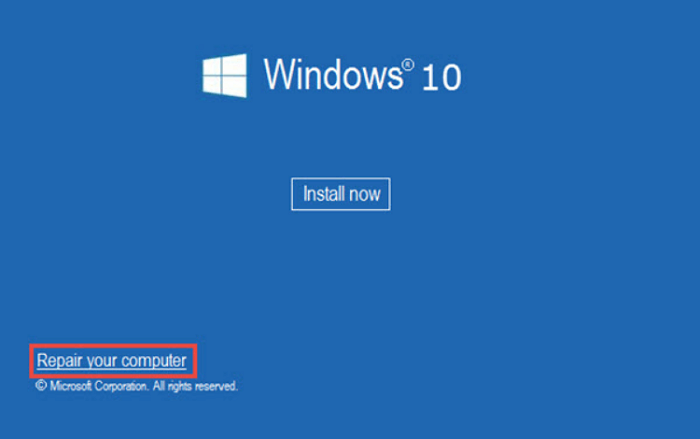
Step 5. To access the command prompt from the troubleshooting page, select the "Troubleshoot" option, then choose "Advanced options" from the list of available troubleshooting tools. From there, select the "Command Prompt" option. This will open a command prompt window where you can enter commands to troubleshoot and resolve issues with your computer.

Step 6. In the Command Prompt window, type the 'sfc /scannow' command and press Enter.
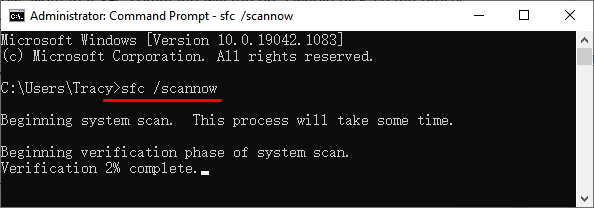
It will take some time to fix errors if there are any.
4. Run Startup Repair
Running startup repair can quickly fix the PC reset stuck at 99% issue. To perform a startup repair, follow the steps below. (Note: the steps below are not included in the rewritten text, but I assume you want me to include them in the paragraph) To start, go to the Advanced Startup Options screen by pressing the F8 key while booting up your PC.
Step 1. Insert the Windows bootable drive into your computer and boot from it.
Step 2. On the setup screen, click Next and then choose Repair your computer.
Step 3. Follow the on-screen prompts to choose a language and keyboard layout, then click Troubleshoot and select Advanced options.
Step 4. From the Advanced Options page, choose "Startup Repair" and let the process run.
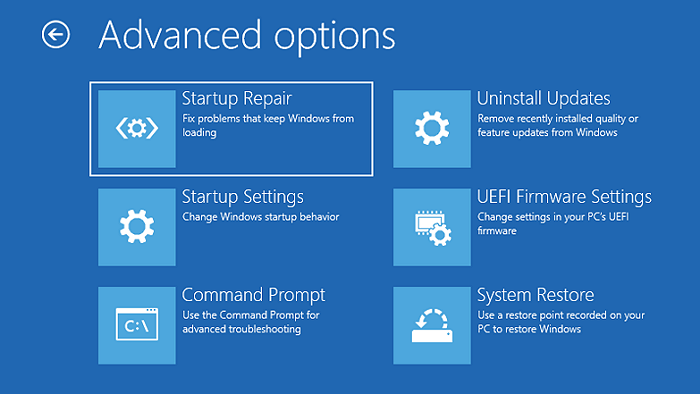
Wait patiently and let the procedure to fix internal errors that block your computer from resetting.
5. Reinstall Windows OS Instead of Resetting
If all else fails, a fresh Windows installation may be the best solution. To do this, follow these steps: back up your important data, then boot from a Windows installation media, select the language and other preferences, choose how you want to install Windows, and finally, accept the license terms and start the installation process. This will erase all data on the computer, so make sure to back up everything before proceeding. Note that you can also use the built-in Windows Reset feature instead, but reinstalling Windows can sometimes be more effective.
Step 1. To create a bootable USB drive for Windows 11, download the Windows 11 installation media tool, run it, and follow the prompts to select a USB flash drive to create the bootable drive.
Step 2. Plug the bootable USB drive into your PC, restart it, and press the key (usually F2, F12, Del, or Esc) to enter BIOS/UEFI settings during startup.
Step 3. To change the boot order to select the USB drive, enter your computer's BIOS/UEFI settings. Look for the boot order section, which might be labeled as "Boot Order," "Boot Priority," or "Boot Sequence." Select the USB drive as the first boot device.
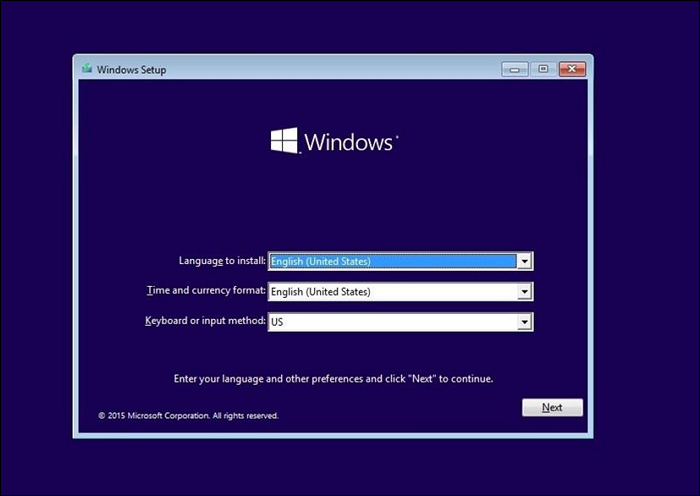
Step 4. Once the USB drive is inserted and the computer is booted from it, the Windows setup process will commence.
Step 5. Select language and keyboard layout. Accept license terms. Choose the Custom Install Windows only (advanced) option.
Step 6. Select the drive to install Windows (usually C: drive), format the selected drive (erase all data), and wait for installation to complete.
Your computer may restart several times during the installation process. Once installed, set up Windows by creating a user account.
Tips You Should Know About Resetting This PC
Before resetting your PC, make sure to back up any important files and data, and also disconnect any external devices. This will prevent any loss of data and ensure a smooth reset process.
- Before resetting your PC, it's a good idea to backup any important files and data to an external drive or cloud storage to prevent losing them in the process. This will ensure that your personal files, documents, and other important data are safe and can be easily restored after the reset.
- Turn off running programs.
- Make sure that your internet connection is stable.
- To avoid potential frustration, collect software installation files and activation keys in one place, such as a cloud storage or a designated folder, to easily access and manage them when needed.
- Download the latest drivers for your PC
Conclusion
If you're experiencing a PC reset stuck at 99%, stay calm and wait for the process to complete, which can take some time. If it doesn't progress, try all the suggested solutions, but be aware that some may involve a risk of data loss, so back up your important data first to avoid frustration.
If you're experiencing a similar issue on your computer, feel free to share this page online to help your friends resolve their problem successfully. The methods provided here can be a great resource for them, and it's always a good idea to spread the word to help others get back to normal operation quickly.
FAQs About PC Reset Stuck at 99%
Here, we have discussed some of the frequently asked questions related to PC reset stick at 99%, which will clear additional doubts for readers, so don't skip this vital part.
1. Why can't I reset my PC?
PC reset failure may occur due to various reasons such as corrupted system files, disk errors, low storage, software conflicts, antivirus disruptions, or hardware issues, requiring different troubleshooting methods for resolution.
2. When should I reset my PC?
When to reset your PC, and when not to, requires careful consideration. Resetting your PC can be a good idea in situations such as when you're experiencing persistent software issues, malware infections, or when you want to give your PC a fresh start, but it's not recommended when you have important data or programs that you don't want to lose, or when you're not sure what's causing the problems.
- If your PC is extremely sluggish and has a stability issue, you can try a PC reset to potentially resolve the problem.
- In case of malware infection, you need a PC reset.
- If your PC is experiencing frequent crashes due to conflicting applications, you may need to reset it. This can be done by booting in safe mode, uninstalling conflicting software, or performing a system restore to a previous point when the PC was working smoothly.
3. Is resetting this PC the same as restoring the system image?
Resetting a PC and system image restore are two distinct methods for restoring a computer to a previous state. Resetting the PC reinstalls the operating system to a clean state, removing personal files and settings, whereas system image restore returns the computer to a replica of its state when the system image backup was created, preserving all files, programs, settings, and Windows registry entries.
Related Articles
- How to Remove Write Protection from Pen Drive
- How to Format Hard Drive in Windows 7? [Detailed Tips]
- Step-by-Step: Use DiskPart Convert MBR in Windows 11, 10, 8, 7
To use Diskpart to convert MBR in Windows 11, 10, 8, 7, you can follow the instructions in this article to learn how to do it. - Diskpart: Fix RAW Partition in Windows 10/8/7
This page focuses on how RAW drive comes and how to use Diskpart to fix RAW partition. If you want to fix RAW partition without formatting, please try Qiling Disk Master Standard. - 2 Ways: Upgrade RAID 5 Drives to Larger Capacity without Data Loss
When you need to upgrade RAID 5 drives to larger capacity, you can read this article and learn how to increase RAID 5 disk size via two different methods. - How to Format an External Hard Drive with Reliable Software?
Free download powerful formatting tool to help you format an external hard drive excellently, easily and securely.
Products
Articles & Tutorials
- Data Recovery
- Data Backup
- File Recovery
- File Backup
- System Backup and Restore
- Disk and Partition Clone
- Technical articles
- Mobile articles
- Disk Master Help
- Windows Data Recovery Tutorials
- Windows Secure Delete Tutorials
- Windows Partition Management Tutorials
- Windows File Backup and Restore Tutorials
- Windows System Backup and Restore Tutorials
- Windows Disk Backup and Restore Tutorials
- Windows Clone Tutorials