How to Find Large Files on Windows 10 | Quick Guide💡
Most Windows 10 users have experienced low space on their computers. The fastest way to resolve this issue is to find and delete large, unused files. Qiling can help with this, providing two Windows built-in utilities for locating huge files. Additionally, an efficient space analyzer can be used to detect and locate large files and folders on Windows 10 computers, and we will also provide a reliable method for freeing up space on Windows 10.
How to Find Large Files on Windows 10 - 3 Ways
This section provides step-by-step tutorials on how to locate large files using Qiling Disk Master, File Explorer, and CMD. You will learn how to use these tools to identify and manage large files on your system.
| Method | Efficiency | Difficulty |
|---|---|---|
| 1️⃣Qiling Disk Master | 👍This tool automatically finds all large files and folders, including hidden ones, making it easy to identify and manage storage space. | ⭐Low, Designed for all levels of users, especially computer beginners |
| 2️⃣File Explorer | 👍High. Manually locate and clean up large files. | ⭐⭐Medium for users with computer experience. |
| 3️⃣Command Prompt | Low. You need to repeat turn commands to filter the large file you want. | ⭐⭐⭐High, not suitable for novices. |
To identify the programs that are consuming space on your Windows 10 computer, follow these steps:
Way 1. Professional File Analyzer - Qiling Disk Master
Qiling Disk Master Professional can perform an advanced search to find large files on Windows 10, detect and show hidden files, and offer operable and beginner-friendly solutions for various storage space issues, making it highly compatible with all Windows systems.
Some Noble Features of Qiling Disk Master
Apart from finding large files on Windows, the Qiling Disk Master can also assist you in disk cleaning, disk cloning, disk wiping, disk splitting, and disk merging.
- Solve low disk space but nothing to delete.
- Fix low disk space in Windows 11/10/8/7.
- Increase C drive space in Windows OS.
This program guarantees trouble-free disk space analysis and cleanup. Download and explore more mighty features:
Way 2. Locate Large Files via File Explorer
To locate large files on Windows using File Explorer, follow these steps:
Phase 1. Manually Unhide Files
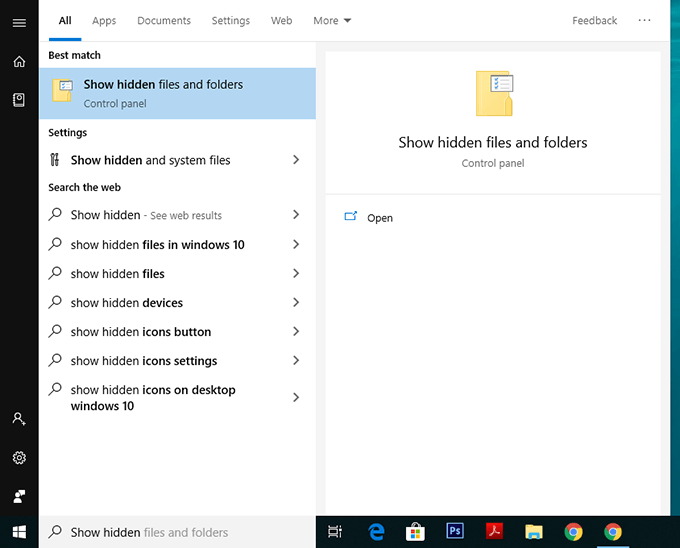
Step 1. To display hidden files and folders in Windows, type and select "Show hidden files and folders" in the search bar.
Step 2. When the File Explorer Options window opens, go to the "View" tab and select "Show hidden files, folders, and drives" from the "Hidden files and folders" section.
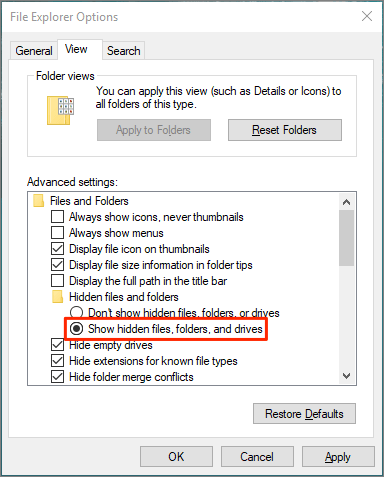
Step 3. Click "OK" to confirm the change.
Phase 2. Filter Large Files
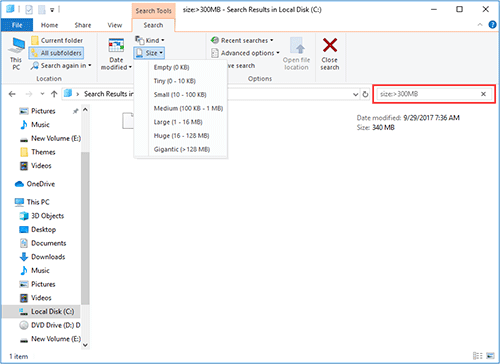
Step 1. To access the hidden search tool on Windows, navigate to File Explorer, select "This PC" in the left panel, choose the local C drive, and click the search box to activate the search feature.
Step 2. To filter big files, select "Search" > "Size" > "Gigantic" in this tab, or type "size># GB" to search for a specific file size.
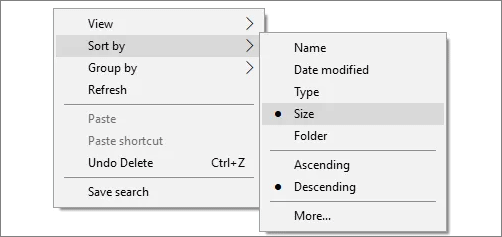
Step 3. When the search results are displayed, right-click on a blank area and select "Sort by" > "Size" > "Descending" to view the files in order from largest to smallest.
For extended information, you can follow the article below to learn the whole process of getting rid of large files on Windows 10:

Locate, Remove and Delete Large Files in Windows
To locate and remove large files in Windows, follow these steps: first, open File Explorer and navigate to the drive or folder where you want to search for large files; next, click on the "Search" tab and select "Size" from the dropdown menu; then, choose the size range you want to search for, such as 100 MB or larger; finally, click on the "Search" button to find the large files, and then delete or move them to a different location as needed.
Way 3. Filter Large File with Command Prompt
To locate large files on your Windows 10, you can also run command lines. To do this, follow these steps carefully:
Step 1. To open the Command Prompt (CMD) in Windows, press the "Windows + R" keys to access the Run box, type "cmd" into it, and hit the "Enter" key.
Step 2. Input the commands below and then hit the Enter key:
- cd C:\
- FORFILES /S /C "cmd /c if @fsize GTR 1048576 echo @path.txt"
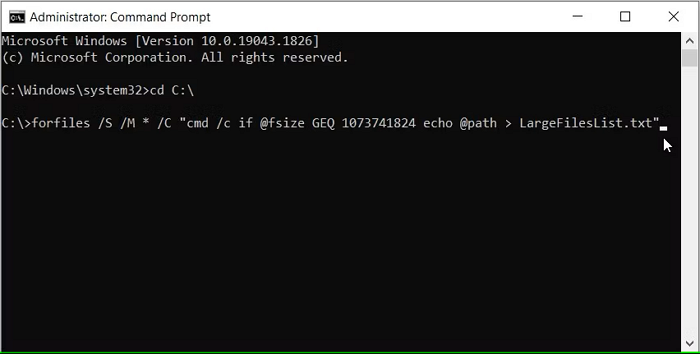
Step 3. The command will create a "LargeFilesList" text file, which can be searched and viewed in the File Explorer.
Once you've identified the large files and folders that are taking up space on your hard drive, you can free up that space to improve your computer's performance.
Conclusion
To sum up, this step-Qiling Disk Master offers a one-click solution to find large files on Windows 10, making it easy to identify and remove unnecessary files and free up disk space. The software empowers users to deal with all tasks related to Windows 10 disk space, providing a valuable method to clean up and remove large, useless files. By downloading Qiling Disk Master, users can quickly find and eliminate large files, making it a useful tool for maintaining a clutter-free and efficient computer system.
FAQ About How to Find Large Files on Windows 10
To find large files on Windows 10, you can use the built-in Disk Cleanup tool to identify and remove unnecessary files, or use the File Explorer to sort files by size and locate large files. Alternatively, you can use the Command Prompt or PowerShell to run a script that lists all files larger than a specified size. You can also use third-party tools like WinDirStat or CCleaner to analyze your disk space and identify large files.
1. How do I find large files on my D drive?
To identify what's consuming space on your D drive, you can utilize Qiling Disk Master, which scans your disk and provides a detailed breakdown of disk usage, giving you a clear overview of what's taking up space.
Step 1. Launch Qiling Disk Master and access "Discovery." Install the "Space Analyzer" and open it.
Step 2. Select the D drive from the menu and click "Analyze" to start the process.
Step 3. To check more details, you can select "Folder/File" to see the detailed data.
🔍Further Reading: To find what is taking up space on your SSD, start by checking your operating system's built-in storage management tool. On Windows, this is the Disk Cleanup tool, and on macOS, it's the About This Mac window.
2. How can I find hidden files on my PC?
Here's how to check for hidden files on your PC:
- Launch "File Explorer" by pressing the "Windows + E" keys.
- To access Folder Options, select "View" from the top menu, then click on "Options" and finally click on "Change folders and search options". This will open a Folder Options window.
- To display hidden files and folders, navigate to the View tab in File Explorer and check the box next to "Show hidden files and folders".
3. Is there any way to find junk files on Windows 10?
The "Disk Cleanup" tool on Windows 10 allows users to easily find and delete junk files, freeing up space on their computer. With this tool, users can identify and remove temporary files, system files, and other items that are no longer needed, helping to maintain a clutter-free and efficient computer.
Step 1. Write "disk cleanup" in the Taskbar's search box.
Step 2. In this utility, locate the drive you want to free up, then click "OK."
Step 3. To delete a file, go to the "Files to delete" section, select the file you want to get rid of, and click "OK."
Related Articles
- Paragon Migrate OS to SSD Review [Pros & Cons]
- How to Install Operating System on SSD and Everything Else on HDD
- How to Copy Dynamic Volume
- [Fixed] Windows Has Detected File System Corruption Error on Windows 10/8/7
- How to Partition External Hard Drive in Windows 11/10/8/7
You can easily partition an external hard drive using one of three reliable tools: Qiling Partition Master, Disk Management, or DiskPart. These tools come with detailed tutorials that guide you through the process, making it simple to partition your external hard drive in Windows 11, 10, 8, or 7. - Free Partition Manager for Windows 7/Windows 10 64 Bit
Qiling Partition Master Free Edition is a free partition manager that allows you to resize, create, format, recover, copy, and manage partitions on Windows 7 64 bit, Windows 10, and Windows 8 systems, all for free.
Products
Articles & Tutorials
- Data Recovery
- Data Backup
- File Recovery
- File Backup
- System Backup and Restore
- Disk and Partition Clone
- Technical articles
- Mobile articles
- Disk Master Help
- Windows Data Recovery Tutorials
- Windows Secure Delete Tutorials
- Windows Partition Management Tutorials
- Windows File Backup and Restore Tutorials
- Windows System Backup and Restore Tutorials
- Windows Disk Backup and Restore Tutorials
- Windows Clone Tutorials