6 Ways to Fix Winload.efi Missing on Windows 11/10
Winload.efi is a crucial EFI file responsible for booting, restarting, or resetting the computer and installing Windows. If it's missing or corrupted, the system will get stuck on a blue or black screen with error codes like Winload.efi Missing or 0xc00000e.
Winload.efi missing or contains error is a common issue that occurs after cloning or installing Windows 11/10. Qiling can help resolve this problem, and there are six solutions to address it.
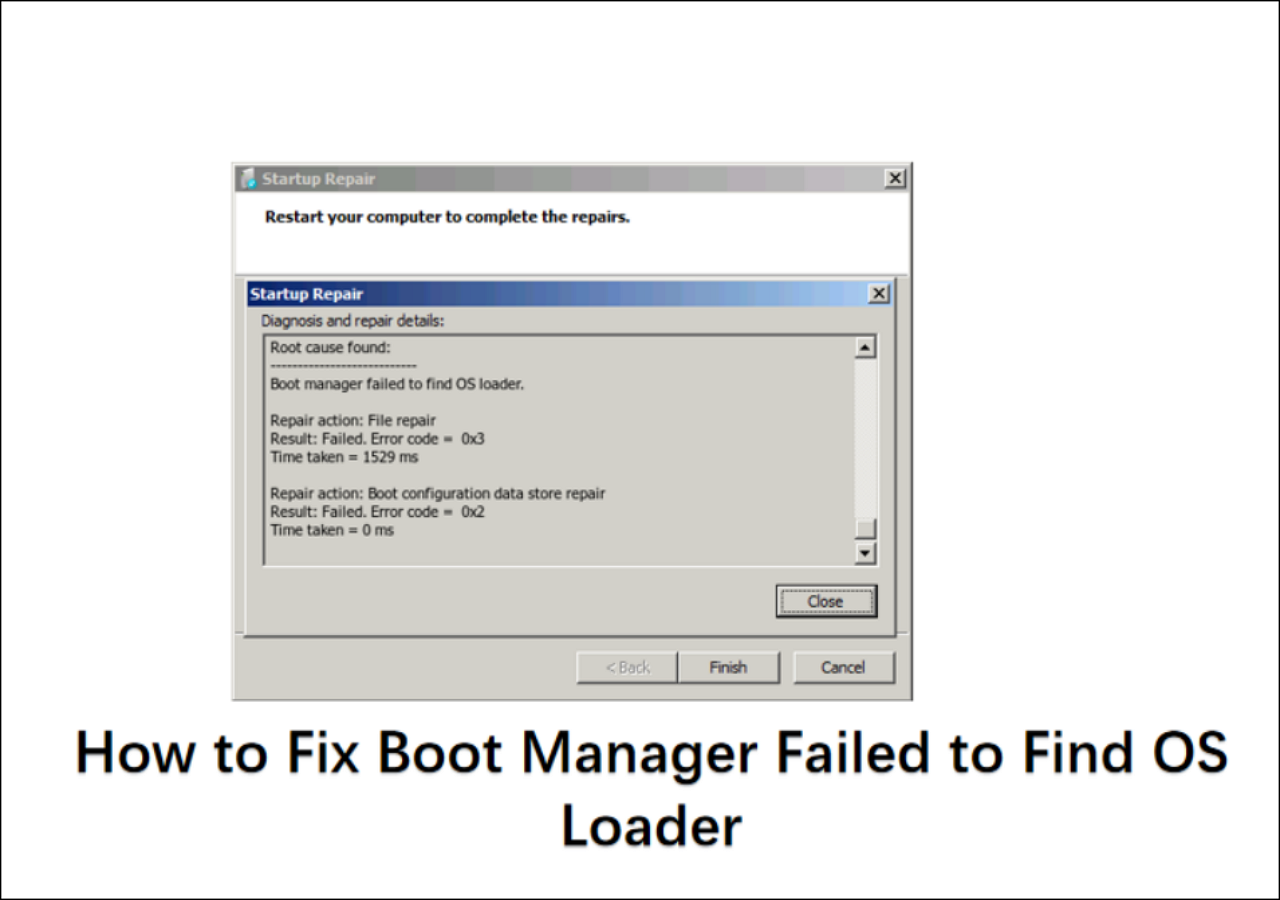
To fix the "Boot Manager Failed to Find OS Loader" error, you can try booting your computer in Safe Mode, checking the boot order in the BIOS settings, and running a disk check to ensure the boot sector is intact. If the issue persists, you can try reinstalling the operating system, updating the BIOS, or using a bootable USB drive to load the OS.
Resolve the "Boot Manager Failed to Find OS Loader" issue with ease by following expert-backed solutions. Troubleshoot and fix the problem by following step-by-step instructions to ensure a smooth boot-up process.
How to Fix Winload.efi Missing
The "Winload.efi Missing" error occurs when the OS fails to locate or access the Winload.efi file. To resolve this issue, you can try six different solutions, including jumping to the method you need or looking at the following methods in turn, which provide a step-by-step guide to troubleshoot and fix the error.
- Option 1: Disable Secure Boot
- Option 2. Use the Boot Repair Tool
- Option 3. Run CHKDSK to Check for Drive Errors
- Option 4. Run SFC to Check System File Integrity
- Option 5. Rebuild BCD and MBR
- Option 6. Repair EFI Boot Loader
Here are the methods to repair winload.efi: You can try booting in safe mode, checking the Windows installation for corruption, and using the System File Checker (SFC) tool to replace corrupted system files. Additionally, you can use the DISM tool to repair the Windows image, and if that doesn't work, you can try resetting Windows to its default state. If none of these methods work, you may need to reinstall Windows. You can click the social buttons below to share these methods with others in need!
Option 1: Disable Secure Boot
Safe/Secure boot may be responsible for the winload.efi error, as it can prevent the system from accessing the winload.efi file. To resolve this issue, you must disable safe boot from the UEFI configuration, and the following steps can guide you through the process.
Note* The interface may vary per the computer model. Please be attentive.
Step 1: When you see the logo after restarting your computer, press the "F2" or "Delete" key to enter the BIOS settings. This allows you to access and configure the basic input/output system settings, which can be useful for troubleshooting or customizing your computer's startup behavior.
Step 2: To access the Secure Boot option, navigate to the relevant tab on your computer model, which may be labeled as "Boot", "Security", or "Authentication".
Step 3: To access the "Secure Boot" interface, navigate to the "Boot" tab. Then, toggle the switch to "Disable." This will allow you to make changes to your system's boot settings.

Step 4: Save changes and exit the UEFI settings.
Step 5: If the system fails to boot normally, try booting in safe mode by restarting the system and tapping the F8 key, then select the option for safe mode. If it boots normally, the issue is likely related to a driver or software conflict. If it doesn't, try booting in the last known good configuration by tapping the F8 key and selecting that option. If it boots normally, the issue is likely related to a recent software or driver update.
Option 2. Use the Boot Repair Tool
Qiling Disk Master is a powerful and easy-to-use tool for repairing boot systems and fixing disk-related issues. It allows users to create bootable devices and correct system boot errors with just one click, making it accessible to users without prior knowledge.
This tool assists in various issues, including system failure, system blue screen, system black screen, hard disk corruption, hard disk conversion, and more, making it a reliable choice for resolving winload.efi missing error.
To fix the issue, download Qiling Disk Master and follow the steps to utilize the "boot repair" feature.
Step 1. To create a bootable media using Qiling Disk Master, connect the external drive or USB to your computer, then access the "Tools and utilities" section and click on "Create bootable media" after connecting the external drive/USB to your computer, go to "Tools and utilities" and click "Create bootable media".

Step 2. Insert a USB drive or CD/DVD and click "Proceed" to install the Windows operating system. Alternatively, you can burn the Windows ISO file to the storage media.

Step 3. Connect a bootable drive to a new computer, reboot by pressing F2/Del to enter the BIOS, set the bootable drive as the boot disk, and exit the BIOS by pressing F10.
Step 4. After booting the computer again and entering the WinPE interface, open Qiling Disk Master and select "Fix Boot" from the "Tools and utilities" tab page.

Step 5: Select the system you want to repair and click "Proceed".

Step 6. The system has been successfully repaired. Click "OK" to complete the boot repair process.
Qiling Disk Master is a reliable Windows boot repair tool that can also fix various errors, including those related to the operating system, making it a valuable asset for users seeking to troubleshoot and resolve issues with their Windows installations.
Option 3. Run CHKDSK to Check for Drive Errors
Follow these steps to run CHKDSK:
Step 1: Connect a USB drive with Windows Installation Media to the computer.
Step 2: Boot your system from the USB drive and choose the "Repair your Computer" option from the boot menu.
Step 3: Select the "Troubleshoot" and "Command Prompt" options.

Step 4: The following command should be typed or pasted, then hit "Enter."
chkdsk c: /f
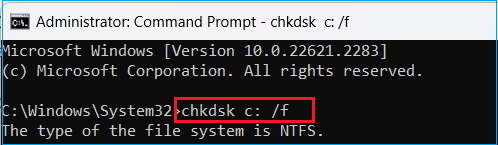
The system will check and fix system drive errors, then unplug the USB and restart the computer to verify normal booting.
Option 4. Run SFC to Check System File Integrity
System File Checker (SFC) is a built-in Windows tool that scans and repairs system file errors. Follow the steps below to run SFC.
Step 1: Connect the Windows installation media drive to the computer and open Command Prompt, following the steps mentioned in Option 4.
Step 2: Launch the upcoming command and hit "Enter."
sfc /scannow
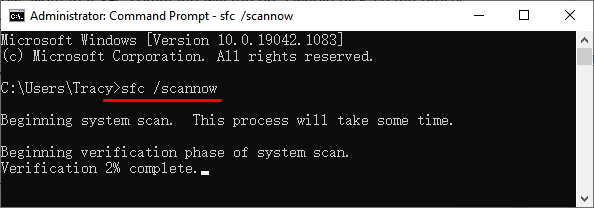
Step 3: If the winload.efi error code 0xc00000e message persists after restarting your system, it indicates a more serious issue with your Windows installation. In this case, you may need to consider more advanced troubleshooting steps or seek professional assistance. These could include running a System File Checker (SFC) scan, checking for corrupted system files, or even reinstalling Windows.
If the sfc /scannow command fails to repair the missing Winload.efi file, try running the chkdsk /f command to check and repair any disk errors. If that also fails, try running the sfc /scannow command in safe mode to see if it can repair the file then.
Step 4: Open the Command Prompt and input the following command.
Note* Please be careful; the wrong command may create potential system errors.
sfc /scannow /offboot=C: /offwindir=C:windows
Replace "C" with the system hard drive partition letter.
Option 5. Rebuild BCD and MBR
The Qiling Partition Manager is a universal tool that can also ensure the current drive uses the MBR system format, which is necessary for the operating system to read the winload.efi file. If the system partition operates under BCD or another file format, the Rebuild MBR feature can convert it to MBR in one click, and also fix other errors such as MBR error 1.
Here are the steps:
Step 1. Create a WinPE bootable disk
- Launch Qiling Disk Master and select the "Tools and utilities" tab page, then click on "Create bootable media".
- Click "Proceed" to finish the process.
Step 2. Boot Qiling Disk Master Bootable USB
- Connect the bootable USB or CD/DVD to your PC.
- To access the BIOS screen, press F2 or Del when restarting the computer. Once in the BIOS, set the boot order to prioritize "Removable Devices" or "CD-ROM Drive". After doing so, the Qiling Disk Master will automatically run.
Step 3. Rebuild MBR
- Right-click the disk and choose "Advanced" -> "Rebuild MBR".

- Select the type of MBR. Then, click "Proceed".

- The message "MBR has been successfully rebuilt on Disk X" indicates that the Master Boot Record (MBR) of a disk, identified as Disk X, has been successfully rebuilt or restored to a functional state. This is often a result of a process that repairs or replaces the MBR, which is a critical component of a disk's boot sector that contains essential information for the operating system to load.
Option 6. Repair EFI Boot Loader
The UEFI boot loader, also known as the EFI boot loader, plays a crucial role in a computer's boot process. Repairing the EFI loader is often necessary to resolve corrupted or missing winload.efi errors, which can prevent the system from booting properly.
Steps to repair the EFI boot loader:
Step 1: Use the Windows Installation Media to start your PC.
Step 2: To access the Command Prompt, follow these steps: Choose the "Repair Your Computer" option, then select "Troubleshoot," followed by "Advanced Options," and finally "Command Prompt."
Step 3: Input the following commands individually and press "Enter" after each command. This will ensure that the system processes each command separately and accurately, reducing the likelihood of errors or misunderstandings. By doing so, you will be able to confirm that each command has been executed correctly, and make any necessary adjustments or corrections before proceeding further.
- diskpart
- list disk
- select disk 0
- list vol
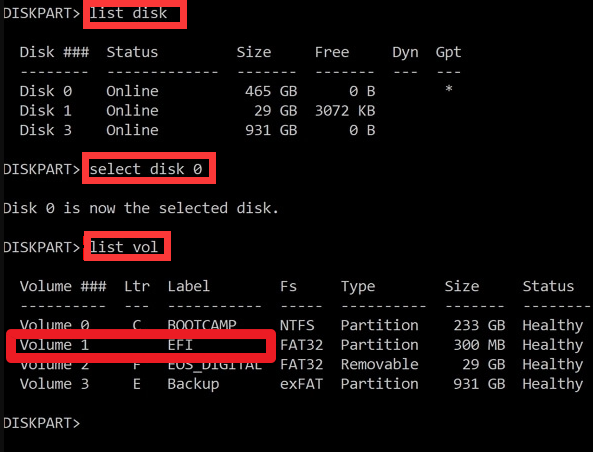
Confirm the EFI partition has a FAT32 file system.
Step 4: Assign the partition a drive letter. Enter each of the following commands as you type them:
- sel vol
- assign letter=:
- exit
- cd /d:\EFI\Microsoft\Boot\
- bootrec /fixboot
Restart your computer after a successful EFI loader repair.
What Caused Winload.efi Missing Error
After cloning, if you encounter errors related to winload.efi being missing or containing errors, the solutions to fix these issues have been covered. However, it's also essential to understand the potential causes behind these problems.
- The "winload.efi missing" error can be caused by mistakes made during system upgrades that affect the bootloader or system files.
- Corrupted system files, particularly winload.efi, can cause boot-related problems, manifesting as error code 0xc00000e.
- Incorrectly modifying disk partitions or updating antivirus software with third-party tools can corrupt the system's boot process, causing the winload.efi file to be missing or contain errors.
- Cloning a Windows installation without making the necessary modifications can lead to boot problems, including the winload.efi file being missing or containing errors after the clone.
- Replacing or modifying a computer's motherboard can cause issues with devices and drivers, potentially leading to the "winload.efi" problem if not resolved.
If you're experiencing the "winload.efi missing" error, we recommend trying the methods outlined in this article to resolve the issue. Additionally, using Qiling Disk Master can help identify and fix common hard disk problems, which may be contributing to the error.
Conclusion
This tutorial will guide you in resolving the winload.efi missing error with ease, as Qiling Disk Master simplifies the process by providing automated assistance, making it less time-consuming and frustrating.
If you are experiencing boot errors, the related guides below may also help you troubleshoot startup problems.
FAQs About Winload.efi Missing
If you have any further questions about the topic discussed on this page, please refer to the FAQs section below for answers.
1. What is the error code 0xc000000f in Winload EFI?
Winload EFI error code 0xc000000f is a Windows boot error that occurs when the bootloader, specifically the Winload.efi file, cannot locate the necessary files to boot the operating system, often due to issues with the bootloader setup.
2. How do I fix Winload files?
To fix the Winload files error, you can try:
- Running Windows Startup Repair.
- Rebuilding the BCD (Boot Configuration Data).
- Repairing the Master Boot Record (MBR).
3. What is the function of Winload EFI?
Winload.efi is a critical component that loads the Windows operating system, required drivers, and data, initiating the boot process.
Related Articles
- How to Fix USB Shows Read Only Windows 11? [Solved]
- Featured Partition Magic for Windows Server Free Download 2024
- Does Deleting a Partition Erase All the Data? | Solid Way to Recover
- Seagate Hard Drive Repair Tool Free [Fix Seagate Errors Quick & Easy]
- How to Format eMMC Drive [2024 Full Guide]
Our simple and straightforward guide will walk you through the process of formatting eMMC drives, making it easy for beginners. Learn how to format eMMC drive and explore crucial steps, techniques, and tips to avoid mistakes, all in one comprehensive tutorial. - How to Format External Hard Drive for PS3 [2024 Full Guide]
If you're looking to format an external hard drive for use with your PS3, you're likely wondering about the best file system to choose and the proper steps to take.
Products
Articles & Tutorials
- Data Recovery
- Data Backup
- File Recovery
- File Backup
- System Backup and Restore
- Disk and Partition Clone
- Technical articles
- Mobile articles
- Disk Master Help
- Windows Data Recovery Tutorials
- Windows Secure Delete Tutorials
- Windows Partition Management Tutorials
- Windows File Backup and Restore Tutorials
- Windows System Backup and Restore Tutorials
- Windows Disk Backup and Restore Tutorials
- Windows Clone Tutorials