Does Deleting a Partition Erase All the Data? | Solid Way to Recover
Deleting a partition in Windows does not erase all the data on the hard drive, but it will remove the partition table and make the data inaccessible. To delete a partition without erasing all the data, you can use the built-in Disk Management tool or a third-party partition manager software. These tools allow you to delete the partition without formatting the hard drive, preserving the data. However, if you want to recover deleted or lost partitions, you can use a data recovery software that can scan the hard drive and recover the data.
Does Deleting a Partition Erase All the Data?
Deleting a partition doesn't erase all data on the hard drive, but rather marks the space as unallocated. Data can still be recoverable, and running partition recovery software may be possible. However, backing up data before deleting partitions is the best solution to avoid losing important files.
How to Safe Delete a Partition - 2 Effective Ways
Deleting a partition will not erase all data on your hard drive, but rather hide it to make the system recognize it as free space. To safely delete a partition, using applicable tools is crucial, as any mistake may lead to data loss. Two reliable partition-deleting tools are available, and a comprehensive table contains their basic information.
| 🆚Comparison | 💡Qiling Disk Master | 💡Disk Management |
|---|---|---|
| 🚩Complex Level |
|
|
| ⏰Duration |
|
|
| 💻Pros |
|
|
| ⚙️Cons |
|
|
Note: Regardless of the tool you select, always make sure to back up important files or folders before deleting them.
Method 1. Run Qiling Disk Master
Qiling Disk Master, a renowned partition manager, offers wide compatibility and can be used on all Windows computers. It features a "Delete" function that allows users to delete one or multiple partitions and erase data on these partitions. In addition to deleting partitions, this software empowers users to create or resize partitions, making it a helpful tool for effective partition management.
To delete partitions via Qiling Disk Master, follow this quick guide: First, launch Qiling Disk Master and select the disk where you want to delete partitions. Then, click on the "Partition" tab and select the partition you want to delete.
Step 1. Launch Qiling Disk Master, and click "Partition Manager".
Before deleting a partition on your disk, make sure to back up any important data to prevent loss.
Step 2. When deleting a partition or all partitions on a hard drive, the user is presented with a choice between the two options. One option is to delete a specific partition, which allows the user to select the partition they want to delete.
- Delete single partition: To delete a partition, right-click on it and choose the "Delete" option.
- Delete all partitions: Right-click a hard drive you want to delete all partitions from, and select "Delete All".
Step 3. Click "Yes" to confirm the deletion.
You can delete a partition on an SSD, but it's generally not recommended to do so unless absolutely necessary. Deleting a partition can cause data loss, and if you're not careful, you might end up deleting the wrong partition, which can lead to data loss or even render the SSD unusable. If you're looking to free up space on your SSD, it's usually better to delete individual files or folders rather than the entire partition. However, if you're sure you want to delete the partition, you can do so by booting from a live USB, accessing the disk management tool, and deleting the partition.

Remove Partition from SSD with Three Methods
There are three distinct approaches to remove a partition from an SSD and unpartition the disks. One approach involves using a command-line tool like `fdisk` or `parted` to delete the partition table and unpartition the disks.
Method 2. Use Disk Management
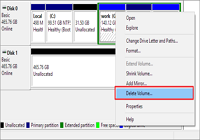
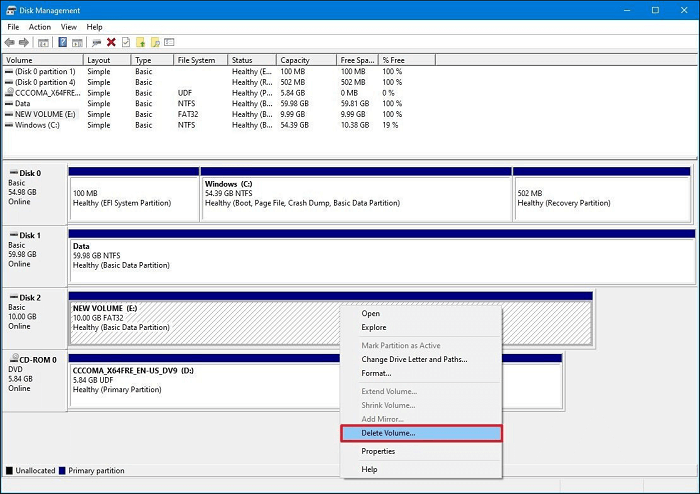
To delete a volume through Windows' built-in Disk Management tool, first, open the tool by pressing the Windows key + R and typing "diskmgmt.msc." Then, select the partition you want to delete and click "Delete" or "Remove" in the context menu. Be cautious when selecting the partition, as the interface may not be familiar to tech-savvy users.
Step 1. Search for "Disk Management" in the search bar or press the "Windows + X" keys to open the Disk Management utility.
Step 2. Right-click the partition you plan to delete, then click "Delete Volume."
Step 3. Confirm the deletion by choosing "Yes".
Many users have reported encountering a frustrating issue, and it's unclear how to resolve it. To help others who may be experiencing the same problem, consider sharing this information on your social media to spread awareness and provide a solution.
Bonus Tip: How to Recover Deleted or Lost Partitions
If you've deleted data and want to restore it, don't overwrite anything on the affected drive. Qiling Disk Master can help you recover deleted or lost partitions. Before attempting to recover, be aware that overwriting data on the deleted partition will make it irretrievable. To recover deleted partitions, use Qiling Disk Master, following its instructions to restore your lost data.
Step 1. Open Qiling Disk Master, click "Partition Recovery", select the target disk with the lost partition, and click "Scan".
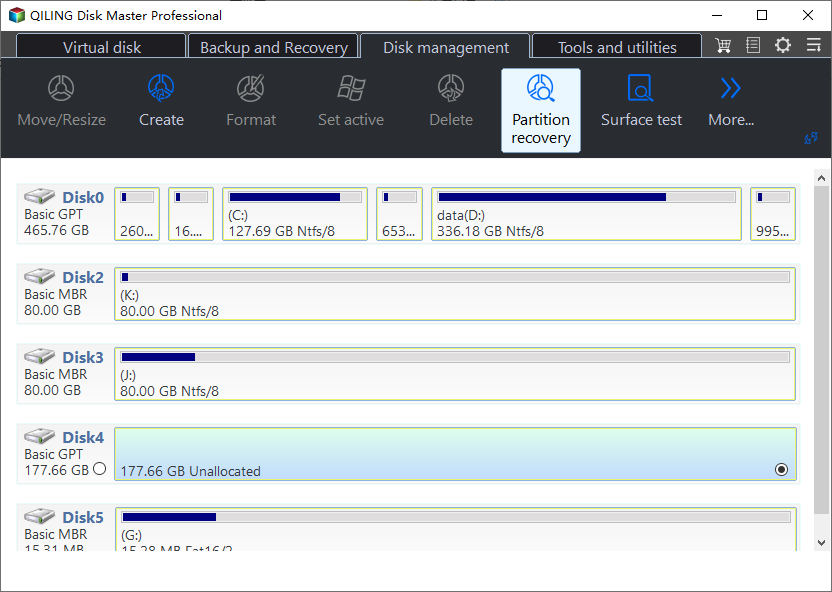
Step 2. Wait for the software to execute the "Quick Scan" and "Full Scan" operations. Once it's done, the deleted partition will be marked as "lost" in the Status section. Select the lost partition and click "Proceed" to proceed with the recovery.
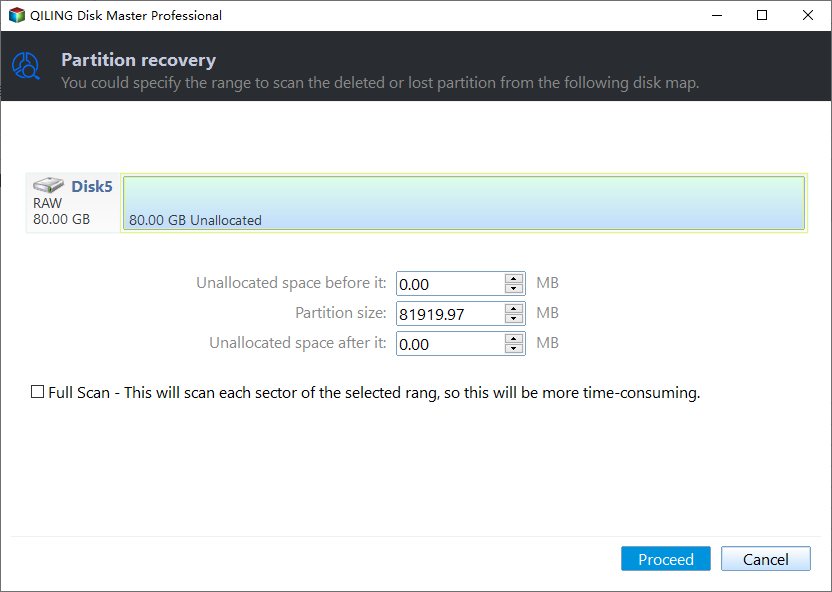
You can double click on the partition you're looking for to preview its content and click "Recover" to confirm, and then click "Recover" to confirm.
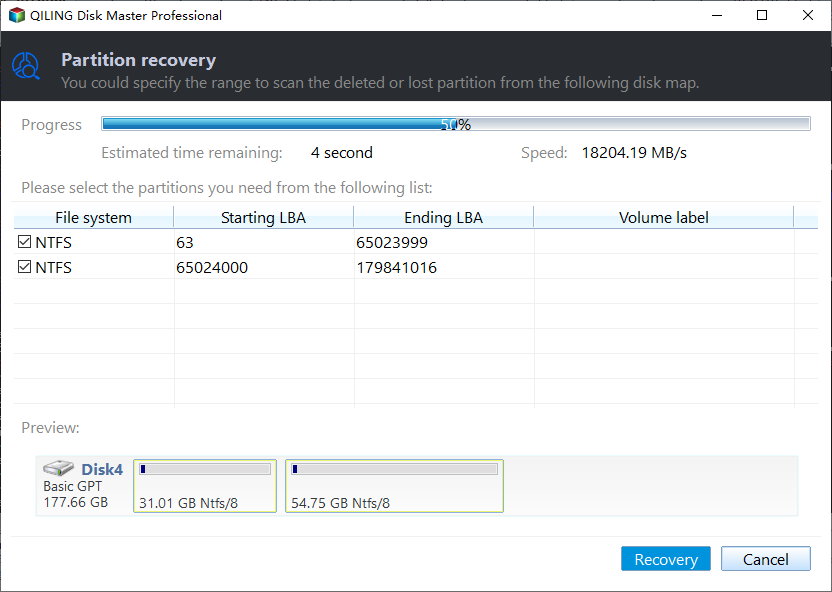
Step 3. Wait patiently and click "Finish" when the partition recovery process is completed.
Conclusion
Deleting a partition can be a serious matter, as it may erase data. However, it's essential to note that deleting a partition doesn't necessarily mean erasing all data. Depending on the method used, some data may still be recoverable. To securely delete a partition, consider using professional tools like Qiling Disk Master or the Windows integrated Disk Management tool. If you've forgotten to back up your data before deletion, Qiling Disk Master can also help you recover it. If keeping your data safe is your top priority, Qiling Disk Master is a reliable choice.
FAQs of Does Delete a Partition Erase All the Data
This section has raised some related questions about whether deleting a partition erases all the data. You can go through these queries and their answers to learn more information.
1. What will happen if you delete a partition?
After deleting a partition, your OS can't recognize it, making it impossible to access any saved data, and all files on the erased drive will be lost.
2. Can you just delete one partition?
To remove one or all partitions using Qiling Disk Master, follow these steps: select the disk containing the partition(s) you want to remove, click on the "Partition" tab, select the partition(s) you want to delete, and then click on the "Delete" button. If you want to remove all partitions, select the entire disk and click on "Delete All Partitions". This will not delete any data, only the partition structure.
Step 1. Launch Qiling Disk Master, and click "Partition Manager."
Step 2. Right-click on the partition and choose "Delete."
Step 3. Click "Yes" to confirm the deletion.
3. Is it safe to delete a partition in Windows?
All partitions except the EFI and C drive partitions can be erased, but it's not recommended. After deleting a partition, the space can be compressed on the C drive to make room for other systems.
Related Articles
- Slow Boot Time! SSD Taking Long Time to Boot in Windows 11/10
- How Big Is Valorant | Download Size & System Requirement🔍
- How to Resize/Move/Clone BitLocker Partition on Windows 11/10 Without Decryption
- How to Format Write-Protected USB with Virus, Help
How to format a hard drive write-protected by virus? This short article provides a detailed guide on this issue. Dive into it and find the answer you want. - Does SSD Get Slower When Full? Easy Tricks to Fix SSD Slowing Down
SSDs can become slower over time, and one possible reason is that they can become fragmented, leading to slower performance. However, being full does not directly cause an SSD to slow down. It's still worth checking the disk's health to rule out any potential issues. - Does SSD Speed Matter for Gaming? Guide to Select an SSD for Optimizing Gaming Performance
The speed of a Solid-State Drive (SSD) matters for gaming, as it can significantly impact the overall gaming experience. A fast SSD can load games quickly, reduce loading times, and provide a smoother gaming experience.
Products
Articles & Tutorials
- Data Recovery
- Data Backup
- File Recovery
- File Backup
- System Backup and Restore
- Disk and Partition Clone
- Technical articles
- Mobile articles
- Disk Master Help
- Windows Data Recovery Tutorials
- Windows Secure Delete Tutorials
- Windows Partition Management Tutorials
- Windows File Backup and Restore Tutorials
- Windows System Backup and Restore Tutorials
- Windows Disk Backup and Restore Tutorials
- Windows Clone Tutorials