Full Guide to Check How Much Disk Space Do I Have in 2024
This article provides a brief overview of disk space and invites readers to explore a tutorial to find answers to common questions, such as "How much disk space do I have?" It highlights the importance of regularly checking disk space and offers five practical ways to do so, allowing readers to quickly determine their current disk space status using their preferred method.
| 🎯Goal: | Find out how much disk space I have on a Windows PC. |
| ⏱️Duration: | 5-10 minutes |
| 🧰Practical Methods: |
|
| 💵Price: | $0, free |
How Do I Find Out How Much Disk Space Do I Have (4 Methods)
All the provided methods are free and have added step guides to make the process easier. For beginners, we recommend using the first method, which is a one-click solution.
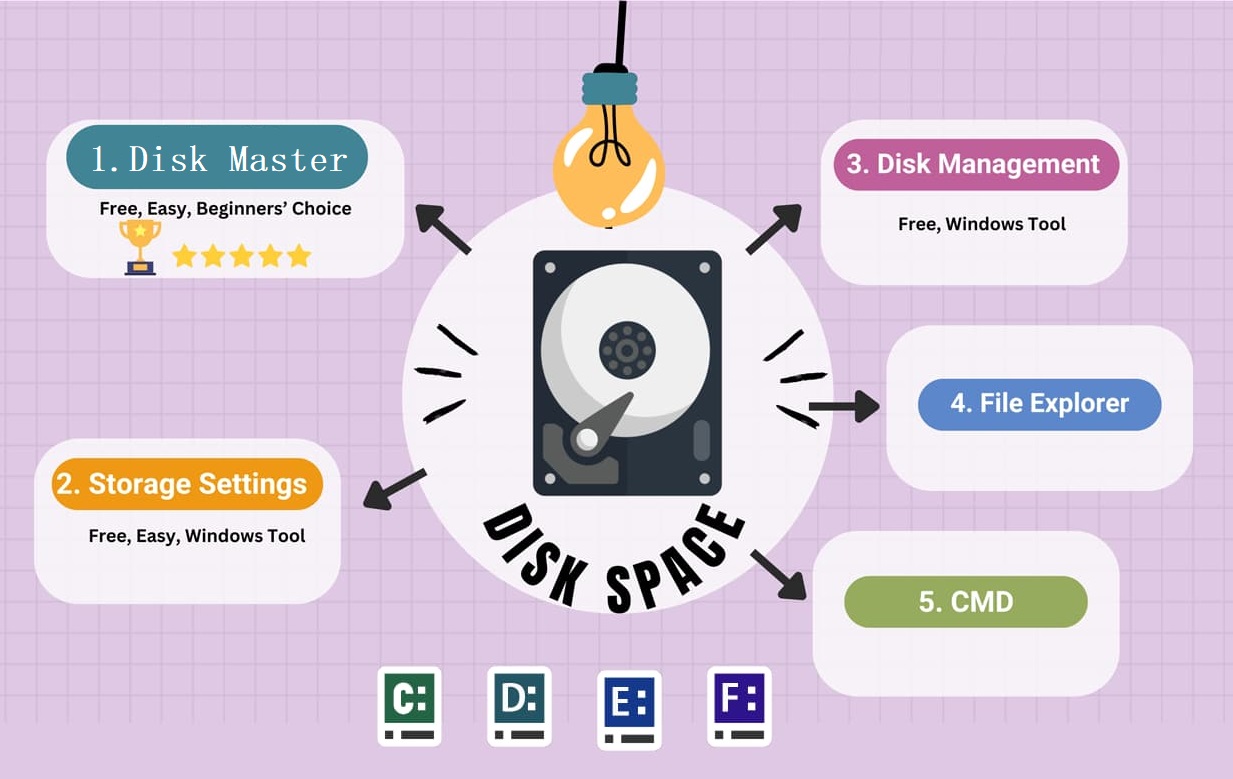
Fix 1. Check Disk Space with Disk Space Analyzer Software 🏆
- ⏰Duration: Less than 1 minute
- 🧰Tools: Windows PC, hard drive, Qiling Disk Master
- 👔Suitable Users: For Windows beginners, a simple and user-friendly way to check their disk space is to use the built-in "This PC" feature. By clicking on the "This PC" icon on the desktop or searching for it in the Start menu, users can easily view the available disk space on their computer, as well as the space used by each drive and partition.
Qiling Disk Master is a free and efficient disk space analyzer software with a user-friendly interface that allows Windows users to quickly view their disk space usage in a single click.
Feel free to share this amazing tool with a detailed tutorial to help more of your friends online:
The software is an excellent alternative for computer beginners due to its simple functionality and quick performance. It generates a detailed overview of drives, including total capacity, partitions, and unallocated space, providing a complete disk management overview. This allows for better working circumstances by analyzing and managing disk space.
Fix 2. Use Windows Storage Settings
- ⏰Duration: 3-5 minutes
- 🧰Tools: Windows PC, hard drive, Windows storage settings
- 👔Suitable Users: All Windows users
Windows Storage Settings is a quick and easy way to check your PC's storage space. By following the steps listed, you can promptly determine how much disk space you have left.
Step 1: To open the "Settings" on a Windows computer, press the Windows button and select the gear icon.
Step 2: Select the first option named "System" from the left sidebar.
Step 3: To check the free and used space of your "C:" drive, select "Storage" which will display the available and utilized space on your "C:" drive.

Step 4: To check all partition storage usage, click on the "Advanced storage settings" option listed below the desktop.
Step 5: Select "Storage used on other devices" to see a list of all storage drives.
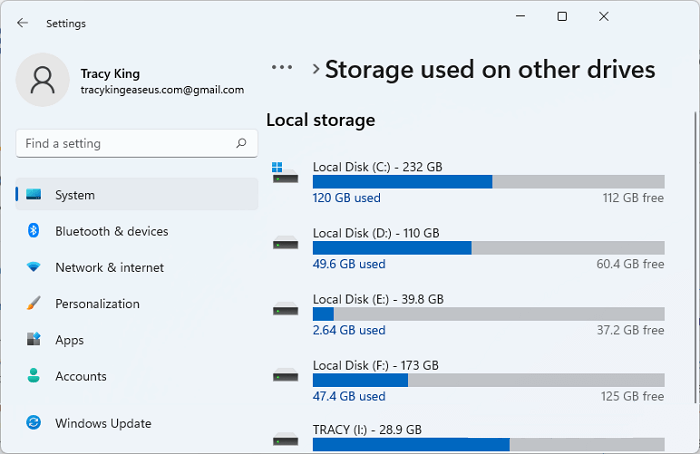
If you want to check your PC's disk space quickly without using software, you can use the Windows Storage settings. This tool allows you to instantly see how much space is available on your device. You can also share this utility with your friends online to help them with their storage needs.
Fix 3. Via Disk Management
- ⏰Duration: 1-2 minutes
- 🧰Tools: Windows PC, hard drive, Disk Management
- 👔Suitable Users: Beginners
Disk Management is a useful Windows utility that allows you to manage all disk-related operations, including checking disk space. You can use it to check how much disk space is used or available, making partitions, formatting drives, allocating drive letters, and more. To determine the amount of used or available space, Disk Management follows a straightforward process.
Step 1: Go to the desktop, right-click "This PC" and select "Properties".
Step 2: Click "Show more options" and click "Manage".
Step 3: Click "Storage" and choose "Disk Management".
You will see a list of connected disks, along with all the relevant information.
Step 4: Click on the disk you want to check the space on. It shows you the disk's partitions, including any unallocated space and primary partitions.
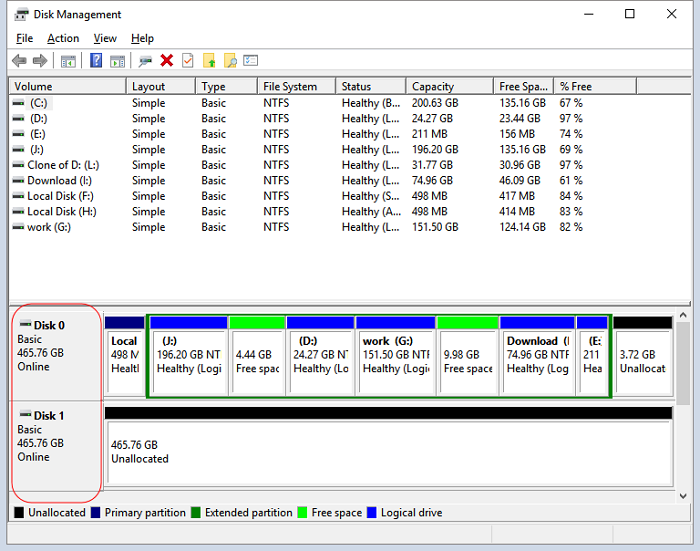
To quickly check the disk space on your disks, you can use Disk Management, a straightforward and reliable approach. This tool allows you to easily monitor and assess the available disk space on your system.
Fix 4. With Windows File Explorer
- ⏰Duration: 2-4 minutes
- 🧰Tools: Windows PC, hard drive, Windows File Explorer
- 👔Suitable Users: To check your disk space using File Explorer on Windows, open File Explorer and navigate to This PC or Computer. Look for the drive you want to check, such as C: or D:.
Windows File Explorer is an inbuilt utility that allows users to perform various file management tasks, including seeing disk space, copying, moving, deleting, and sharing files. To check the disk space using File Explorer, follow these steps.
Step 1: To open "File Explorer", click the folder icon in the taskbar or press the Windows key + E shortcut.
Step 2: To check your available disk space, click on "This PC" from the left sidebar and look for your desired disk under the "Devices and Drives" section.
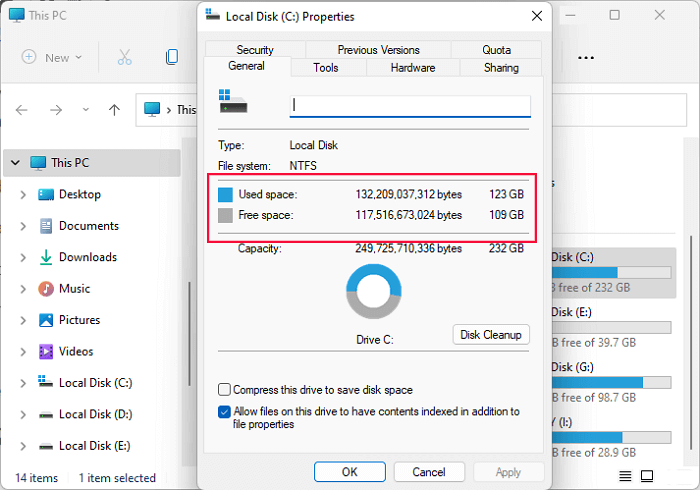
Step 3: Right-click your desired disk from the list, and select "Properties".
Step 4: To view the used and free space on a drive, select the "General" tab from the top menu bar. This will display the available information about the drive, including the used and free space.
Fix 5. Using CMD
- ⏰Duration: 2-3 minutes
- 🧰Tools: Windows PC, hard drive, Command Prompt
- 👔Suitable Users: Advanced Windows users
The Command Prompt (CMD) is a simple way to check the capacity of your disk, requiring only basic computer operating skills. You can use various command lines to easily determine the disk space, making it an efficient tool for this purpose. I can guide you through the process of checking disk space using CMD.
Here are the detailed steps to follow:
Step 1: To access the Command Prompt, press the Windows key on your keyboard and type "Command Prompt" in the search bar that appears. This will bring up the Command Prompt app, which you can then open and use to execute commands and run programs.
Step 2: Right-click the first result and select "Run as administrator".
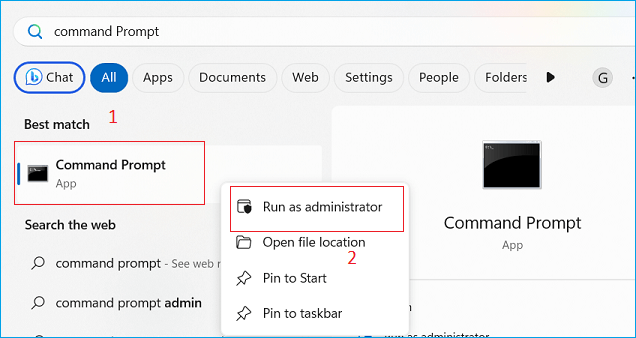
Step 3: Once the CMD window appears type the following command and hit "Enter".
wmic logicaldisk get caption, freespace, size
This command retrieves disk space information, including freespace and total size, for connected drives on your computer, displaying the figures in bytes.
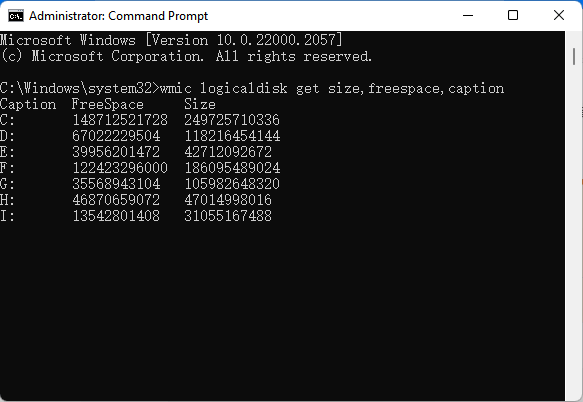
- 💡Pro tip: 1 GB (gigabyte) is equal to 1,073,741,824 bytes.
The process of checking disk space on different operating systems involves various methods. On Windows, you can use the built-in Disk Cleanup tool or the Command Prompt with the "wmic" command.
Why It's Necessary to Check How Much Disk Space Do I Have
Checking the amount of disk space available on your drive is essential to manage data, ensure performance, and avoid potential data loss. By monitoring how much disk space is used, you can maintain a reliable and efficient computing environment. This is crucial to prevent data loss, ensure smooth system performance, and make informed decisions about data storage and management.
- Prevents performance and slowness issues with the system
- Guarantees the efficient running of apps and software
- Enables effective file management and organizing
- Allows for timely system updates and backups
- Prevents data corruption and loss
- To improve computer performance
Conclusion
Checking your disk space is crucial, and there are several effective ways to do so. Regularly monitoring your disk space can help prevent issues such as running out of space, which can lead to system crashes or data loss. To check your disk space, you can use built-in tools or software like Qiling Disk Master, which can analyze your disk space and provide a detailed report, saving you time and energy. This can be especially helpful if you're unsure how much space you have available on your disk drives.
The software allows for various disk partitioning operations, including resizing/moving, creating, extending, shrinking, and allocating disk space, as well as migrating the operating system to a solid-state drive and wiping the disk.
FAQs about Check How Much Disk Space Do I Have
If you have similar doubts, please refer to the FAQs section where you can find the answers to the listed questions.
1. What is taking up space in my hard drive Windows 11?
In Windows, you can use the built-in Storage settings to find out what's taking up space on your hard drive. It provides a detailed breakdown of storage usage by different types of content, such as media, apps, documents, and more.
2. What is using the most space in my system C drive?
You can use the "Disk Cleanup" feature in Windows to free up space on your system C drive. This tool will analyze your drive and categorize files into folders such as Temporary files, System files, and Recycle Bin items, providing a detailed breakdown of space usage. This allows you to easily identify and delete unnecessary files to reclaim space.
3. How to check how much disk space do I have on my Mac?
To check your Mac's disk space, open the Apple menu, select "About This Mac," and click the "Storage" tab, which will display your available disk space.
Related Articles
- Get Qiling Disk Master Key (v16.0) in 2024 | No Cracking
- How to Enable/Disable UEFI Mode? Your Complete Guide
- Tutorial | Separate OS from Programs Without Losing Data
- How to Burn Windows 11 23H2 ISO to USB | 2024 Latest🔥
- How to Tell If a Hard Drive Is New or Used [2023 Tutorial]
This page explores multiple ways that help you to resolve 'How to Tell if a Hard Drive Is New or Used' issue from different aspects. These provided tips are extremely useful and practical for you to define if your newly purchased hard drive, SSD, external hard disks, etc., are new or not. - Guide to Test Disk Speed on Windows Computer [Your Free Guide Is Here]
Is your Windows computer running slow and taking a long time to perform basic tasks? It might mean that the hard disks in your system are working slower than normal. This article will explain how to test disk speed on a Windows computer.
Products
Articles & Tutorials
- Data Recovery
- Data Backup
- File Recovery
- File Backup
- System Backup and Restore
- Disk and Partition Clone
- Technical articles
- Mobile articles
- Disk Master Help
- Windows Data Recovery Tutorials
- Windows Secure Delete Tutorials
- Windows Partition Management Tutorials
- Windows File Backup and Restore Tutorials
- Windows System Backup and Restore Tutorials
- Windows Disk Backup and Restore Tutorials
- Windows Clone Tutorials