How to Burn Windows 11 23H2 ISO to USB | 2024 Latest🔥
Microsoft has released a Windows 11 23H2 update for Windows 11 2023, which includes a variety of new features and improvements. To install this update, users can burn the Windows 11 23H2 ISO to a USB drive for emergency or fresh installations.
- Notice:
- Users with eligible devices can check if they can update directly to Windows version 23H2 by going to Windows Settings > Windows Update > Get the latest updates as they become available > Check for updates. If not, they can resolve the issue by downloading the Windows 11 ISO or performing a fresh install of Windows.
| ⚙️Complex Level | Low, Beginners |
| ⏱️Duration | 5-10 minutes |
| 🚩Tools |
Qiling Disk Master Windows Media Creation Tool |
| 💻Applies to | Burn Windows Windows 11 23H2 ISO to USB |
| ✏️Ways |
To burn the Windows 11 23H2 ISO to a USB drive using Qiling Disk Master, follow these steps: First, download the Qiling Disk Master software and install it on your computer. Next, insert a USB drive with a minimum capacity of 8GB, as Windows 11 requires. To burn the Windows 11 23H2 ISO to a USB drive using the Media Creation Tool, first, download the Media Creation Tool from Microsoft's official website. Then, run the tool and select the language, architecture, and edition of Windows 11 you want to install. |
How to Burn Windows 11 23H2 ISO to USB
Before burning the Windows 11 23H2 ISO to USB, please make the following preparations:
- ✔️Make sure your computer meets the Windows 11 requirements.
- ✔️To prepare a USB drive with a minimum storage space of 8GB in FAT32 format, simply insert the USB drive into your computer, open the Disk Management or Disk Utility tool, and format the drive to FAT32. This will erase all data on the drive, so be sure to back up any important files before proceeding.
- ✔️Download the Windows 11 23H2 update from Microsoft or use a Windows 11 23H2 ISO downloader from https://www.microsoft.com/en-us/software-download/windows11.
If you are ready, keep reading. We will introduce how to burn Windows 11 23H2 ISO to USB via ISO burner. This process allows you to create a bootable USB drive with the Windows 11 23H2 installation files, making it easy to install the operating system on a computer.
Burn Windows 11 23H2 ISO to USB Using Qiling Disk Master
Qiling Disk Master Professional is a tool that enables users to manage their disks and partitions, and also allows them to download and install the latest Windows 11 23H2 ISO file directly.
As a novice, you can easily master downloading and installing the latest Windows 11 operating system by burning an ISO file. This process allows you to fully experience the new operating system, even if you're new to the process.
Other main features of Qiling Disk Master:
The tool provides a simple and easy way to install Windows 11/10 to an SD card or other drives, making it a convenient option for users who need to install the operating system on a portable device. Additionally, it offers more useful features that can enhance the user experience.
- Burn Windows 11 ISO to USB
- Install Windows 10 from USB
- Boot laptop from USB
- Create bootable USB drives
Qiling Disk Master is a tool that can help you fulfill all your Windows 11/10 needs, and it can successfully burn a Windows 11 ISO to a USB drive. You can download it on your PC now.
Burn Windows 11 23H2 ISO to USB Using Media Creation Tool
The Windows Media Creation Tool can help you obtain the official ISO file for your Windows system. If you're familiar with the tool, you can follow these steps to create installation media on a USB drive or CD/DVD:
Step 1. Download Windows 11 ISO from Microsoft.
Step 2. Download the Windows 11 installation media and open the file named "MediaCreationToolW11.exe" after downloading.
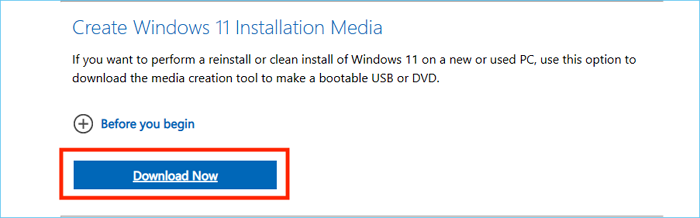
Step 3. Click Accept to accept the license and terms agreement.
Step 4. Select the language according to the options on the screen and check the "Recommended options for using this computer" checkbox.
Step 5. Select "USB Flash Drive" as the media and click Next.
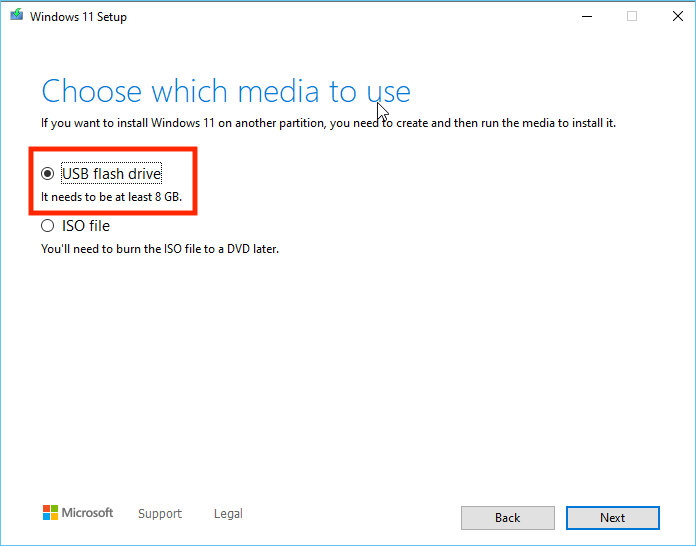
Step 6. You will need to locate and select your USB drive, then click Next and wait for the process to complete.
This method is complicated and will require you to perform several actions.
Qiling Disk Master is our go-to tool for burning Windows 11 on USB, making it the most convenient way to install Windows 11. If this tutorial has been helpful, don't forget to share it!
Conclusion
Microsoft officially launched Windows 11 23H2 on October 31, 2023. To download the official ISO file and burn it to a USB drive, you can follow this tutorial, which provides a comprehensive solution. The tutorial explains how to burn the Windows 11 23H2 ISO to USB in two ways: using Qiling Disk Master and Windows Media. Once the burning is complete, you can insert the USB into the computer where you want to install Windows 11 and continue with the installation process.
FAQs About How to Burn Windows 11 23H2 ISO to USB
Windows 11 23H2 ISO is a software update that provides more information about the operating system. If you're interested in learning more, keep reading.
1. Can I burn Windows 11 ISO to USB?
You can burn Windows 11 ISO files to a USB drive using either Qiling Disk Master, a professional ISO burner, or the Windows Media Creation Tool, which can also be used to create installation media on a CD or DVD.
2. How do you create a bootable USB from ISO?
You'll need to rely on a third-party tool to create a bootable USB from ISO:
Step 1. Download the ISO burning tool - Qiling Disk Master.
Step 2. Download the ISO file and burn it using the tool.
Step 3. Insert the bootable USB into the new computer and reboot the ISO to install Windows.
3. How do you download Windows 11 23H2?
The Windows 11 23H2 update will be automatically downloaded and installed from Windows Update, allowing users to take advantage of the latest features and improvements without needing to manually initiate the process.
Step 1. Open Windows Settings > Windows Update.
Step 2. To get the latest updates as soon as they're available, go to Settings, then select Update & Security, then select Windows Update, then select Check for updates. This will ensure that your computer is running with the latest software and security patches.
Step 3. If your device is eligible for the Windows 11 23H2 update, the "Download and Install" option will appear.
Related Articles
- Get Qiling Disk Master Key (v18.2) in 2024 | No Cracking
- How to Check Samsung SSD Health on Windows [100% Working Solutions]
- 3 Easiest Ways to Run USB Speed Test in Windows 10 in 2024
- Fix Error Code 0x8007025D When Installing Windows
If you're encountering Error Code 0x8007025d while installing Windows on your computer, this post will provide troubleshooting steps to help you successfully install Windows on your device. - Steam Deck Speed Test, Everything You Should Know
To ensure a smooth gaming experience on your Steam Deck, stay calm and learn how to identify and fix slowdowns. Don't let a slow device ruin your gaming experience - instead, follow our guide to run a speed test and identify the cause of your slowdowns, allowing you to get back to gaming smoothly. - Fix Steam Not Recognizing External Hard Drive Error
This guide provides a step-by-step solution to fix the 'Steam not recognizing external hard drive' error, allowing you to easily make your external hard drive a game drive for Steam on your computer. - Windows 11 23H2 End of Support: November 10, 2026 Guide
Products
Articles & Tutorials
- Data Recovery
- Data Backup
- File Recovery
- File Backup
- System Backup and Restore
- Disk and Partition Clone
- Technical articles
- Mobile articles
- Disk Master Help
- Windows Data Recovery Tutorials
- Windows Secure Delete Tutorials
- Windows Partition Management Tutorials
- Windows File Backup and Restore Tutorials
- Windows System Backup and Restore Tutorials
- Windows Disk Backup and Restore Tutorials
- Windows Clone Tutorials